Overheating is one of the common issues whether you are using a Windows laptop, Chromebook or MacBook. This is especially a problem with MacBook as Apple releases new laptop models as well as major macOS upgrade every year. This will make your laptop outdated quickly and reduce the performance of system and installed apps. If your MacBook is getting overheated, here are some of the reasons for that along with tips to fix the issue.
Why Does a MacBook Overheat?
Before diving into solutions, it’s important to understand why laptops can overheat. Here are some common reasons:
- Heavy CPU and GPU Usage – Running resource-intensive applications like video editing apps, HD games or virtual machines setup can put a significant load on the MacBook’s CPU (Central Processing Unit) and GPU (Graphics Processing Unit). As the workload increases, the components generate more heat.
- Poor Ventilation – MacBooks have a compact and sleek design, which can sometimes limit the airflow. When airflow is obstructed, either by a flat surface or dust buildup in the vents, heat gets trapped inside the device.
- Background Processes – Background applications and processes that you may not be aware of can consume resources and contribute to heat buildup. These processes may include system updates, cloud syncing, or even malware.
- External Factors – Environmental conditions such as high ambient temperature or using your MacBook on a soft surface like a bed or couch can further restrict airflow, leading to overheating.
- Aging Hardware – As MacBooks age, their components wear out. Batteries degrade, thermal paste between the processor and heat sink becomes less effective, and fans may accumulate dust, reducing their ability to cool the system efficiently.
Now that you understand the causes, let’s look at how to avoid overheating.
Note: Old MacBook models that run with macOS Monterey (or earlier OS version) or with Intel processors are already outdated and obviously produce overheat, make noises and perform slower. Latest apps are also developed only for Apple M series silicon chip and will not even work on old MacBooks. Though you can use Rosetta, you will face overheating and other problems. Unfortunately, not much can be done with older devices though some suggestions explained below will still help.
1. Use Your MacBook on a Hard, Flat Surface
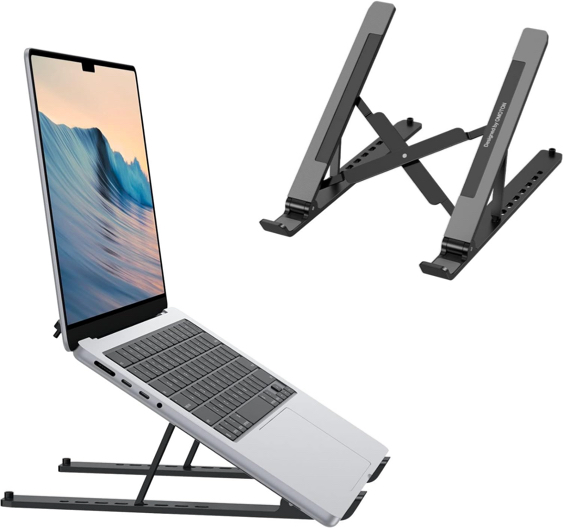
One of the simplest and most effective ways to prevent overheating is to ensure that your MacBook is placed on a hard, flat surface. This allows air to circulate beneath the laptop, helping the internal cooling system do its job. Avoid using the MacBook on soft surfaces like beds, pillows, or even your lap for extended periods. These surfaces block the vents, trapping heat inside the machine.
Using a laptop stand is a best option to elevate your MacBook, allowing better airflow underneath and reducing the risk of overheating.
2. Monitor Resource-Intensive Applications
Running multiple resource-heavy applications simultaneously can cause your MacBook to overheat. Keep an eye on what apps are using the most resources by utilizing the Activity Monitor:
- Open Finder and go to “Applications > Utilities” folder.
- Find and open Activity Monitor app.
- Check the CPU and Energy tabs to see which apps are consuming the most power.
- Close applications that you aren’t actively using, especially those using a large percentage of CPU or GPU power. You can do this by simply selecting a process name and then clicking on the stop icon.
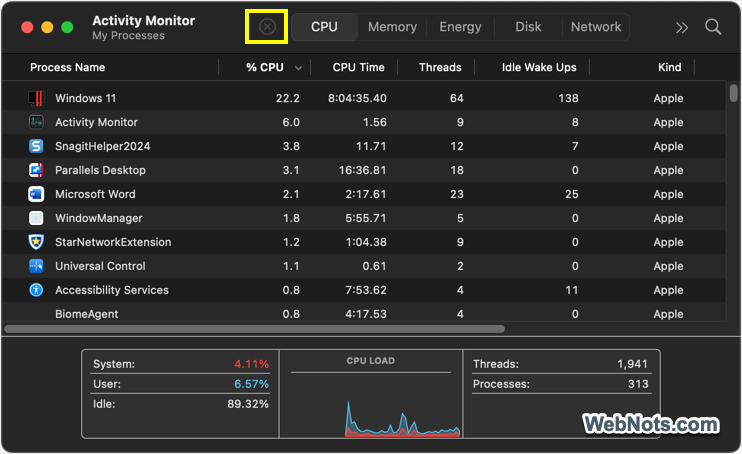
As you can see in the above screenshot, Windows 11 virtual machine with Parallel Desktop is the highest CPU consuming process. So, if you are not using the virtual machine, simply shut it down and use only when needed.
3. Adjust System Settings
Small adjustments to your MacBook’s settings can help to reduce the risk of overheating:
- Lower the Display Brightness: Running the display at full brightness requires more energy and generates additional heat. Reducing the brightness to a comfortable level will lower energy consumption.
- Turn Off Unused Features: Features like Bluetooth, Wi-Fi, and keyboard backlighting, when not in use, can be turned off to conserve power and minimize heat generation.
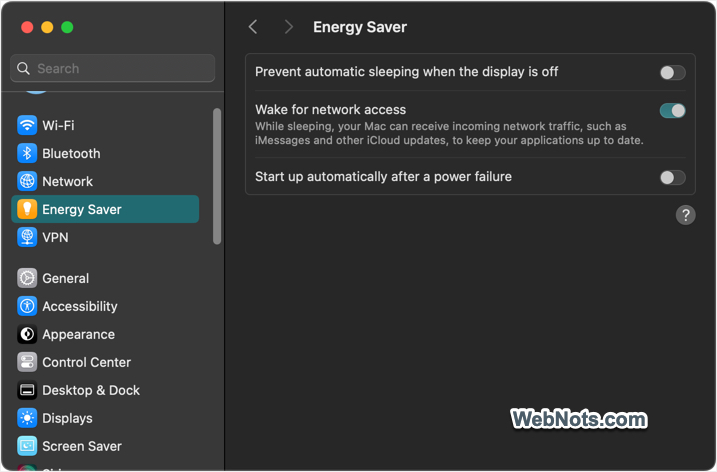
- Energy Saver: In “System Settings > Energy Saver” section, enable energy-saving settings, which limit the performance of your MacBook, reducing heat output.
4. Regularly Clean the Vents
Dust can accumulate inside the MacBook’s vents over time, impeding airflow and contributing to overheating. Regular cleaning helps maintain optimal ventilation. You can simply blow a compressed air into the vents and ports to remove dust and debris. However, if you are not comfortable cleaning your MacBook yourself, take it to an Apple Store or authorized service provider for professional maintenance.
5. Close Background Processes and Tabs
Running many background processes and applications consume CPU and memory resources thus increasing your MacBook’s temperature.
- Check Activity Monitor for unnecessary background processes and quit them as explained in point 2.
- Limit the number of open browser tabs in your browser, especially when using memory-heavy browsers like Google Chrome.
6. Keep Software Up to Date
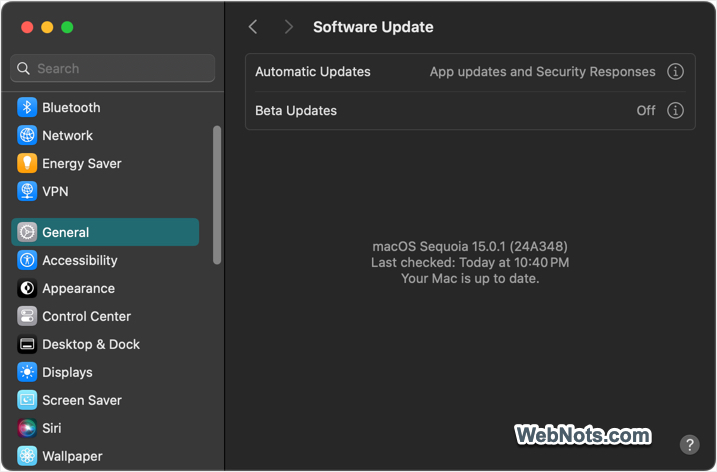
Apple frequently releases software updates for improving performance and for fixing bugs. Keeping your macOS updated ensures that your system runs efficiently, which can help reduce overheating. Go to “Apple Menu > System Settings… > General > Software Update” section to check and install the latest macOS version.
7. Use Cooling Pads or External Fans
If you need to use the device continuously for many hours, consider investing in a cooling pad or external fan. Cooling pads are designed to dissipate heat and improve airflow, reducing the temperature of your laptop during extended usage.
- Purchase a portable cooling fan so that it is easy to carry around with your MacBook.
- Consider the elevated stand models so that you can use it for dual purpose (stand as well as cooling fan).
- Since most cooling pads are powered via USB, you do not need extra power source.

8. Avoid Overcharging
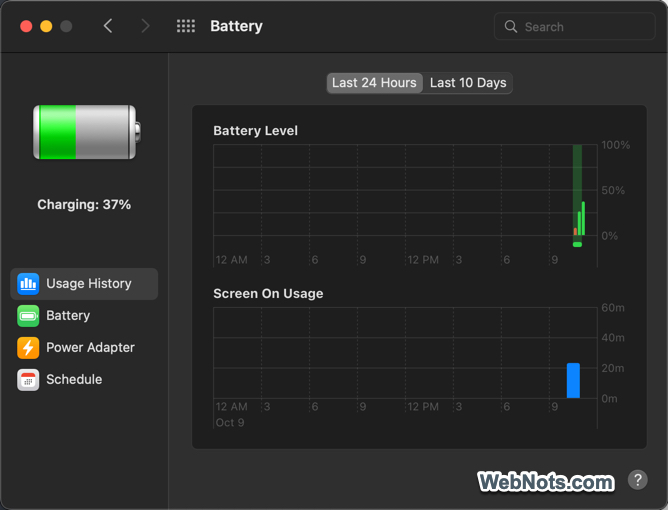
Overcharging your MacBook or using it while it is plugged in for long period can result in generating more heat. While MacBooks are designed to manage charging efficiently, it’s a good practice to unplug the charger once your MacBook reaches 100%. Similarly, allow the battery to discharge before recharging. Go to Battery settings on your Mac and check the usage history to keep track of the battery level and screen usage.
9. Replace Thermal Paste
If your MacBook is old and consistently overheating, it may be time to replace the thermal paste. Thermal paste is a substance applied between the CPU/GPU and the heat sink to facilitate better heat transfer. Over time, the paste can dry out and lose its effectiveness, causing the MacBook to overheat.
- Disassemble your MacBook following a guide specific to your model.
- Carefully clean off the old thermal paste from the CPU and GPU.
- Apply a fresh layer of high-quality thermal paste and reassemble your MacBook.
Since this procedure is a bit complex, it’s recommended to have a professional handle it if you’re not comfortable doing it yourself.
10. Consider Professional Help
If you have tried all the above solutions and your MacBook is still overheating, it may be time to seek professional help. There could be an underlying hardware issue, such as a failing fan or battery. An authorized Apple technician can diagnose the problem and provide necessary repair.
Here are some of the symptoms when you need to ask for a professional help:
- Persistent overheating despite using cooling fan and laptop stand.
- Unusual noises from the fan or other hardware.
- Sudden shutdowns or performance throttling even during light usage.
Conclusion
Overheating is a problem that can affect the performance and longevity of your MacBook, but by taking preventive measures, you can keep your device running cool and efficiently. Use your MacBook on a flat surface, monitor resource usage, clean vents regularly, and consider investing in cooling pads if needed. By following these tips, you can ensure your MacBook stays in optimal condition, avoiding overheating issues and ensuring better performance over the long term.