It is common to work with multiple tabs in iPhone Safari browser. However, most of us close the open tabs one by one by tapping on the “Tabs” icon and selecting the close icon on the tabs. If you want to close all the tabs at once, here are some options for you.

iPhone Safari Tabs
Safari has multiple options to keep your tabs open.
- Private mode
- Normal mode
- Tab Groups
Tabs are also maintained for each profile. So, you need to follow the appropriate steps for each profile if you are using multiple profiles.

1. Close All Tabs in Normal Mode
This option will close tabs only opened in a normal mode and will NOT close tabs under Private section and Tab Groups.
- Open Safari browser app and long press on the Tabs icon showing on lower right corner.
- Select “Close All x Tabs” option.
- You will see a prompt and confirm it by tapping on “Close All x Tabs” option.

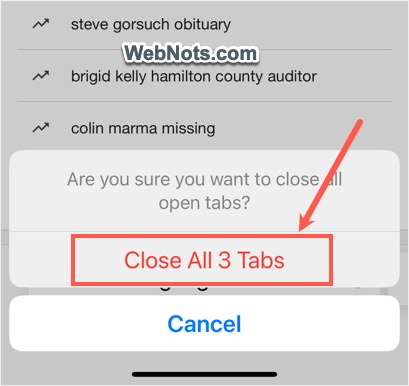
2. Close Tabs Along in Normal and Private Modes
Use this option to close all tabs in normal mode as well as in Private section. However, items in Tab Groups will not be closed.
- Open Safari and tap on the Bookmarks icon at the bottom.
- Go to “History” tab and tap on “Clear” link showing on bottom right corner.

- Select the “Clear Timeframe” as “Last hour” or any other option.
- Turn on “Close All Tabs” button under “Additional Options” heading.
- Tap on “Clear History” button to close all tabs and delete history for the selected time frame.

2.1. Close Tabs from Safari Settings
This is same as previous method with the difference that you can follow the steps from Settings instead of Safari app.
- Open Settings app and go to “Safari” section.

- Scroll down and tap on “Clear History and Website Data” option.

- Select the timeframe and turn on “Close All Tabs” button.
- Tap on “Clear History” button.
3. Close All Tabs in a Tab Group
- Open Safari and tap on the “Tabs” icon.
- Select the “Tab Group” to view all open tabs.
- Long press on the “Done” link showing on bottom right corner.
- Select “Close All Tabs” option.
- Follow the same steps for each Tab Group.

Final Words
If you are only using normal mode of browsing, then the first option is the ideal for closing all tabs without deleting browsing history. You need to use other options for closing tabs under Private mode and Tab Groups.