Almost all modern browsers offer incognito or in-private mode to browse anonymously. In addition, you can manually clear the browsing history to delete all stored data in browser’s cache. However, do you know that it is possible to automatically delete browsing history in your browser? This is a super easy way as you do not need to worry about forgetting to delete the history.
Automatically Delete Browsing History
Except Google Chrome, other popular browsers like Firefox, Edge and Safari have option to automatically delete browsing history. However, each browser has different method for this purpose. We will also explain in Chrome with the help of an extension.
1. Delete Browsing History on Exit in Microsoft Edge
Though Microsoft Edge is also a Chromium based browser, it has an option to auto delete history on exit while Chrome does not offer this feature.
- Open Edge and go to edge://settings URL in the address bar to access the settings page.
- Go to “Privacy, search, and services” section and scroll down on the right pane.
- Check under “Clear browsing data” heading and click on “Choose what to clear every time you close the browser” option.
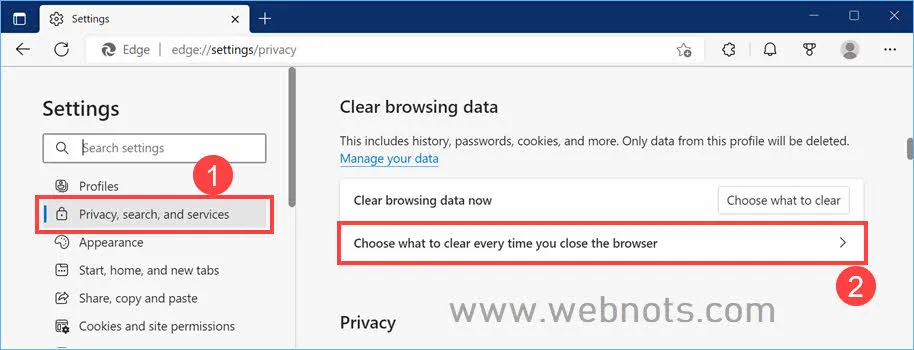
- On the next screen turn on the options that you want to delete upon quitting the browser. The options include – browsing history, download history, cookies and other site data, cached images and files, passwords, autofill form data (includes forms and cards) and site permissions.
- We recommend only enabling browsing and download history and leave other options disabled.

2. Delete History on Exit in Firefox
Firefox offers similar option like Microsoft Edge for auto deleting history and cookies on exit.
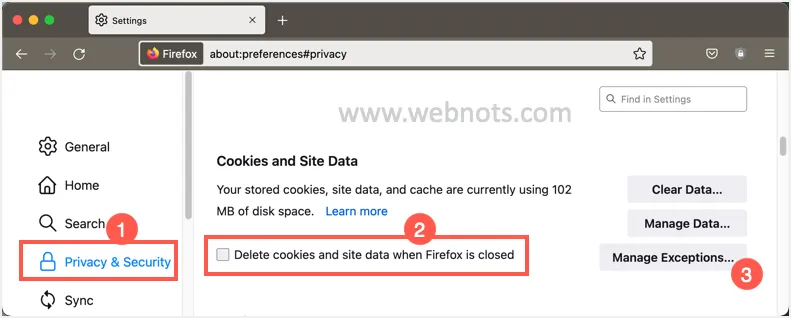
- Open Firefox and go to “about:preferences” URL in the address bar.
- Go to “Privacy & Security” section and scroll down on the right pane.
- Check under “Cookies and Site Data” heading and enable “Delete cookies and site data when Firefox is closed” option. If required, click on “Manage Exceptions…” button and add the list of sites for which you want to retain the cookies and site data. This is very useful option to add your frequently logged in websites so that you will not be logged out.
- Scroll down a bit and check under “History” heading. First, select “Use custom settings for history” option from the dropdown.
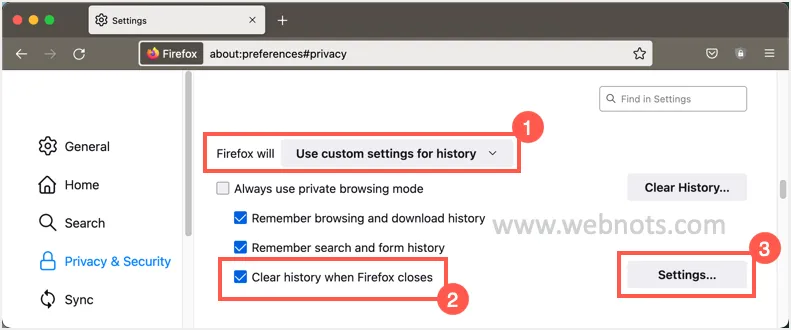
- After that enable the checkbox against “Clear history when Firefox closes” option. Click on the “Settings…” button and select which items you want to delete automatically upon exiting the browser. The items include browsing & download history, cookies, active logins, cache, form & search history, site settings data and offline website data. We recommend only enabling browsing & download history option and leave all others unchecked.

Note: Remember, deleting cookies and site data options can be enabled either under “History” section or under “Cookies and Site Data” section. Enabling in one place will automatically enable the option in another place.
3. Automatically Delete Browsing History in Mac Safari
Apple offers different approach for automatically deleting history in Mac Safari browser.
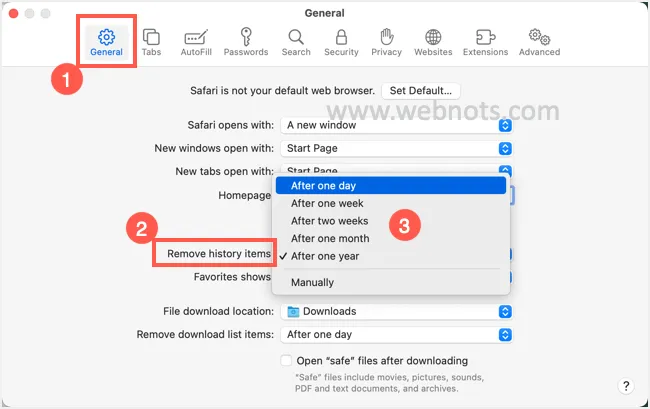
- Open Safari and go to “Safari > Preferences” menu.
- Under “General” section, check the option against “Remove history items”.
- Select one of the options – after one day, after one week, after two weeks, after one month and after one year. This will automatically delete the browsing history after the selected period.
4. Auto Delete History in Chrome
Unfortunately, Google Chrome does not offer any default option and you have to use an extension for this purpose. The extension works differently to delete the previous browsing history every time when you start Chrome. Also, it works only when you are not logged in with Google account. Otherwise, it cannot delete the synchronized history from your Google account.
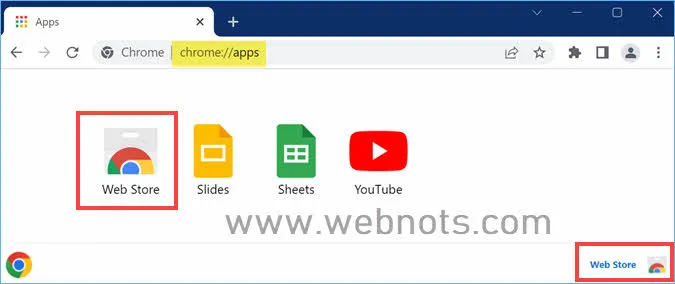
- Open Google Chrome and go to “chrome://apps” URL in the address bar.
- Click on the Web Store icon or the link showing on the lower right corner.
- When you are in Chrome Web Store, search for “history” and find “Auto History Wipe” extension and install it on your browser.

- After installing, click on the puzzle icon next to address bar and click the three vertical dots against “Auto History Wipe” extension. Select “Options” to go to the extension’s settings page.
- By default, only “Clear Browsing History” option is selected for deleting each time when Chrome starts. If required, select other options like clear download history, clear cookies, clear website data, clear cache, cleat saved passwords and clear form autofill data. You can also select “Clear Local Data” option which will be deleted when Chrome exits.

Summary
Here is a summary of how each browser allows automatically deleting the browsing history.
| Browser | Auto Delete History | Method of Deleting |
|---|---|---|
| Google Chrome | No, use an extension | When the browser starts |
| Mozilla Firefox | Yes | When quitting the browser |
| Microsoft Edge | Yes | When quitting the browser |
| Safari | Yes | Delete after a day, a week, two weeks, a month or a year. |
Though deleting history can help you, it may create some problems.
- Deleting history of frequently accessing sites will delay the loading of sites each time. This is because the browser needs to request the static files like images, CSS and JS files from the server instead of loading from the cache. This will slow down the browsing especially when you have slow internet connection.
- Do not enable auto deleting of cookies. This will log you out of all sites and you need to login each time when you open the browser.
- If you are logged in with your account and synchronized the browsing history across devices, enabling auto deletion will remove history from all devices. However, this does not work with the Chrome extension as it works only on a machine when you are not logged in.