
Two-factor authentication allows you to protect your account login by adding additional verification code. Popular social platform X or Twitter also allows you to setup two-factor verification. You have multiple methods to add this protection layer and using authenticator app is the easy option. Here are the steps for you to setup two-factor authentication for your X account.
Enable Two-factor Authentication from X Website
- Login to your X account, click “More” option from the left sidebar and select “Settings and privacy” menu.

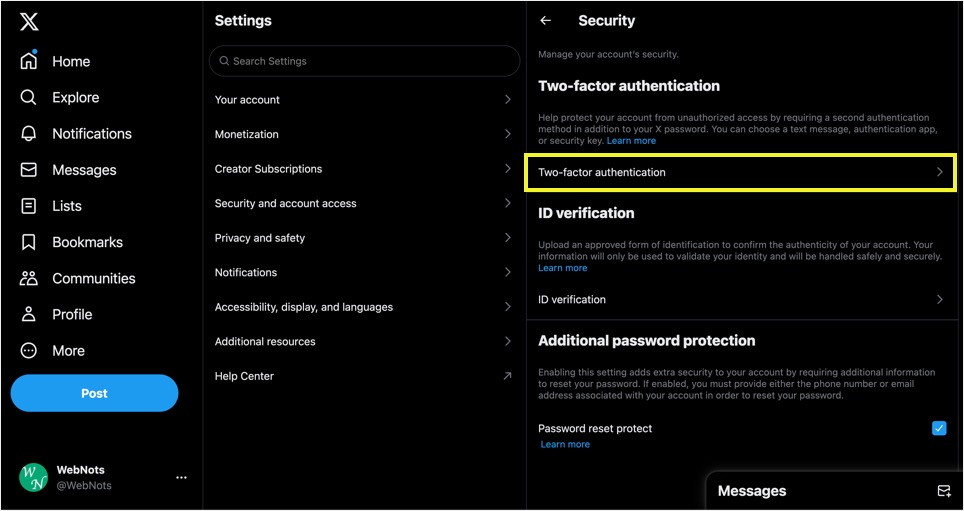
- Go to “Security and account access” section and select “Security” option.

- You will see multiple methods and select “Two-factor authentication” option.
- Check the box against “Authentication app” to reveal the QR code for pairing.

- Open your authenticator app on the mobile and scan the QR code shown in X account.
- Now that you have paired your mobile authenticator app with the X account.

- After pairing, you will be prompted to enter the verification code generated by the authenticator app after entering username/password as an additional verification.

Enable Two-factor Authentication from X Mobile App
Here are the steps using X app for iPhone and you can follow similar steps in X app for Android version.
- Launch X app, login to your account and tap on your profile icon (showing on top left corner).

- Expand “Settings and Support” section and tap on “Settings and privacy” option.

- Tap on “Security and account access” option.

- On the next screen, tap on “Security” option.

- Tap on “Two-factor authentication” option under “Two-factor authentication” heading.

- Turn on “Authentication app” option.

- Take a screenshot of the generated QR code and save it your photos.
- Open authenticator app and scan the QR code from your photos.
- This will pair the authenticator app and your X account.
- Next time onwards, you will be prompted for verification code whenever you try to login to the app.
Points to Consider
- Generally, you will not logout of mobile app and hence additional two-factor verification is useful on desktop where you might be logged out and login every time.
- You can use any authenticator app for this purpose like Google Authenticator or the one from Microsoft.
- Other two-factor authentication methods include receiving text message on your mobile number or using a security key.
- Use the “Backup codes” option to get a one-time backup code which you can use when the authenticator verification is not available or not working.


