Mac comes with the Unix‑powered Terminal app, which makes merging text files almost trivial. Whether you want to consolidate notes, combine logs, or assemble data from teammates, you can do it using various options from the Terminal app.
Check the Prerequisites
Before starting, double‑check these preliminaries:
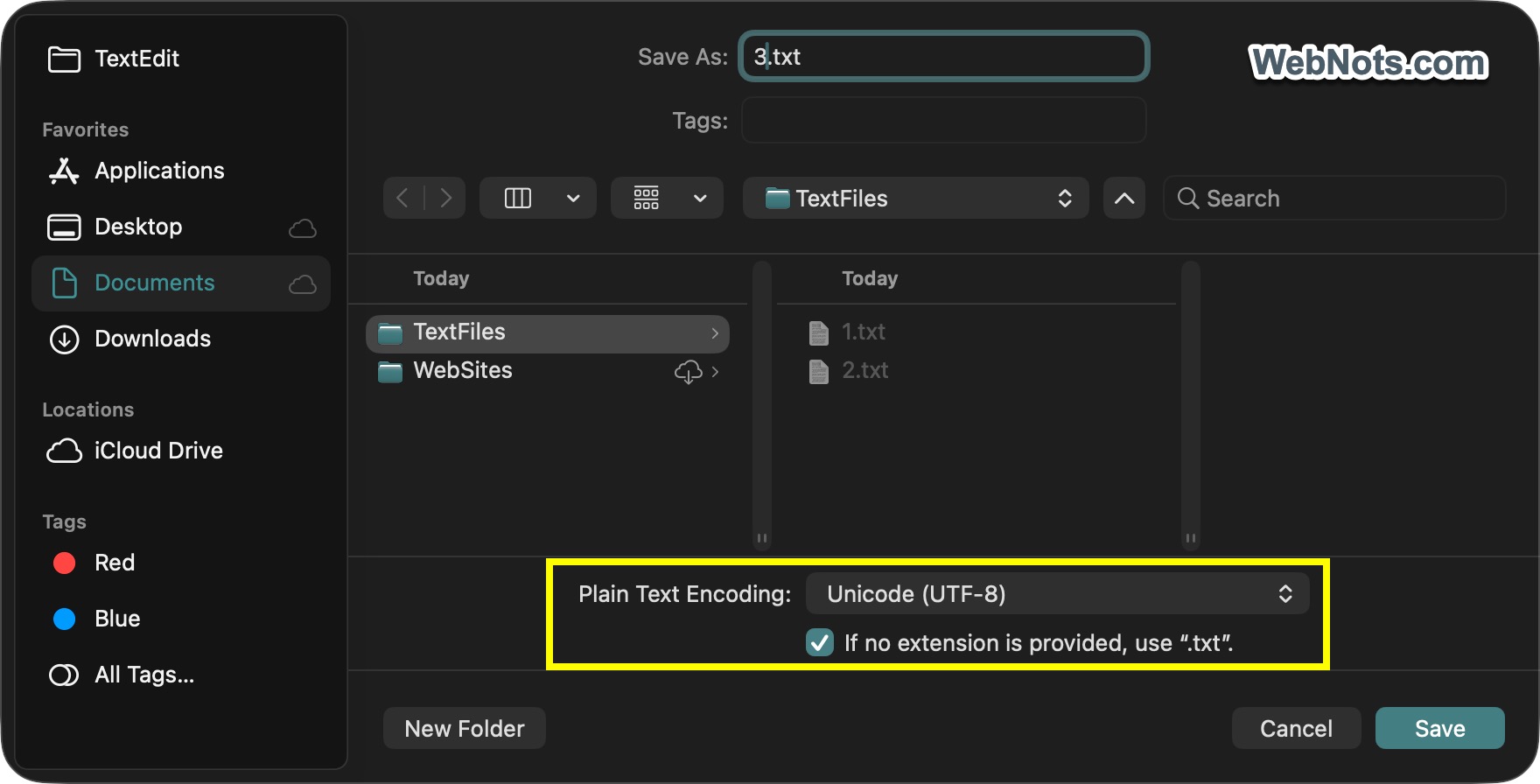
- Ensure all are files you are trying to merge are in a plain text (.txt) format and share the same encoding (UTF‑8 is best). Inconsistent line endings (LF vs CRLF) are usually harmless but can be fixed with
dos2unixcommand if needed.
- Sort your files alphabetically or by modification date. Also, add headers or separators to avoid confusion after merging.
- Always keep a backup by duplicating your original files.
- Make sure to verify the merged file by opening it in TextEdit or a code editor.
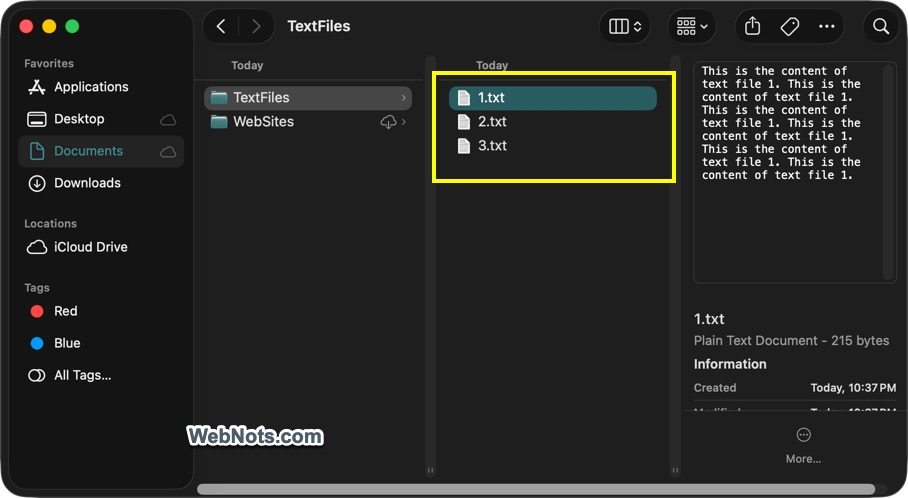
We will merge three sample files (1.txt, 2.txt, 3.txt) into a single merged.txt file. Let’s say, we have these three files in “Documents > TextFiles” folder.
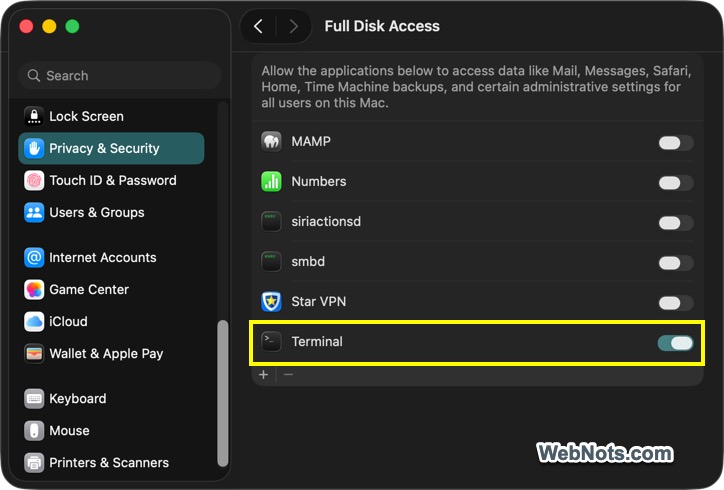
Since the files are located in “Documents” folder, Terminal should have a permission to access them. Go to “Apple Menu > System Settings… > Privacy & Security > Full Disk Access” and turn on “Terminal” to provide the necessary access for Terminal app. Otherwise, the commands will not work and you will see “Operation not permitted” permission error.
1. The cat Command
The cat (concatenate) Terminal command is the go‑to tool on macOS.
- Open Terminal app from “Finder > Applications > Utilities” folder.
- Navigate to the folder where your files are located using
cdcommand. In our case, the command should be like below:
cd ~/Documents/TextFiles- To merge all .txt files in alphabetical order:
cat *.txt > merged.txt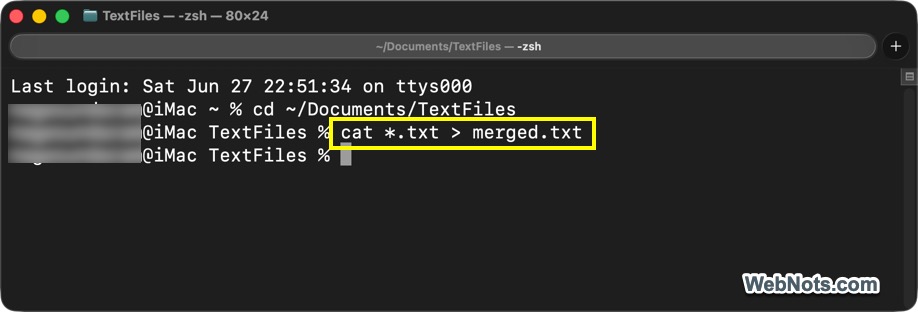
- The
>operator creates a new file. Though you won’t see any confirmation after running the command, merged.txt file appears in your folder. It will simply have the appended content from all three text files.
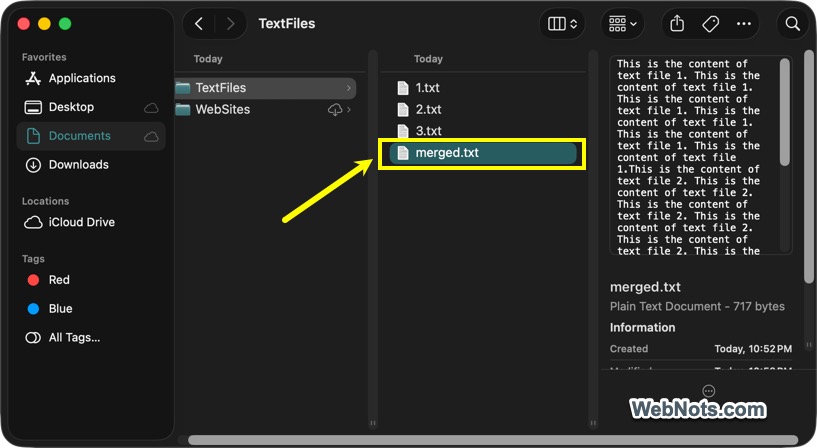
- To enforce a custom order, list the file names explicitly as in the below command. This will make content of 2.txt appears first, then 3.txt, then 1.txt.
cat 2.txt 3.txt 1.txt > new-merged.txt- Use the below command to add a separator between files (for example, a dashed line) in one line. This loops through each file, appends —– after each, and writes everything to merged.txt.
for f in 1.txt 2.txt 3.txt; do cat "$f"; echo "-----"; done > merged.txt2. Advanced cat with Line Numbering or Headers
You can include the filenames as headers, which is useful when merging diverse logs. However, the merged file should be saved in a separate folder. In the below command, the merged.txt will be generated under /Documents/TextFiles/output folder.
mkdir -p output
for f in *.txt; do echo "=== $f ==="; cat "$f"; echo ""; done > output/merged.txt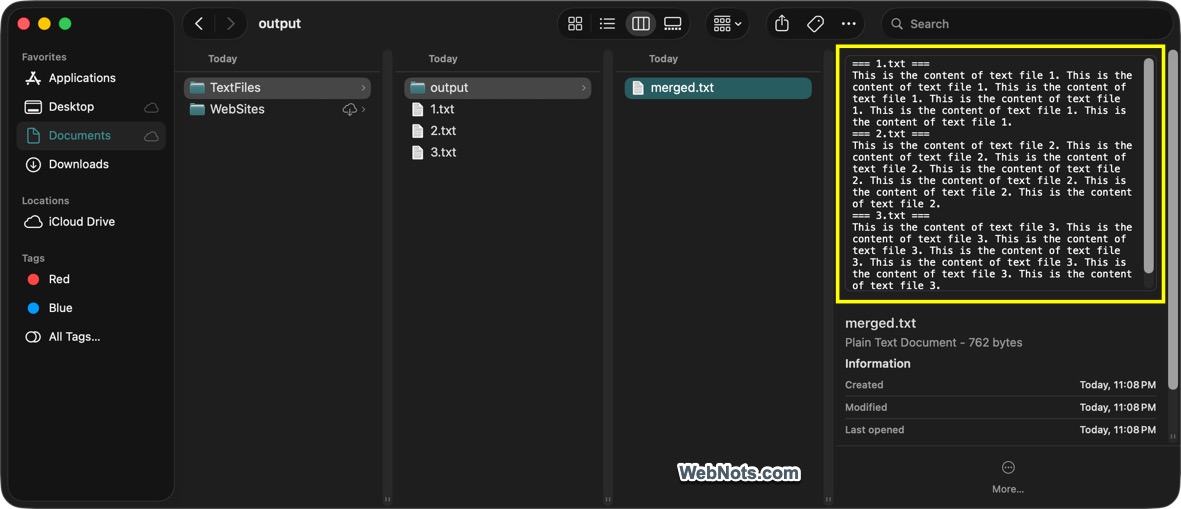
Use the below command if you want to number every line across all files, which is great for reference. The -n flag adds line numbers, which restart for each file.
cat -n *.txt > merged.txt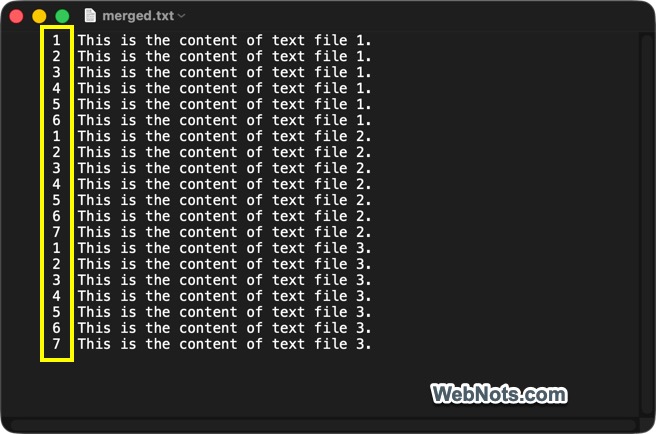
Additional Tips for Using cat Command:
- Use
>>when you want to append an additional file to the merged file.
cat extra.txt >> merged.txt- If filenames contain spaces or dashes, use them between double quotes.
cat "file 1.txt" "file 2.txt" > merged.txt- Provide full paths if you want to merge files from different folders.
cat ~/Downloads/*.txt ~/Documents/*.txt > all.txt3. Merge Files Using a Python Script
For merging dozens of files regularly, a Python script is more maintainable.
- Ensure Python 3 is installed (macOS comes with it).
- Save this as merge.py in your folder:
import glob

files_to_merge = ['1.txt', '2.txt', '3.txt']
with open('merged.txt', 'w', encoding='utf-8') as outfile:
    for fname in files_to_merge:
        with open(fname, 'r', encoding='utf-8') as infile:
            content = infile.read()
            outfile.write(content)
            if not content.endswith('\n'):   # ensure newline
                outfile.write('\n')
outfile.write('--- separator ---\n') # optional- Run the following command in Terminal:
python3 merge.pyYou can also use glob.glob('*.txt') and sort with sorted() to control order programmatically.
4. Bash / Zsh Shell Script
Save the following as merge_all.sh in your folder:
#!/bin/zsh
output="merged.txt"
> "$output"   # empty or create the file
for f in *.txt; do
    cat "$f" >> "$output"
    echo "" >> "$output"   # add a blank line
done
echo "Merged all .txt files into $output"
Now, make it executable and run it:
chmod +x merge_all.sh
./merge_all.sh
If you use zsh (the default shell since macOS Catalina), the script works flawlessly. For bash, change the shebang to #!/bin/bash.
Final Words
Since Mac offers easy to use command, avoid online merger tools. Uploading sensitive text data to a random website is a privacy risk. So, keep your merging local with these powerful built‑in commands.