It is common practice to start building a site with dummy domain name and then change to the desired name once the site’s content is ready. Similarly, there are many reasons you may need to change the page URL. These stuffs are super easy with platforms like WordPress where you can change the page URL within admin panel and move the entire to new location (with another domain name) from hosting account. However, you need to be careful when changing site and page URLs in Weebly. In this article, we will explain how you can do that, along with limitations and setting up redirects.
Page and Site URL
Page URL change is within the domain name as below:
- Old page: https://myweeblysite.weebly.com/page1.html.
- New page: https://myweeblysite.weebly.com/page2.html.
Domain name or site address change is from one domain to another like below:
- Old site address: https://myoldsite.weebly.com.
- New site address: https://mynewsite.weebly.com.
Changing Site URL in Weebly
You should provide a site address or URL when publishing the site for the first time. However, you can change it later anytime when needed following the below steps.
- Login to your Weebly account and edit the site for which you want to change the address.
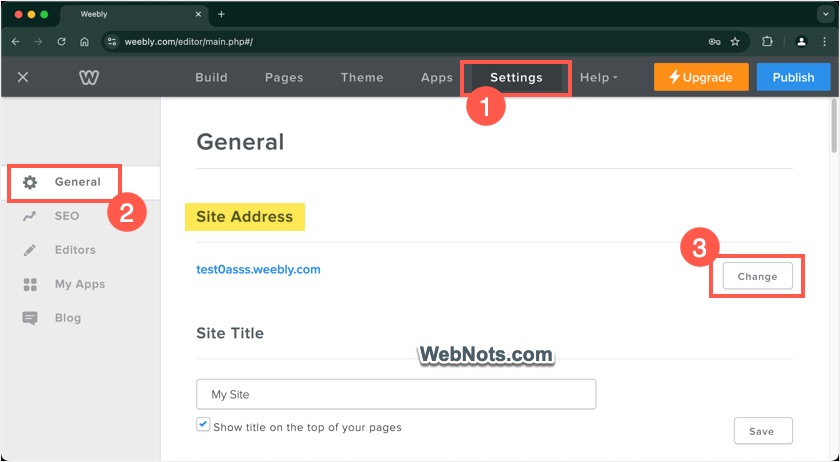
- When you are in Weebly editor, go to “Settings” tab.
- Check your current “Site Address” URL under “General” section and click the “Change” button.
- Type your domain name in the pop-up and click “Search” button.
- Weebly will show a list of available custom names along with free Weebly subdomains.
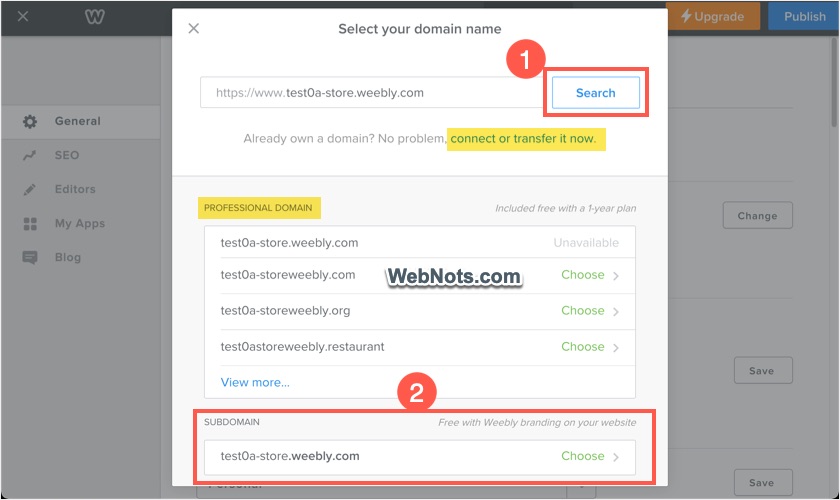
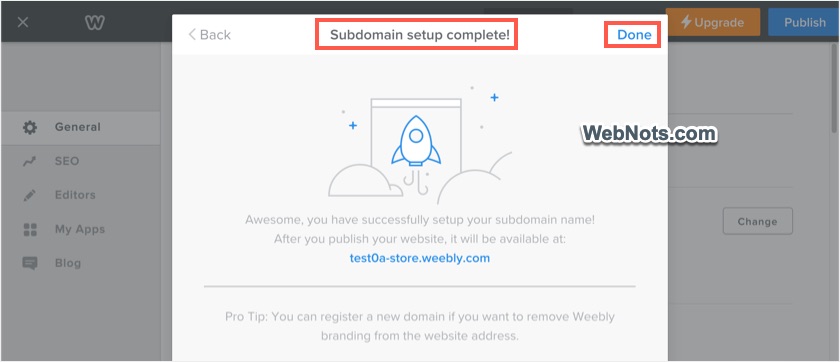
- Click on one of the available Weebly subdomain names to instantly setup that as your site URL. You will see a notification that domain setup is completed and click on “Done” link.
- Now you can see the “Site Address” is changed to the new URL.
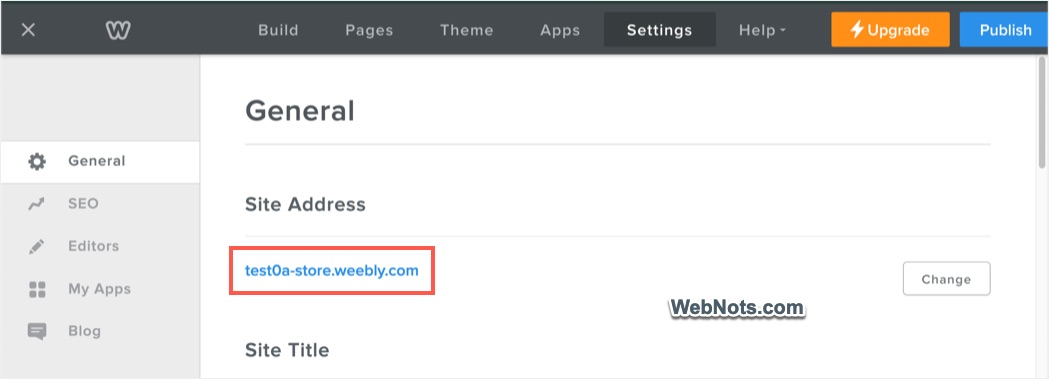
- Remember that the site address will be changed without publishing your site. However, make sure to “Publish” the site if you make any changes to the content or settings.
You have two options for changing to your custom domain name. Click on the “Connect or transfer now” link to connect your existing domain managed outside Weebly. Otherwise, select one of the available domain names to purchase it from Weebly. In both cases, you should purchase a premium Weebly Professional or higher level plan for connecting to a custom domain name,
Changing Site URL from Dashboard
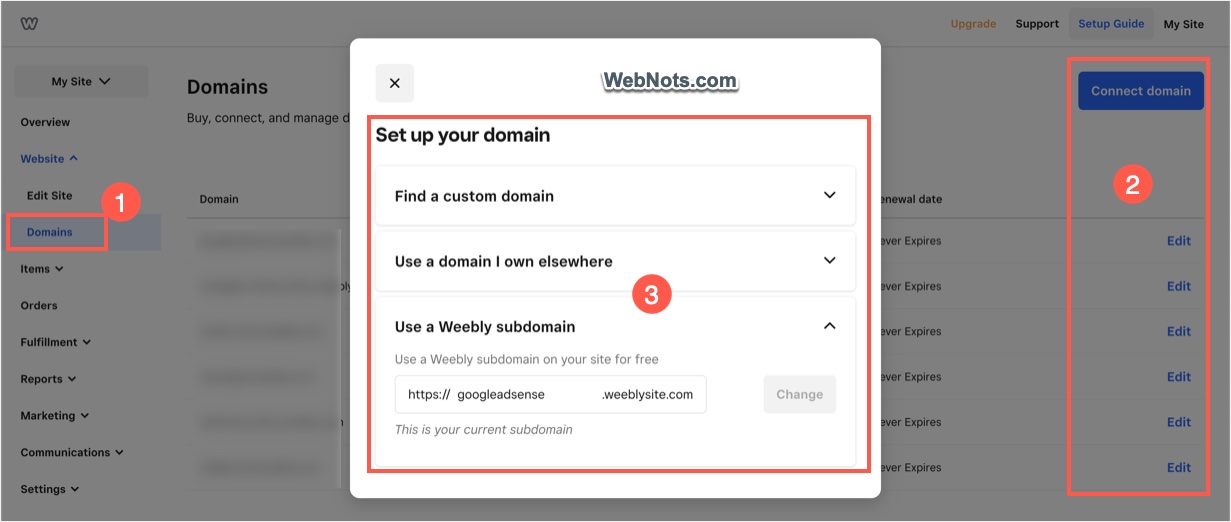
It is also possible to change the site’s address or domain name without editing your site. When you are in Weebly dashboard after logging into your account, go to “Website > Domains” section. There you can find the list of all free subdomains and custom domains available under your account. Click on the “Edit” link against the site and change the site address.
Changing Page URL in Weebly
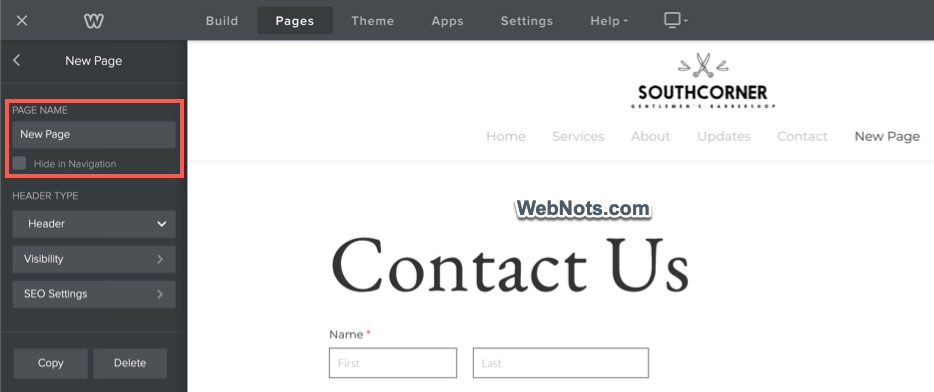
By default, Weebly will assign the “Page Name” as the page address or URL. Let us take an example that you have created a page with the name as “New Page”.
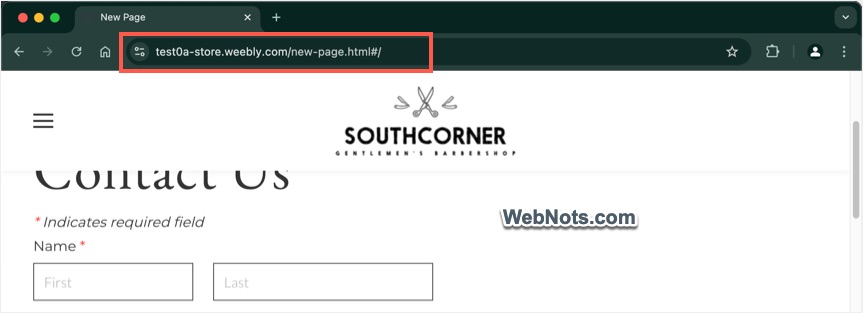
After publishing, Weebly will automatically assign the page URL from the page name as https://mysite.weebly.com/new-page.html.
Follow the below steps to change the page address to use different URL than page name.
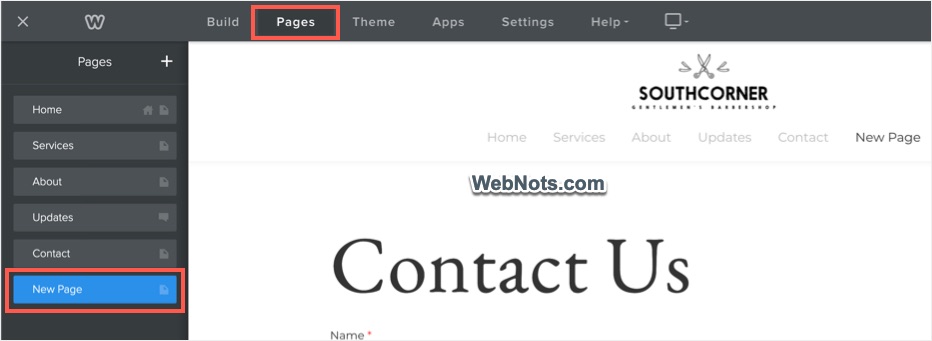
- When you are in Weebly editor, go to “Pages” tab.
- Select the page you want to change the address.
- Click the “SEO Settings” button on the next screen.
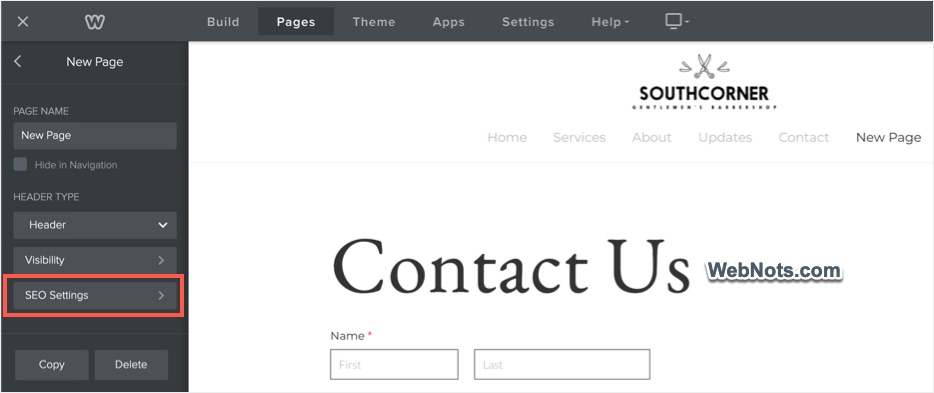
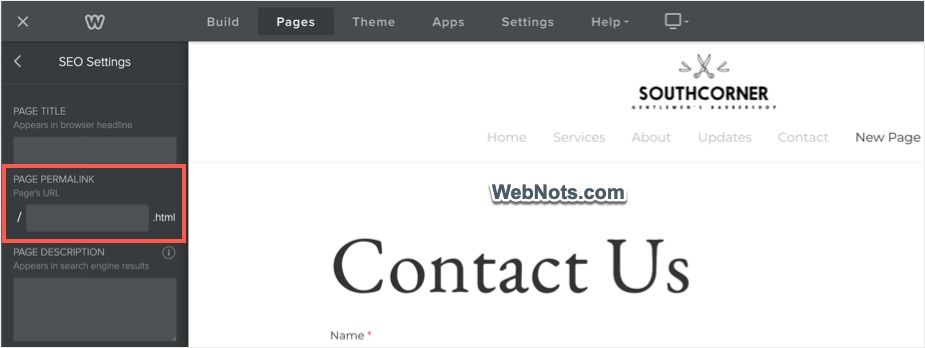
- Type your new URL under “Page Permalink” box. You can also provide a new title under ”Page Title” section to use as HTML <title> tag for your page (shown in browser’s title bar and also in search engine result pages).
- For example, type “my-new-page” in the permalink page URL box and “My New Page” in the page title box.
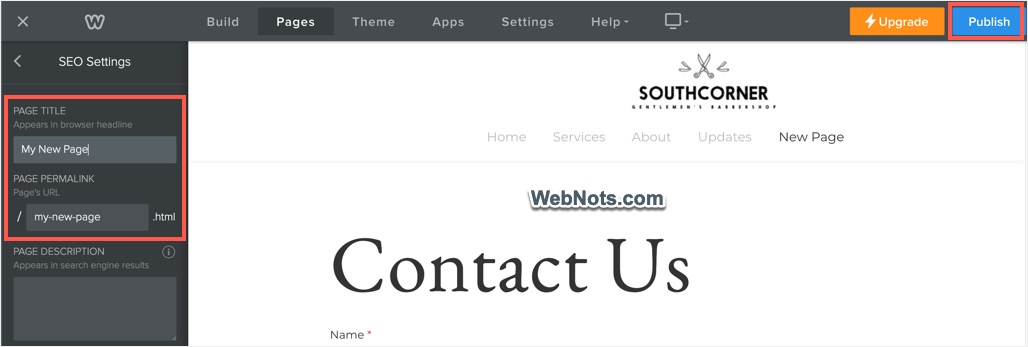
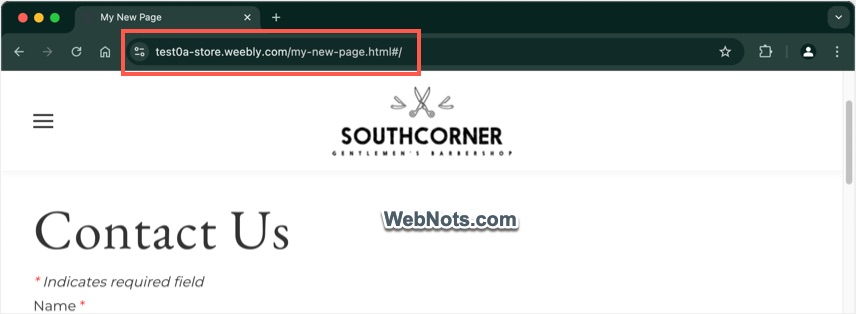
- Click “Publish” button to apply the changes and check your page. You should notice the page URL is changed to “my-new-page.html”.
Setting Up 301 Redirects
After changing site or page URL, Weebly does not automatically setup redirect from old site / page to new site / page. If you open your old page or site, they will show 404 page not found error.
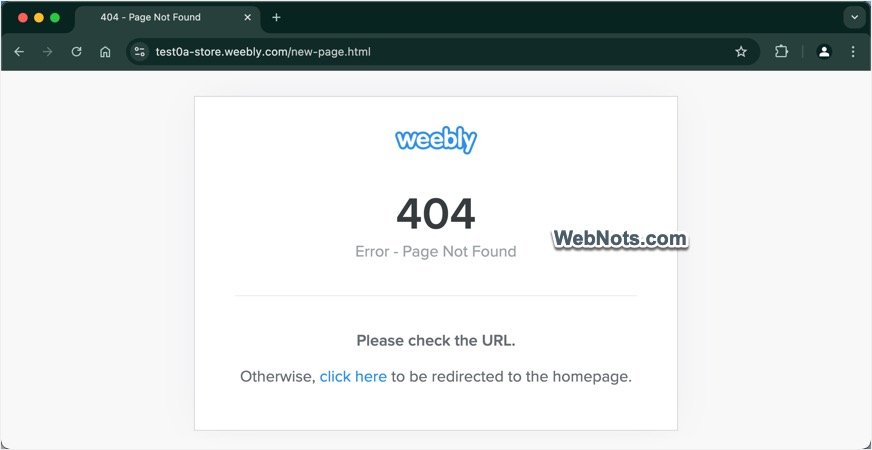
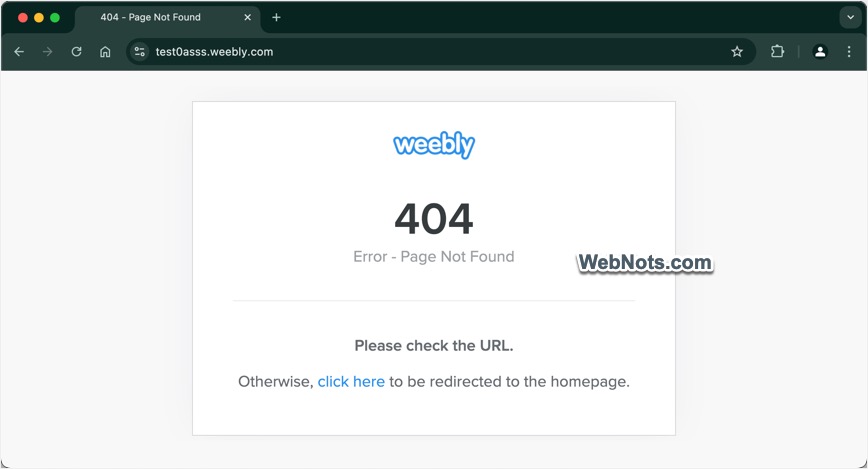
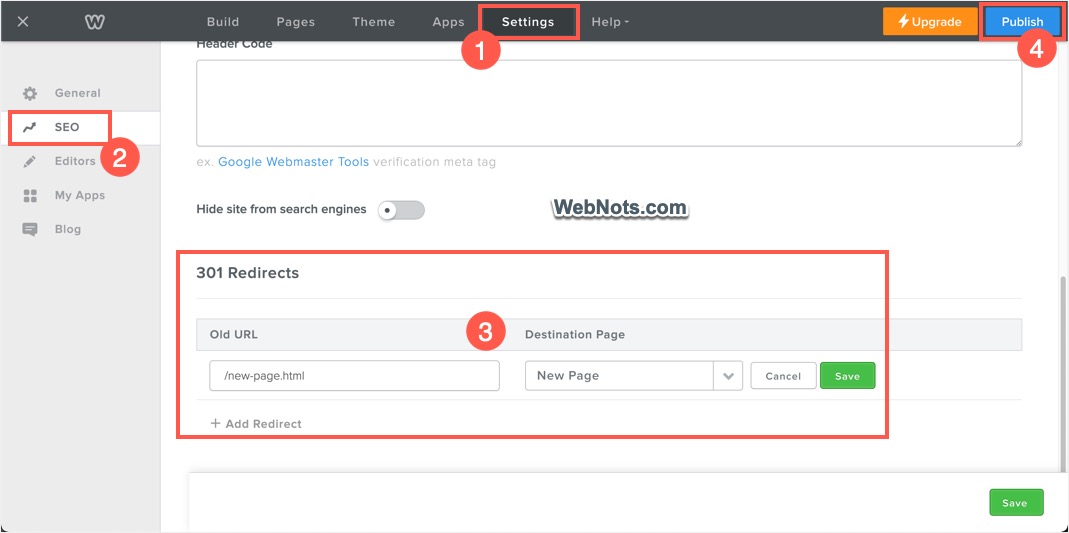
For pages, go to “Settings > SEO” section and scroll down to the bottom of the page. Here, you can setup redirect between old to new page and save / publish your changes. Make sure to add the correct URL like page.html# or page.html as Weebly sometimes add # in the URL.
However, there are no possibilities for redirecting to different subdomain or custom domain with Weebly. In this case, you will lose all your page ranking in search engine results for the old domain. If you are upgrading to custom domain, you can contact Weebly to check the possibilities of setting up redirects at server level. So, make sure to change the domain before start building your content and making your site visible for search engines.
Note: Site address, domain name and site URL are used interchangeably in this article intentionally to indicate all are same.