Managing a large WordPress site needs some routine maintenance tasks. One of the tasks from content management perspective is to track important articles and keep them up to date. However, this is very difficult when you have thousands of published articles in your site. In this article, we will show you how to mark important articles and keep track of them for updating regularly.
Posts Vs Pages
Though you can create a page instead of post for important stuffs, it is not necessary or correct thing do. Let’s take an example that you have a post titled “Top WordPress Themes”. It does not make sense to publish this post as a page. However, you should update this type of article frequently with the latest list of themes. On other hand, you can create a collection or listicle page to show curated articles from your site and mark that page as important for tracking.
Good thing is that WordPress has free SEO plugins to mark the posts, optimize them and link them properly in other articles. In this article, we will explain with Yoast and Rank Math plugins. The process should be similar if you are using any other popular SEO plugin.
Using Yoast SEO to Monitor Cornerstone Articles
If you are already not using Yoast, go to “Plugins > Add New Plugin” in your WordPress admin panel. Find and install Yoast SEO plugin and follow the below steps.
- Go to “Posts > All Posts” section and “Edit” the article which you want to identify as important for tracking.
- When you are in Gutenberg editor, scroll down below the content and find “Yoast SEO” meta box.
- Go to “SEO” tab and find “Cornerstone content” section.
- Turn on “Mark as cornerstone content” button.
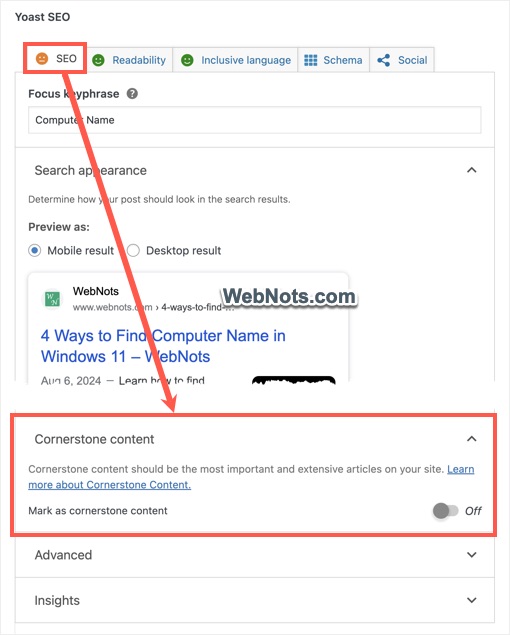
- Save your post to publish the changes and go to “Posts > All Posts” section.
- You will find “Cornerstone content” filter is newly added and click on it to view all your marked posts. Here, you can also find number of internal and outgoing links from the post to optimize if required.
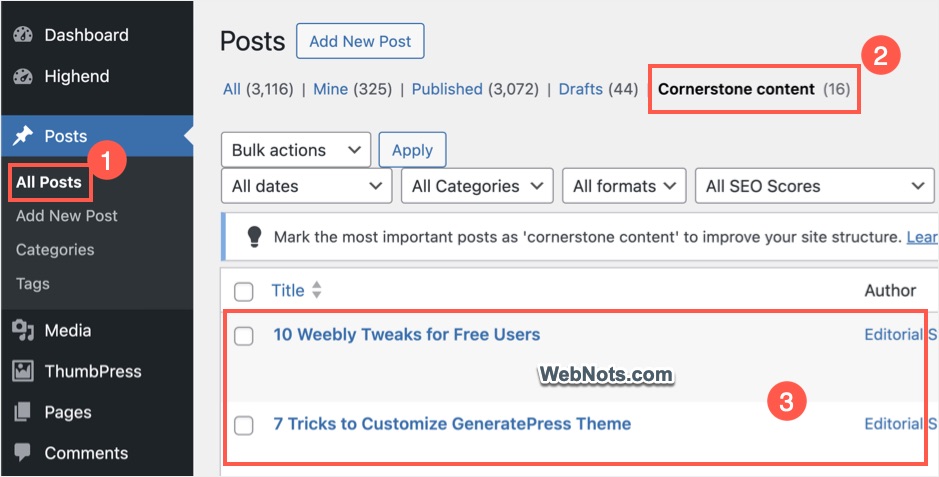
If you are using Yoast SEO Premium plugin, then you will see an additional filter named “Stale cornerstone content”. Under this filter, you can find marked articles which are not updated for the past 6 months. This is an easy way to keep the important articles updated on your site. You will also find an option to optimize cornerstone articles under “Yoast SEO > Workouts” section and link suggestions showing cornerstone articles on top with premium version. Free version also provides more stricter content analysis for the identified articles compared to others.
Using Rank Math to Monitor Pillar Content
Rank Math works similar to Yoast SEO except that the concept is called as “Pillar Content” instead of “Cornerstone content”. If you are not using Rank Math, go to “Plugins > Add New Plugin” section in your WordPress admin panel. Find and install Rank Math plugin and follow the below step.
- Go to “Posts > All Posts” section and “Edit” the post that you want to monitor.
- Click the “Rank Math” button on tool bar (shown next to “Save” button).
- Go to “General” section and check “This post is Pillar Content” option.
- Click “Save” button to publish your changes.
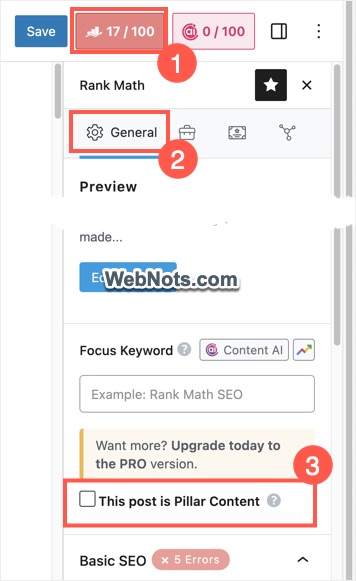
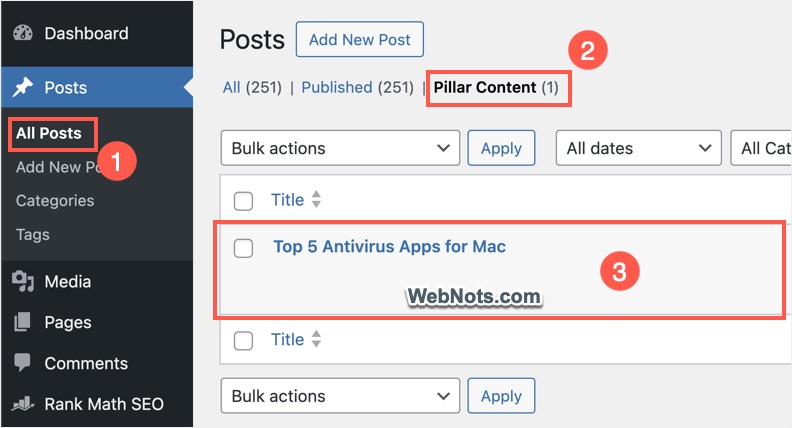
- Now, go to “Posts > All Posts” section and you will find a new filter for “Pillar Content” is added.
- Click on that to view all your articles marked as Pillar Content to keep track of them.
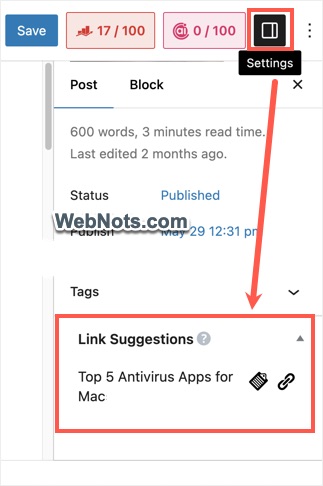
Marked articles are shown in the “Link Suggestions” so that you can link them easily across your site. You can find “Link Suggestions” option under “Settings > Post” sidebar section in Gutenberg editor.
Additional Points
- In addition to marking existing posts, you can also mark any new post while creating.
- You can identify any post type like post, page, products or custom post type. Make sure to check under corresponding list page for finding all cornerstone or pillar content. For example, you should look under “Pages > All Pages” to find all marked pages.
- The plugins also work with old Classic Editor interface if you are still sticking with that or using plugins like WooCommerce.