PowerPoint presentations are powerful tools for sharing information, teaching, and engaging audiences. But what if you want to embed your PowerPoint slides directly in your WordPress website? There are several ways to embed PowerPoint presentations in WordPress, ranging from using plugins to direct embed codes from third-party platforms.
Why Embed PowerPoint in WordPress?
If you are already offering files in PDF format, here are some good reasons for you to consider embedding it as a presentation directly on your site.
- Interactive presentations can captivate users and encourage them to spend more time on your site.
- Embedding a visually rich presentation can reinforce your authority and professionalism.
- Visitors can view presentations directly without downloading files or navigating away from your website.
- For educators and trainers, embedded presentations make sharing lessons and resources seamless.
You can try the following methods and choose the one. The best approach depends on your WordPress setup, your hosting limitations, and your users’ needs.
1. Embedding with Microsoft OneDrive/PowerPoint Online
This is the best option if you are using Microsoft 365 subscription, which comes with 1TB free OneDrive storage space. Microsoft PowerPoint Online (via OneDrive) is one of the most reliable ways to embed presentations, as it preserves transitions, animations, and interactive features.
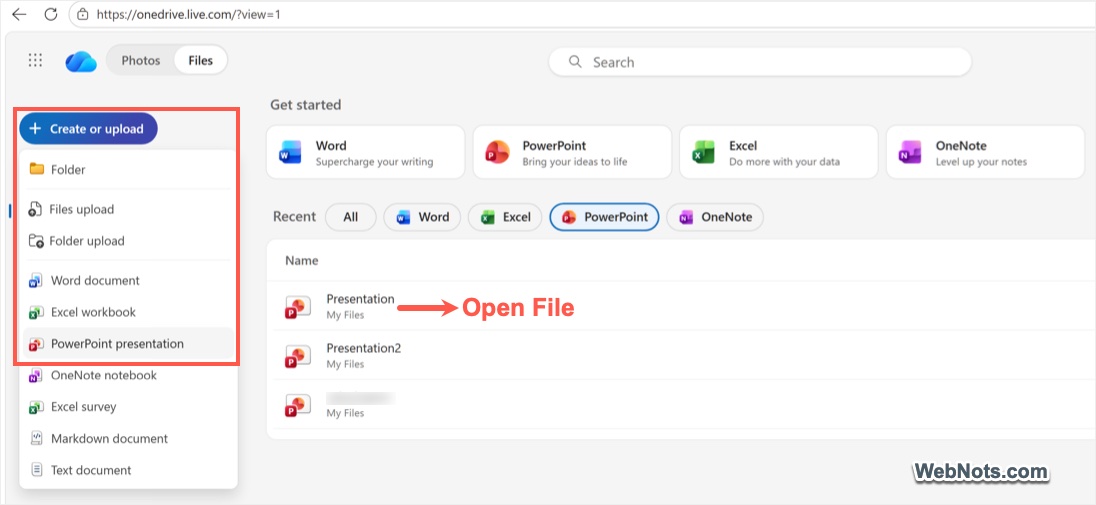
- Upload your PowerPoint presentation (.ppt or .pptx) to your OneDrive account. You can do this from Windows PC, Mac or from any other device. Alternatively, you can directly create or upload the file on OneDrive website.
- After uploading, double-click to open the file in online editor.
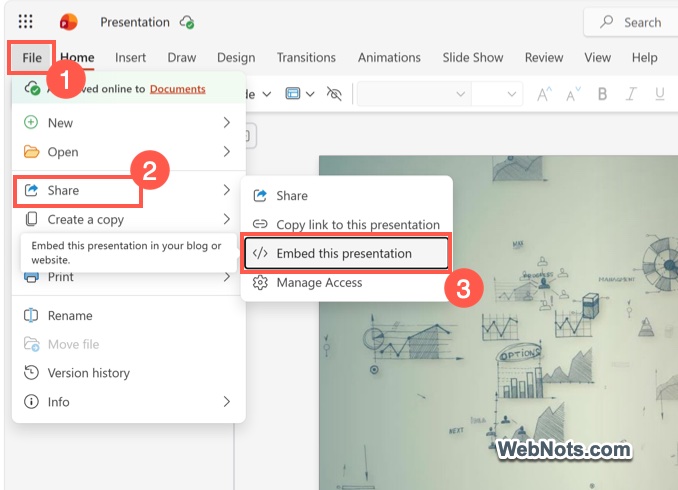
- Go to “File > Share” menu and select “Embed this presentation” option.
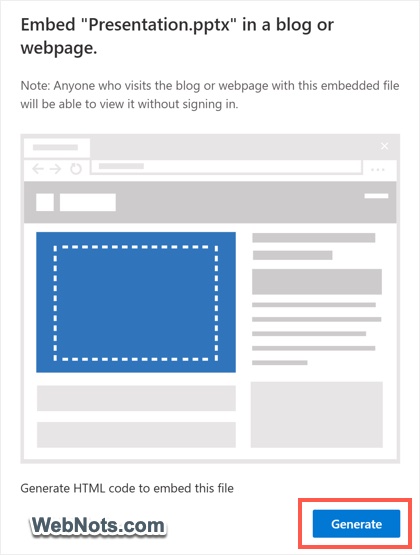
- You may see a notification and click the “Generate” button (generally, it shows the first time).
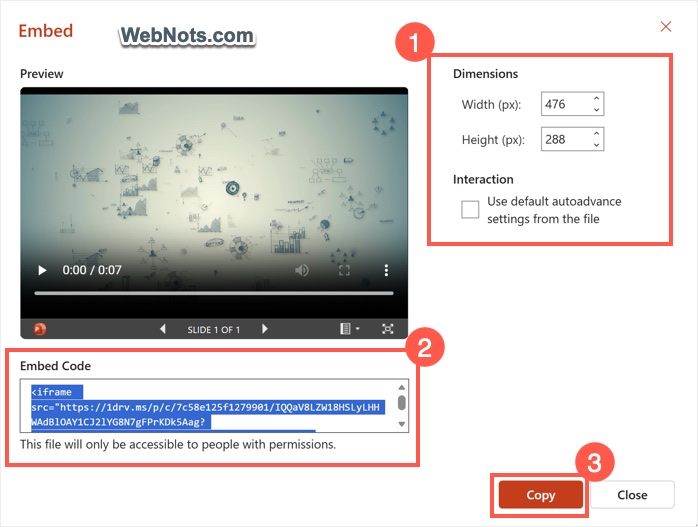
- Customize the display size (width and height) as needed.
- Copy the generated embed code, which is the iframe HTML snippet.
- In your WordPress Gutenberg editor, insert a Custom HTML block.
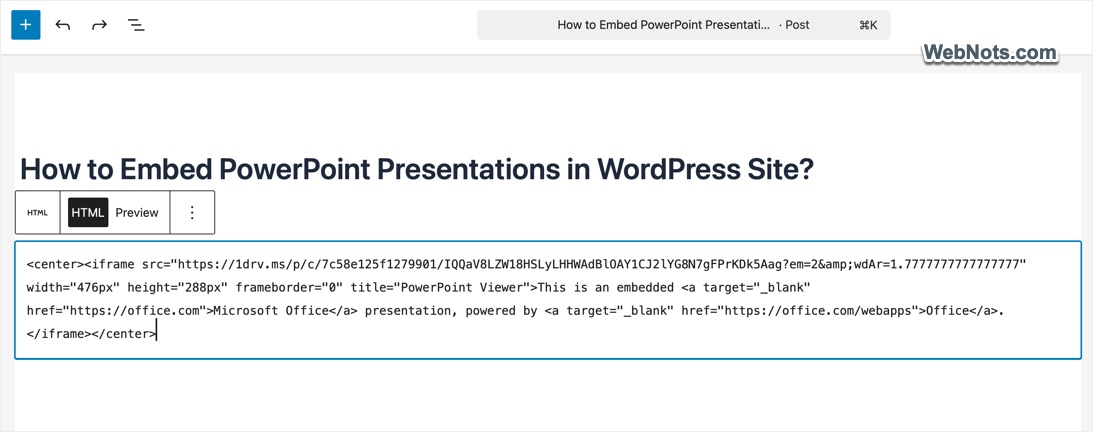
- Paste the embed code inside the block and click “Preview” option in the toolbar to view the presentation before publishing your content.
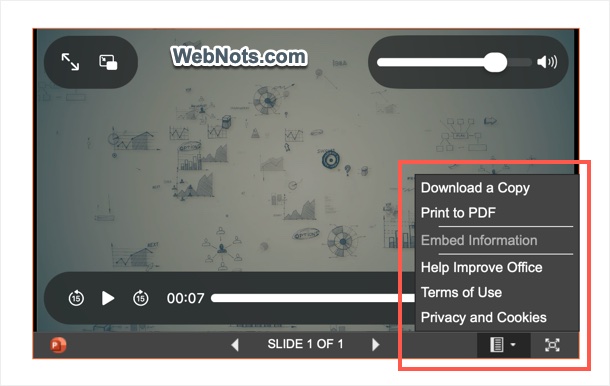
- On the published page, users can print the presentation as a PDF file or download a copy right from your website.
2. Using Google Slides to Embed PowerPoint
If you have a Google account, you can convert your PowerPoint to Google Slides and embed it:
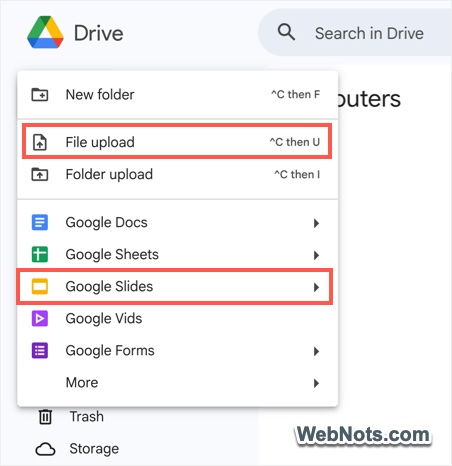
- Login to your Google Drive account and upload your PowerPoint file. Alternatively, you can also create a new Google Slides file.
- If you have uploaded, double-click the file to open in the editor.
- Go “ File > Publish to web” menu.
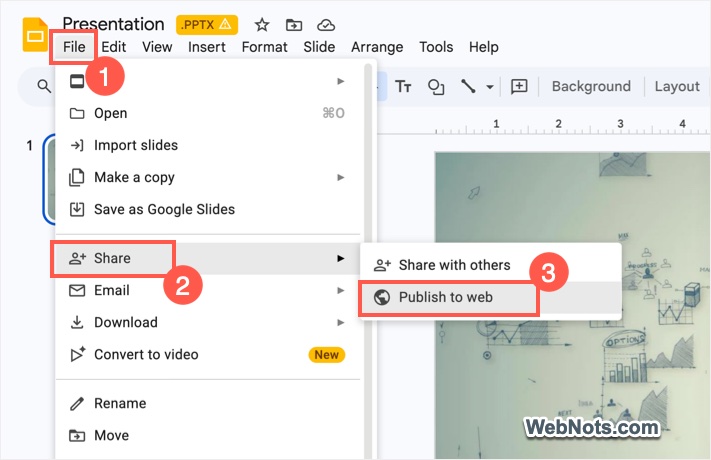
- Choose the “Embed” tab, select your preferred size, auto-advance time, and click “Publish”.
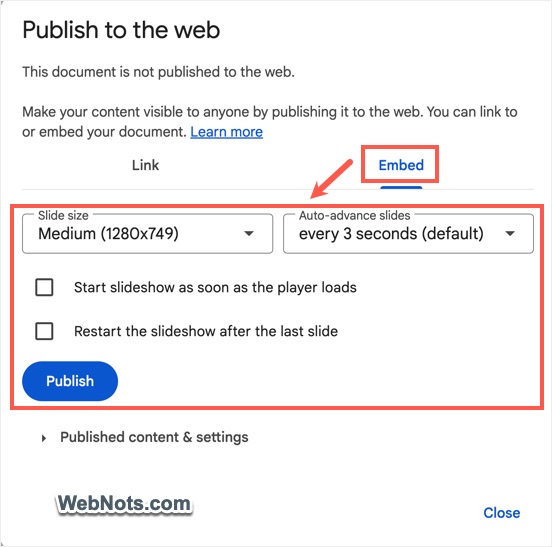
- Copy the iframe code provided.
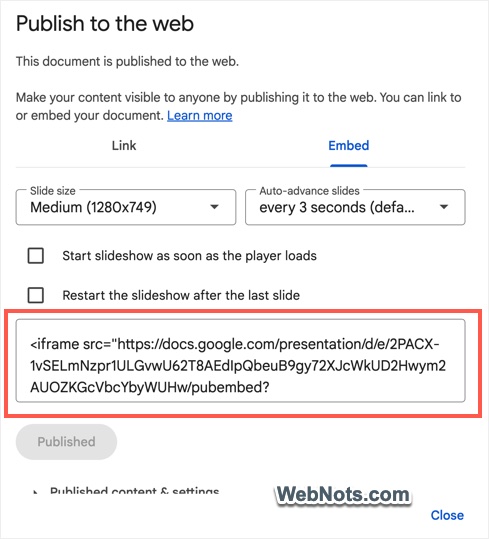
- In your WordPress post/page, insert a Custom HTML block and paste the code.
- Users can adjust the speed and turn on the laser pointer / pen when viewing the slides. However, they can’t download the file or convert to PDF like embedding from Microsoft OneDrive.
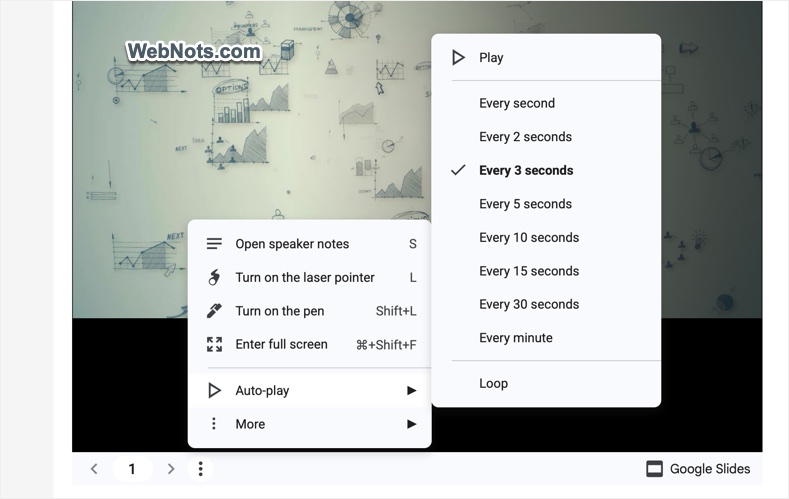
This approach is especially useful if you want to use Google’s sharing and collaboration features.
3. Embedding with Plugins
If you prefer not to use Google or Microsoft account, WordPress offers various plugins to simplify PowerPoint embedding. The best option is to use “Embed Any Document” plugin, which allows embedding Excel, Word, PowerPoint, PDFs, and various other document formats.
- Install and activate the Embed Any Document plugin on your site.
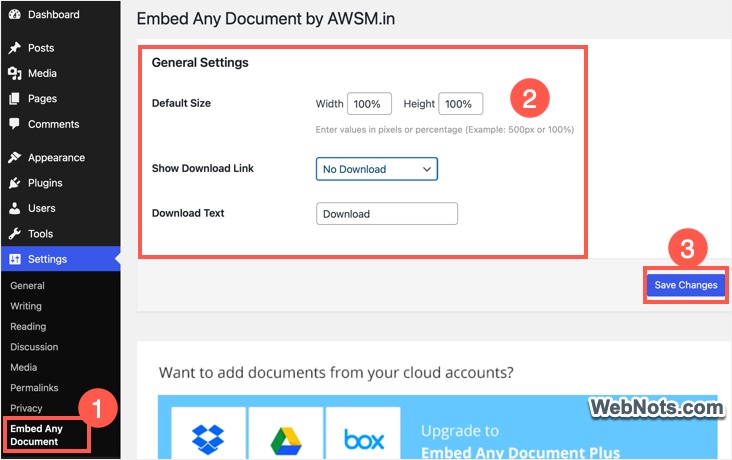
- Go to “Settings > Embed Any Document” and customize the size, download link and text options.
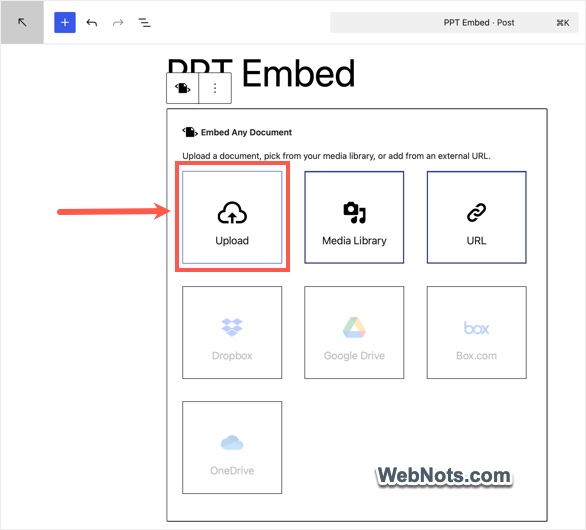
- Edit or create a post / page and insert a “Document” block.
- Click “Upload” icon and upload your presentation from the computer.
- Select whether you want to use “Google Docs Viewer” or “Microsoft Office Online” option from the block’s settings and publish your content.
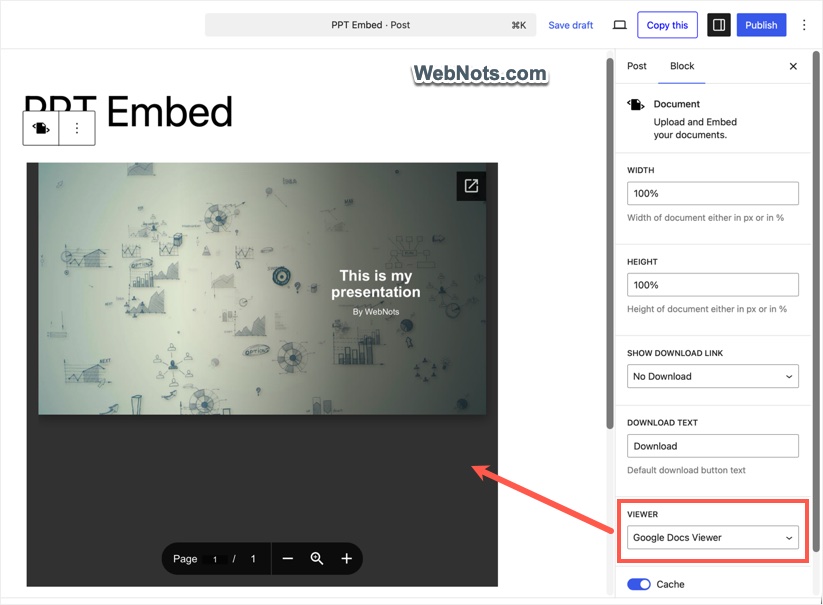
- If you have selected Google Docs Viewer, users can zoom or view your presentation as a pop-up on the published site. Microsoft Office Online viewer will show options to download and print the file similar to OneDrive embed.
4. Embedding with Third-Party Platforms (SlideShare)
If your presentation is intended for public sharing, consider uploading it to a platform like SlideShare. This method is also great for embedding any publicly available presentations on your site.
- Sign up for SlideShare and upload your PowerPoint file. For embedding other people’s presentation, simply search and locate it on the site.
- Click the “Embed” button showing on your presentation’s page.
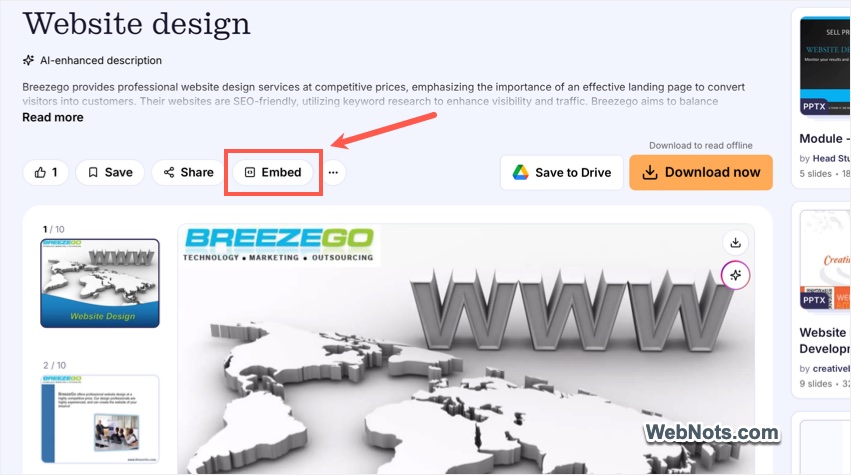
- Select the size and copy the HTML embed code.
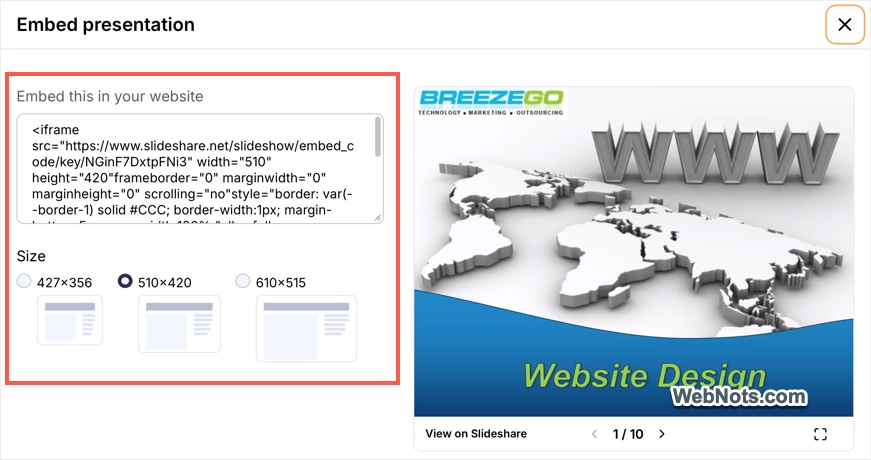
- Paste this code into the Custom HTML block of your WordPress page or post.
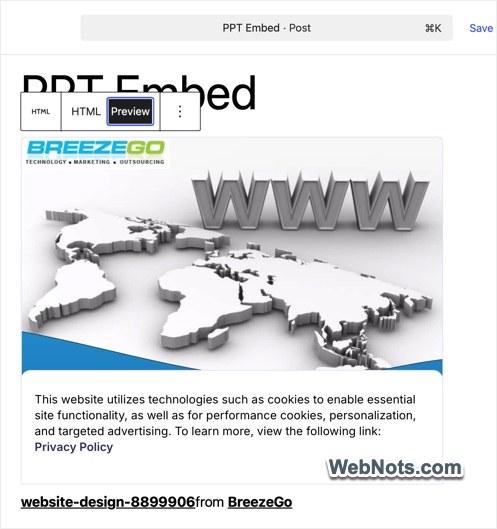
- Users can view the presentation on full screen and share on social platforms like X, Facebook, or LinkedIn. However, slideshare links to the original presentation and the owner are shown below the presentation, which may look unprofessional.
Note: Avoid uploading confidential and personal presentations on online platforms like slideshare to protect your privacy.
Frequently Asked Questions
If you use Microsoft PowerPoint Online or Google Slides, most animations and transitions are preserved. Methods like SlideShare or Scribd may display static slides.
Most embed codes from OneDrive, Google Slides, and reputable plugins are responsive. Always preview your page on mobile and tablet devices.
Review sharing settings on OneDrive, Google Drive, or SlideShare to restrict access to only those with the link or specific users.
If you only want users to access the file (not view it inline), simply upload your PowerPoint to the WordPress Media Library (Media > Add Media File). Insert a “File” block and select the uploaded file. Alternatively, add a text like “Download the presentation here” and link the file URL. In this case, users can click and download the file instead of reading it online.
Final Words
Remember, the best method depends on your specific needs, the level of interactivity required, and your WordPress setup. Below is the comparison table showing the features of above explained methods. You can test different approaches to find what works best for your audience.
| Method | Features for Users | Requirements |
|---|---|---|
| OneDrive Embed | Print to PDF, full screen, pop-out and download. | Microsoft account and OneDrive access |
| Google Drive Embed | Speaker notes, laser point, pen, full screen, auto-play, loop, slide-advance time control. | Google account and Google Drive access |
| Embed with a Plugin | Zoom and pop-up view for Google viewer and all OneDrive options for Microsoft viewer. | Additional plugin |
| Slideshare Platform | Social sharing and full screen. Links to original slides. | Online upload |