Have you ever wondered how to show Excel spreadsheet’s content on your WordPress site? Excel spreadsheets are a versatile way to present data but embedding them effectively on your WordPress site can be challenging. The problem is that WordPress does not show the file’s content when you embed it. However, there are plugins and alternate options which you can make use of depending on the situation.
Embed Block Will Not Work
Do not waste your time with Embed block offered by WordPress for embedding your Excel file. If you paste the file URL (from your Media Library or from Google Drive or from any external service), you will see a message that the content can’t be embedded.

So, you are left with using one of the following methods.
1. Copy Paste as Gutenberg Table
If you have a simple table like structure, then we strongly recommend using the default Gutenberg Table block in WordPress. All you need is to simply copy your Excel data and paste inside it a Paragraph block. WordPress will automatically convert the data into a table block.

You can add header, footer and customize the colors of alternate rows using the Table block’s settings. Best part is that you can make it as a responsive table by disabling “Fixed width table cells” setting.
Note: There are also plugins like TablePress to import your Excel file. Though it will also show as a table, the advantage is that you can easily edit large tables on your site online through the plugin’s interface.
2. Using Embed Any Document Plugin
Whether you are using Gutenberg Table block or plugins like TablePress, Excel spreadsheet is completely different than a HTML table. If you really want to showcase an Excel sheet containing charts and other visually appealing type of data, then tables are not the way to go with that. Also, if you want to allow users to download the Excel file, then you need a plugin like “Embed Any Document – Embed PDF, Word, PowerPoint and Excel Files”.
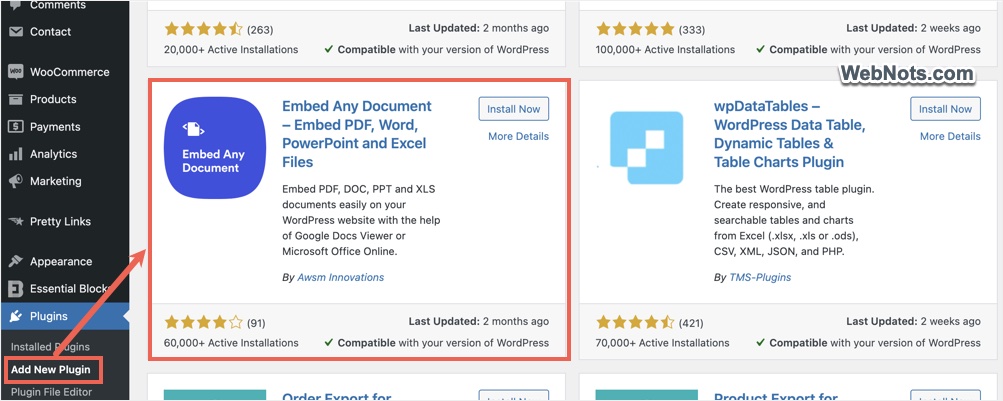
- Go to “Plugins > Add New Plugin” and search for “excel embed”.
- Find Embed Any Document plugin, install and activate it on your site.
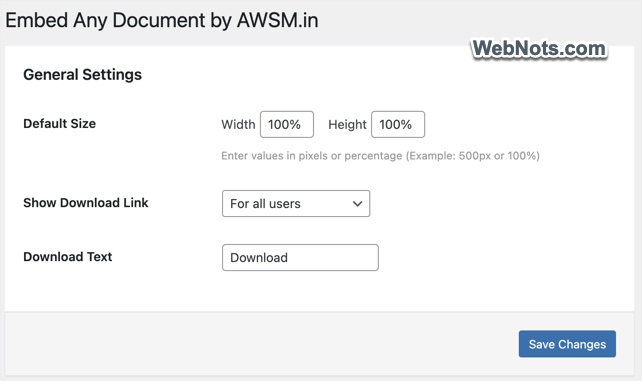
- Go to “Settings > Embed Any Document” section and setup the display size and whether you want to allow users to download the file. This is the default settings applied globally for the all the embeds on your site.
- Now, go to any of your post or create a new post.
- Search and insert “Document” block which will show multiple options to embed your Excel file.
- Click on the “Media Library” button and upload or select your Excel file.

- On the block’s settings sidebar, you will have similar options like the global plugin’s settings. If required, change the settings which will be only applicable for the current file.
- Under “Viewer option, select “”Microsoft Office Online” option which will show the preview of embedded Excel file.
- Click “Publish” or “Save” button to make the file visible to public.

3. Embedding Google Sheets
Follow this method if you want to embed Google Sheets instead of Microsoft Excel file. As you can see, Embed Any Document plugin allows you to insert file from any external URL.
- Insert a “Document” block and then click “URL” button.
- Paste your Google Sheets file URL in the box and click the “Apply” icon.
- On the sidebar settings, scroll down and select “Google Docs Viewer”.
- Now, you will see the file’s preview and publish your content.

If you do not want to use a plugin, then open your Google Sheets file. Go to “File > Share > Publish to Web” menu, select “Embed” option and copy the iFrame code. Get back to your WordPress post editor and insert a “Custom HTML” block. Simply paste your Google Sheets embed code inside the block and publish / save your changes.
4. Using File Block
The last option is useful when you want to simply show your Excel sheet as a downloaded file (without showing its content).
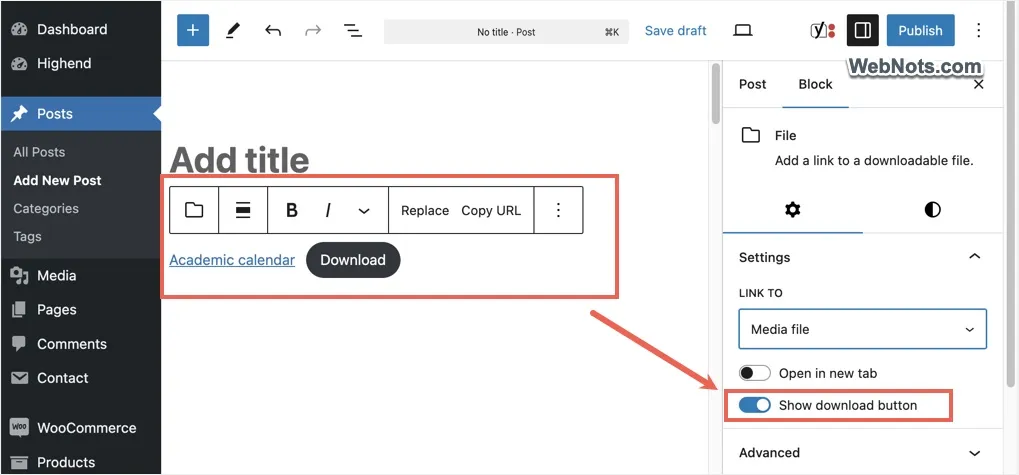
- On your WordPress editor, insert a “File” block.
- Either upload your file or select from Media Library.
- WordPress will show the file name as a link and change the name if required.
- Also, there will be a download button which you can disable by turning off “Show download button” option from the block’s settings.
- Publish / save your content.
Conclusion
You can use the above-explained methods in the following situations:
- Table block – simple tablelike data from single Excel sheet.
- File block – your Excel file contains multiple sheets or large amount of data. You are fine with not showing the content and want to allow users to only download the file for offline analysis.
- Table plugin like TablePress – you can import an Excel sheet with large amount of data and edit or process the content online. Though you can add pagination to a table, generally these plugins import only a single (first) sheet in your file.
- Custom HTML block – useful for embedding iFrame code from third-party services like Google Sheets.
- Embed Any Document plugin – free version allows you to embed Excel with multiple sheets. You can allow users to download or view your entire file’s content online (all sheets) using Microsoft Offline Online. It is also possible to embed Google Sheets using Google Docs Viewer.
So, Embed Any Document plugin is the best option to insert an interactive Excel file with multiple sheets in WordPress.