In our earlier article, we have explained 100+ Windows (MS-DOS) commands that works primarily on Command Prompt. Though some of the commands can be executed on Windows PowerShell, you are missing out on a powerhouse of functionality if you are still using the classic Command Prompt. Since PowerShell also processes objects in addition to plain text, it is the best tool for administrators for task automation and scripting. Here is a list of 20 most useful PowerShell cmdlets (called command-lets) that are not available in the standard DOS-style Command Prompt.
Opening Windows PowerShell
Terminal app is the default command-line interface in Windows 11. Right-click on the Start menu and select “Terminal (Admin)” option. When you are in the Terminal app, click the small arrow button on the title bar and select “Windows PowerShell” option. you can also make the Terminal app to open PowerShell interface by default (otherwise, it generally opens with Command Prompt).
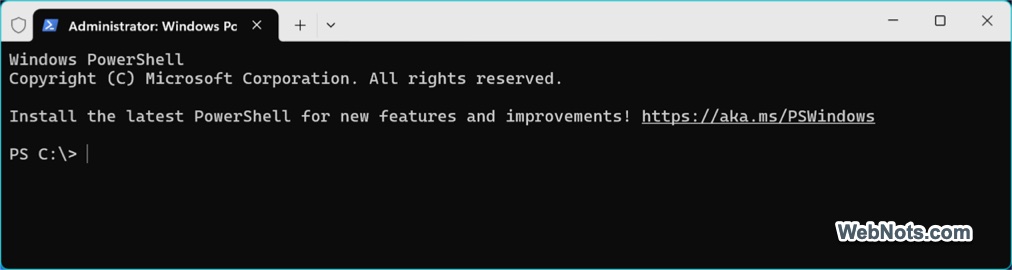
You can also directly search and open Windows PowerShell app in admin mode without using the Terminal interface.
Note: If the app is not found on your system, go to Microsoft Store app to download and install it.
1. Get-Help: The Built-In Manual
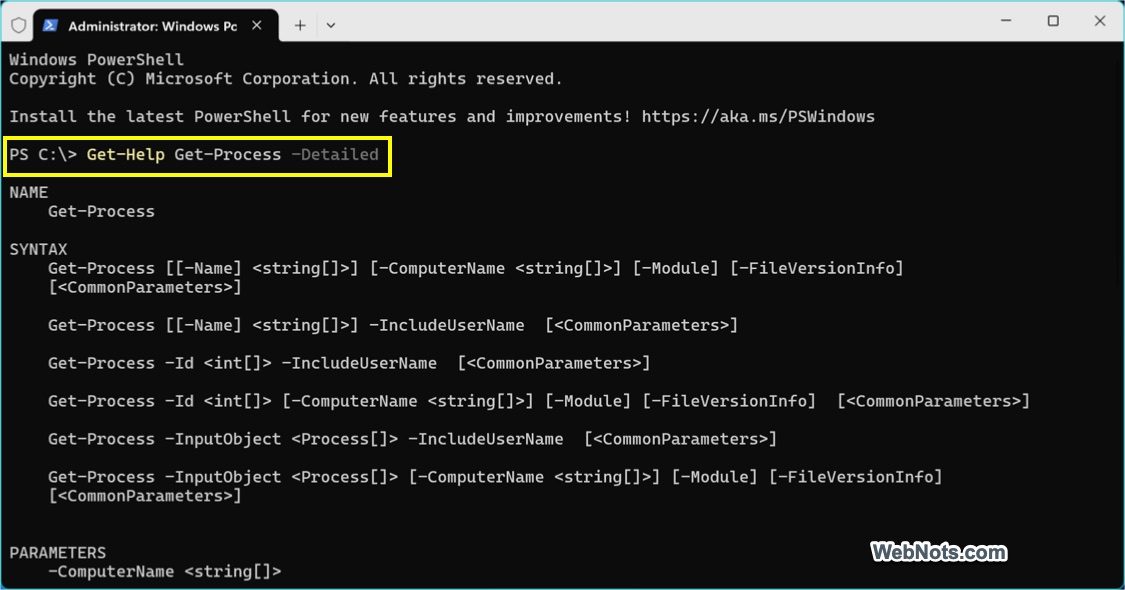
Since PowerShell has thousands of cmdlets, you cannot memorize them all. Get-Help command provides built in documentation for every cmdlet. It includes syntax, parameter explanations, and practical examples. Reduces reliance on external documentation and accelerates troubleshooting.
Here are some examples of using Get-Help:
| Get-Help Get-Process | Shows help for the Get-Process cmdlet. |
| Get-Help Get-Process -Detailed | View detailed help. |
| Get-Help Restart-Service -Examples | Show examples only. |
| Get-Help Get-Process -Online | Open the official Microsoft documentation in your browser. |
| Update-Help | Update help files. |
2. Get-Command: Your Command Discovery Tool
This allows you to find all cmdlets, functions, aliases, and scripts installed on your computer. You can search by name pattern, verb, noun, or module. This is especially useful when working in environments with many imported modules.
| Get-Command *-Process | Finds all commands that end with Process. |
| Get-Command *Service* | Lists all services related commands. |
| Get-Command -Module Microsoft.PowerShell.Management | List commands from a specific module. |
3. Get-Process: The Task Manager Killer
Why open Task Manager when you are already in the Terminal? Get-Process retrieves information about all running processes on your local or a remote machine. It shows CPU usage, memory consumption, and Process IDs (PID).
| Get-Process -Name chrome | Shows all processes for an app, Google Chrome in this example. |
| Get-Process -Name notepad | Stop-Process | kill a stuck application, Notepad in this example. |
4. Get-Service: Master Your Background Services
This cmdlet retrieves the status of services on a Windows machine. It tells you exactly what is running, stopped, or paused. You can also start or stop any services directly from the PowerShell.
| Get-Service | Where-Object {$_.Status -eq “Running”} | Shows only running services. |
| Get-Service -Name Spooler | Stop-Service | Stop Spooler service. |
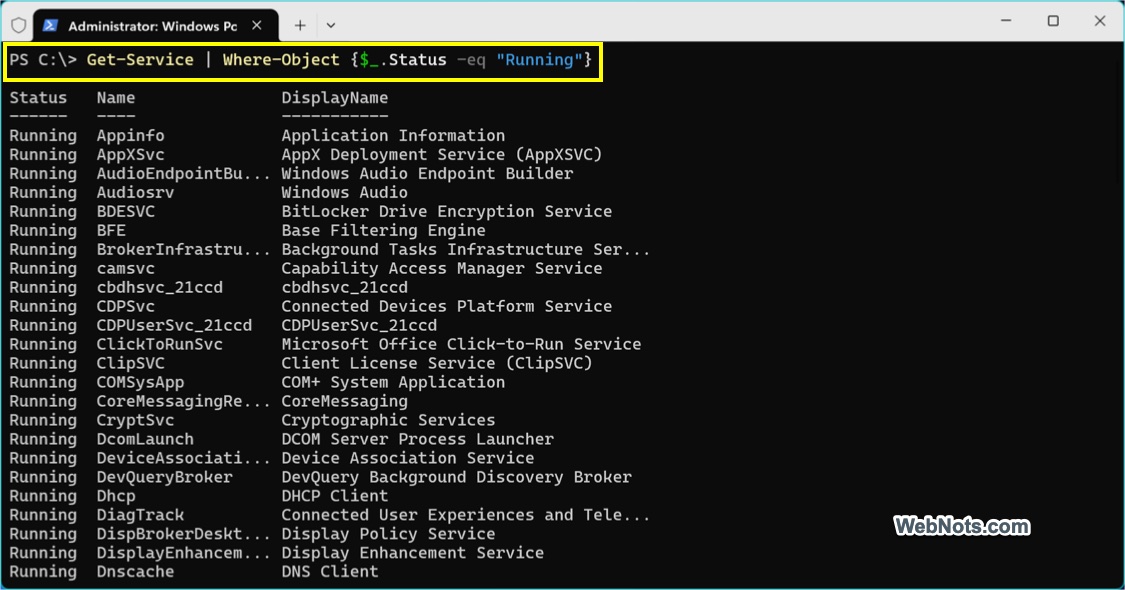
Note: Where-Object filters objects based on conditions. Unlike text filtering tools, it works directly with object properties.
5. Get-ChildItem: The Supercharged dir
While dir exists as an alias in PowerShell, Get-ChildItem is the actual cmdlet, and it can navigate more than just the file system. You can use it to browse the registry, certificate stores, and other PowerShell drives. For example, the below command will list the Registry keys under the mentioned path:
Get-ChildItem -Path HKLM:\SoftwareYou can use -Recurse and -Filter parameters to find specific files deep within folder structures quickly.
6. Copy-Item: Contextual Copying
This cmdlet does more than just coping files from location A to B. As it works with the PowerShell provider model, it can also copy Registry keys and data between different locations. The -Recurse parameter in the below example ensures you copy the entire folder structure, not just the top-level files.
Copy-Item C:\Folder1\*.* -Destination D:\Folder2 -Recurse7. Set-ExecutionPolicy: The Security Gatekeeper
By default, Windows may restrict you from running PowerShell scripts to protect against malicious code. Set-ExecutionPolicy controls how scripts run on your system locally. The below command allows local scripts to run but requires remote scripts to be signed by a trusted publisher.
Set-ExecutionPolicy RemoteSigned8. Get-History: Your Command Recall
Forgot a complex command you ran ten minutes ago? Get-History retrieves the list of commands you have entered during the current session.
Get-History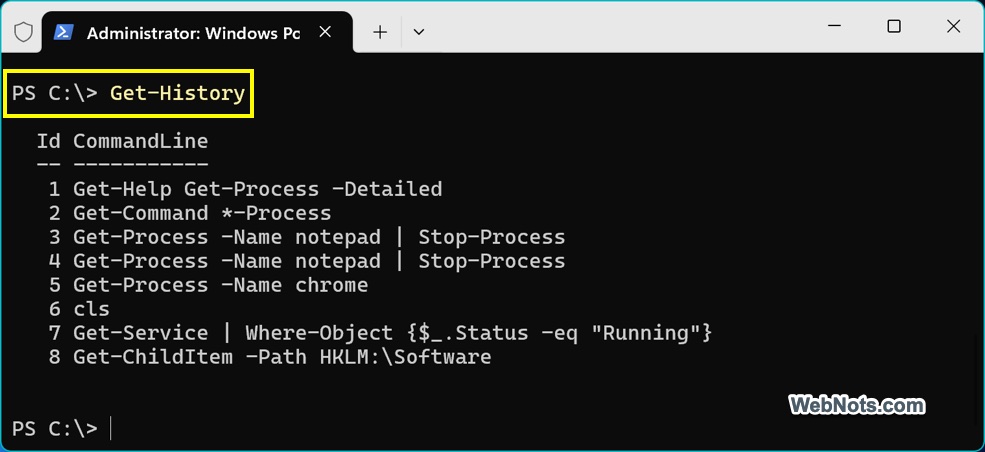
9. Get-Content: Read Files Without an Editor
Need to look inside a log file quickly? Get-Content reads the content of a file and displays it in the console. For example, the below command shows the last 50 lines of the log file.
Get-Content -Path C:\Logs\app.log -Tail 5010. Out-File: Exporting Results
While you can use > to redirect, Out-File provides more control. It sends the output generated by PowerShell to a text file, using PowerShell’s formatting system.
Get-Service | Out-File -FilePath C:\temp\services.txtYou can use -Append to add new data to the end of an existing file without overwriting it.
11. ConvertTo-Html: Generate Reports
One of the most business-friendly features of PowerShell is the ability to turn command output into an HTML report. You can create visually appealing system health reports that can be viewed in a browser or emailed to colleagues using the command like below.
Get-Process | ConvertTo-Html -Property Name, CPU, PM | Out-File report.htm12. Get-WinEvent: Deep Dive Log Analysis
This is the modern, more powerful replacement for the older Get-EventLog. It allows you to query both classic Windows logs (like Application, System) and the newer Event Tracing for Windows (ETW) logs with advanced filtering. The below command retrieves the last 100 events from the System log.
Get-WinEvent -LogName System -MaxEvents 10013. Where-Object: Filter on the Fly
This cmdlet is essential for data manipulation. It filters objects passed through the pipeline, allowing you to pick only the specific data you need. Use the below command to find processes using more than 100MB of RAM.
Get-Process | Where-Object { $_.WorkingSet -gt 100MB }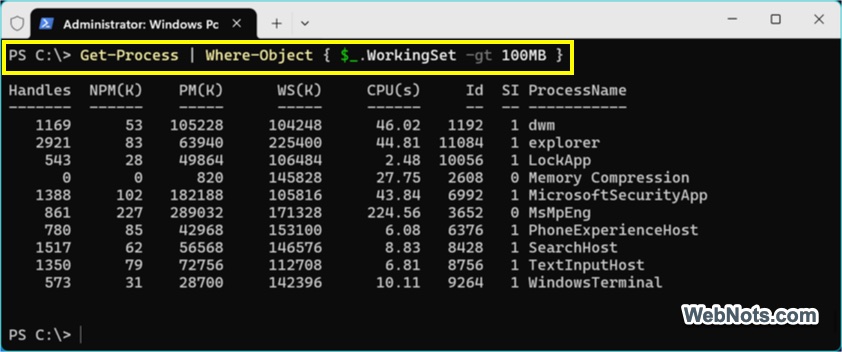
It turns raw data into actionable intelligence by narrowing down exactly what you want to see.
14. Test-Connection: Ping on Steroids
While ping exists, Test-Connection sends ICMP packets and returns structured objects that you can use in scripts.
Test-Connection -ComputerName google.com -Count 2Because it returns objects, you can use this in an if statement to check if a server is online before attempting to copy files to it.
15. Get-ADUser: Active Directory Management
If you are in a domain environment, this cmdlet is indispensable. It allows you to query Active Directory for user information without opening the GUI.
Get-ADUser -Filter "Name -like 'John*'" -Properties EmailAddressYou can pipe this to Set-ADUser to bulk update user properties, such as changing department names for an entire team at once.
16. Export-Csv: Structured Data Export
Since PowerShell works with objects, standard text output often strips away valuable structure. Export-Csv converts these objects into Comma-Separated Values (CSV) files, perfectly preserving the relationships between properties . This is the go-to command for generating reports that can be opened in Excel or imported into databases.
Get-Process | Select-Object Name, CPU | Export-Csv processes.csv -NoTypeInformationThe -NoTypeInformation parameter removes the header comment that older tools don’t need, making the CSV clean and immediately usable for audits, documentation, and business reporting.
17. ConvertTo-Json: DevOps and API Ready
In modern IT environments, JSON is the lingua franca of APIs and cloud configuration. ConvertTo-Json transforms PowerShell objects into JSON format, allowing you to interact seamlessly with RESTful web services and infrastructure-as-code tools.
Get-Service | Select-Object Name, Status | ConvertTo-JsonYou can combine this with Out-File to create configuration files:
Get-Service | ConvertTo-Json | Out-File serviceConfig.jsonThis is particularly valuable in DevOps pipelines for automating deployments.
18. Invoke-Command: The Remote Administration Engine
Managing a fleet of servers individually is a nightmare. Invoke-Command executes script blocks on one or multiple remote computers using PowerShell Remoting (WinRM). It brings enterprise-scale administration to your fingertips.
Invoke-Command -ComputerName Server01, Server02 -ScriptBlock { Get-Process }Use a variable for the computer list or pipe computer names from a text file. You can even create temporary sessions (-Session) for running multiple commands on the same remote machine without re-authenticating.
19. Get-Module: Inventory Your Toolbox
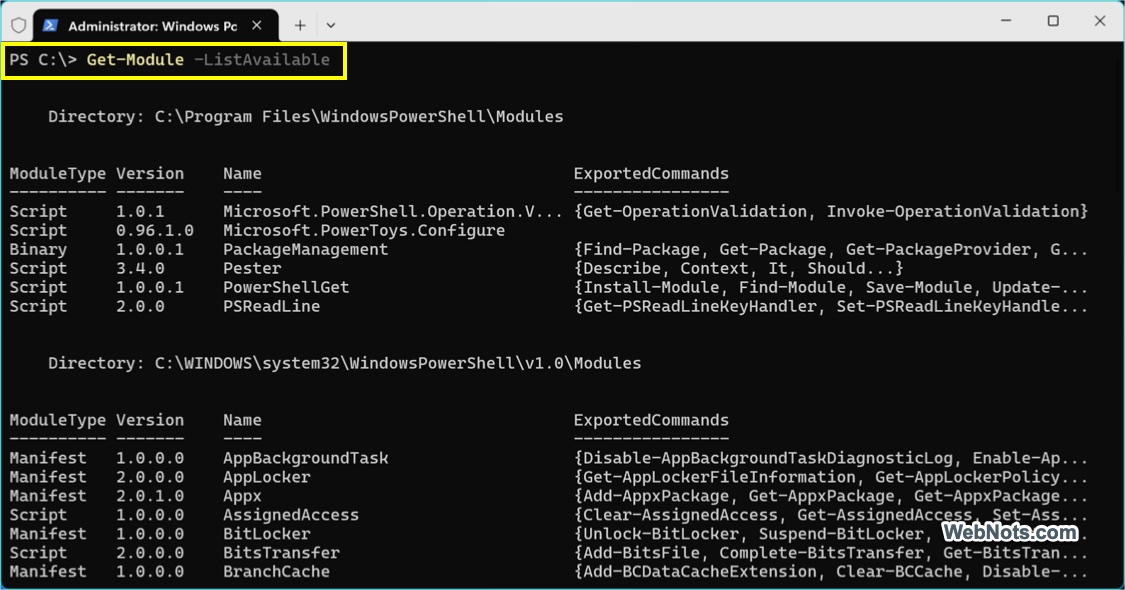
PowerShell’s functionality is extended through modules. Get-Module helps you identify what modules are currently loaded in your session (-Loaded) and, more importantly, which modules are available on your system to be imported.
Get-Module -ListAvailableThis is the first troubleshooting step when a command isn’t working. It tells you if a module (like ActiveDirectory) is installed but just not loaded, or if it is missing entirely, saving you time debugging environment dependencies.
20. Get-Member: The Object Inspector
To truly master PowerShell, you must understand that everything is an object. Get-Member reveals the hidden structure of those objects, displaying all the properties (data) and methods (actions) associated with the output of a command.
Get-Process | Get-MemberWhen you run this, you will see results like Kill() (a method) and CPU (a property). This tells you that you can $process.Kill() to stop a process, or access $_.CPU to get the processor time. It is essential for writing precise, reliable scripts because you no longer have to guess what data is available.
Conclusion
Mastering these PowerShell cmdlets will move you from clicking through menus to writing efficient, repeatable scripts. Whether you use Get-ChildItem to navigate the registry or ConvertTo-Html to build a report, PowerShell gives you the control to manage Windows the way it was meant to be managed.