
Running a WordPress website does not mean living inside the WordPress dashboard. For most site owners, the everyday toolkit is fairly familiar. You may use a hosting control panel (like cPanel, Plesk, or custom panel) to manage files, domains, SSL certificates and server settings. Inside WordPress, the admin dashboard handles posts, pages, themes, plugins and settings. When you need direct database access, tools like phpMyAdmin or Adminer let you work with MySQL or MariaDB databases.
Additional WordPress Tools
But sooner or later, you will encounter problems that these standard tools do not easily solve.
- Why are WordPress emails not arriving?
- Is the DNS record correct?
- Why is the site slow?
- Are there broken links hidden somewhere?
- Is the server actually going offline?
- Does a payment integration work correctly before you accept real payments?
This is where specialized web tools become extremely useful. The following 10 tools are not necessarily WordPress plugins.
| No. | Tool Category | Example Tools / Services | What You Can Use Them For |
|---|---|---|---|
| 1 | SMTP & Email Testing | Mail Tester, SMTP2GO, Brevo, Mailgun | Test email delivery, SMTP configuration, SPF, DKIM, DMARC and spam-related issues |
| 2 | Local WordPress Setup | MAMP, Local, XAMPP, Local WP, DevKinsta | Run WordPress locally for development, testing and troubleshooting without affecting the live site |
| 3 | DNS Checker & Lookup | DNS Checker, Google Admin Toolbox Dig, MXToolbox | Check A, AAAA, CNAME, MX, TXT and NS records; troubleshoot domain and email DNS problems |
| 4 | IP & Server Tools | WhatIsMyIPAddress, IPinfo, MXToolbox | Check IP addresses, reverse DNS, ISP/network information, DNS resolution and blacklist information |
| 5 | Redirect & Rewrite Checker | Redirect.li, Redirect Checker, WhereGoes | Check 301/302 redirects, redirect chains, redirect loops and HTTP-to-HTTPS redirects |
| 6 | Website Speed Testing | Google PageSpeed Insights, GTmetrix, WebPageTest, Lighthouse | Measure loading performance and identify issues involving images, CSS, JavaScript, caching and server response time |
| 7 | Broken Link Checking | Ahrefs Webmaster Tools, Screaming Frog SEO Spider, Broken Link Checker | Find broken internal and external links, 404 errors, redirect problems and outdated URLs |
| 8 | Uptime Monitoring | UptimeRobot, Better Stack, Pingdom, StatusCake | Monitor website availability, downtime, response time and SSL expiration |
| 9 | Payment Sandbox Testing | Stripe Test Mode, PayPal Sandbox, Square Sandbox | Test payments, failed transactions, refunds, webhooks and order-status changes without using real money |
| 10 | WordPress Diagnostics & CLI | WP-CLI, WordPress Site Health, Recovery Mode | Troubleshoot WordPress, manage the site from the command line, investigate configuration problems and recover from certain PHP errors |
Most work independently of WordPress and can be used to diagnose, test or manage a WordPress website from outside the site itself. Some services also offer WordPress plugins or integrations when you want their functionality inside the dashboard.
1. SMTP and Email Testing Tools
One of the most common WordPress problems is surprisingly simple: the website sends an email, but the recipient never receives it. This can affect contact forms, password reset messages, WooCommerce notifications, registration emails and other automated messages. The problem is often not WordPress itself. Shared hosting servers may have restrictions around outgoing mail, while messages sent directly from a web server can have deliverability problems.
SMTP testing tools and services help determine whether your website can successfully send mail and whether the email is being authenticated correctly. Useful services include SMTP diagnostic tools, mail-tester services and transactional email providers. They can help you inspect:
- SMTP connection problems
- SPF records
- DKIM authentication
- DMARC configuration
- Sender reputation
- Email headers
- Spam-related problems
- Failed delivery attempts

A particularly useful approach is to send a test email and inspect the resulting headers rather than simply checking whether the WordPress dashboard says that an email was sent. If you use an SMTP service, many providers also offer a WordPress plugin or integration, allowing WordPress to send mail through their servers instead of relying on the hosting server’s default mail system. The important distinction is that an SMTP tool can help diagnose the problem, while an SMTP service can also provide the infrastructure needed to solve it.
2. Local WordPress Development Tools
Making changes directly to a live WordPress website is risky. A theme modification, PHP change, database operation or plugin update can sometimes cause an error that affects visitors. A local development environment gives you a separate WordPress installation where you can test changes first. Popular options include:

These tools create a local web server environment on your computer, generally including PHP, a database and a web server. For example, you can create a local copy of your WordPress site, test a new theme or PHP modification, check compatibility, and only then move the working version to the production website. This is especially useful for developers and people who frequently modify WordPress themes or custom code.
3. DNS Checker and DNS Lookup Tools
DNS problems can make a perfectly healthy WordPress installation appear to be broken. When you move hosting providers, change nameservers, configure email, add a CDN or modify DNS records, a DNS lookup tool can show what the rest of the internet is actually seeing. A DNS checker can inspect records such as:
- A
- AAAA
- CNAME
- MX
- TXT
- NS
- CAA
For example, if your domain should point to a new server but some DNS locations still show the old IP address, a DNS lookup can help identify the problem. Services such as DNS Checker, Google Admin Toolbox Dig and other DNS lookup services are useful additions to a WordPress administrator’s toolbox.

Note: DNS tools are also useful when troubleshooting email. If your MX, SPF, DKIM or DMARC records are incorrect, the problem may have nothing to do with WordPress. You can also use DNS lookup tools when checking whether a domain migration has propagated correctly.
4. IP Address and Server Information Tools
Sometimes you need to know exactly where a website is connecting from or what server is responding to a request. IP tools can provide information about:
- Your public IP address
- A website’s server IP
- IPv4 and IPv6 records
- Reverse DNS
- ISP or hosting network
- Approximate geographic information
- DNS resolution
- Blacklist information

These tools are particularly useful when moving a WordPress website between hosts. For example, suppose you have moved example.com to a new server. You can use an IP lookup and DNS checker to verify that the domain is resolving to the expected server. IP information can also help when diagnosing firewall problems, CDN configuration, DNS errors and unexpected server routing.
5. Redirect and Rewrite Checker
WordPress websites frequently use redirects for various reasons:
- A page may have moved from one URL to another.
- HTTP may redirect to HTTPS.
- www may redirect to the non-www version.
- An old URL may redirect to a new permalink.
Problems occur when redirects are incorrectly configured. A redirect checker lets you enter a URL and see the HTTP response sequence.

Redirect and rewrite testing tools can help identify:
- 301 redirects
- 302 redirects
- 307 and 308 redirects
- Redirect chains
- Redirect loops
- HTTP to HTTPS problems
- www and non-www issues
- Incorrect destination URLs
- Server response codes
They are particularly useful after changing permalink structures, moving a website, changing domains or modifying .htaccess rules.
6. Website Speed Testing Tools
“Is my WordPress website fast?” is not something you should answer by simply opening the homepage on your own computer. Your browser may have cached files, your internet connection may be fast, and your location may be close to the server. Independent speed testing services provide a more useful picture. Popular tools include Google PageSpeed Insights, GTmetrix, WebPageTest and Lighthouse. They can measure aspects of page performance and identify potential problems involving images, CSS, JavaScript, caching, server response time and other resources.

Google PageSpeed Insights is particularly useful because it reports both laboratory performance data and, when available, real user Chrome data through the Chrome User Experience Report. For WordPress users, speed testing is most useful when performed before and after a change.
For example:
- Before optimization → 3.8 seconds
- Image optimization → 3.1 seconds
- Caching change → 2.4 seconds
- Removing unnecessary scripts → 1.9 seconds
This gives you evidence about whether a change actually improved the site rather than relying on subjective impressions.
7. Broken Link Checker
As a website grows, links inevitably become outdated. A website might contain hundreds or thousands of links, and some may eventually lead to deleted pages, changed URLs or unavailable external websites. A broken link checker can crawl your website and identify URLs returning errors like:
- 404 Not Found
- 410 Gone
- 403 Forbidden
- 500-series errors
- Redirect problems
- Failed external links

This is particularly important for older WordPress websites with large archives. You can use standalone website crawlers and SEO auditing services to scan an entire site without installing anything in WordPress. Some broken-link services also offer WordPress plugins that integrate the results into the dashboard. However, for occasional troubleshooting, an external crawler can be preferable because it examines the website from the perspective of an outside visitor.
8. Uptime Monitoring Tools
Your website can be unavailable without you knowing about it. You might check your WordPress site once in the morning and find that it works perfectly, while the server was actually unavailable for 20 minutes during the night. Uptime monitoring solves this problem by periodically requesting your website from outside and alerting you when it becomes unavailable.

Some common services include UptimeRobot, Better Stack, Pingdom and StatusCake. Depending on the service and plan, monitoring can include HTTP status checks, response time, SSL certificate expiration, keyword checks and other tests. For a business website, this can be one of the simplest ways to discover outages quickly.
9. Payment Gateway Sandbox Testing
If your WordPress website sells products or services, payment testing should never be performed by randomly making real transactions. Payment providers normally provide sandbox or test environments that simulate transactions without transferring real money. Examples include test environments from payment platforms like Stripe and PayPal, as well as other payment gateways.
Sandbox testing can be used to verify:
- Successful payments
- Declined payments
- Failed transactions
- Refunds
- Payment confirmations
- Webhooks
- Order-status changes
- Customer emails
- Subscription events

Imagine a customer completes payment successfully, but the payment notification never reaches WordPress. The customer may be charged while the order remains stuck in a pending state. Testing the complete payment flow in a sandbox environment can reveal such problems before the website goes live.
10. WordPress Command-Line and Diagnostic Tools
WP-CLI is the official command-line interface for WordPress. It allows administrators and developers to perform many WordPress operations directly from a terminal. For example, WP-CLI can manage WordPress core, users, themes, plugins, databases, cron jobs and other WordPress functions. It can also perform operations like database exports and search and replace tasks. It becomes particularly useful when the WordPress dashboard is inaccessible.
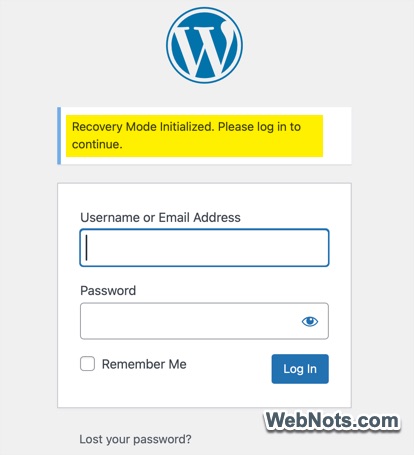
WordPress also includes Recovery Mode, which can help administrators regain access after certain fatal PHP errors. It can temporarily pause a problematic plugin or theme for the administrator’s session so the underlying problem can be investigated. You can also use WordPress’s built-in Site Health feature under “Tools > Site Health”. It reports information about the WordPress configuration, server environment, database, filesystem permissions and potential problems.
The WordPress Toolbox is Bigger Than the Dashboard
A WordPress website is really a combination of several systems. There is the WordPress application itself, the PHP runtime, the MySQL or MariaDB database, the web server, DNS, email delivery, SSL, hosting infrastructure, payment systems and external services. That is why a problem that looks like a “WordPress problem” is not necessarily caused by WordPress.
- If an email is missing, investigate email delivery.
- If a domain is pointing to the wrong server, investigate DNS.
- If a page is slow, use a performance-testing service.
- If visitors encounter 404 errors, crawl the website for broken links.
- If the website goes offline, use external uptime monitoring.
- If payments are failing, test the gateway’s sandbox.
- If the dashboard stops working, use Site Health, Recovery Mode, WP-CLI, FTP or your hosting tools to investigate.
You do not need dozens of WordPress plugins to diagnose every website problem. A small collection of independent tools as provided above can cover many of the issues that WordPress administrators encounter regularly. The biggest advantage is simple that instead of guessing what is wrong, you can test each part of the system and find where the problem actually begins.


