Whenever there is a fatal error, WordPress sites will show a blank white screen or critical error without any additional information. This makes your life difficult to troubleshoot and bring the site back online. To reduce these challenges, WordPress introduced “Recovery Mode” in version 5.2, offering a lifeline when your site crashes due to fatal errors. In this article, we will explain what Recovery Mode is, how to access it along with some practical steps to restore your website and maintain its stability.
What is Recovery Mode in WordPress?
Recovery Mode is a built-in feature designed to help administrators and site owners regain access to WordPress dashboard when the site becomes inaccessible due to fatal errors. This allows you to log in securely, deactivate problematic items and bring your site back to life.
- Only the problematic plugin or theme is paused for the duration of Recovery Mode, letting you to troubleshoot without affecting the rest of your site.
- Administrators can access the backend (admin panel) even when a fatal error blocks normal operations.
- Recovery Mode provides clear error messages so you can understand what went wrong and how to fix it.
There are two ways to access the Recovery Mode in WordPress – automatically triggered and manually access.
Automatic Recovery Mode in WordPress
Recovery Mode is triggered automatically when WordPress detects a fatal error that prevents your site from loading properly. Some common triggers include:
- Plugin conflicts after an update or new installation.
- Theme incompatibilities or broken theme files.
- Errors from custom code snippets in your functions.php or custom plugins.
- Outdated PHP versions or deprecated functions.
When such an error occurs, WordPress shows an error message like “There has been a critical error on your website. Please check your site admin email inbox for instructions”. This is your cue to check the inbox of your WordPress admin email. However, this happens only when WordPress identified the plugin / theme that caused the problem. Otherwise, you will see a generic “There has been a critical error on this website” message.

Email Notification and Recovery Link
Once a fatal error is detected, WordPress sends an email to your site’s admin address. Below is an example email that we have received from WordPress:
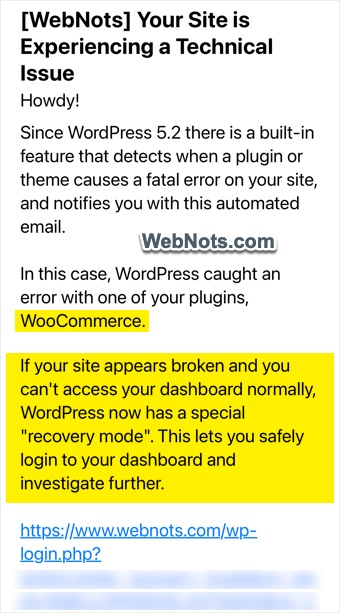
The email contains the following information:
- A summary of the error and which component caused it (WooCommerce in the above example).
- A special link to enter Recovery Mode at the end of the email valid for one day.
So, it is important to keep your site’s admin email address up-to-date and accessible, as the Recovery Mode link is unique and time-sensitive. Simply click the Recovery Mode link in the email received from WordPress. It will direct you to a special login page (even if your regular site and admin dashboard are inaccessible) and initiates Recovery Mode for your WordPress site.
Manually Accessing the Recovery Mode
Use the following link format to manually access the Recovery Mode:
https://yoursite.com/wp-login.php?action=entered_recovery_modeThis will open the login page allowing you to access the dashboard.
Troubleshooting Within Recovery Mode
Whether you use automatic or manual mode, the login page will show “Recovery Mode is initialized. Please log in to continue” message above the login form.
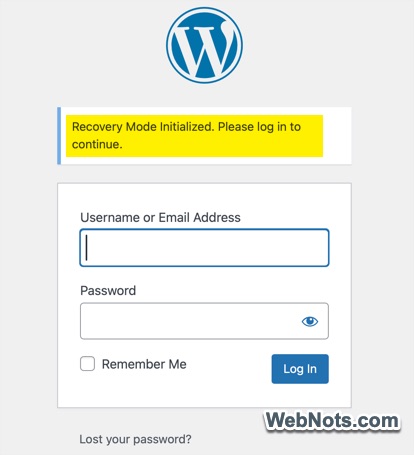
WordPress will generally deactivate the faulty plugin or theme if you have clicked on the email link. The rest of your site and dashboard should function normally. If you have manually accessed the Recovery Mode, you may need to identify the error on your own.
After resolving the problem and ensuring your site loads correctly, you can exit Recovery Mode by logging out or simply closing your browser. WordPress automatically resumes normal operation if the error has been fixed.
Frequently Asked Questions
Yes, you can manually initiate the dashboard access with a special parameter added to the default WordPress login URL.
Ensure your admin email address is correct in “Settings > General > Administration Email Address” section and check your spam or junk folders.
No – only administrator can access the dashboard; regular visitors will still see the error page until the issue is resolved.
It is designed to access the dashboard when fatal errors are caused by themes and plugins. However, you need to fix the issue to restore the site.
If you cannot access Recovery Mode or the error persists, you may need to take manual measures. For example, use FTP or File Manager from hosting account to navigate to /wp-content/plugins/ folder and rename the suspected plugin’s folder, which will deactivate it.
Review your server’s error logs for more detailed information on the crash. Make sure to use reliable plugins / themes and always take a backup so that you can restore if needed.