Although WordPress is the most popular platform for creating websites, it is also one of the complicated content management systems available. Yes, don’t believe if someone says you can create a blog in 5 minutes or less. It does not work in that manner. You may start easily with the pre-installed setup from hosting companies; however, you will face a lot of technical errors while using the setup as a whole. In our earlier article, we have explained common WordPress errors with the troubleshooting steps and “Error Establishing a Database Connection” is the most common error out of all.
Why the Error Happens?
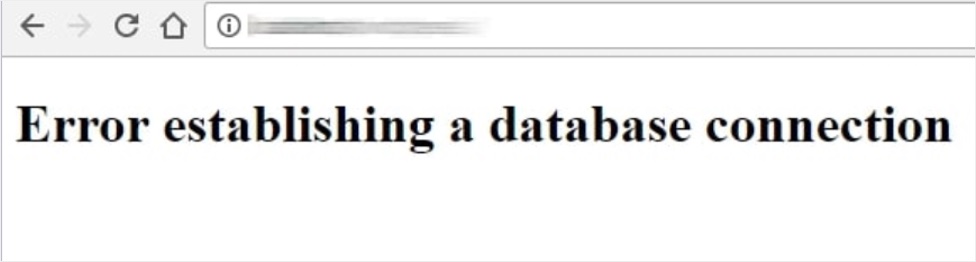
The error shows a single line on the browser without any other clues as shown in the below picture.
To understand the fix, you must first understand how WordPress works.
- Basically, WordPress is a PHP application that stores all your content (posts, pages, etc.) in a MySQL database.
- Whenever a page from your site is loaded, WordPress reads a configuration file called wp-config.php, where the database credentials are stored.
- WordPress uses them to connect to the database and fetch the requested content.
- When the database connection fails, WordPress can’t get the stored content and shows the “Error Establishing a Database Connection” error on the screen.
Now that you know from where the error originates, it’s easy to guess the culprits. They are usually one of the following:
- Wrong database name, username, or password in wp-config.php file.
- A completely corrupted database.
- Momentary glitches from your database hosting server.
- Corrupted WordPress core files.
With that framework in place, let us proceed to the remedy.
Step 1: Verify Your Database Credentials
This is where nine out of ten investigations will end.
- Login to your hosting account and open the File Manager app.

- Navigate to the root directory of your WordPress installation (typically public_html or www) and edit the wp-config.php file.
- Look for these four lines and make sure the provided credentials are correct.
define('DB_NAME', 'your_database_name');
define('DB_USER', 'your_database_user');
define('DB_PASSWORD', 'your_database_password');
define('DB_HOST', 'localhost');
- If you are not sure about the credentials, navigate to the database section in your hosting panel (often labeled “MySQL Databases” or something similar).

- Get the database name, username, and password details. If you are not able to get the password, you may need to change it to get a new one (which is the case with most hosting setups).


- Now, make sure the credentials in your wp-config.php file are the same as your database credentials. Remember that the connection will fail even if a single character is incorrect like a typo, an extra space, or a wrong quotation mark.
- Save the wp-config.php file with the correct credentials. Now, open your site and check, it should work properly without showing the connection error.
Generally, localhost is the value used for DB_HOST parameter. This is because most hosting companies store your WordPress installation files and database in the same server location. However, it may also have different setup depending on your hosting company. If other details are correct but still see the error, contact your hosting support to get the specific server address or IP to use as a DB_HOST. You can also try with 127.0.0.1 (which is the localhost IP address) instead of using localhost.
Note: Instead of using File Manager, you can also edit the wp-config.php file remotely via FTP using apps like FileZilla.
Step 2: Repair a Corrupted Database
If your database credentials are correct but the error persists, the database itself may be corrupted. This can happen if you are using third-party plugins to optimize database content or due to failed updates. Good thing is that WordPress offers a built-in repair feature.
- Edit your wp-config.php file and add this line just before the “That’s all, stop editing!” comment:
define('WP_ALLOW_REPAIR', true);
- Then, open https://yourdomain.com/wp-admin/maint/repair.php in your browser.
- You will be presented with two options: “Repair Database” and “Repair and Optimize Database”. Select the “Repair Database” option, which is quicker and less resource-intensive.

- You will see the result showing the status of each table in your database. Check the status is “Okay” for all the tables.
- You will also see a reminder at the end of the results page to remove the repair line from your wp-config.php. So, make sure to delete the line immediately after the process completes.

Now, open your site and check if it works without showing the “Error Establishing a Database Connection” error.
Step 3: Check Your Server
Sometimes, the problem lies not with your site but with your hosting environment. If the database server has crashed or is overwhelmed by traffic, WordPress will be unable to connect. This is particularly common on shared hosting plans during traffic spikes.
If you suspect this is the case, wait for some time to see if the server recovers on its own. If the error persists, contact your hosting provider’s support team and ask them to verify that the MySQL service is running.
Step 4: Re-Upload Core WordPress Files
If you are playing around with the core WordPress files, there are possibilities one of them might have corrupted causing the error.
- First, take a complete backup of your current setup.
- Go to WordPress.org and download a fresh copy of WordPress software.
- Upload the wp-admin and wp-includes folders to your server via FTP or through File Manager (overwriting the existing files).
- Purge server-side and CDN caches and check your site works properly.

Note: Do not overwrite the wp-content folder or your wp-config.php file, these contain your themes, plugins, and unique configuration.
Step 5: Restore Database and Site Files
If the error occurs after you did some action (like a plugin, theme or core update) and you don’t have time to follow the above-listed troubleshooting steps, then you can simply restore the database or entire site from your backup. This will help to instantly restore your site to working condition and avoid revenue loss.
You can create a staging site or localhost setup and test the suspected plugin or theme to confirm the issue. This will help to contact the developer with the details and ask for a fix.
Note: Always avoid doing database related activities directly from the WordPress admin panel. Use your hosting panel tools for that purpose.
Final Words
In most cases, the “Error Establishing a Database Connection” error will resolve with the correct database credentials. If all the above suggestions fail to work, contact your hosting provider’s support team for assistance. You may need to pay them for fixing the issue if it is site specific.