Monitoring the site’s performance is an important factor for improving traffic and adjusting the required keywords for any website. Weebly offers free users a simple “Site Statistics” (also called Stats or Insights) option which can be used to view number of page views and unique visitors for that particular month. In addition to this basic statistics, details of number of orders, conversion rate and exporting options are also provided to Professional and higher level plan users.
How to Monitor Weebly Site Traffic with Stats?
With the new Weebly interface, scroll down to the bottom of the dashboard once you logged into your account. The Site Statistics features will show the weekly data of sales, unique visitors and page views. If you have multiple sites on your Weebly account then you can select the site from the dropdown and view the stats.

You can click on any of the statistics to view the detailed report for the past one month data. Basically, this will take you to “Report > Summary” section in the dashboard.
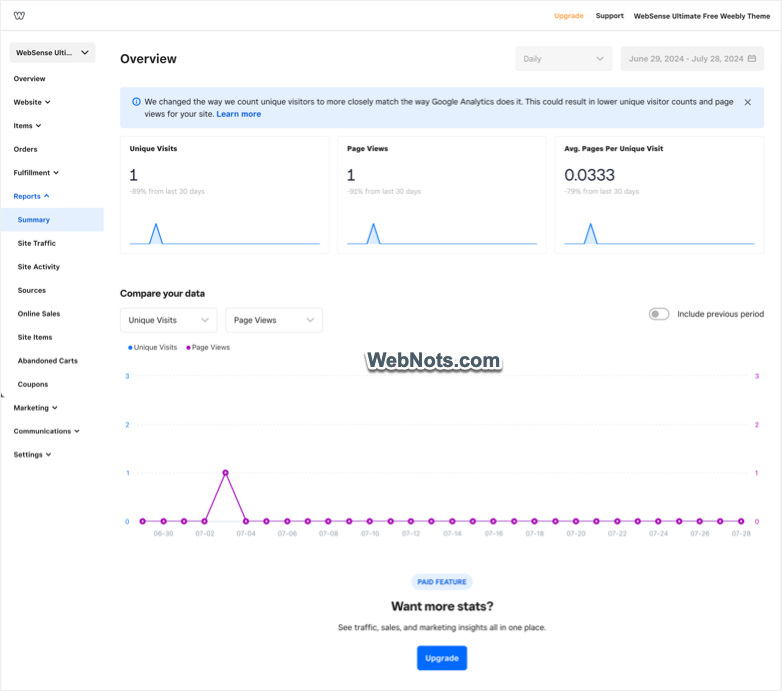
Features for Premium Users
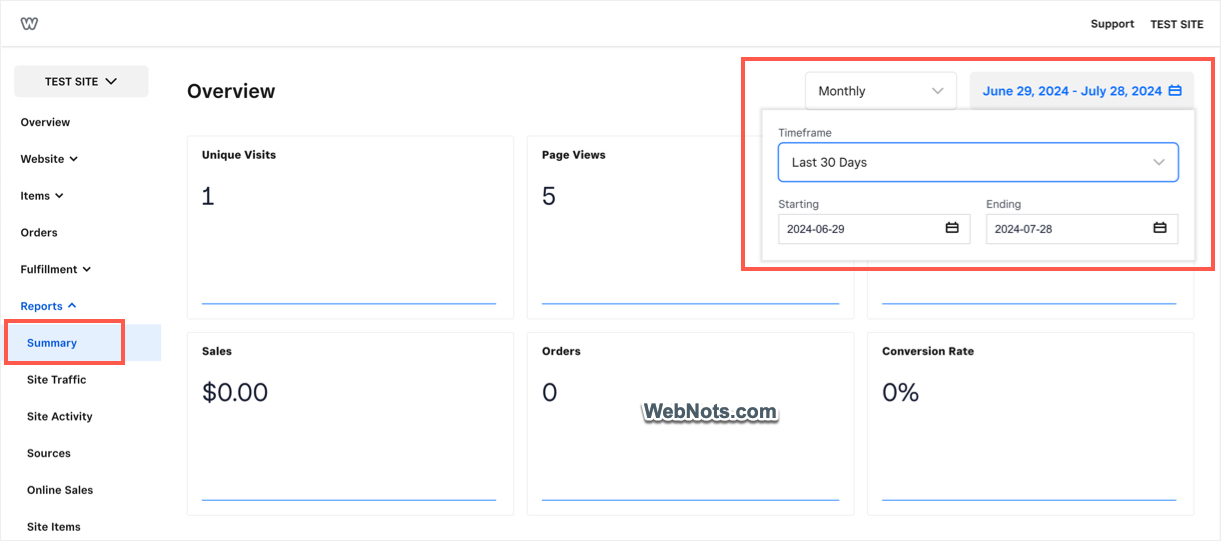
Weebly premium plan users can see additional details of number of orders and conversion rate under “Summary” report. In addition, there is also an option to change the timeframe to view and compare data.
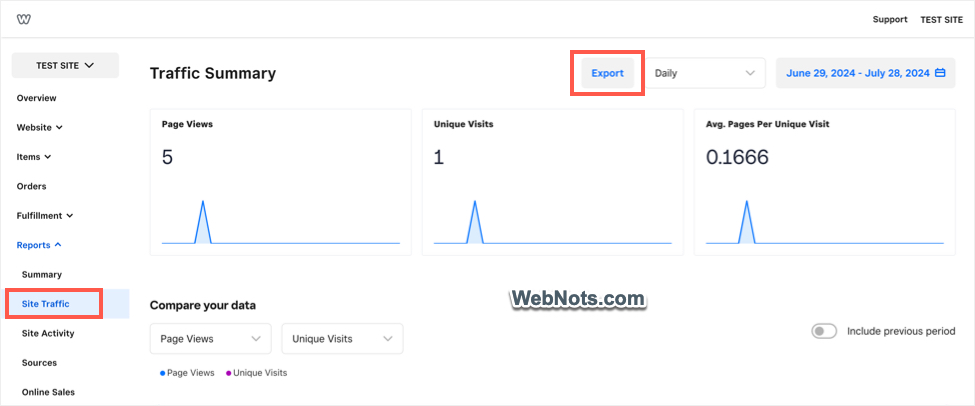
Premium users can also go to “Reports > Site Traffic” section to view and export the traffic details as a CSV file for the selected timeframe.
Pros and Cons
Though the Site Statistics feature is very handy, there are some drawbacks using this. Below is the list of pros and cons of Weebly Site Statistics:
- Very simple with basic data.
- Earlier, the feature used to show top pages, search terms and referring sites for premium users which were also removed from reports.
- No option for choosing the period for free users. By default, the statistics is shown for the current week on the dashboard and for current month on the detailed view.
- Unique visitors and page views count do not match with Google Analytics data.

You can also access Weebly Site Statistics option from the mobile app on the go.

Why to Use Weebly Site Statistics?
Here are some of the reasons you should try Weebly Site Statistics feature:
- No need to add any additional script in the header for tracking.
- If you are running a small business website, then using Weebly Stats is the best option instead of exploring complex Google Analytics 4.
- Viewing detailed statistics is in-built option with all premium plans and you do not have any option to disable. This means, it will be duplicate if you are using GA4 or any other feature with premium plans.
- Simple and easy to understand within the dashboard.
Alternate Option for Site Statistics
Google Analytics is the best free tool in order to get detailed analysis of your site’s traffic data. As mentioned, GA4 is complicated to use compared to use old Universal Analytics (GA3). However, Google Analytics will show you all kind of traffic with the user behavior on your site like which page they entering most and which page they are leaving most. This will also be useful to improve the site parameters whereas even the Pro functions of Weebly Site Statistics is not much useful other than monitoring. It will be a good option if Weebly replace the default Site Statistics feature with Google Analytics integration on dashboard with customizing options in future.
Learn how to add Google Analytics code in Weebly site and other SEO tips.