
As an owner of Weebly site, you need to know how many people visit your website from which geographical area. In addition, you should also understand the pages that get more traffic on your site. This will help you to produce more content related to the topics what users like on your site. There are very few tools available on the internet for monitoring traffic data of a website. Though Weebly offers a traffic monitoring feature, it is only available for paid plans as a premium feature. So, free users can use the popular Google Analytics option from search engine giant Google.
Add Google Analytics in Weebly Site?
Google Analytics helps to monitor each and every aspect of a user activity on your site. You can track the parameters like traffic source and country-wise page views. In order to use Analytics, you need to install a tracking code on your Weebly site to inform Google that you are the owner of the site.

Fortunately, Weebly offers a very simple way for adding and verifying your site with Analytics. Both free as well as premium users can add Analytics tracking code on their Weebly site.
Getting Analytics Tracking Code
First, you should add your Weebly site in Google Analytics account and get the tracking code. The process is lengthier and below is the summary of steps involved. Check our complete setup guide to understand how to create a new GA4 account and property.
- Go to Google Analytics site and login using your Google account.
- Navigate to “Admin” section and click on the “Create Account” button.

- Follow the setup wizard to fill out required details for creating a property for your site.

- After that, go to “Data Streams” section and setup data collection from your website.

- Once the measurement ID is created, click the “View tag instructions” option.

- Go to “Install manually” tab and copy the GA4 tracking code for your website.

After adding the code on your Weebly site, you can come back to the Analytics account to confirm whether your site is receiving traffic.
Add Google Analytics Code in Entire Weebly
This option helps to insert the GA4 code on all the pages of your Weebly site.
- Login to your Weebly account and edit the site you added as an account in Google Analytics.
- Navigate to “SEO” section under site “Settings” tab.
- Paste your Google Analytics code in the “Header Code” text box as shown in the picture below.
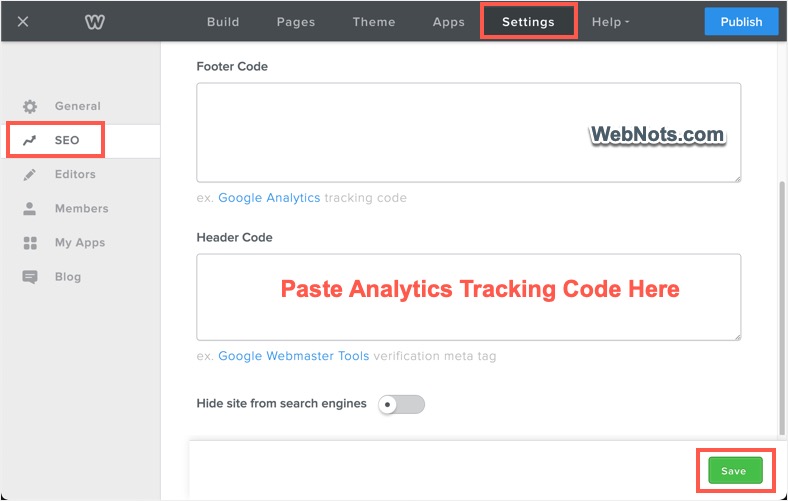
- Save your changes and publish your site.
Normally the changes will be applied instantly, and you will see the real time visitors and reporting data in your Google Analytics account. As you can see in the above screenshot, Weebly recommends adding Google Analytics code in “Footer Code” section. However, Google recommends adding the code in header section so that the page views are accounted properly.
Adding Tracking Code to Weebly Page
The above way of adding Analytics code in the “Settings” will automatically insert the code on all the pages of your Weebly site. However, in certain cases you may want to track only few pages or track different pages with different code. In this case, you should add the tracking code for each page instead of adding in “Settings” at site level.
- In Weebly editor, go to “Pages” tab and select the page you want to add the tracking code.
- Click on the “SEO Settings” button.
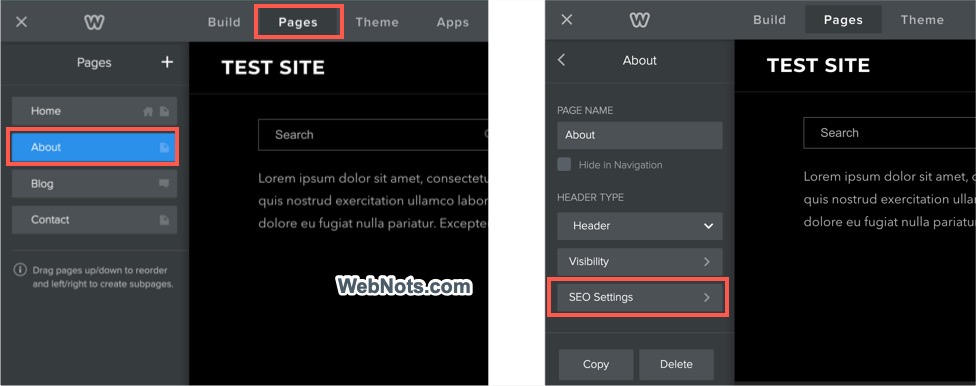
- Paste your Analytics tracking code in the “Header Code” text box under as shown in the below picture.
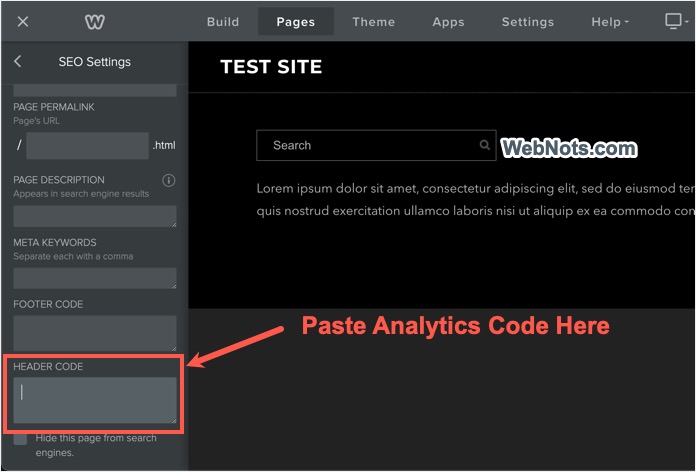
- Save your changes by publishing the site.
Now you have added the tracking code in a single page of your Weebly site and you can monitor the performance of that page in Google Analytics account.
Note that you can use the Analytics code insertion for verifying your domain in Google Search Console.
Weebly adds their own Google Analytics code with the number UA-7870337-1 to each site hosted on their platform. This is the old Universal Analytics code (GA3 version) which Google does not support anymore. Unfortunately, Weebly guys still uses the old unsupported tracking code. So, if you add your own GA4 tracking code, then the page source will show you two codes – one is Weebly’s and other is yours. Do not confuse with this.




Weebly says you should add the code to ONLY the Settings section, NOT to all pages.
When you add code in header/footer code sections on the settings, it will be added to all pages automatically.