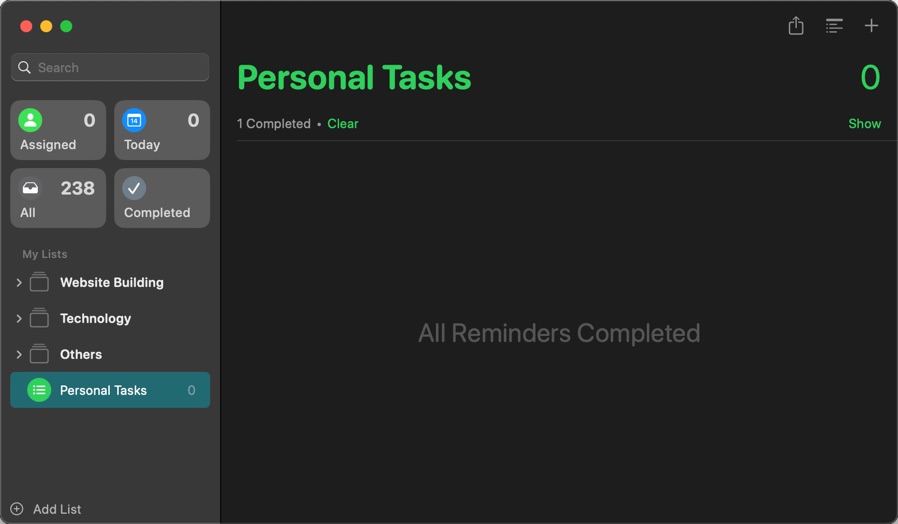
Reminders is a built-in macOS app designed for managing tasks, to-do lists, and deadlines. While its interface is simple and user-friendly, using keyboard shortcuts can significantly boost your efficiency. For instance, pressing “Command + Option + T” instantly updates all overdue tasks to today’s date. In our earlier articles, we have covered expert tips for managing tasks in the Reminders app and scheduling them within the Calendar app. Now, here is a complete list of keyboard shortcuts to help you navigate Reminders like a pro.
Mac Reminders App
Keyboard Shortcuts for Reminders App
General Shortcuts
Command + N
Create a new reminder
Command + Shift + N
Create a new list
Commad + Option + N
Create a new section
Command + Control + N
Create a new section with selection
Command + number
Switch to the smart lists section in the order
Command + W
Close the current window
Command + Option + W
Close all windows
Command + Q
Quit Reminders
Command + F
Search and find
Editing Reminders
Tab
Move to the next field when editing
Command + Delete
Delete a selected reminder
Command + A
Select a single item or all reminders under all lists
Command + :
Open spelling and grammar tool
Command + ;
Check spelling and grammar
Fn + E
Open Character Viewer
Command + Z
Undo previous action
Command + Shift + Z
Redo previous action
Command + C
Copy selected text
Command + V
Paste copied text from clipboard
Command + X
Cut selected text
Command + ]
Indent a task (to create a subtask)
Command + [
Outdent a task (to create a parent task)
Command + Shift + T
Add tags to a task
Date & Dues
Command + T
Set due date as today for a reminder
Command + Option + T
Set due date as tomorrow for a reminder
Command + K
Set due date as this weekend for a reminder
Command +Option + K
Set due date as next week for a reminder
Command + Option + T
Change overdue date of all items to today
Command + Shift + C
Mark a task as completed
Command + Shift + F
Flag or unflag a task
View Options
Command + Shift + H
Show or hide completed items
Command + Option + S
Show or hide sidebar in app
Fn + F
Open in full screen
Command + E
Show all subtasks
Command + Shift + E
Hide all subtasks
Window Management
Command + M
Minimnize app window
Command + Option + M
Minimize all app window
Fn + Control + F
Fill app window on the screen
Fn + Control + C
Center app window on the screen
Fn + Control + Left Arrow
Move app to left halve
Fn + Control + Right Arrow
Move app to right halve
Fn + Control + Down Arrow
Move app to bottom halve
Fn + Control + Up Arrow
Move app to top halve
Fn + Control + Shift + Left Arrow
Arrange Reminders and another app left and right of the screen
Fn + Control + Shift + Right Arrow
Arrange Reminders and another app right and left of the screen
Fn + Control + Shift + Down Arrow
Arrange Reminders and another app bottom and top of the screen
Fn + Control + Shift + Top Arrow
Arrange Reminders and another app top and bottom of the screen
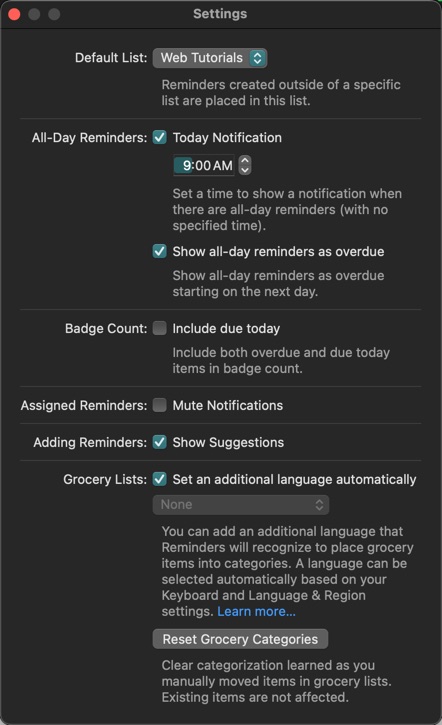
The app also offers few settings, which you can access by pressing “Command + Comma” or by going to “Reminders > Settings…” menu. On the settings page, you can set the default list, customize all-day reminders, enable suggestions and customize grocery list setup.