
Excel by default shows the gridline to visually highlight each cell in a workbook. On one side, these gridlines will be disturbing when using charts or other elements. On other hand, you may want to change them to a dark color for better visibility when using with elements like tables. So, if you are struggling with Excel gridlines, here are some options to show or hide them in your workbooks.
Gridlines in Excel
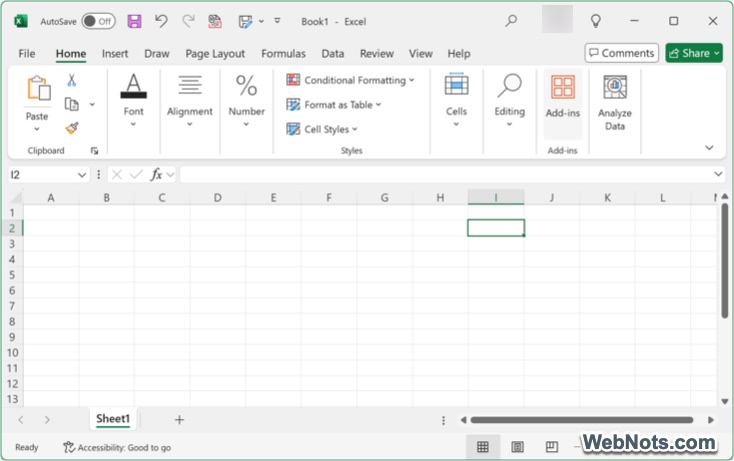
By default, gridlines are thin and in light grey color as shown below making it hard to see them with white background. Follow one of the options to make them clearly visible or hide them completely as you need.
1. Hide Gridlines from Menu
This method will help to remove gridlines only from the current worksheet.
- Open your Excel file and select the sheet from the bottom tabs.
- Go to “View” menu and check “Show” group in the ribbon.
- Uncheck “Gridlines” option.

Save your sheet and Excel will always remember to hide the gridlines from the sheet. However, all other sheets in the same workbook will still show gridlines and you need to hide them in each sheet separately. Also, other files (new and old) will still show gridlines.
2. Hide Gridlines from Excel Options
This method works exactly like the above method with the only difference of using Excel Options.
- Open your Excel file and select the sheet on which you want to hide the gridlines.
- Go to “File” menu and select “Options” to open Excel Options dialog box.
- Navigate to “Advanced” section and scroll down on the right pane to find “Display options for this worksheet” heading.
- Make sure the correct sheet name is selected in the dropdown and uncheck the “Show Gridlines” option.
- Click “OK” button to close the dialog box and you will see all gridlines are removed in your sheet.

The advantage of this method is that you can select the sheets from the dropdown and quickly enable or disable the gridlines.
3. Changing Gridlines Color
As mentioned, you can change the gridlines to any dark color for better visibility to clearly differentiate between cells. On other hand, if you are fed up hiding gridlines sheet by sheet in a workbook, then you can simply change the color to white to hide from all worksheets in a file.
- Open any Excel file and go to “Files > Options” menu.
- When you are in Excel Options dialog box, go to “Advanced” section.
- Find “Display options for this worksheet” heading on right pane.
- Click the color picker against “Gridline color” option.
- Select white color and click “OK” button to close the Excel Options dialog.

4. Merging Cells to Remove Gridlines
The last option is to merge the cells, and Excel will automatically remove the gridlines only from the merged cells. The remaining portion of the current sheet, other sheets and files will not be affected.
- Select the range of cells on your Excel sheet.
- Go to “Home” menu and check in the “Alignment” group of items in ribbon.
- Click the small down arrow at the end of “Merge & Center” button. Select one of the options from the dropdown to “Merge & Center”, “Merge Across” or “Merge Cells”.
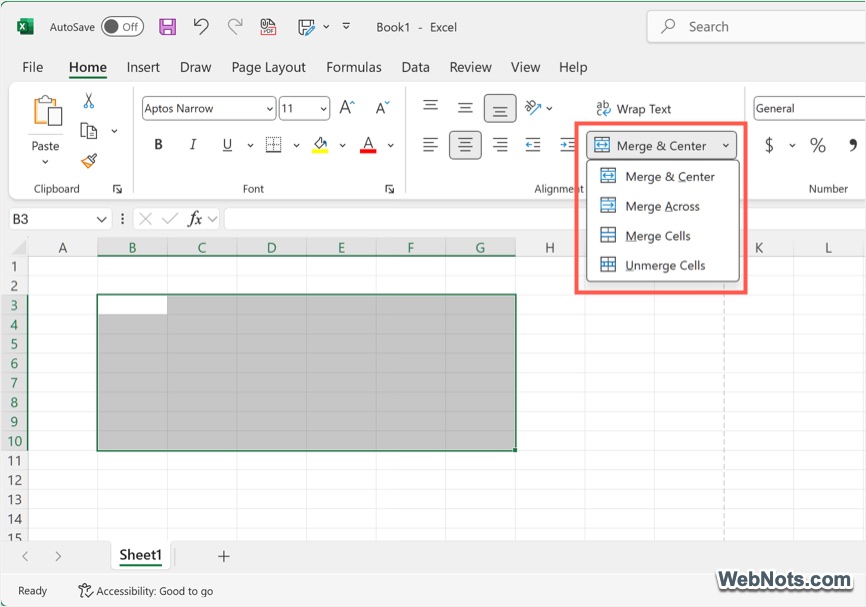
- Merge Across option allows you to remove the gridlines across columns and you will still be able to see the lines on rows.
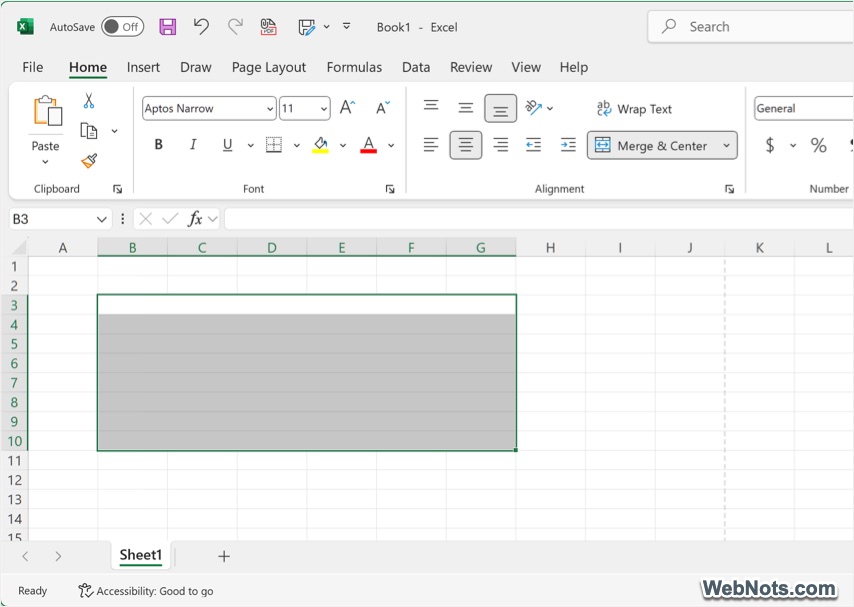
- Anytime you can unmerge the cells to bring the gridlines back.
Final Words
As you can see, there are multiple methods to show or hide the gridlines in Excel worksheet. All these methods will work on a sheet level and changing color will be applied on all the sheets in a workbook file. However, it is not possible to remove the gridlines in all Excel files (old and new). This is due to new file will use a blank template with gridlines and all old files are already saved in that format. If you really want to get rid of gridlines in all new files, then you can create a custom template and use it instead of using the default blank template.


