If you’re looking to grow your email list while providing valuable content to your website visitors, the “subscribe to download” method is one of the most effective strategies available on WordPress. This approach requires users to enter their email address (and sometimes other information like name) in exchange for downloading a file, such as an eBook, checklist, template, or exclusive resource. Not only does this tactic benefit your lead generation efforts, but it also offers a tangible incentive for users to subscribe. In this article, we’ll walk you through the step-by-step process of setting up a “subscribe to download” feature on your WordPress site.
Choosing the Right Plugin
Surprisingly, core WordPress does not come with basic features like this and there are also relatively few plugins that offer “subscribe to download” functionality. Using a heavy plugin like WooCommerce for offering file downloads doesn’t make sense. For this article, we’ll explain with a simple and lightweight “Subscribe to Download Lite” plugin.
1. Install and Activate the Plugin
- Navigate to your WordPress dashboard.
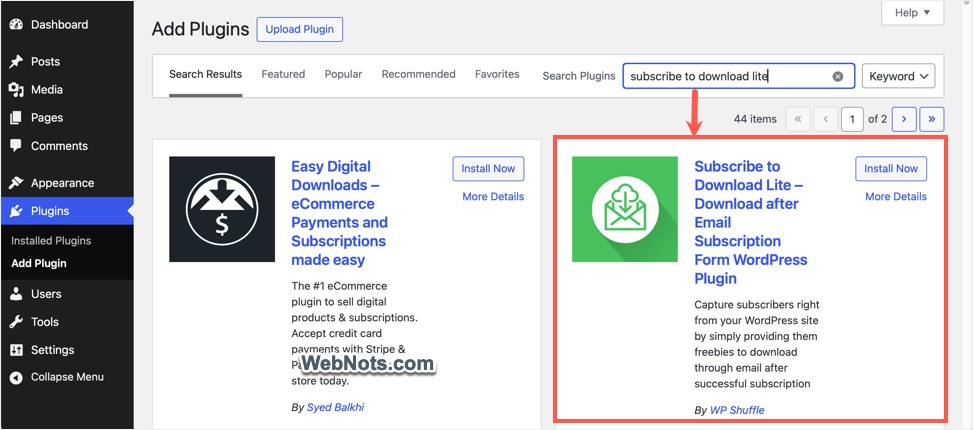
- Go to “Plugins > Add New” section.
- Search for “Subscribe to Download Lite”.
- Click “Install Now” and then “Activate” the plugin.
2. Create or Edit a Form
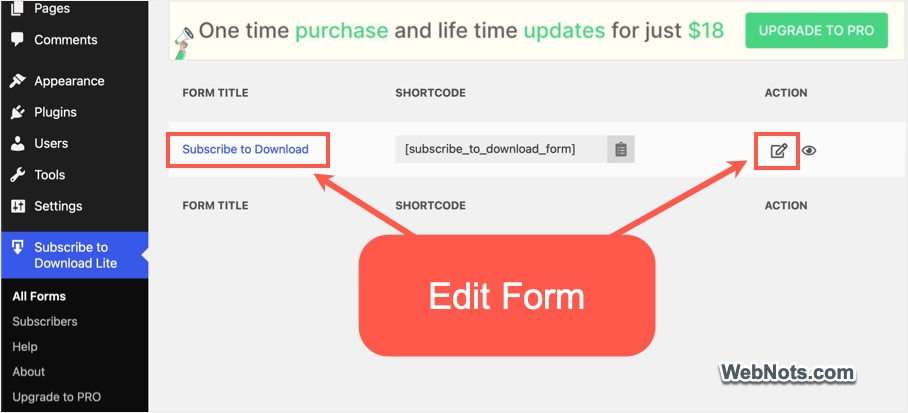
Though this is a free plugin, it allows only one form and you need to update to the premium version ($18 one-time purchase) for creating unlimited forms. Once activated, you’ll find a new menu item for “Subscribe to Download Lite”, hover over it and go to “All Forms” submenu. You’ll find a single form already created and click on the “Edit Form” icon under “Action” column (or click on the form name link).
3. Add Your Downloadable Files
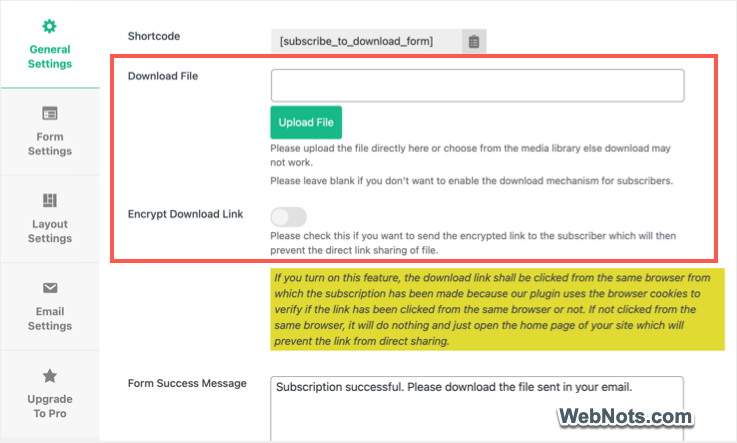
- Make sure you are in “General Settings” tab and click on the “Upload File” button against “Download File” option.
- Select the file you want to offer as a download (like PDF, ZIP, or Word document) and upload it on your site.
- Enable on “Encrypt Download Link” option. This forces users to download the file exclusively from the browser associated with the email used for the subscription. This process also restricts access to the file through direct media URL.
- Fill other details like download button text and form messages (like success, error and required messages).
4. Customize Subscription Form
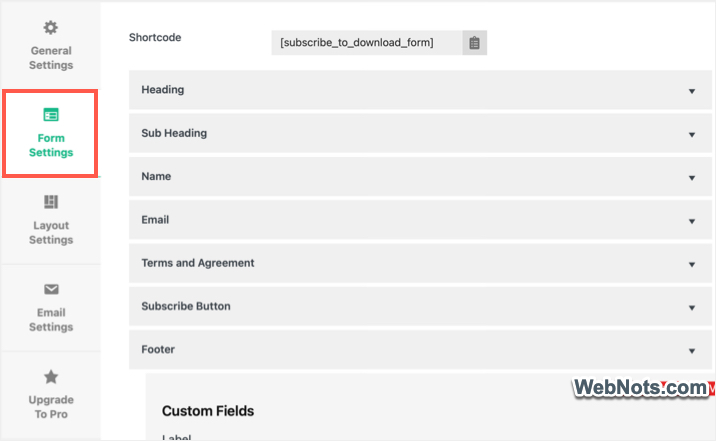
Go to “Form Settings” section to customize the following form items:
- Show or hide heading, sub-heading, name field, terms, and footer.
- Add custom text or label for the form elements when enabled.
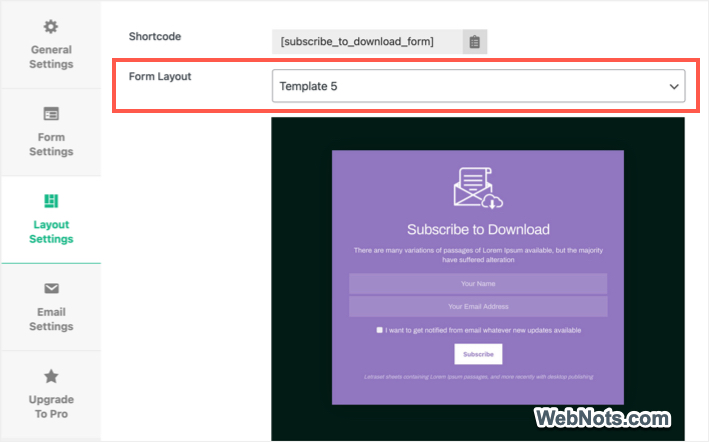
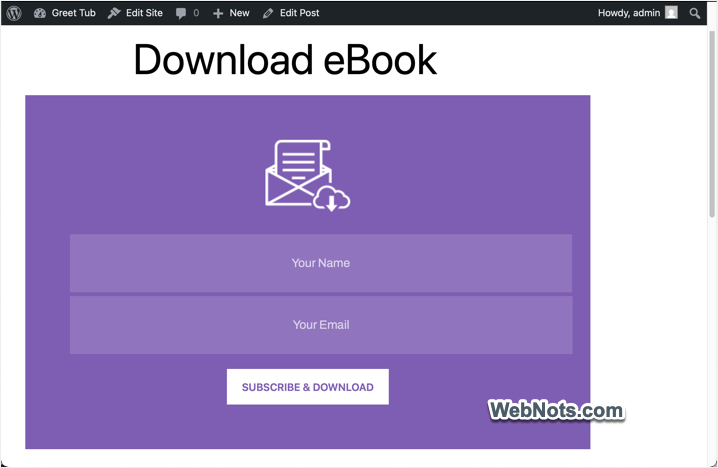
After that, go to “Layout Settings” section and choose one of the predefined templates from the dropdown. Free version of the plugin offers 5 templates while the pro version offers 20+ templates. You can also upload an icon image to show on the form and choose whether you want to show the form directly or trigger the form as a pop-up using a text link.
5. Customize Email Settings
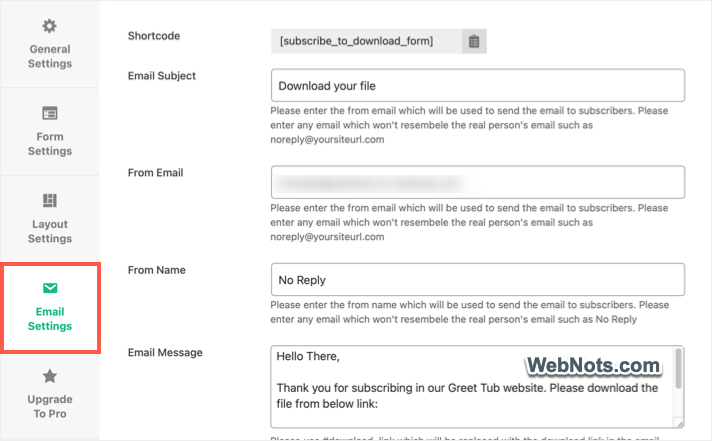
Navigate to “Email Settings” section and change the email subject, from email, from name, email message.
Save all your changes from the “Save” button on the top banner. You can also use the preview option to check your form before inserting it on your site.
6. Insert the Form into Your Content
- Each form will generate a unique shortcode which you can find on top of each settings section.
- Click the copy button to get the shortcode into your clipboard.
- Edit or create a page and paste the shortcode where you want to offer the download.
- Publish or update the content and check your form is showing properly.
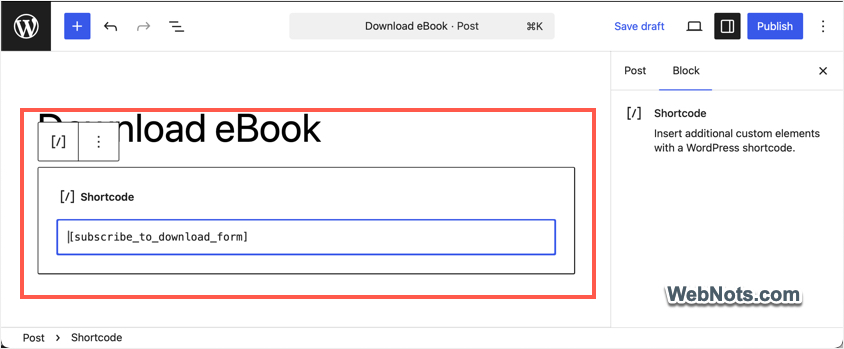
We recommend you insert the form on a test post / page before using it on a post / page with traffic. In this way, you can test the entire process as a user: submit your email, receive the confirmation, and download the file. Make sure the messages are clear, the download works, and emails are delivered promptly.
7. Viewing Subscribers
Go to “Subscribe to Download Lite > Subscribers” section to find all your subscribers. The free version only allows you to export the subscribers list to a CSV file. The pro version allows you to connect the subscribers directly to your preferred email marketing service (like Mailchimp, Constant Contact, ConvertKit, or Mailerlite).
Conclusion
In summary, using the “Subscribe to Download Lite” plugin is a straightforward way to collect subscriber information while offering valuable content to your visitors. By following the steps outlined above, you can create and embed forms, manage subscribers, and ensure your email delivery process is smooth and reliable. Whether you’re utilizing the free version or opting for more advanced features with the pro upgrade, this plugin empowers you to connect with your audience and grow your email list effectively.