Customizing folder icons on your Mac not only brings a sense of personal expression to your desktop but also streamlines your ability to identify and organize important files. Whether you crave a splash of color, want to distinguish folders for work and personal, or simply desire a touch of whimsy in your workspace, modifying folder icons is an accessible and enjoyable way to make your Mac uniquely yours.
Customizing Folder Icons
There are few ways to customize the folders:
- Use custom folder icon.
- Only change color and add emoji – need macOS 26 (Tahoe) or later.
- Using a third-party application.
1. Assigning Custom Folder Icon
For this, first prepare the image or icon you wish to use, ideally in PNG format with a transparent background for best appearance. There are numerous online resources offering free Mac icons from where you can download the desired icon. Alternatively, you can create your own icon using apps like Photoshop, Snagit, or Pixelmator. It is also possible to crop or edit an existing photo using Preview or your preferred image editor. Once the icon image is ready, simply copy that to clipboard and follow the below steps.
- Locate the folder you wish to customize in Finder.
- Right-click (or Control-click) on the folder and select “Get Info”. Alternatively, select the folder and press “Command + I” keys.
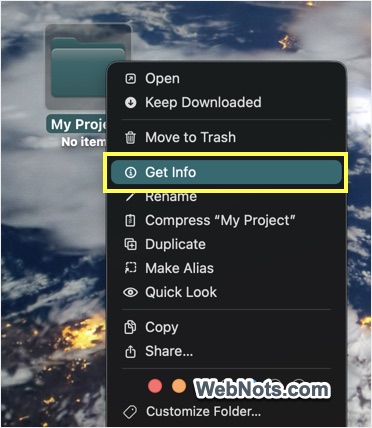
- The folder info pop-up window will appear, displaying details about the folder and click the small folder icon at the top left to highlight it.
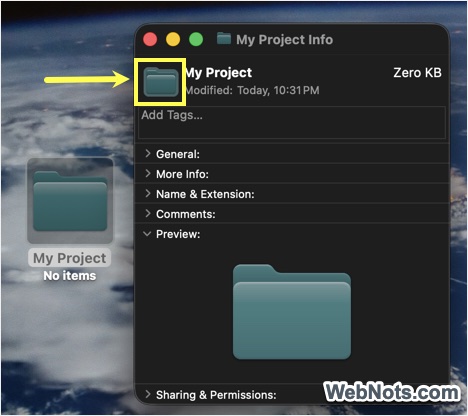
- Now, press “Command + V” keys to paste the icon image from your clipboard. This will replace the old folder icon immediately (you can see the preview as well as the actual icon will change).
- Close the Info window and the folder will now display your chosen icon in Finder and on the desktop.
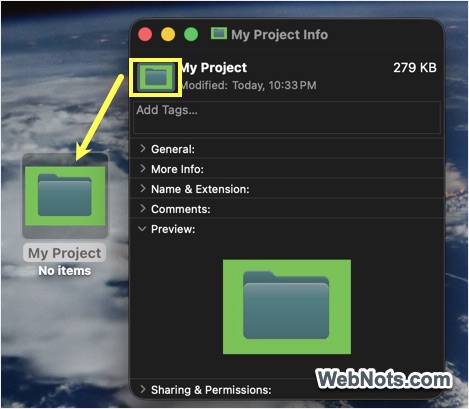
Note: If you wish to revert back to the original folder icon, open the folder info window, select the custom icon, and press delete.
2. Customize Folder with Color and Emoji
As of macOS 15, Mac will not change the folder icon’s color when you assign the color tag. However, this behavior is changed from macOS 26 (Tahoe) and the folder will show the assigned tag’s color.
- Locate the folder, right-click on it.
- You can directly assign the available tag colors from the context menu or click on the “Customize Folder” option.
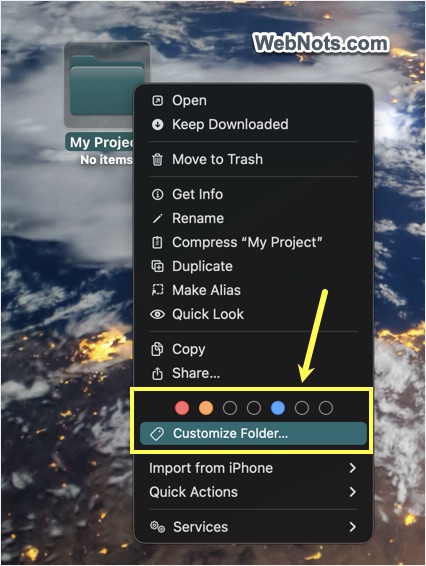
- Select your preferred color or click the ⊕ icon and select “Edit Tags…” option. Type the new color name (for example – Purple) and press enter to add color tag.
- The folder icon will instantly change to the tag’s color.
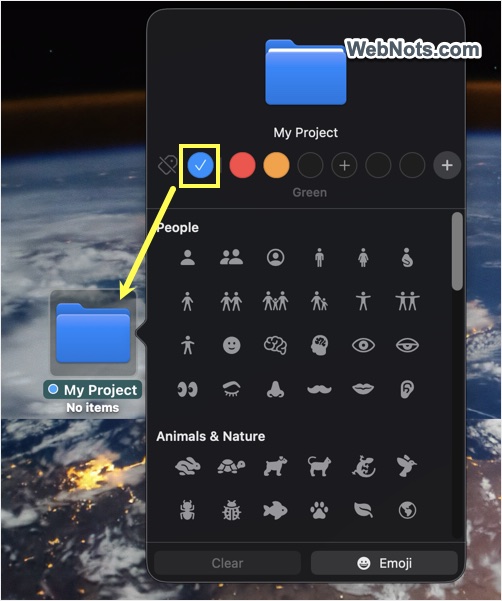
- Now, click any symbol to embed it on your folder icon.
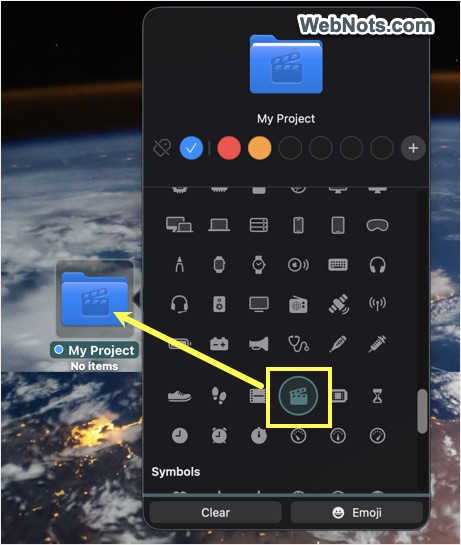
- If you want to add an emoji, click the “Emoji, button and select your favorite emoji from the list.
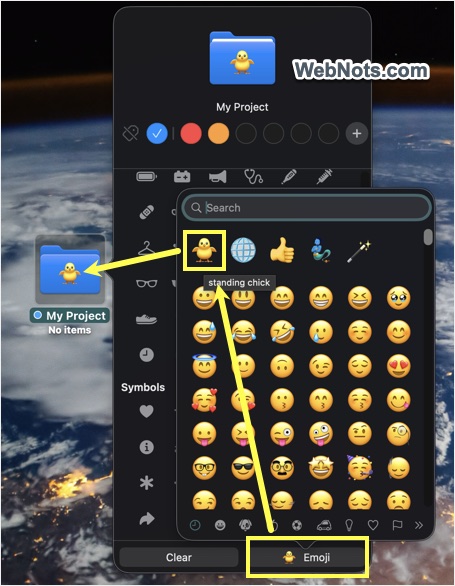
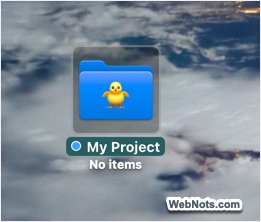
- The folder icon will show the colorful emoji symbol on it.
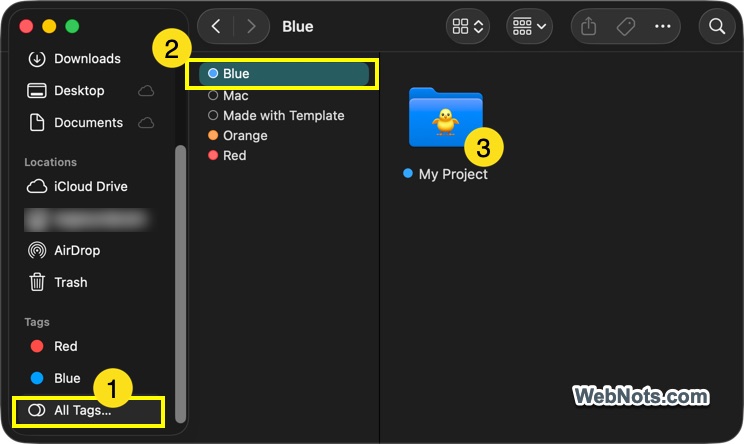
Note: Select “Customize Folder” from right-click menu and then click on the “Clear” button to remove the embedded symbol or emoji. Also, click on the “Remove all tags” icon to remove the colors and revert to default folder icon. You can quickly search the folders with tags from Finder’s sidebar under “Tags” section.
3. Personalizing with Third-Party Apps
If you want even more options or automated tools, several third-party applications can help:
- LiteIcon: Allows you to change system and folder icons easily.
- Image2icon: Converts images to .icns format and offers a range of style templates.
- Folder Colorizer: Adds vibrant colors and gradient effects to folder icons for easier identification.
Always download apps from trusted sources and check compatibility with your version of macOS.
Why to Customize Folder Icons?
Regardless of the method you choose, here are some of the reasons why you should customize the folder icons on Mac.
- Distinct icons can help you instantly recognize project folders, work archives, or personal collections without reading folder names.
- Choose icons and emoji that reflect your personality or interests, adding flair to your digital environment.
- The ability to quickly locate files by sight can save precious seconds and reduce digital clutter. You can also use tags for quicker access.
- Custom icons can assist users who prefer or require visual cues over text.
Frequently Asked Questions
Yes, it is possible. However, the folder icon will show with the last selected color tag.
The feature is available from macOS 26, hence, make sure you are using the latest macOS version.
If the icon appears blurry, use a higher-resolution image with 512×512 pixels or larger size.
Transparent PNG image format is best for blending the icon with the background.