
Managing a WordPress website efficiently requires optimizing various components, with the database being one of the most critical. A bloated database can slow down your website, increase backup sizes, and affect overall performance. Reducing the database size not only improves speed but also enhances the overall user experience. Here are some tips on how to reduce the database size of your WordPress site.
Backup Your Database
Before making any changes, always back up your entire database. This ensures that you have a restore point in case something goes wrong. There are multiple options for backing up your database and files:
- Manually download the database from your hosting account using phpMyAdmin or similar tools.
- Use plugins like UpdraftPlus or BackupBuddy to create a secure backup.
- If your hosting company or plan allows, create a staging site on your hosting server which you can restore with one click.
1. Don’t Install Unnecessary Plugins and Themes on Live Site
WordPress offers thousands of free themes and plugins, which may tempt you to install and try them on your live site. However, most plugins and themes create database tables / entries that remain even after deletion. For example, the WooCommerce plugin will add more than 25 tables to your database, simply deactivating and deleting the WooCommerce plugin will not remove those tables. While some plugins offer options to remove their database entries, most do not.

To prevent unnecessary database bloat, avoid installing unnecessary plugins, especially those related to eCommerce, social sharing, analytics, SEO, and security.
- Before deleting any plugins, check if they provide an option to remove their database tables.
- Use plugins like WP-Optimize to clean up leftover data automatically.
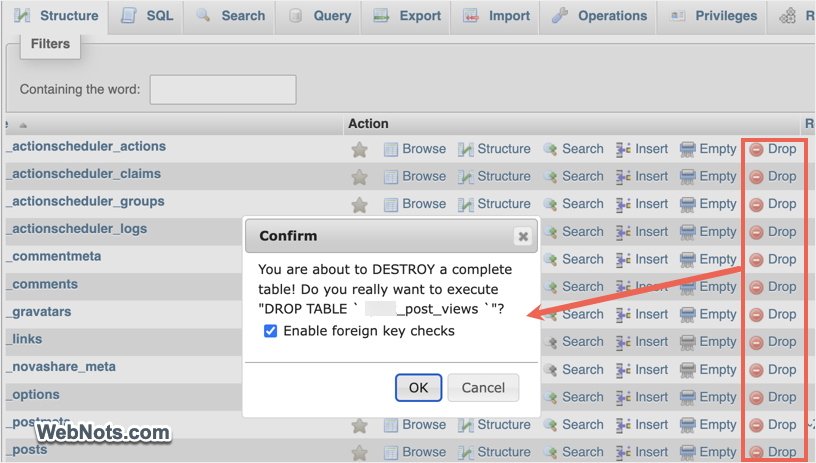
- If no automatic option is available, manually delete tables using phpMyAdmin or similar database management tools. All you need is to simply click the “Drop” link check against the table name in database and confirm your action to permanently delete it.
2. Clean Up Post Revisions
WordPress automatically saves post revisions, which can quickly accumulate and inflate your database size. You can limit the number of post revisions WordPress stores by adding the following line to your wp-config.php file. This will ensure only the latest three revisions are kept, reducing unnecessary data.
define('WP_POST_REVISIONS', 3);3. Remove Spam Comments
Spam and unapproved comments can take up significant space in your database. Navigate to “Comments > Spam” section in your WordPress dashboard and delete them regularly.
4. Delete Orphaned Metadata and Expired Transients
Orphaned metadata (like post, comment, and user meta) is data without a corresponding parent element. You can go through wp_options table and delete unnecessary entries manually, though it is a tedious task. Otherwise, use plugins like WP-Sweep to clean orphaned metadata from your database.
Similarly, transients are temporary data stored in your database. Sometimes, expired transients remain in the database unnecessarily. Use plugins like Transients Manager to remove expired transients.
5. Regular Database Optimization
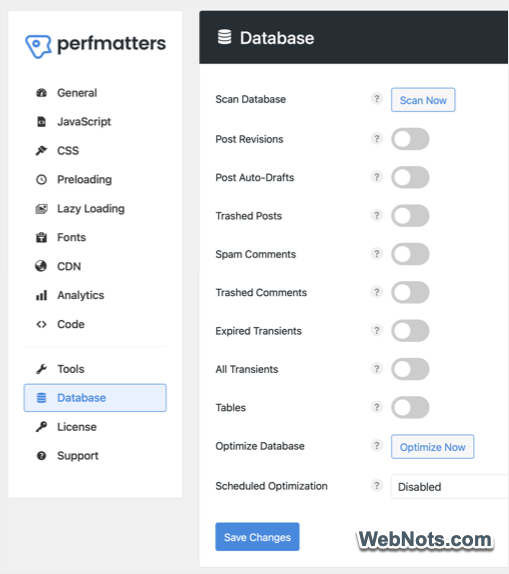
Database tables can become fragmented over time. So, schedule regular database optimizations using plugins like Perfmatters. As you can see in the below Perfmatters screenshot, you can remove post revisions, spam comments and expired transients along with database table optimization. This helps to remove bloat and optimize your WordPress database for the best performance using a single plugin instead of installing multiple plugins (like WP-Optimize, WP-Sweep, and Transient Manager as mentioned above).
Conclusion
Reducing the size of WordPress database not only boosts your site’s performance but also simplifies backups and improves security. By regularly cleaning and optimizing database, you can ensure that your WordPress site remains fast, responsive, and efficient.


