Though it is easy to use, WordPress sites will show lot of errors when not maintained properly. The “There has been a critical error on this website” message is WordPress’s way of letting you know that a fatal error has occurred, typically due to a PHP issue. Unlike errors like “white screen of death”, this critical error message will show a link to WordPress.org documentation on troubleshooting. However, this will not help to identify the root cause and fix the error. In this article, we will explain various causes and suggestions to fix the issue.

Common Causes of the Error
While specific PHP fatal errors display messages indicating the file name and line number where the issue occurs, generic problems such as critical error messages can be more challenging to troubleshoot. Here are some of the common reasons and you need to follow a step-by-step approach to patiently find the root cause.
- Faulty or incompatible plugins.
- Theme coding errors.
- PHP version conflicts.
- Corrupted core files.
- Exceeding memory limits.
- Database connection issues.
Here are some of the suggestions to fix and prevent the issue.
1. Enable WordPress Debug Mode
Before making any changes, it is helpful to see the actual error message instead of the generic notice. WordPress’s debug mode can provide more insights in some cases.
- Login to your FTP account using the apps like FileZilla or login to your hosting account and open File Manager app.
- Locate the wp-config.php file available in the root directory.
- Add the following lines:
define('WP_DEBUG', true);
define('WP_DEBUG_LOG', true);
define('WP_DEBUG_DISPLAY', false);
Save the file. Now, WordPress will log errors to wp-content/debug.log. Check this log for the exact error details. You can also turn on the error display on browser by making the WP_DEBUG_DISPLAY parameter to true. However, this is not recommended as the error message can be seen by all users (which may contain security or important information).
2. Check Your Email for Error Details
Some technical issues will trigger a recovery mode in WordPress. In this case, generally, you will see the error showing “Your site is experiencing a technical issue” and WordPress will trigger an email to the administrator. You can click the recovery mode link in the email to login to your dashboard and take necessary action (like deleting or deactivating a plugin).
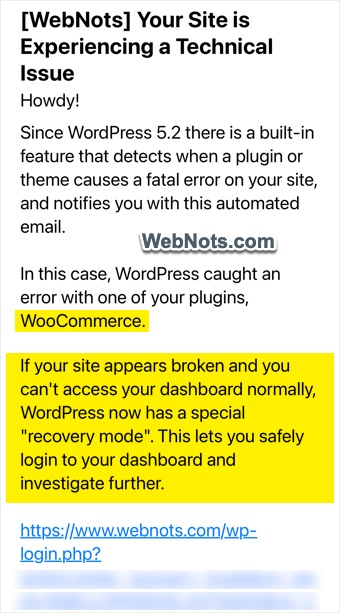
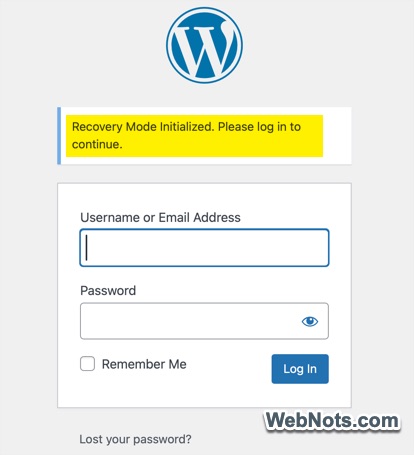
However, if no notification regarding email appears in the error message, proceed to the next step.
3. Deactivate All Plugins
Since plugins are the most common cause, deactivating them all can quickly determine if one is at fault. This is the action to take especially if you have updated a plugin or modified a plugin’s file before the error starts occurring.
- Use FTP or File Manager and go to the /wp-content/ directory.
- Rename the “plugins” folder to “plugins-deactivated”.
- Now, check your site and confirm whether you can login to the dashboard. If the site loads and you can login, then a plugin is the problem.
- Rename the folder back to plugins and reactivate plugins one by one through your dashboard (or by renaming their respective folders), reloading the site each time. When the error returns, you have found the culprit.
4. Switch to a Default Theme
If plugins are not the issue, the error may stem from your theme:
- Again, use FTP or your File Manager to access the /wp-content/themes folder.
- Rename your active theme’s folder (for example – from mytheme to mytheme-old).
- WordPress will automatically revert to a default theme (like twenty-twenty-five) if it is available. If not, upload or install a default theme via FTP or your hosting control panel.
- Check your website. If it works, your theme has a problem that needs fixing or replacing.
5. Increase PHP Memory Limit
A low PHP memory limit can cause fatal errors. To increase it:
- Edit the wp-config.php file and add or modify the following line before the line that says, “That’s all, stop editing!”:
define('WP_MEMORY_LIMIT', '256M');In most shared hosting environments, you hosting company will restrict the PHP memory usage per site. So, ask your hosting provider for assistance if changes don’t take effect.
6. Update PHP Version
Outdated or incompatible PHP versions can break WordPress. Generally, you can update the PHP version from the hosting panel. However, it is a good idea to check with your hosting provider and update your PHP to a version recommended for the latest WordPress.
7. Check for Corrupted Core Files
Sometimes, the error appears due to the corrupted WordPress core files. You can safely replace them using the following steps. Make sure to take a backup of your files before doing this.
- Download a fresh copy of WordPress from WordPress.org.
- Extract the files on your computer.
- Upload everything except the wp-content folder and wp-config.php file through FTP, overwriting existing files.
- This will not affect your data, posts or plugins but will replace any corrupted files.
8. Repair the Database
Database corruption can also cause critical errors. Add this line to your wp-config.php file:
define('WP_ALLOW_REPAIR', true);Now, visit your site and choose to repair and optimize your database. After finishing the task, remove the above line from wp-config.php file.
9. Check File Permissions
Incorrect file permissions can prevent WordPress from functioning properly.
- Files should generally be set to 644 and folders to 755.
- You can change these through FTP or using File Manager app from hosting account.

10. Consult Hosting Provider Support
If none of the above steps resolve the error, reach out to your hosting company’s support team. Provide them with as much detail as possible, including error logs and what you have already tried. In most cases, you may need to go for a paid support as hosting companies may not help for site level issues.
Frequently Asked Questions
Deactivating plugins, switching themes, or replacing core files (as described) will not erase your content, posts or configuration. However, always back up your site before making any changes.
Most troubleshooting can be performed via FTP or your hosting panel’s File Manager. For more details, check our article on troubleshooting dashboard access issues.
Deactivate that particular item by renaming its folder via FTP. You can report the issue to its developer for a fix.
If debug logs show nothing, the problem may be with server configuration. Contact your host and provide details of what you have tried.
Final Words
WordPress is a complicated content management system which needs multiple things to sync together for working. Unfortunately, it is difficult to keep track of the compatibility of theme and plugins with core WordPress files (as they might have developed by different authors). All you can do is to update your plugins and theme on a testing setup (localhost or staging site). This helps to avoid or identify critical errors without affecting your live site.
Also, make sure to disable the auto updates (for themes, plugins and core WordPress) and read the change log before manually updating. In this way, you can easily understand the root cause or what could have gone wrong.