URL shortening services are popular to make the long URLs with parameters to a simple and short URLs. This helps users to easily remember the short URL and open the webpage quickly. You can use third-party services like bit.ly for this purpose. However, the final URL will be on different domain name instead of using your own domain. If you are using WordPress, here is an easy way to shorten URLs with your own domain name.
Why to Use Own Domain for Short URLs?
There are few issues in using third-party services:
- It will be a trust issue for users as free third-party services are primarily used for spamming.
- Security and spam filter plugins will not allow to send these URLs in contact form.
- Most email providers will block and send the mails to junk/spam when the message contains URLs from these domains.
So, using your own domain not only makes it convenient but also allow you to use the shortened URLs freely without any restrictions.
Shorten URL in WordPress
First keep your long URLs handy and follow the below steps:
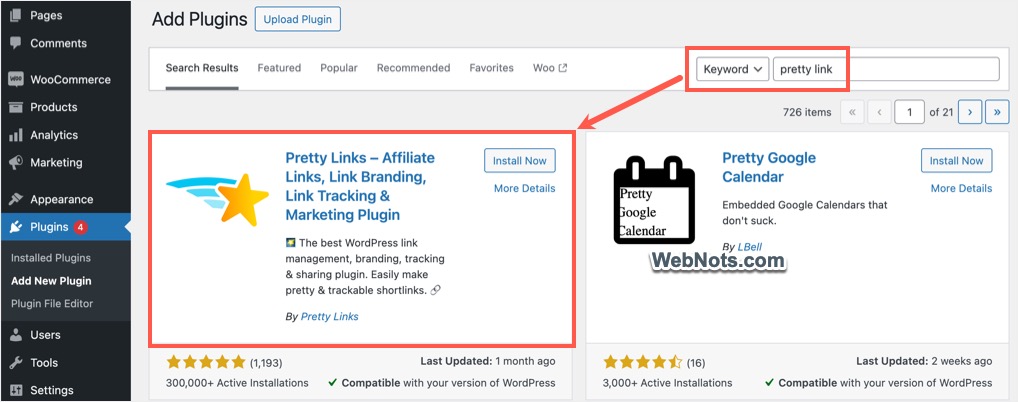
- Login to your WordPress admin panel and navigate to “Plugins > Add New Plugin” menu.
- Search for “pretty link” and install/activate Pretty Link plugin on your site.
- Go to “Pretty Links > Add New” menu to create a new short URL.
- Under “Basic” tab, select “Redirection” option as “301 (Permanent)”. Paste your long URL in “Target URL” box and enter the slug for your short URL in “Pretty Link” box. Slug is a suffix text that appears after the domain name in any WordPress URL.

- Go to “Advanced” tab and check “Tracking” to enable reporting. If required, check No Follow, Sponsored and Parameter Forwarding options.

- Click the “Update” button to publish your changes.
Now onwards you can start using the short pretty link URL instead of the original long URL. You can go to “Pretty Link” menu and monitor the number clicks on your shortened URL.
Example Short URL
We use Pretty Link plugin and here is a live example of how it works.
- Target or Original URL – https://www.webnots.com/how-to-shorten-url-in-wordpress-with-your-own-domain/
- Pretty or Short URL – https://www.webnots.com/wp-short-url
Go to “Pretty Links > Add New” section and create a link as explained above.

Now, clicking the shortened URL link https://www.webnots.com/wp-short-url will automatically redirect you to the target page (this page). Go to “Pretty Link” menu and check the “Clicks” column to find the number of clicks.

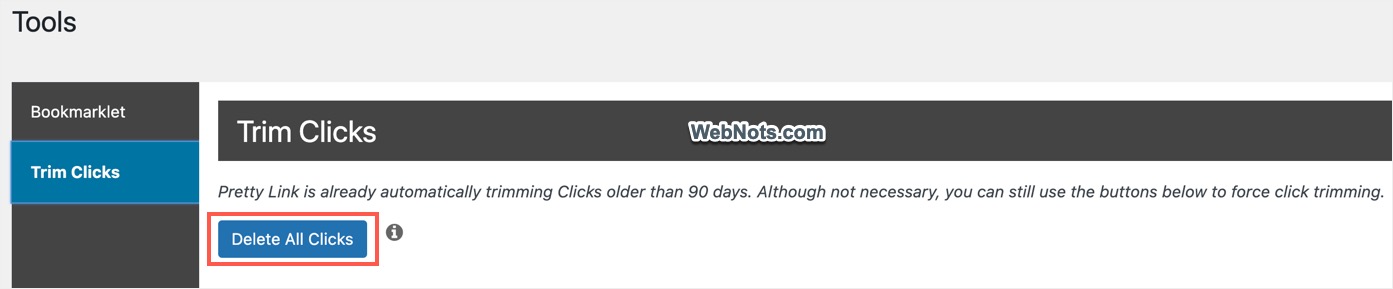
The plugin will retain the click data for 90 days and will delete automatically. If you want to delete all short links click data, go to “Pretty Link > Tools > Trim Clicks” and click on “Delete All Clicks” button.
You can also use Pretty Link plugin for cloaking lengthy affiliate URLs to short custom URLs. In this way, you can change the third-party domain URLs with parameters to your own domain name with easy to remember slug.
Note: WordPress also assigns a permanent shortlink URL for each post or page using /?p=123 format. For example, this post can be accessed using the URL https://www.webnots.com/?p=80292. However, it is difficult for users to remember numbers and using the plugin can help to create short and descriptive URLs.