Though Parallels Desktop is a premium only app, it is the easiest way to install Windows on Mac. The Standard Editon purchased through Parallels website (not from Mac App Store) allows to share the internet connection, including VPN, between your Mac and the Windows virtual machine setup. This means you can connect to VPN on Mac and use the same network on Window as well. Experiencing issues with the shared network in Parallels Desktop can be a major frustration as you can’t use Mac’s VPN. This article will walk you through a systematic, step-by-step troubleshooting process to resolve shared network issues on Parallels Desktop, regardless of your technical background.
Understanding Parallels Desktop Networking Modes
Before diving into solutions, it’s important to understand how Parallels Desktop handles networking. There are generally three network modes:
- Shared Network (Recommended): The virtual machine (VM) shares the Mac’s internet connection; the VM appears as another device on the local network.
- Bridged Network: The VM connects directly to the physical network using the host’s network adapter, appearing as a separate device with its own IP address.
- Host-Only Network: The VM communicates only with the host Mac and other VMs, not with external networks.
You can switch the modes by clicking on the network icon on top right corner of the Windows title bar.

Otherwise, shutdown your VM, go to “Parallels Desktop > Configure… > Hardware > Network” and select the required option from the “Source” dropdown.
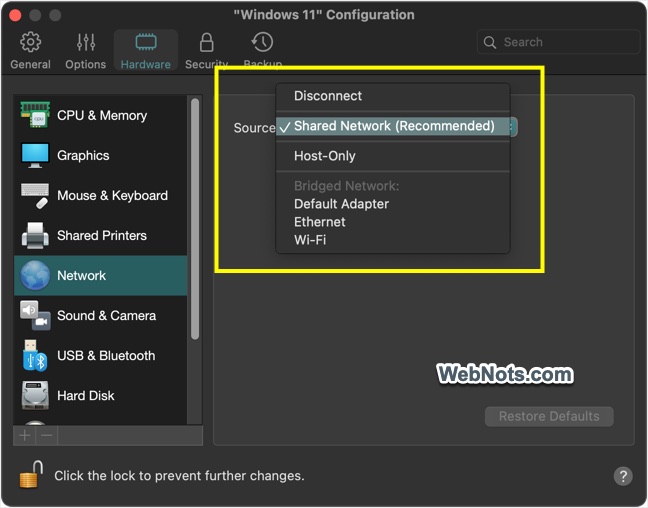
For most users, the Shared Network option provides the best balance of convenience and functionality (it’s also the recommended one). If this stops working, internet access and shared resources can be disrupted. Though you can use the internet access by switching to bridged network (Ethernet or Wi-Fi), it will not go through VPN.
Fixing Shared Network Issues
When there is a problem with Shared Network, right-click on the Ethernet or Wi-Fi icon on system tray and select “Diagnose network problems” menu.
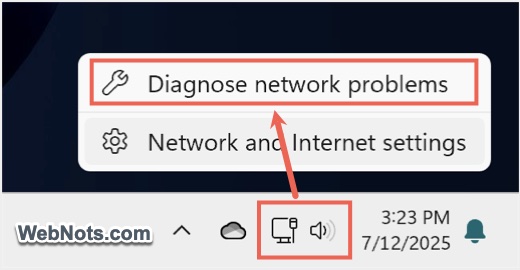
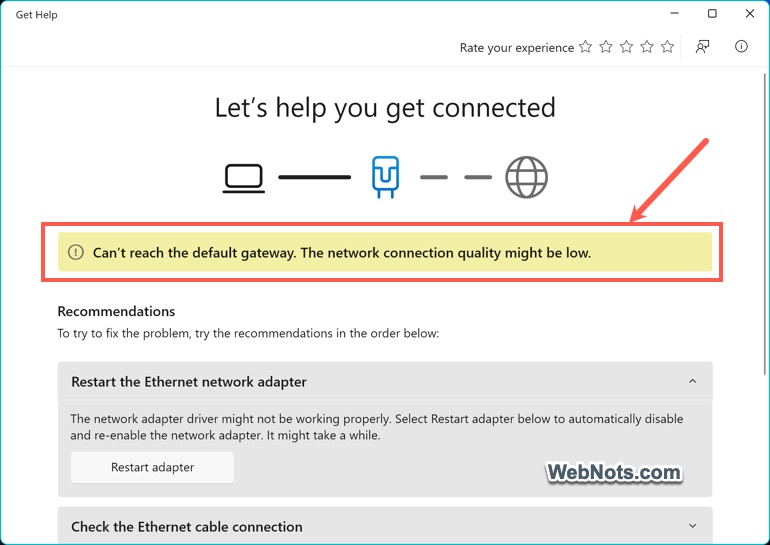
This will run network troubleshooter and shows error like DHCP server not found, DHCP server isn’t responding, can’t reach the default gateway, etc.
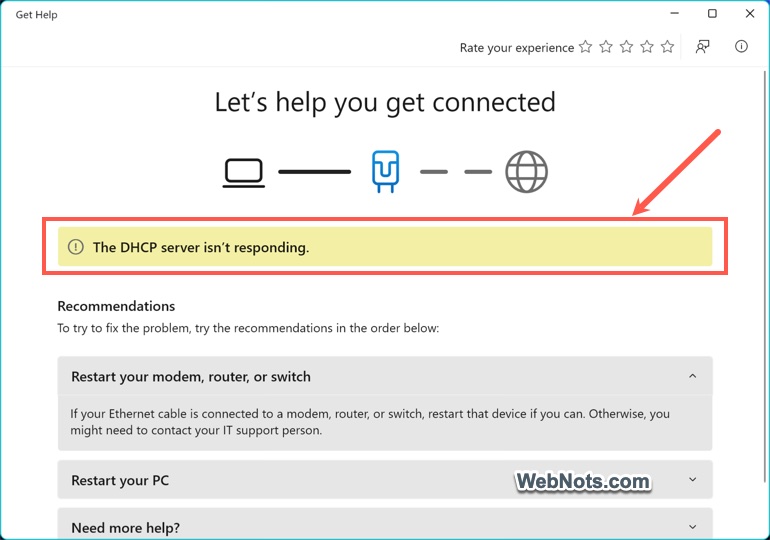
Let’s explore a structured approach to fix the problem. If you have important data in the VM, make sure to take a backup. Parallels also allows you to take a backup (Actions > Take Snapshot) and restore (Actions > Revert to Snapshot).
Step 1: Basic Checks and Restarts
Often, network issues are temporary and can be resolved with a simple restart.
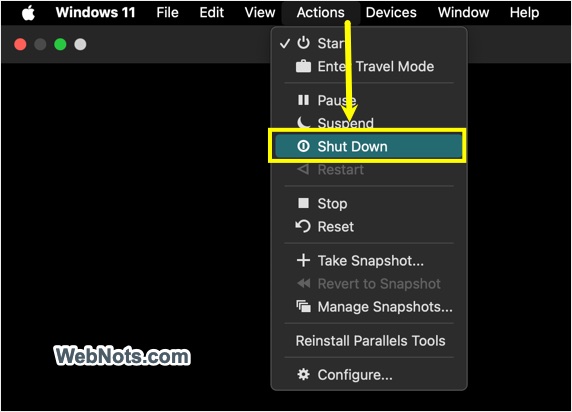
- Shutdown your Windows virtual machine by going to “Actions > Shut Down” or from “Start Menu > Power Button > Shut down”. Make sure to shut down and not use Stop, Pause or Suspend.
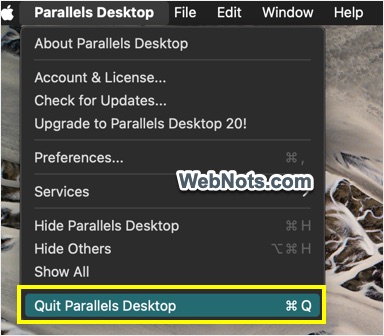
- Quit Parallels Desktop app on your Mac.
- Disconnect your VPN on Mac and restart the Mac.
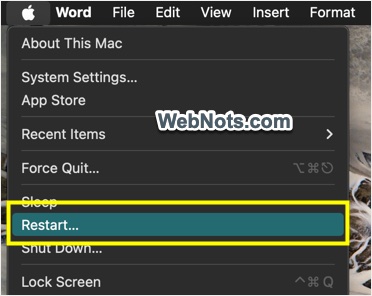
After restarting Mac, connect your VPN, launch Parallels Desktop and start Windows VM. This should solve the shared network connectivity issue of your VM in most cases. If the issue persists, continue with the following steps.
Step 2: Reinstall or Update Parallels Tools
Parallels Tools is important for seamless integration between the host and guest systems, including networking. Do not confuse with Parallels Toolbox and Parallels Tools – first is an add-on and the second is part of Parallels Desktop app.
- Start your VM and go to “Actions > Install Parallels Tools” (or Reinstall Parallels Tools if already installed).

- Confirm the prompt by selecting “Yes” to install or update Parallels Tools.
- Restart your VM after installation.
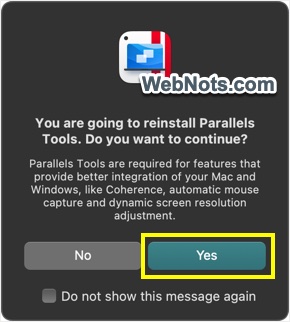
This step resolves most issues stemming from outdated or missing drivers.
Step 3: Check Network Adapter Settings in Windows
- Open Control Panel app and navigate to “Network and Sharing Center” section.
- Click “Change adapter settings” link in the sidebar.

- Ensure the network adapter (typically labeled as “Parallels VirtIO Ethernet Adapter”) is enabled.
- Right-click on the adapter and select “Disable” and then again right-click and select “Enable” to restart the adapter.
- If that does not solve your problem, right-click on the adapter and select “Diagnose” to run the Windows network troubleshooter.
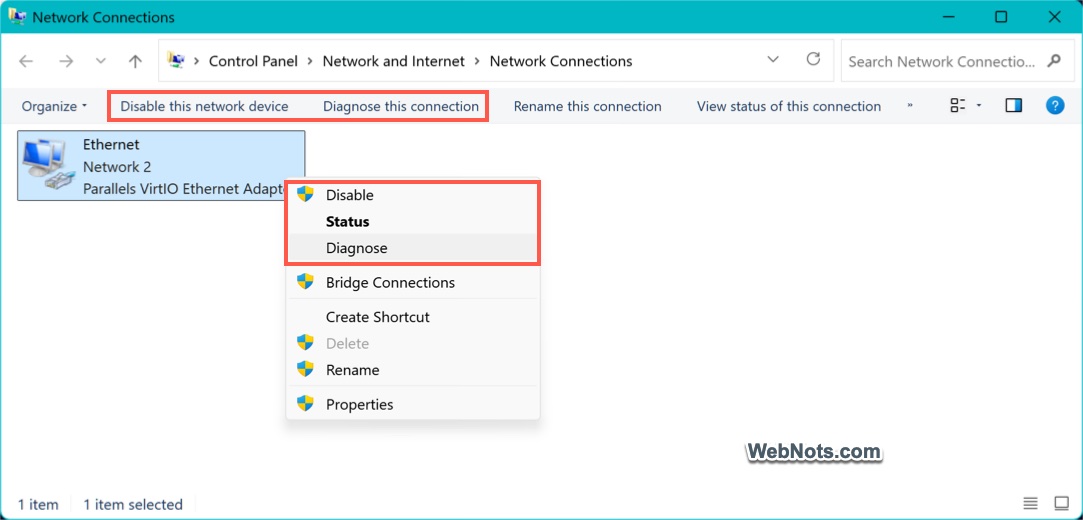
If you see connection error in the diagnosis due to DHCP, default gateway or DNS, continue your troubleshooting with next step.
Note: You can also try uninstalling the adapter from Device Manager. Parallels will re-add it again when you launch the virtual machine.
Step 4: Disable Firewalls or Security Software Temporarily
Both macOS and Windows OS might have firewall or security software that blocks network traffic.
- Temporarily disable Windows Defender Firewall by going to “Windows Security > Firewall & network protection > Select your network (private or public)”.
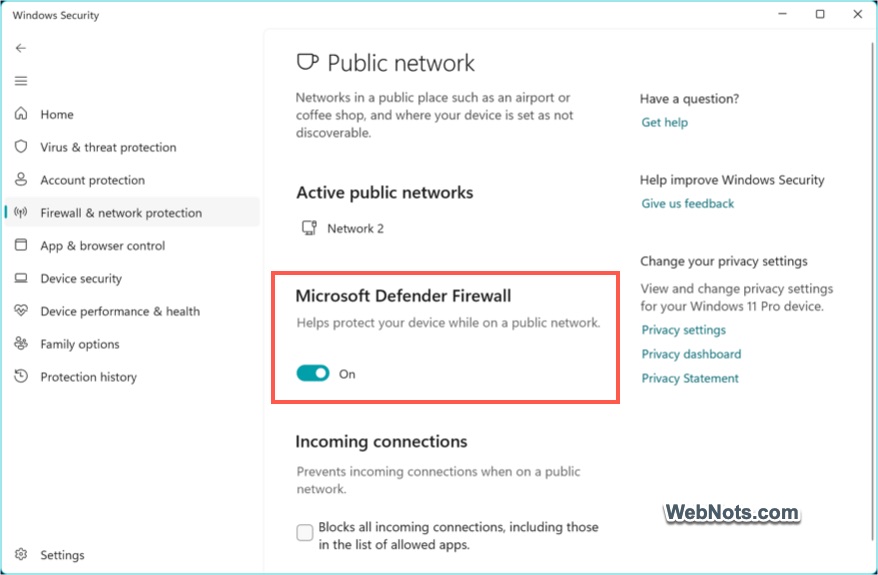
- Temporarily disable the macOS firewall by going to “Apple Menu > System Settings… > Network > Firewall”.
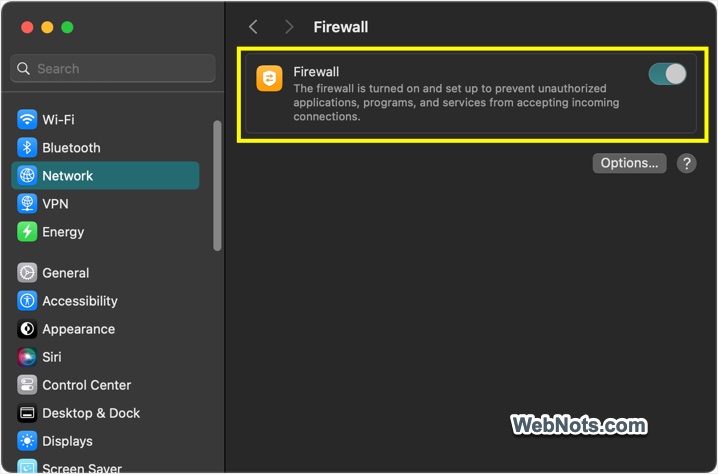
Make sure to disable firewall on third-party firewall/security suites if you use. Check if network access is restored. If so, re-enable firewalls and adjust firewall rules to allow Parallels and your VM through.
Note: Sometimes active VPN connection can interfere with network routing. So, disable any VPN setting on both Mac and Windows and test the network connection.
Step 5: Reinstall or Update Parallels Desktop
Software bugs can cause networking issues, especially after macOS or Parallels updates.
- Check for available updates by going to “Parallels Desktop > Check for Updates”. If an update is available, install it and restart your Mac.
- If problems persist, consider uninstalling and reinstalling Parallels Desktop. Your virtual machines are preserved but make backups before proceeding.
Step 6: Contact Parallels Support
If all else fails, Parallels Support can provide personalized assistance
- Gather system information and log files by going to “Parallels Desktop > Help > Send Technical Data” menu.
- Click the “See Details…” button.
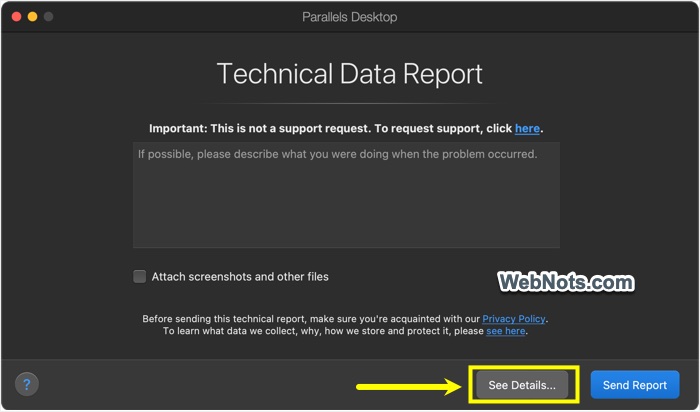
- Now, click on the “Show in Finder” button to view / copy the technical data file in Finder.
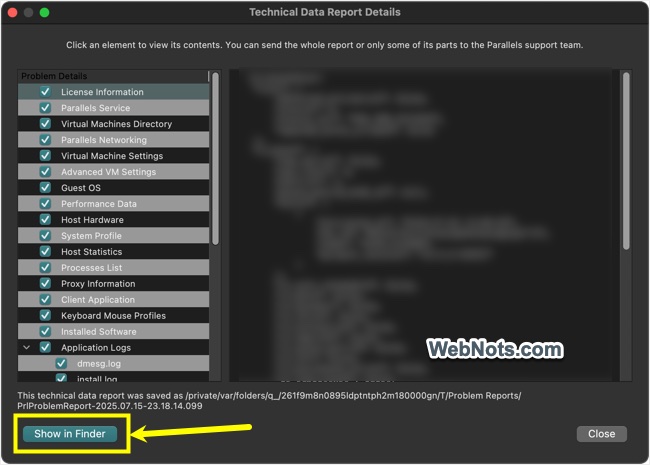
- Go to your account on Parallels website and submit a ticket by attaching the technical data file.
Note: Parallels app will ask your permission to combine all running apps on your Mac and deny that permission to avoid sending other app information.
Conclusion
Unfortunately, this is a known issue in Parallels and will occur repeatedly even if it seems to be resolved at that moment. In most cases, restarting the complete setup and disable & enable the network adapter will fix the issue. If you continue to experience difficulties, engaging with the Parallels user community or contacting support will ensure you have the help you need to restore your virtual environment to full connectivity.