It’s always recommended to install themes from the WordPress repository by navigating to “Appearance > Themes > Add Theme” section in your admin panel. However, you may need to manually upload a theme in many situations like a theme purchased from a third-party developer or edit theme files on your local computer before uploading. Through it’s an easy process, installation will fail if the theme’s ZIP archive does not contain a valid style.css file. This happens mostly due to manual errors and in this article, we will explore how to fix this style.css file missing error when uploading a theme in WordPress admin panel.
Understanding the style.css File
A WordPress theme needs two files to work properly – style.css and functions.php. Though block-based themes don’t use these files, you still need an empty style.css file for the site to work properly. The file also should be in a predefined format.
- The stylesheet should start with a mandatory comments block providing theme information like name, version, author, description, URI, etc.
- After declaring the details, the CSS styles controlling the visual appearance of your website are added. This is optional part as themes can also use templates for styles.
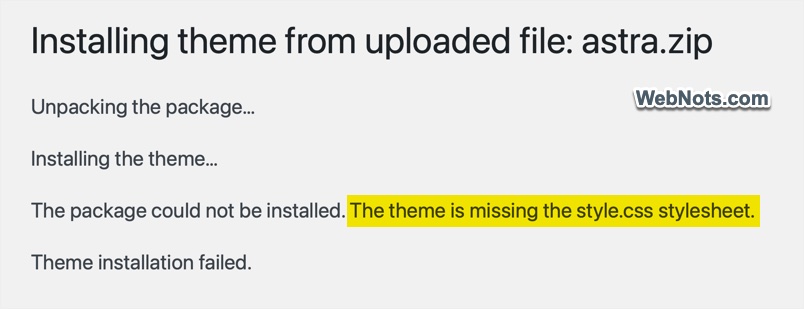
Without this file or the comments block, WordPress cannot recognize your theme and show a “missing style.css” error.
Fixing Missing style.css Error
Now you know the purpose and format of style.css file, which will help you to resolve most theme-based errors in WordPress. You can find the style.css file under /wp-content/theme/ folder on your server or navigate to “Tools > Theme File Editor” section to find your theme files from admin panel.
1. Confirm You’re Uploading the Correct Theme Folder
Most commercial WordPress themes come packaged in a ZIP file that contains various items like demo files, documentation, licensing, and PSD files. The actual theme folder (which is also a ZIP file) might be nested within these extras.
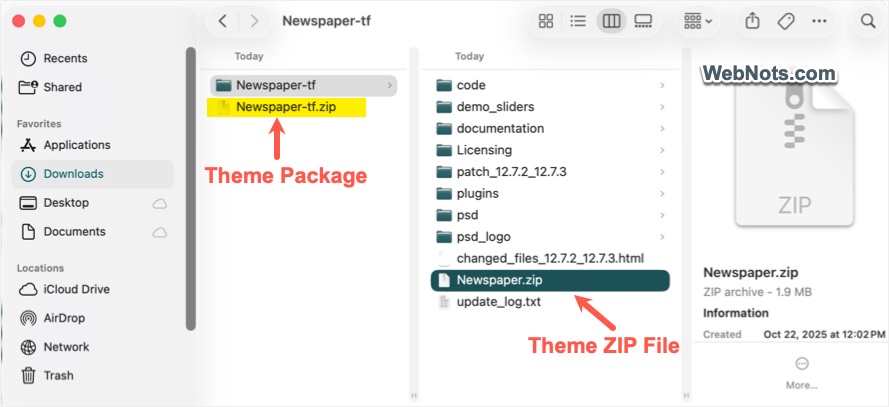
For example, below are the options in Themeforest marketplace when downloading a purchased theme. If you download “All files & documentation”, it contains multiple folders including the theme’s ZIP archive file.
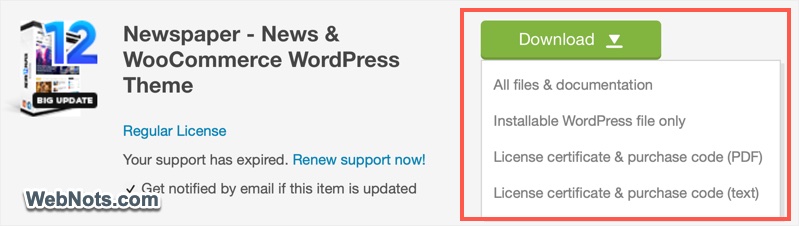
- Unzip the downloaded theme package on your computer.
- Locate the ZIP file of your theme (generally, theme’s name is used for the file name). If you have doubt, uncompress the file and confirm it contains style.css, index.php, functions.php, and other core theme files. This is your actual theme folder.
- Make sure to compress only this folder into a ZIP file, then upload it via the WordPress dashboard (Appearance > Themes > Add New > Upload Theme).
This simple step solves the majority of “missing style.css” errors related to incorrect uploads.
Note: Browsers like Safari on Mac will automatically extract the ZIP archives when downloading a file. You should again archive the files (right-click and Compress) to a single ZIP file for uploading. If you are using FTP or File Manager, then you should upload the extracted theme’s file (not the ZIP file) under /wp-content/themes/<theme_name>/ folder.
2. Check for the style.css File in Your Theme Directory
If you are frequently playing around with WordPress files on your site, there are possibilities that the content or the entire style.css file might have been accidentally deleted.
- Go to “Tools > Theme File Editor” or “Appearance > Theme File Editor” section. Make sure to select the correct theme and confirm style.css file exists.
- Otherwise, use FTP apps like FileZilla or use the File Manager app from your hosting account and navigate to /wp-content/themes/<theme_name>/ folder. Verify that style.css exists in your theme’s root folder and not inside a subfolder.
- Also, confirm the file contains necessary details.
- If you are in doubt, re-download the theme from WordPress repository or from the developer’s website and upload the correct version. You can also only replace the style.css file’s content if you are using the correct version (download and installed themes should be in same version).
At any case, make sure to take a backup before replacing the old files.
3. Inspect the Theme’s style.css for Proper Formatting
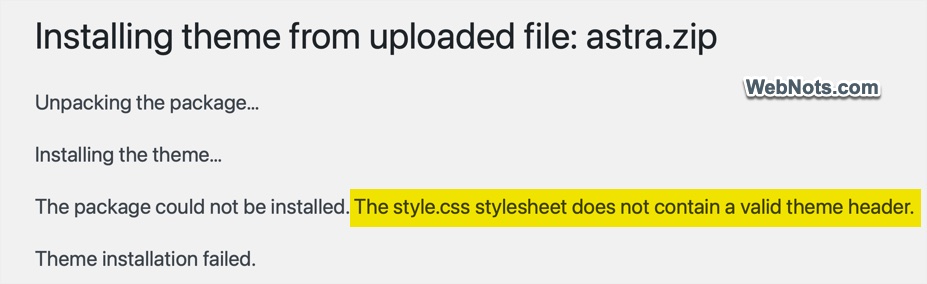
As mentioned, the top of style.css must begin with a comment header block containing specific information. For example, you might have mistakenly removed the comment marker /* while editing the file, which will make the entire file invalid. A missing or incorrect information in the header will show a “The style.css stylesheet does not contain a valid theme header” error when uploading.
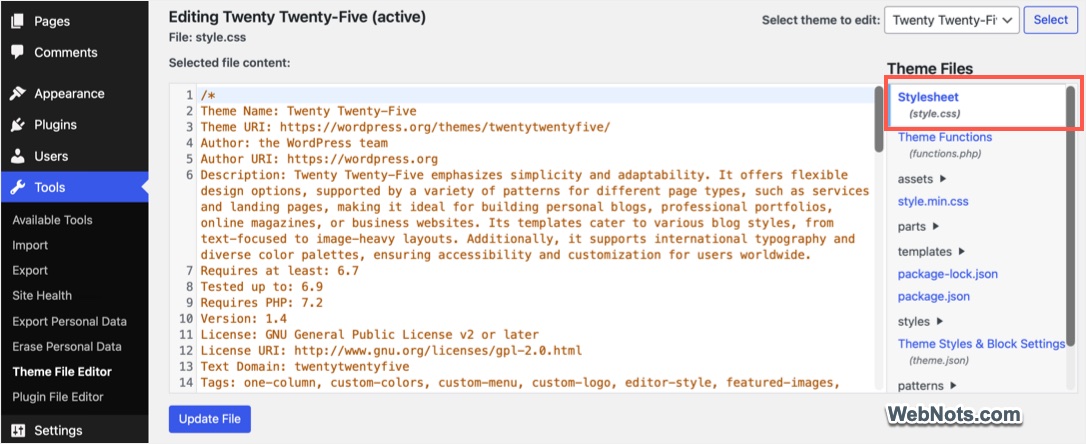
- Go to “Tools > Theme File Editor” and check the style.css file’s content using the in-built editor.
- Ensure it starts with a commenting line
/*and the editor normally shows the comments in red color. - Confirm the theme information is correct (you can cross check by downloading the theme and check it’s style.css file). Remember that some information are optional in the comments block.
- Below is the comments block for the twenty-twenty-five theme containing all necessary details. Your theme’s file also should contain most of these details.
- Edit or add the header if required, then re-upload style.css.
/*
Theme Name: Twenty Twenty-Five
Theme URI: https://wordpress.org/themes/twentytwentyfive/
Author: the WordPress team
Author URI: https://wordpress.org
Description: Twenty Twenty-Five emphasizes simplicity and adaptability......
Requires at least: 6.7
Tested up to: 6.9
Requires PHP: 7.2
Version: 1.4
License: GNU General Public License v2 or later
License URI: http://www.gnu.org/licenses/gpl-2.0.html
Text Domain: twentytwentyfive
Tags: one-column, custom-colors, custom-menu,......
*/
4. Verify You’re Not Installing a WordPress Plugin as a Theme
WordPress plugins and themes are fundamentally different. Attempting to install a plugin ZIP file via the theme uploader will also trigger the “missing style.css” error.
- Double-check that your ZIP file is a theme and not a plugin. Plugins lack the required style.css header described above.
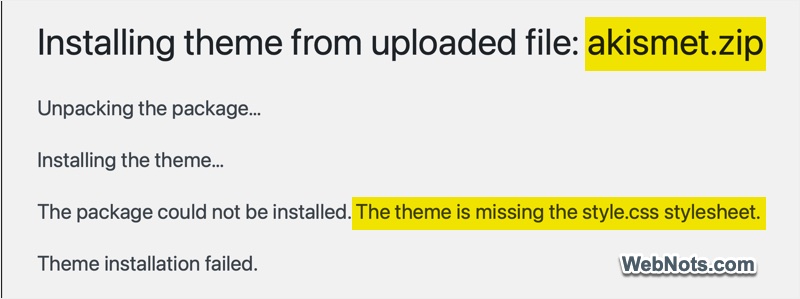
- Check the error message to find the name of the theme or plugin you are trying to upload. As shown in the below screenshot, Akismet is a plugin, which should give you the clue.
5. Re-Download the Theme from a Reliable Source
This is a basic but always needed to keep your site safe and secure. If you have edited the theme files or having an older version in backup, you should get the correct and latest theme version for uploading.
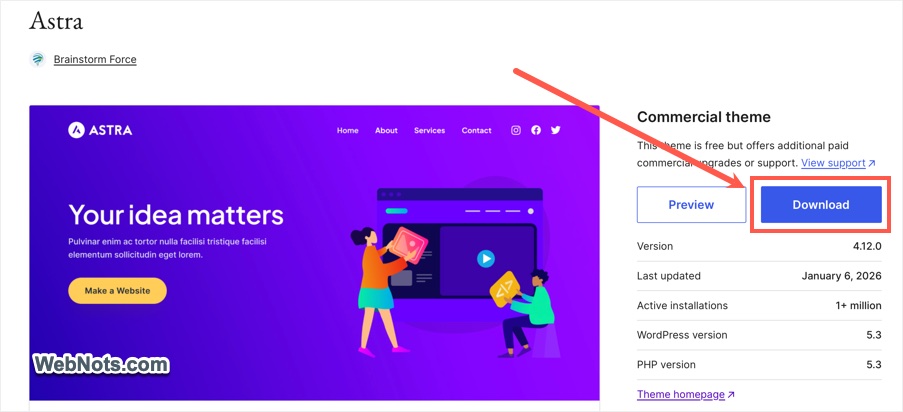
- Always download free themes from WordPress theme directory and use professional code editors like VS Code for editing your files.
- Get the commercial themes from the official marketplace or developer’s website with a valid license if required.
- If you suspect your theme files are corrupted, re-download and re-install the theme.
Note: Deleting and reinstalling a theme, will not delete your content or configurations as they are stored in WordPress database. However, you can’t delete an active theme or upload the theme with the same name. So, first switch to another theme and then delete the inactive theme. After that, you can upload a newer version of the same theme. Otherwise, change the new theme’s folder name and upload the extracted file through FTP (later you can delete the old theme and change the uploaded theme’s name).
6. Clear Caches and Check File Permissions
Occasionally, caching plugins or improper file permissions can interfere with WordPress’s ability to read your style.css file.
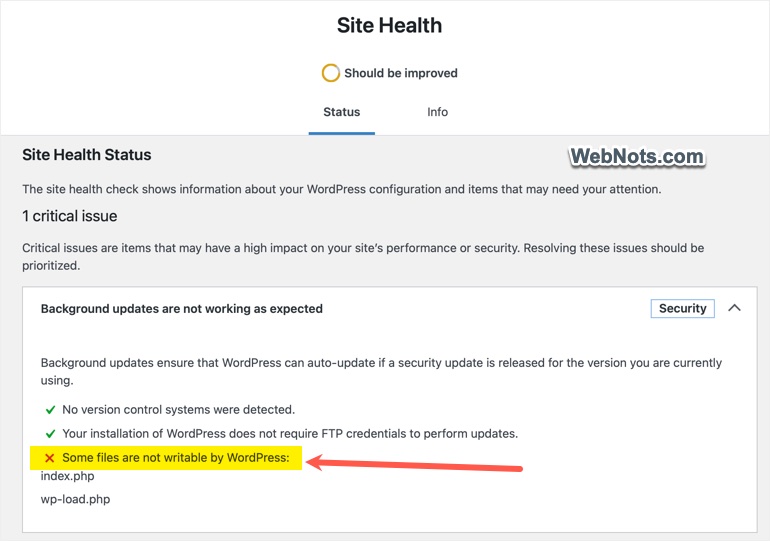
- Go to “Tools > Site Health” section and check if there are any errors like “Some files are not writable by WordPress”.
- Ensure file permissions for style.css allow WordPress to read the file, typically 644 for files and 755 for folders.
- Clear browser and site caches after making changes.
Final Words
In most cases, “missing style.css stylesheet” error happens due to wrong file upload or missing header information. These mistakes can easily be fixed by analyzing the file and theme structure. If you’ve tried all the above steps and your theme still won’t install, it may be time to reach out for help. Contact the theme developer with a detailed description of your problem. If it is free theme available in WordPress.org, then use community support forum to get clarifications.