Though iPhone will cost a hefty amount, the data you keep in the phone is more important than the device. Backing up your iPhone regularly is crucial for safeguarding your data, photos, apps, and also the custom settings. Apple allows you to back up the data in iCloud and restore when needed. Sometimes, you may face difficulties in backing up the content. In this article, we will explain various solutions to resolve the backup issue in iPhone.
Why Isn’t My iPhone Backing Up?
Whenever there is a problem in backup, iPhone will show a notification in the Settings app. You can find this just below your Apple account display. Tapping on that will take you to iCloud backup section.

There are several reasons your iPhone might not back up properly as explained below. Remember that iCloud is a syncing and backup service which means already synced data (like Photos, Contacts, etc.) will not be backed up as part of iCloud Backup. Learn more on how iCloud Backup works on this official Apple documentation.
1. Check iCloud Storage
Insufficient iCloud storage space is the most common reason for failed backups.
- Open Settings app on your iPhone and tap on your Apple account name showing on top of the screen.
- Select iCloud to view all available settings.
- First, check the “Storage” space showing at the top.
- If the storage is full, tap on the recommendations or “See All” link against “Saved to iCloud” option to turn off unnecessary items syncing in cloud. Alternatively, you can purchase an iCloud+ plan and get additional storage.

2. Check Your Wi-Fi Connection
If enabled, iPhone will automatically backup your content (check point 3) when connected to Wi-Fi and having sufficient battery power. So, obviously you need a Wi-Fi connection to backup to iCloud.
- Open Settings and tap “WLAN” option.
- Make sure you are connected to a strong and stable network.
- If required, you can restart your router / modem or switch to a different Wi-Fi network.
3. Manually Backup iPhone
If your iPhone has sufficient storage and connected to Wi-Fi but still have backup issue, it could be a glitch. You can manually try to backup so that it will work automatically from next day.
- Open Settings and go to “Apple Account > iCloud > iCloud Backup” section.
- First, make sure “Back Up This iPhone” option is enabled for automatic backup.
- Tap on “Back Up Now” link to manually backup your content.

4. Update iOS to Latest Version
Apple regularly releases iOS updates that can fix bugs, improve performance, and enhance features. If your iOS is outdated, it might be preventing successful backups.
- Open Settings app and go to “General” section.
- Tap on “Software Update” option.
- If an update is available, tap “Update Now” or “Update Tonight” to download and install the latest iOS version.

After updating, try backing up your iPhone again or wait for next day for automatic backup.
5. Reset iCloud Backup Settings
Sometimes, a specific app or setting could prevent backups from completing successfully. You can reset your iCloud backup settings as explained below.
- Go to “Settings > Your Apple Account > iCloud > iCloud Backup” section.
- First, toggle “Back Up This iPhone” option off and then turn it back on (this step will not delete your data). Wait sometime to check if that triggers automatic backup.
- If that is not working, tap on your iPhone’s name showing under “All Devices Backups” heading.

- This will show the current backup size, incremental size for next backup and the list of apps with their sizes. Tap on “Show All Apps” and then turn off unnecessary apps. This will also help to save lot of backup size and free some storage space for you. This step will only delete the turned off app’s data from backup.

- If automatic backup is still not working, then tap on “Turn Off and Delete from iCloud” option. This will delete your entire old backup data. So, do this only if you know what you are doing. After that, again enable iCloud backup option and check if that helps. Otherwise, download your iPhone’s latest backup from PC (using iTunes) or from Mac (using Finder) before deleting it completely.

6. Ensure Enough Local Storage
Your iPhone needs a certain amount of free storage space to complete an iCloud backup. If your iPhone is nearly full, it might not be able to complete the process.
- Go to “Settings > General > iPhone Storage” section.
- Check the amount of free space on your iPhone.
- Tap on any app from the list to delete or offload it to free up space.


Follow our article to find more details on how to clean up the storage in iPhone. Once you have freed enough space, try backing up your device again.
7. Sign Out and Back into iCloud
Sometimes, signing out and back into iCloud can resolve backup issues. However, first check the current backup size as explained in step 5. If the size is too big (like 9 GB as you can see in the screenshot), then it will take many days for the re-syncing. So, do this only if you have less backup size or started using new iPhone.
- Go to “Settings > Apple Account” section.
- Scroll down to bottom of the page and tap on “Sign Out” option.
- After signing out, restart your iPhone.
- Once the phone restarts, sign back into your iCloud account.
- Try initiating a manual backup or make sure automatic backup is enabled as explained in step 3.

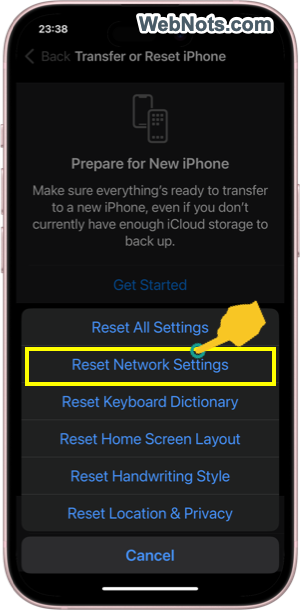
8. Reset Network Settings
If the problem is related to your internet connection, resetting your network settings might help. Keep your Wi-Fi password handy as you will need this after resetting.
- Go to “Settings > General” section.
- Scroll to bottom of the page and tap on “Transfer or Reset iPhone” option.
- Tap on “Reset” and then select “Reset Network Settings” option. Unlock with passcode if prompted and wait for the resetting to complete.
- After resetting, reconnect to your Wi-Fi network and try backing up again.


9. Restart Your iPhone
A simple restart can sometimes resolve minor software glitches preventing backups.
- Go to “Settings > General” section.
- Scroll down to the bottom and tap on “Shut Down” option.
- Wait few seconds for the phone to shut down.
- Press and hold the power button till you see the Apple logo to turn your iPhone on again.
10. Contact Apple Support
If none of the above solutions work, you might be dealing with a more complex issue. If your iPhone is still having warranty coverage, the best option is to contact Apple Support for further assistance. Generally, Apple support handles hardware issue like battery and screen damages. However, you can still contact them through chat or call for fixing your backup issue.
- Go to official Apple support page and login with your Apple account.
- Type your issue (like backup not working in iPhone) and press enter.
- You will find recommended articles to read, scroll down to bottom.
- Select Chat or Call option as per your convenient and start discussing with Apple support representative.

Frequently Asked Questions (FAQs)
This typically happens when automatic iCloud backups are disabled, or there’s an issue with storage, Wi-Fi, or device settings.
Yes, you can use iTunes (on a PC or macOS Mojave or earlier) or Finder (on macOS Catalina or later) to create backups locally on your computer.
It is recommended to back up your iPhone at least once a week to avoid losing any important data. The automatic backup will try to run every day.