Microsoft Word not only offers robust tools for typing and formatting but also has hidden features to insert custom mathematical equations. Whether you are preparing a research paper, homework assignment, or official report, knowing how to efficiently insert and edit math equations can greatly enhance the clarity and professionalism of your work. This article will take you step by step through the available tools and methods, from the basics to advanced tips, so you can type simple fractions to complex integrals with confidence.
Equation Editor in Microsoft Word
Mathematical equations in Word are not simply text, they are formatted objects that retain mathematical structure and allow for enhanced editing, layout, and readability. Word includes a built-in Equation Editor which is the primary tool for inserting mathematical notation allowing multiple formats for equations and shortcuts to make the process seamless. Since Word 2007, the tool has been fully integrated into the application (all steps are explained in this article with the latest Word Microsoft 365 version).
Accessing the Equation Editor
- Position the cursor where you want the equation in your Word document.
- Go to the “Insert” tab on the ribbon and click on “Equation” (π symbol) in the “Symbols” group.
- This action opens a new equation field along with a new “Equation” tab.

Typing and Formatting Equations
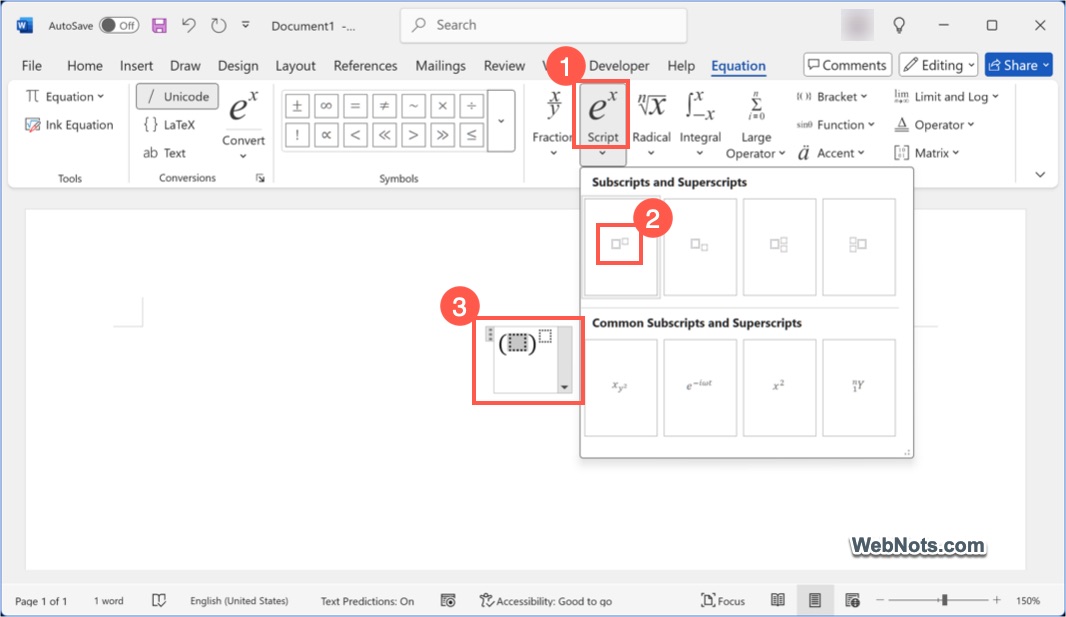
Once the Equation Editor is open, you can simply start typing the expressions inside the box. However, it is much easier to use the ribbon tools to insert commonly used symbols, fractions, exponents, integrals, summations, and more. For example, to type (a+b)2=a2+b2+2ab formula, click on “Script” under “Structures” group and select “Superscript” wherever required.

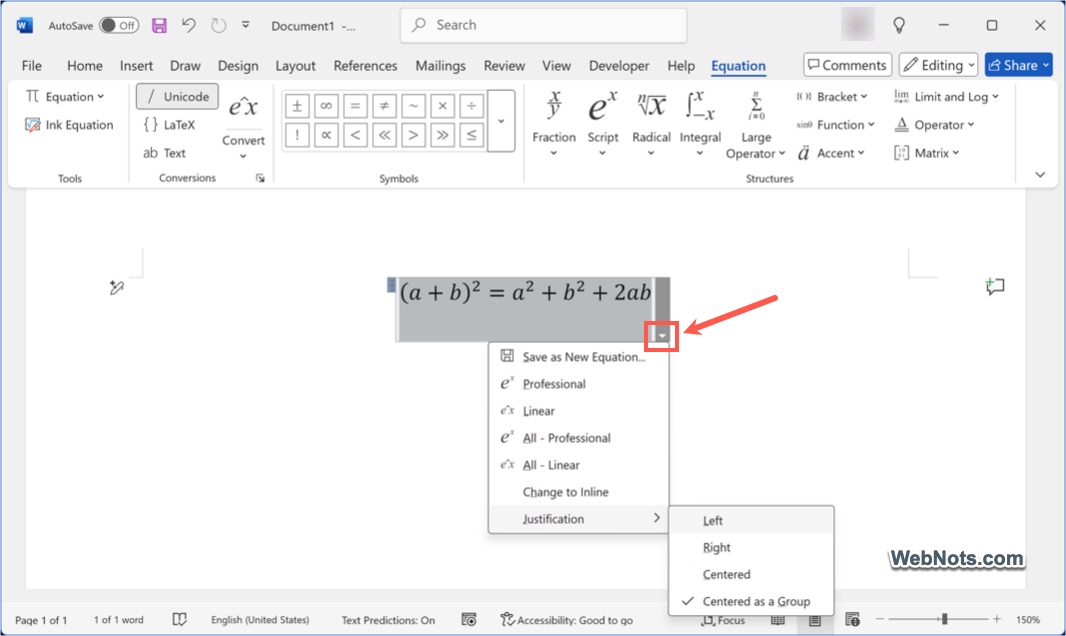
Equations in Word can be styled for visual consistency by change fonts and sizes. Click the small arrow in the equation box and select the alignment as left, center, or right under “Justification” menu. You can also make the equations as inline (within the text) or display as a separate object (for emphasis) and use the Professional or Linear layout, depending on your preference.
Inserting Pre-Formatted Equations
Word also comes with a library of pre-formatted equations.
- Simply click the “Equation” on top left and you’ll see a drop-down menu with various built-in items like Area of Circle, Quadratic Formula, Taylor Expansion, Pythagorean Theorem, Fourier Series, etc.
- Click any equation to insert it instantly into your document.
- Modify the equation as needed for your work.

Equations created in Word can be copied and pasted as editable objects within other Office apps. For example, you can copy equations from Word and paste in a PowerPoint presentation.
Using LaTeX Syntax in Word
By default, Word uses Unicode conversation format. For those who prefer typing equations in LaTeX, select LaTeX under “Conversions” group.
- Type your equation after inserting an equation box.
- Use shortcodes, such as \int for an integral or \sum for a summation. When you press \sum and press space, it will be automatically converted to a summation symbol like Σ.
Math AutoCorrect: Quick Input for Common Symbols
Math AutoCorrect allows you to type shortcuts that Word automatically converts into symbols or structures.
- Type \alpha and press Space to get α.
- Type \sqrt and press Space to get √.
To enable Math AutoCorrect outside of Equation Editor:
- Go to “File > Options > Proofing > AutoCorrect Options”.
- Navigate to “Math AutoCorrect” tab and check “Use Math AutoCorrect rules outside of math regions” option.
- You can check the complete list of predefined items and add a custom shortcuts if required.

Inserting Equations by Handwriting (Word for Touch Devices)
On touch-enabled devices:
- Go to “Insert > Equation > Ink Equation”.
- Write the equation by hand using your finger or stylus.
- Word will convert your handwriting into a formatted equation.
- Tap “Insert” button to add the equation to your document.

This tool is useful for symbols or notations that are difficult to type.
Using Third-Party Add-ins
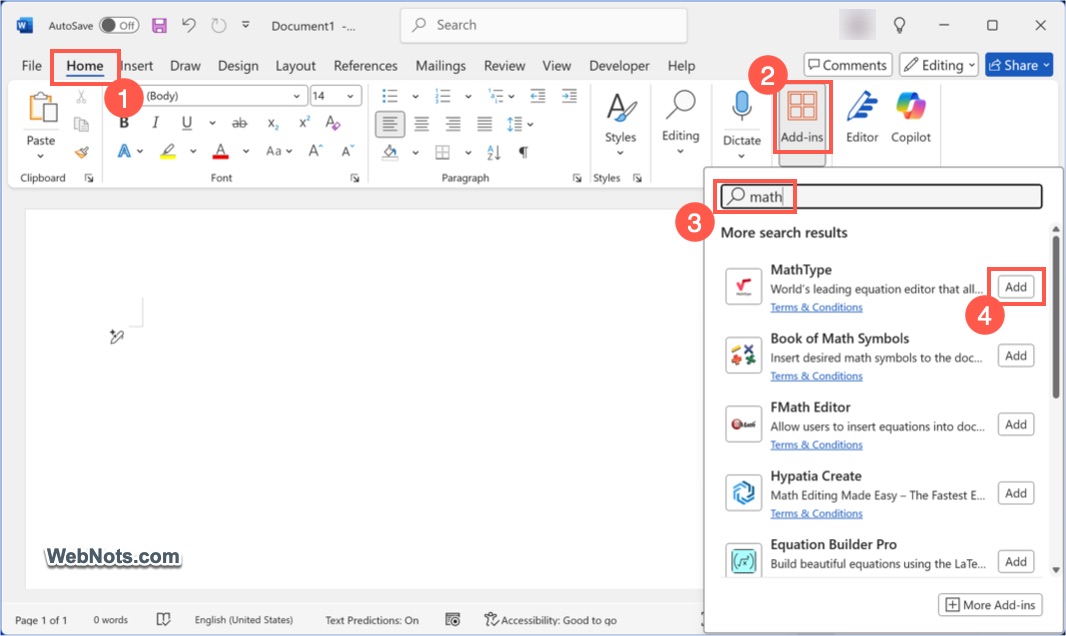
The default Equation Editor in Word may not be sufficient for all purposes. Go to “Home > Add-ins” and search for “math”. You can find few add-ins and click the “Add” button against the item you want to install. Unfortunately, there are limited items available, most with low ratings or require extra purchases.
Conclusion
Microsoft Word provides powerful, flexible tools for typing math equations suitable for everyone from elementary students to university researchers. By exploring the Equation Editor, learning shortcuts, and customizing your settings, you can produce professional-quality mathematical documents efficiently and with ease.
With practice, you’ll find that integrating math into your documents becomes a natural and even enjoyable part of your workflow. Explore further, experiment with templates, and make use of the rich set of features Word offers to elevate your mathematical writing.