In our earlier article, we have explained how to remove Copilot AI stuffed throughout Windows 11 by Microsoft. Apple also pushed AI features in macOS from version 15 Sequoia and refined in subsequent updates like macOS Tahoe. It is called Apple Intelligence and brings AI-powered Siri and other utilities like Writing Tools, Image Playground, Genmoji, Live Translations, and app-specific integrations like email summaries in Mail app. Unfortunately, these AI features may not help you in most cases and also optional ChatGPT integration is a real concern for privacy if you don’t want to send your queries to OpenAI. Good thing is that Apple makes it simple to disable all AI features and work without distractions.
Apple Intelligence Features
Apple Intelligence is available from macOS 15 onwards on supported M series Mac models as shown in the below picture. At this point, the feature is activated by default on all new Mac models and occupies around 5 to 7GB storage space. Simple queries are processed on-device and complex queries are processed on cloud without storing your data. However, if you integrated ChatGPT, then relevant data will be directly sent to OpenAI for processing.
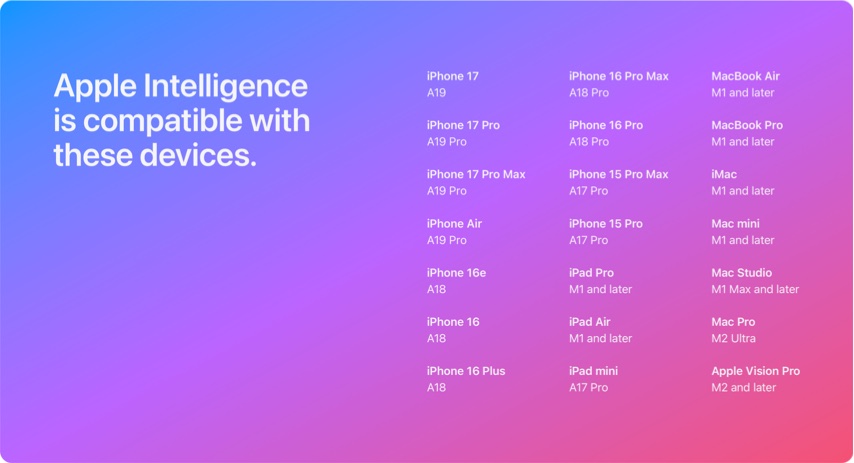
If you are struggling with Siri suggesting to use ChatGPT or any other Apple Intelligence features, there are multiple ways to disable it on your Mac. You can also reclaim the storage space by removing Apple Intelligence from your Mac.
Note: Devices using non-supported languages and purchased from certain countries like China will not have Apple Intelligence.
1. Completely Turning Off Apple Intelligence
Once disabled, features like Genmoji, Live Translation, and AI integrations in apps will no longer be available.
- Click the Apple menu and select “System Settings…” option.
- Find and navigate to “Apple Intelligence & Siri” section from the sidebar.
- Turn off “Apple Intelligence” option to disable the feature.

If you change your mind, follow the same steps and turn the feature on. After disabling the feature, go to “Apple Menu > System Settings… > General > Storage > macOS” and make sure the Apple Intelligence files are not showing (means the storage is freed).
2. Restricting Apple Intelligence Through Screen Time
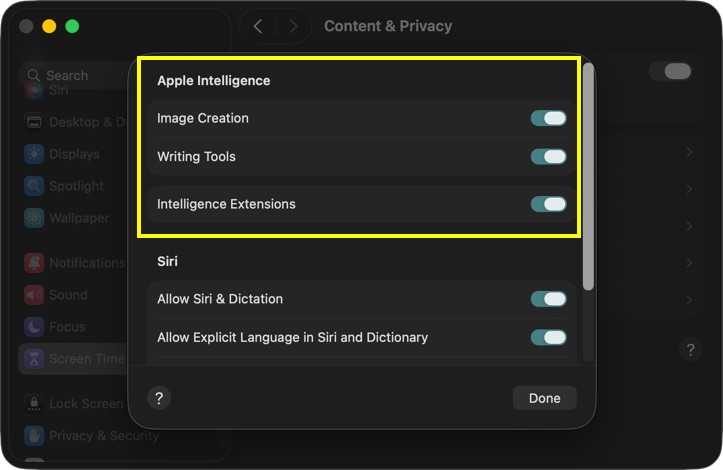
If you don’t want to disable it completely, there is an option to restrict access to some of the Apple Intelligence features through Screen Time settings. In this way, you can disable a certain feature like Writing Tools while using other features like Image Creation.
- Click the Apple logo and go to “System Settings…” menu.
- Find and navigate to Screen Time section.
- Scroll down on the right pane and click “Content & Privacy” option under “Restrictions” heading.
- Turn “Content & Privacy” and click “Intelligence & Siri” option.
- Turn off Image Creation, Writing Tools, and Intelligence Extensions under “Apple Intelligence” section.
- Click “Done” button to save your changes.
3. Disable ChatGPT Extension
You can optionally integrate ChatGPT and use with or without an OpenAI account for improved Siri suggestions, Writing Tools, and image generation. When enabled to use ChatGPT, your queries will be sent to OpenAI for processing. Good thing is that ChatGPT extension is disabled by default. However, you can check and confirm that as below:
- Go to “Apple Menu > System Settings… > Apple Intelligence & Siri”.
- Open “ChatGPT” extension and turn off “Use ChatGPT” option.
If you want to still use ChatGPT but get a confirmation prompt before sending data, enable “Use ChatGPT” and setup with or without an account. After that, disable “Confirm ChatGPT Requests” option. This will always show a prompt before Siri sends your data to OpenAI.
Final Words
You can turn off Apple Intelligence entirely on your Mac or choose to disable only certain AI capabilities. You can also restrict Apple Intelligence access for individual apps if you prefer more granular control. The same configuration options are available on iPhone 15 Pro or later models running on iOS 18.1 or later.