Astra is the most popular WordPress theme to create lighter and faster websites. The pro add on offers many features and showing reading time is one among them. Though it is easy to show the post’s reading time as a meta data, the default text can’t be changed from customizer settings. If you are looking for changing the reading time text, here is how to do that. Also, check out other tips for customizing Astra theme.

Reading Time in WordPress
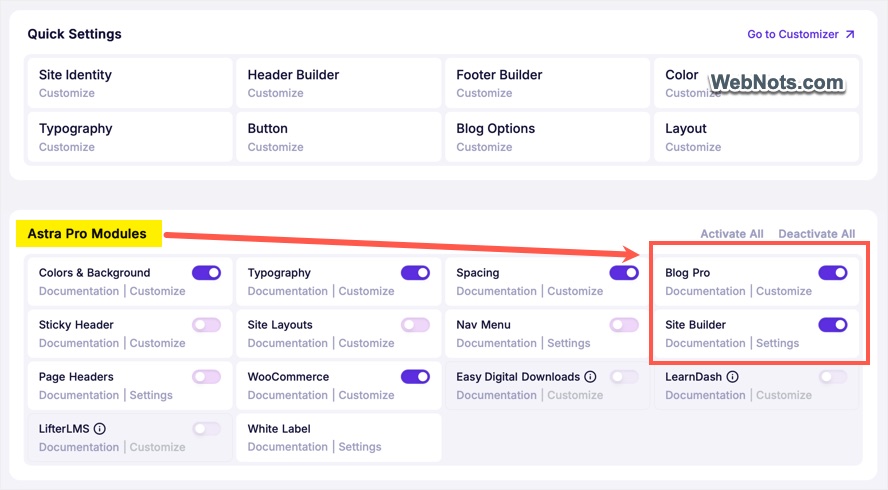
WordPress 6.9 introduced a new “Time to Read” Gutenberg block for inserting reading time, calculated automatically, anywhere on your post. Don’t confuse this with the option provided by Astra theme’s pro version. After activating the pro add-on, go to “Astra > Dashboard” and make sure “Blog Pro” and “Site Builder” modules are enabled to use reading time feature with Astra.
Adding Reading Time in Astra
- Login to your WordPress site and go to “Appearance > Customize” section.
- Navigate to “Post Types > Single Post” section.
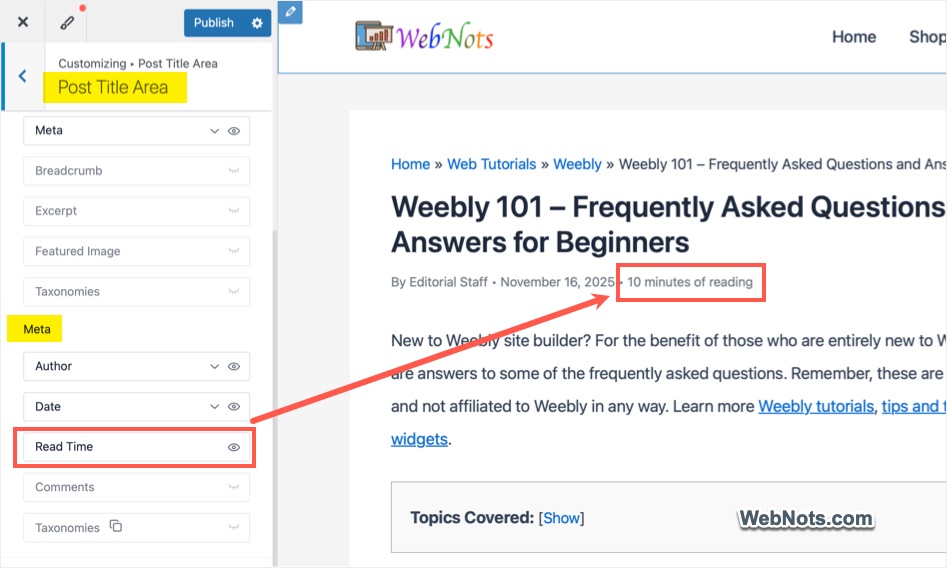
- Click the “Post Title Area” and turn on “Read Time” option under “Meta” heading.
- By default, the text will show as “minutes of reading” below the title as post meta data.
Change Minutes of Reading Text
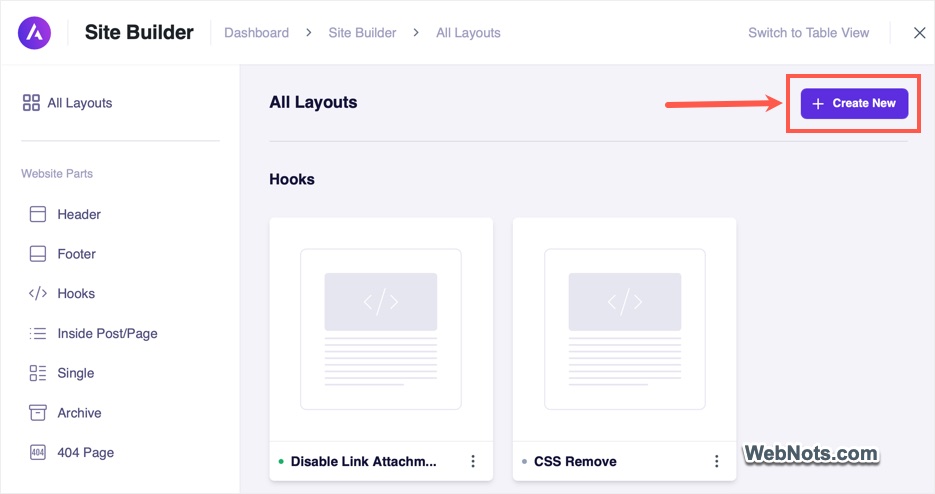
- Go to “Astra > Site Builder” menu and click the “Create New” button.
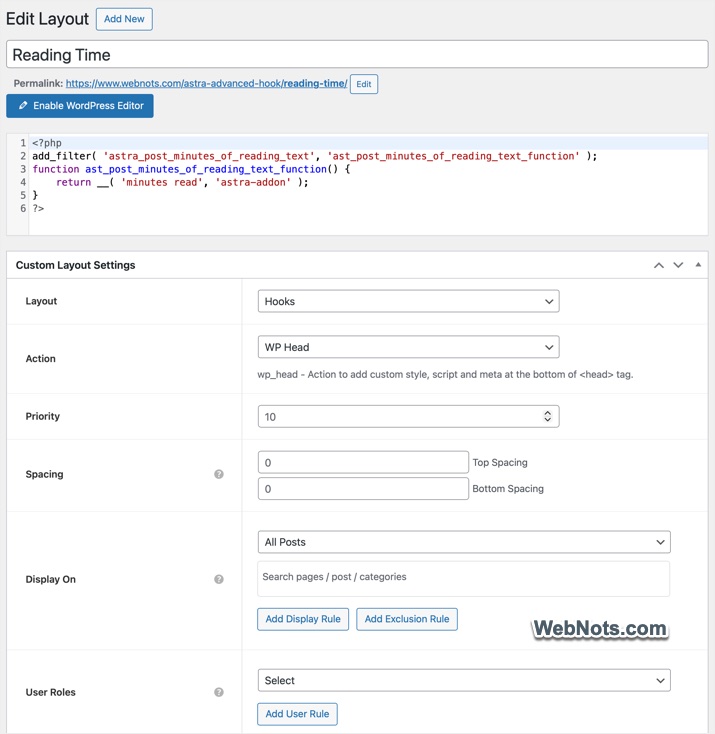
- Click the “Enable Code Editor” button and name your custom layout as “Reading Time”.
- Paste the following code in the editor, “minutes read” text will replace the “default “minutes of reading” text. Change it to whatever the text you would like to show.
<?php
add_filter( 'astra_post_minutes_of_reading_text', 'ast_post_minutes_of_reading_text_function' );
function ast_post_minutes_of_reading_text_function() {
    return __( 'minutes read', 'astra-addon' );
}
?>- Use the following parameters in “Custom Layout Settings” meta box.
- Layout: Hook
- Action: WP Head
- Priority: 10 (change this if you have multiple hooks using the same WP Head action).
- Spacing: Leave them as 0
- Display On: All Posts
- User Role: All
- Responsive Visibility: Check all devices, Desktop / Tablet / Mobile.
- Time Duration: Don’t enable.
- Publish your custom layout.
Now, open any of your post and you will see the reading time text is changed as per the one you have provided in the custom layout hook’s code.

Changing 1 Minute Read
The above code works when the article read time is greater than a minute. If you have very short articles with 1 minute read, follow the same steps as explained above and include few additional lines as given below. The “minutes read” text shows for articles with >1 minute reading time and “minute read” shows for 1 minute read time.
<?php
add_filter( 'astra_post_minutes_of_reading_text', 'ast_post_minutes_of_reading_text_function' );
function ast_post_minutes_of_reading_text_function() {
    return __( 'minutes read', 'astra-addon' );
}
add_filter( 'astra_post_minute_of_reading_text', 'ast_post_minute_of_reading_text_function' );
function ast_post_minute_of_reading_text_function() {
    return __( 'minute read', 'astra-addon' );
}
?>
Using Gutenberg Time to Read Block
As mentioned, WordPress 6.9 offers a new block for inserting reading time. Make sure to disable “Read Time” meta data in Astra customizer’s settings.
- Go to “Astra > Site Builder” section and create a new layout.
- Name your layout as “Read Time with Block” and insert a Columns block in the content area.
- Create two columns and adjust the first column to 15% and second column to 85% (change the column’s width as you need).
- On the first column, add a paragraph and type “Reading Time” or any other text that you want to use.
- On the second column, insert a “Time to Read” block. You can turn on “Display as range” to show the time 1-2 minutes or turn off that settings to show 1 minute.
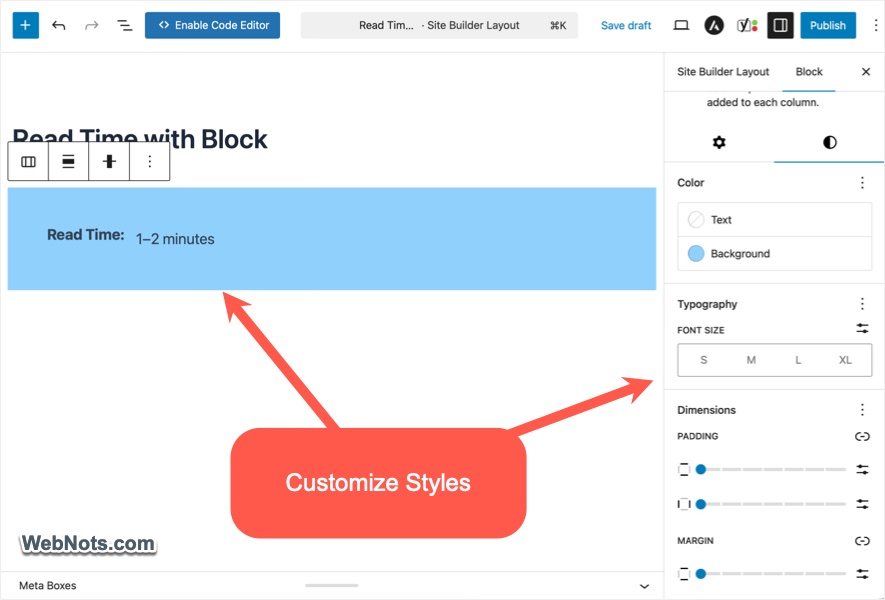
- Change the background color of the Columns block and adjust the spacing if needed.
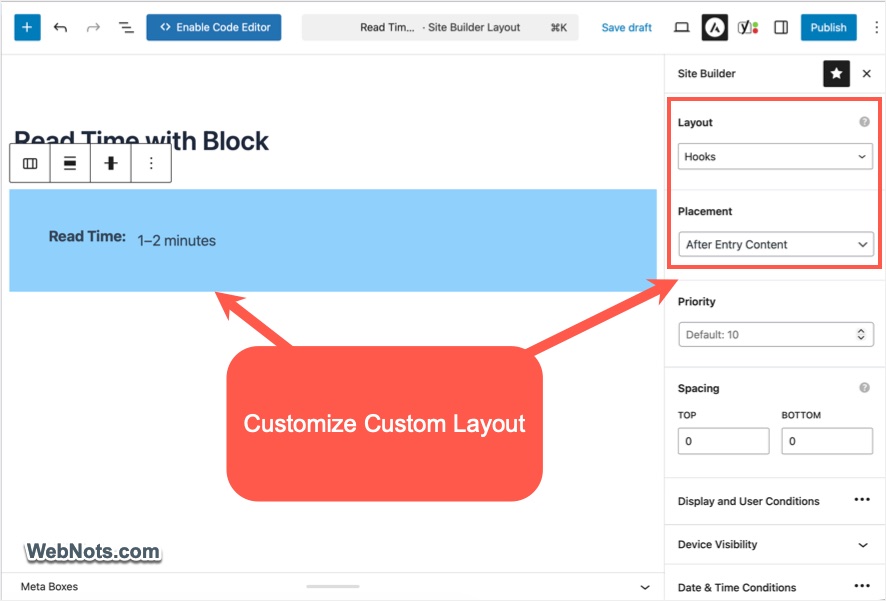
- Now, click the “Site Builder” icon (Astra icon) on the toolbar and select the “Layout” as “Hooks”. Click the “Placement” dropdown and select where you want to show the reading time on your post. Adjust other parameters like priority and spacing as needed.
- Click “Display and User Conditions” and select display on “All Posts” and display for “All” users.
- Publish your custom layout, check the live posts and you should see the reading time.
The advantage of using Gutenberg block is that you can insert it anywhere inside the layout unlike showing it as a below title meta data by Astra theme. You can refer the official Astra documentation to find all available hook’s position to place it exactly where you want on your post.