Do not panic if your WordPress homepage loads correctly but all other pages return a 404 error. This is a common error caused by how WordPress handles URLs. 404 error means WordPress cannot locate the content for the requested URL. When the homepage works but internal pages fail, the issue is almost always related to permalinks, rewrite rules, or server configuration. In this article, we will explain the most reliable solutions, starting with the simplest. In most cases, one of the first three steps will resolve the problem.
What Causes 404 Errors on All Pages Except the Homepage?
Before fixing the issue, it is important to understand why this peculiar issue happens.
- When someone visits your homepage (also called front page), WordPress loads the main index file.
- However, other internal pages (your posts, custom post types, and other pages) rely on rewrite rules to convert the URLs. For example, your contact page with the URL https://yousite.com/contact-us (called pretty URL) is stored like https://yoursite.com/?123 (called permalink or ugly URL) in WordPress database.
- So, if rewrite rules for internal pages break, WordPress cannot resolve the pretty URLs to permalinks and returns a 404 page not found error instead.

The problem happens due to various reasons like broken permalink rules, corrupted or changed .htaccess directives, misconfigured server settings, or conflicts with plugins / themes. In most cases, you will face the error in scenarios like changed the domain name, moved the site to a new host, or moved live content to localhost setup.
1. Reset Permalinks from Admin Dashboard
WordPress stores the redirect conversion rules in a file called .htaccess. So, regenerating those rules is a simple solution to fix the issue.
- Log in to your WordPress dashboard and navigate to “Settings > Permalinks” section.
- Find the current “Permalink structure” you are using, let’s say – Post name.
- Select any other option, let’s say – Plain.
- Scroll down and click “Save Changes” button.
- Now, change the permalink structure back to its original option – Post name.
- Again, scroll down and save your changes.
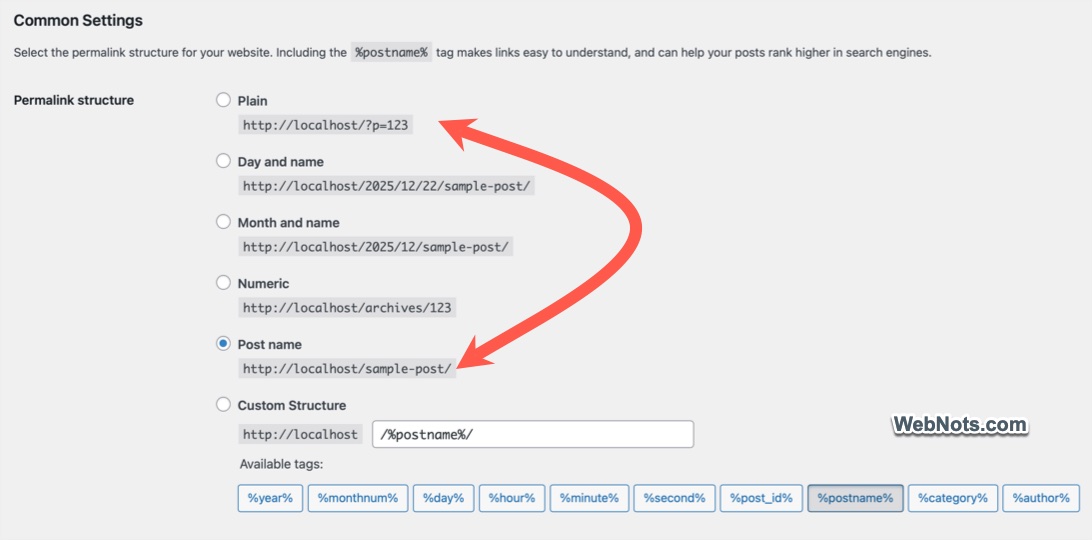
This will force WordPress to regenerate rewrite rules saved in .htaccess file. After saving, open one of the pages that was showing a 404 error. If it works now, you are done. If not, continue to the next step.
Note: All pages will work with “Plain” permalink setting as this does not need redirection rules. You can use this for accessing and testing pages on localhost or staging setup. However, make sure to retain the same existing structure on a live site to avoid losing search engine rankings.
2. Directly Edit .htaccess File
You can also directly look in to .htaccess file’s content and replace the redirect rules.
- Login to your hosting account and open File Manager app. alternatively, remotely connect to your hosting server with FTP using apps like FileZilla.
- Navigate to /public_html folder, which is the root directory of your WordPress installation.
- Find the .htaccess file and open it for editing.
- Find the code block between # BEGIN WordPress and # END WordPress.
- Delete that code block and replace it with the following code. This is the redirect rules added by the latest WordPress setup.
- Save your changes and then test your pages.
# BEGIN WordPress
# The directives (lines) between "BEGIN WordPress" and "END WordPress" are
# dynamically generated, and should only be modified via WordPress filters.
# Any changes to the directives between these markers will be overwritten.
<IfModule mod_rewrite.c>
RewriteEngine On
RewriteRule .* - [E=HTTP_AUTHORIZATION:%{HTTP:Authorization}]
RewriteBase /
RewriteRule ^index\.php$ - [L]
RewriteCond %{REQUEST_FILENAME} !-f
RewriteCond %{REQUEST_FILENAME} !-d
RewriteRule . /index.php [L]
</IfModule>

# END WordPress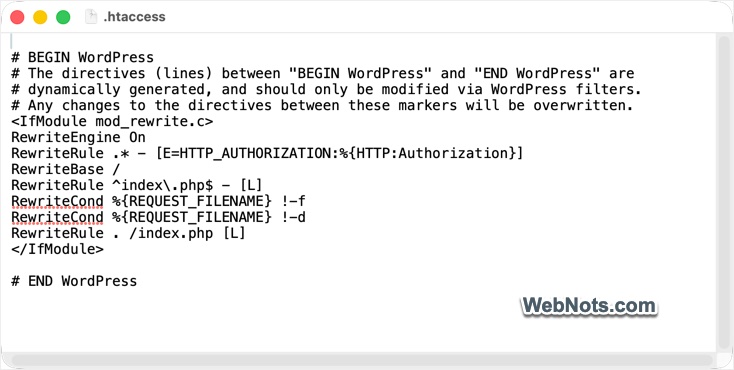
Since .htaccess file only has an extension without any name, it will be hidden by default. You should unhide the file to view and edit its content.
Note: Some plugins, especially caching and security plugins, may add directives to the .htaccess file, so be careful not to delete them accidentally. If you want to test using only the default WordPress redirect rules, first back up the current .htaccess file. Then remove all its content, paste the default WordPress redirect rules (as given above), and check whether this fixes the error. If the issue is resolved, review the original entries to identify which plugin added the conflicting rule.
3. Check Server Modules are Enabled
WordPress relies on Apache’s mod_rewrite module to handle clean URLs. If it is disabled, internal pages will return 404 errors. If your site runs on Nginx instead of Apache, the server needs a correct Nginx configuration for WordPress rewrites.
Most modern hosting companies have it enabled by default. Contact your hosting company’s support and confirm if the server is configured and required modules are enabled. Since this is handled at the server level, you can’t do anything from WordPress admin panel.
4. Check Site Address and Home Address
WordPress uses relative paths for internal links and adds the site address as a prefix to generate absolute URLs. If the site URL is misconfigured or do not match, WordPress may load the homepage correctly while internal links fail to resolve.
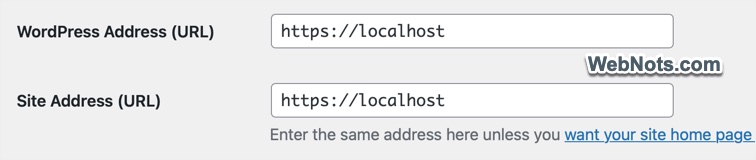
- Go to “Settings > General” section in your WordPress dashboard.
- Check “WordPress Address (URL)” and “Site Address (URL)” fields. In general, both values should be same.
- Make sure both addresses are using https and www or non-www correctly.
- Save changes and test your pages again.
5. Disable Plugins and Switch Themes
As mentioned, some plugins and themes may modify the rewrite rules. Generally, caching and security plugins insert entries in .htaccess file overriding the default rule.
- Go to “Plugins” section in your WordPress admin panel.
- Select all plugins, choose “Deactivate” from bulk actions, and “Apply”
- Now check if pages load. If they do, reactivate plugins one by one until the problem returns. The last plugin activated is the cause.
- If plugins are not the issue, go to “Appearance > Themes” and activate one of the default WordPress themes like Twenty Twenty-Five.
- If pages work with the default theme, your original theme has a routing or rewrite issue.
Get help from the plugin or theme developer and fix the issue.
6. Fix After Site Migration or Domain Change
If this problem started after moving your site, cloning it, or changing the domain, there are possibilities the database may still contain old URLs.
- Run a search and replace function to update all old links in bulk. You can do this directly on database (using tools like phpMyAdmin or Adminer) from your hosting account or with a plugin from your WordPress admin panel.
- Now, regenerate permalinks as explained in point 1 and check the pages are loading properly.
Final Thoughts
When WordPress shows 404 errors on every page except the homepage, it is almost never a content problem. It is a URL handling problem. You can see the 404 page is a plain PHP error page and not the one from your WordPress theme. This means the error occurred before even the layout and content is fetched. So, start with permalinks, then check .htaccess. After that, look at your server settings and plugin / theme conflicts. That should resolve the issue and make your pages accessible.