Introduction
Having a website is no longer a luxury but a necessity, whether for personal expression, brand development, or business growth. However, the idea of building and managing a website can seem daunting, especially for those without a technical background. This is where WordPress steps in as a game-changer.
Designed to simplify the complexities of web development, WordPress offers a powerful yet intuitive platform that empowers users to bring their online visions to life. Whether you’re launching your first blog, showcasing a creative portfolio, or establishing an eCommerce empire, WordPress provides the tools and flexibility to make it happen – no coding experience required.
Note: This guide deals with self-hosted WordPress.org and not about the WordPress.com. You can learn the differences between these two setups in our article here.
What is WordPress?
WordPress is an open-source CMS that lets users build and manage websites without requiring advanced technical skills. Since its 2003 debut as a blogging tool, it has grown to support everything from blogs to business sites. Its user-friendly interface, coupled with a vast library of themes and plugins, allows for extensive customization and functionality, making it a popular choice for beginners and professionals alike.
Who This Guide is For?
This guide is perfect for anyone keen to build a website using WordPress, regardless of experience. Whether you’re a beginner, small business owner, creative professional, or entrepreneur, this guide has you covered. For newcomers, it simplifies WordPress basics into clear sections. For seasoned users, it offers advanced tools and strategies to enhance projects. Whatever your goals, this guide helps you turn your online vision into reality.
Chapter 1: Understanding the Basics
What is a Content Management System (CMS)?
A Content Management System (CMS) is a tool that simplifies the creation and management of websites by eliminating the need for coding knowledge. It offers a user-friendly interface to perform tasks such as content updates, design adjustments, and functionality enhancements.
How WordPress Fits in?
WordPress is one of the most popular CMS platforms, known for its simplicity and versatility. Launched in 2003, it has evolved from a blogging tool into a robust platform capable of supporting various website types, including blogs, business sites, eCommerce stores, and creative portfolios. Its open-source nature encourages innovation and adaptability, making it a top choice for both beginners and professionals.
- WordPress excels due to its ease of use, extensive themes and plugins, and cost-effectiveness.
- It allows users to customize their websites to suit any style or purpose, from sleek portfolios to powerful eCommerce platforms.
- Additionally, its compatibility with SEO tools helps improve online visibility, ensuring your site reaches the right audience.
- With both free and premium options, it caters to a range of budgets and needs.
In summary, WordPress stands out as a comprehensive platform for creating, managing, and optimizing websites, empowering users to bring their online vision to life with ease.
Types of Websites You Can Build with WordPress
WordPress provides unmatched flexibility, making it suitable for a wide variety of website types. Here are some examples:
- Blogs: WordPress initially gained popularity as a blogging platform, and it continues to excel in this arena. With features like customizable post formats and rich media integration, it is ideal for personal blogs, niche content creators, and professional writers.
- Business Websites: Whether you are running a small local business or a large enterprise, WordPress offers professional themes and functionalities like contact forms, service showcases, and appointment scheduling to create effective corporate websites.
- eCommerce Stores: With plugins like WooCommerce, WordPress transforms into a powerhouse for online selling. It supports product listings, payment gateways, and inventory management, making it an excellent choice for both small-scale and large-scale eCommerce operations.
- Portfolios: Creative professionals such as designers, photographers, and artists rely on WordPress to showcase their work. Its wide selection of elegant themes and galleries ensures that portfolios are visually appealing and functional.
- Educational Websites: WordPress is also commonly used for eLearning platforms, thanks to plugins like LearnDash, which support course creation, quizzes, and student management.
- Non-Profit and Charity Websites: With donation plugins and customizable themes, WordPress helps non-profits and charities build strong online presences to reach supporters and raise funds effectively.
By utilizing WordPress’s vast library of themes and plugins, these website types can be easily adapted to specific needs, ensuring a seamless, professional, and impactful online presence.
Chapter 2: Setting Up WordPress
Choosing a Hosting Provider
Selecting the right hosting provider is an important step in setting up your WordPress site. Hosting providers act as the foundation for your website, influencing its speed, security, and overall performance. You can either choose shared hosting or managed hosting depending on the needs:
- Shared Hosting: Ideal for beginners or small websites, shared hosting is affordable but shares resources with other websites on the same server, which may impact performance during high traffic.
- Managed Hosting: Designed specifically for WordPress, managed hosting provides optimized performance, automatic updates, and advanced security, making it perfect for businesses or high-traffic sites.
Some popular hosting providers known for their compatibility with WordPress include SiteGround, Kinsta, and WPEngine. Each offers varying plans tailored to different needs and budgets.
Registering a Domain Name
A domain name is your website’s unique internet address. It’s essential to choose a domain that is memorable, relevant to your brand, and easy to type. Here are some tips for choosing the right domain:
- Opt for a name that reflects your business or purpose.
- Keep it short and simple.
- Consider using keywords related to your niche for better search engine visibility.
- Select a suitable domain extension like .com, .org, or .net.
For registering your domain, search for available domain names using a domain registrar like GoDaddy or Namecheap. After selecting your preferred name and extension, complete the registration process by entering your details and making the payment.
Installing WordPress
After obtaining hosting and a domain, the subsequent step is to install WordPress. Most hosting providers offer streamlined installation processes.
One-Click Installation
Many hosting providers, such as Bluehost and SiteGround, offer one-click installation for WordPress. To install WordPress, log in to your hosting account, locate the WordPress installer, and follow the instructions provided. You may also get the WordPress preinstalled on your domain when purchasing managed WordPress hosting plans.
Manual Installation Process
For those who prefer a more hands-on approach, WordPress can also be installed manually:
- Download the latest version of WordPress from its official website.
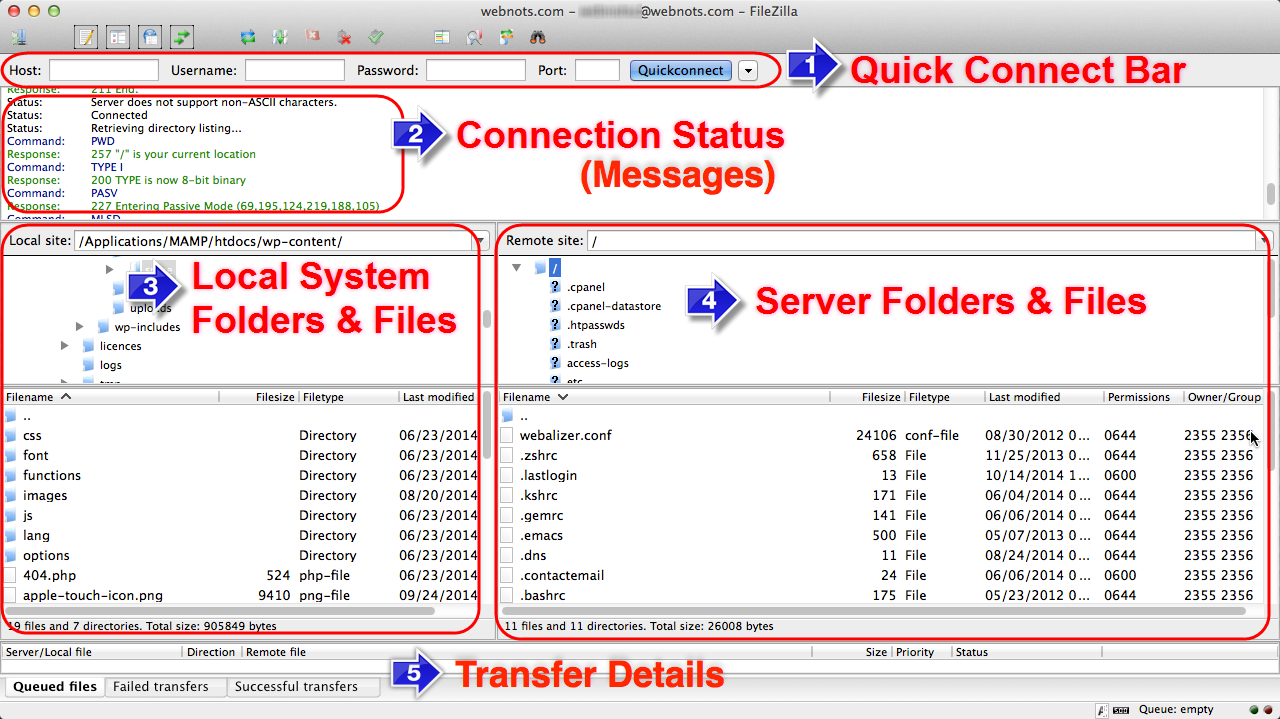
- Use an FTP client like FileZilla to upload the files to your hosting account.
- Create a MySQL database and user via your hosting control panel.
- Access the default WordPress login page and follow the on-screen instructions.
Understanding the WordPress Dashboard
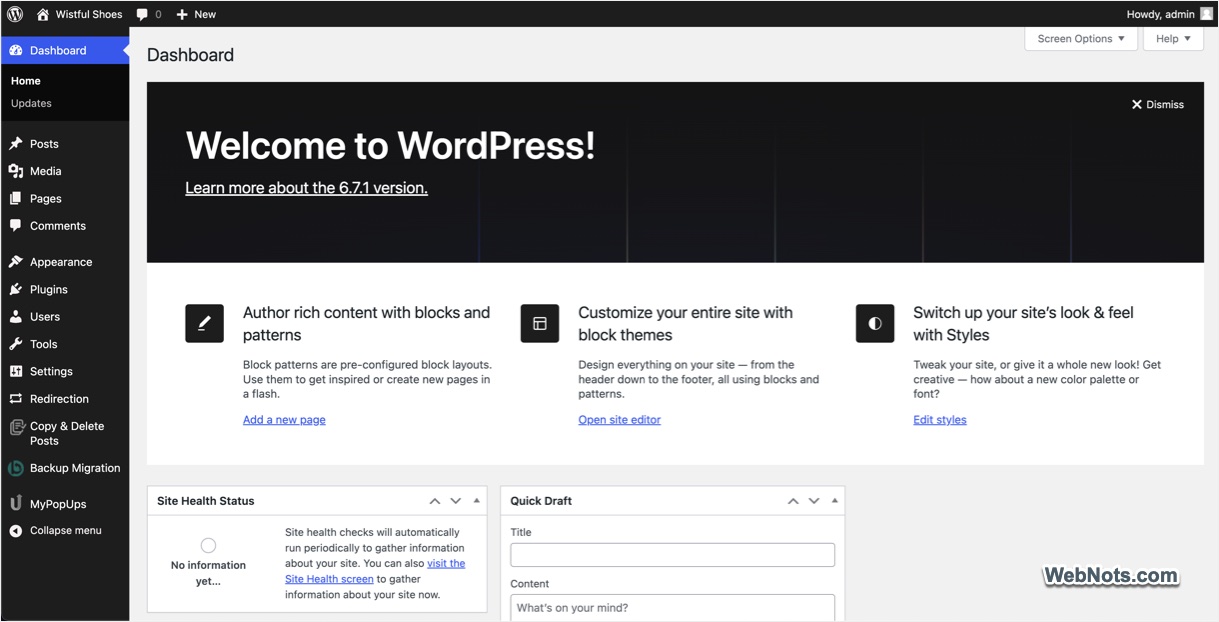
The WordPress dashboard serves as the main interface for managing your website. Familiarizing yourself with its features will help you manage and customize your site effectively.
- Posts: Create and manage blog posts.
- Pages: Add static pages like “About Us” or “Contact.”
- Media: Upload and manage images, videos, and other files.
- Plugins: Enhance functionality by installing plugins.
- Appearance: Customize your site’s themes, widgets, and menus.
Use the left-hand menu to access different sections of the dashboard. Also, take advantage of the help and screen options in the top-right corner for additional guidance. By following these steps and understanding the basics, you’ll be well on your way to establishing a strong foundation for your WordPress website.
Chapter 3: Customizing Your Website
Choosing and Installing Themes
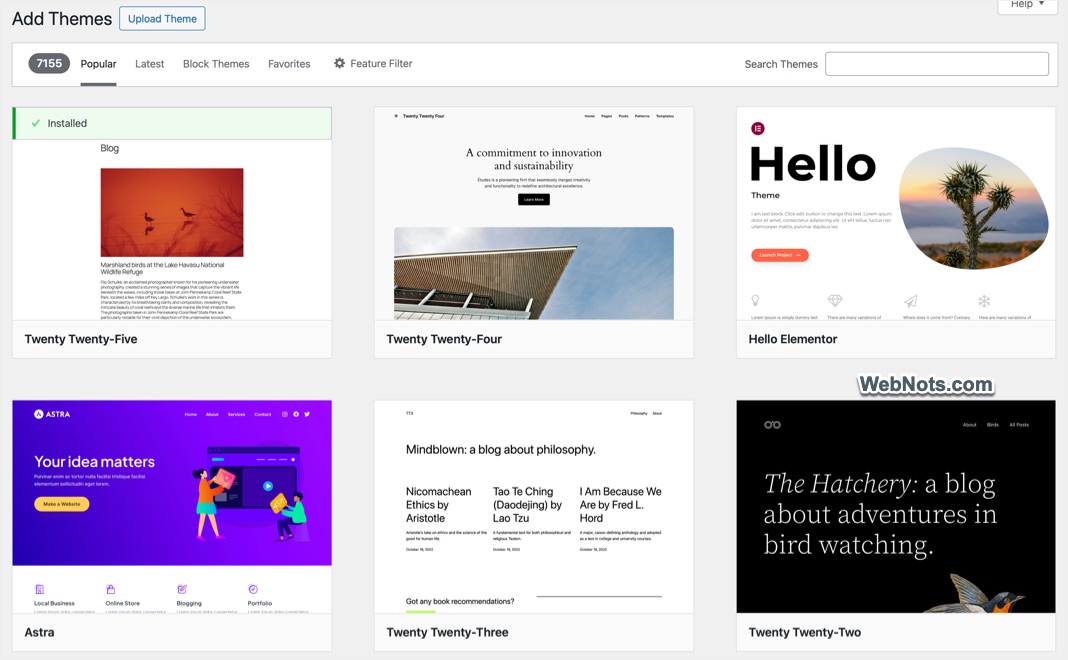
A theme serves as the visual foundation of your WordPress site. It determines the overall look, feel, and layout. Whether you’re setting up a blog, portfolio, or online store, choosing the right theme is important for making a lasting impression. WordPress offers a variety of free themes accessible directly from the dashboard. These themes are great for beginners and offer basic customization options. However, for more advanced features, unique designs, and dedicated support, paid themes available on marketplaces like ThemeForest or Elegant Themes may be worth considering.
Note: The default block-based themes are difficult to use as needed changes are to be done in the templates using Full Site Editing (FSE) feature. So, we recommend using classic themes like Astra or GeneratePress. Important thing is that block themes and classic themes will have different navigational menu items.
- Navigate to “Appearance > Themes” in your WordPress dashboard.
- Click the “Add Theme” button to explore the WordPress Theme Directory.
- Preview themes to find one that suits your vision.
- Click “Install” and then “Activate” to apply the chosen theme.
Installing and Managing Plugins
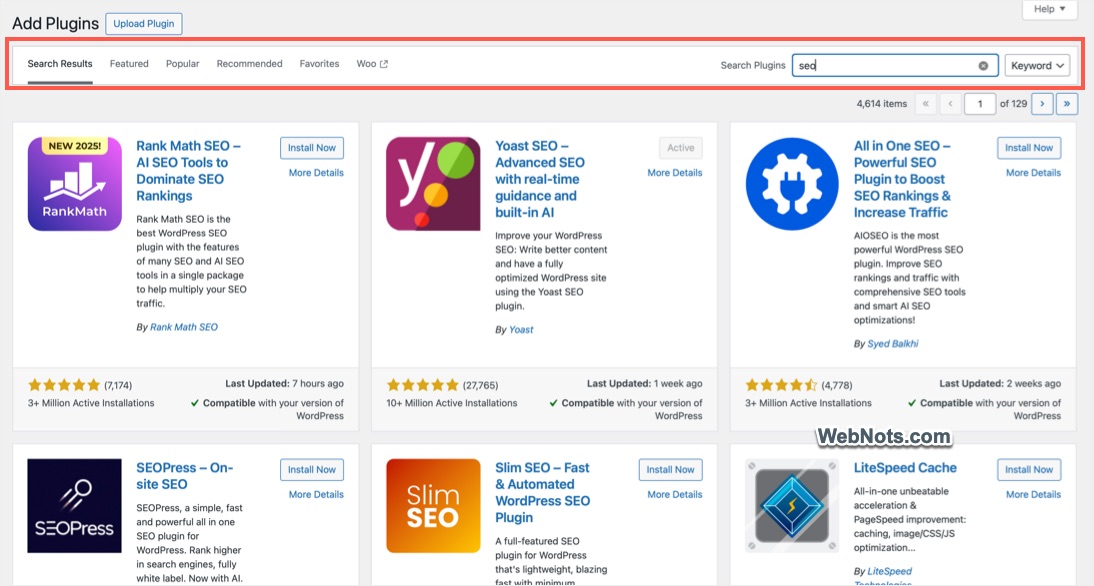
Plugins are extensions that enhance the functionality of your WordPress site. From SEO optimization to social media integration, plugins can be tailored to meet your site’s specific needs. Some essential plugins for beginners include: Yoast SEO, Akismet, Jetpack, and Elementor.
- Go to the “Plugins” section in the dashboard and click “Add Plugin”.
- Search for a plugin by name or browse popular categories.
- Click “Install Now”, then “Activate” to turn on the plugin.
Customizing Your Site’s Appearance
Once your theme and plugins are in place, it’s time to tailor the site to reflect your brand or personal style.
Using the WordPress Customizer
The WordPress Customizer, accessible via “Appearance > Customize”, allows you to modify various design elements like colors, fonts, and background images in real-time. You can preview changes instantly before they go live. As mentioned, block-based themes will NOT have a customizer section. instead, you need to access the post, page, and other templates via “Appearance > Editor” menu.
Adding Widgets and Menus
- Widgets: These are small content blocks, such as a search bar, recent posts, or a calendar, that you can place in predefined areas of your site like sidebars or footers.
- Menus: Create navigational menus by going to Appearance > Menus. Include links to posts, pages, and categories to help visitors find content effortlessly.

By thoughtfully integrating themes, plugins, and custom design elements, you can transform your WordPress site into a professional, visually appealing platform that meets your goals.
Chapter 4: Creating Content
Understanding WordPress Posts and Pages
WordPress is built on two primary content types: posts and pages. While these may seem interchangeable at first, understanding their unique purposes will help you structure your website effectively. Posts are time-sensitive pieces of content, typically used for blogs, news updates, or articles. They are displayed in reverse chronological order on your site and can be grouped by categories or tags. Pages are typically static and not updated frequently. They are commonly used for content such as “About Us,” “Contact,” or “Services”.
Use posts when you want to create a steady stream of updates or keep readers engaged with fresh material. Pages are ideal for information that remains unchanged over time and serves as the core structure of your website.
How to Create a Post?
Creating your first post is an exciting step in building your site’s content using the block editor (Gutenberg). The editor provides an intuitive way to create content. Each element – text, image, video – is added as a block that can be dragged, dropped, and customized.
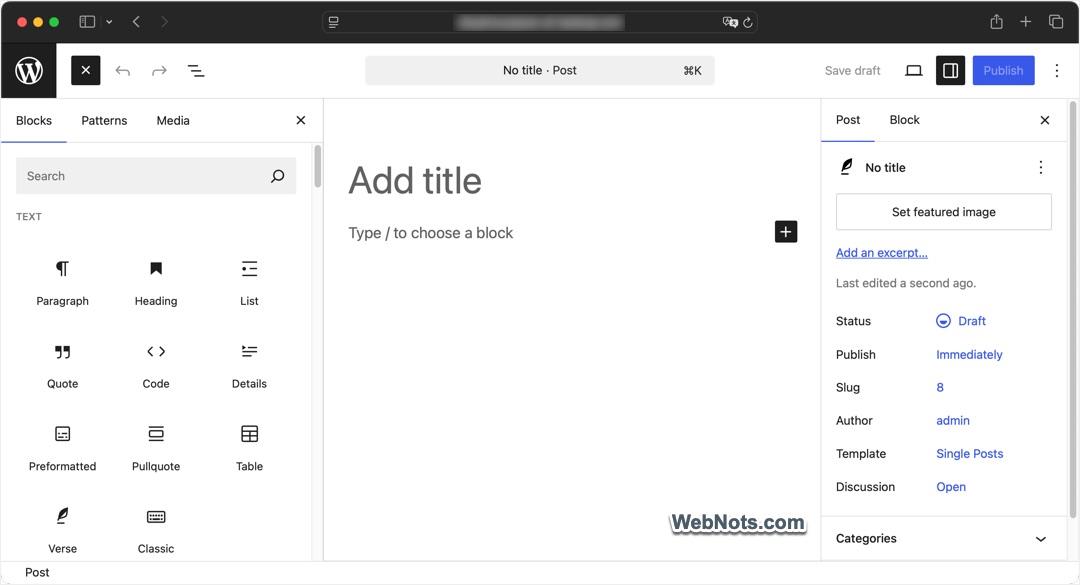
- Adding Text: Start by clicking the “Add Post” option under “Posts”. Use the text block to draft your article or announcement.
- Inserting Images and Media: Click the “+” icon, select the image block, and upload photos directly from your computer or media library.
- Exploring Advanced Blocks: Use additional blocks for tables, quotes, or embedded videos for engaging content creation.
How to Create a Page?
Pages are easy to create and manage in WordPress, serving as the foundational elements of your site. Go to “Pages > Add Page” menu and use the Gutenberg block editor to create page content similar to posts.
Your website should have some essential page:
- Home: Main page introducing your site.
- About Us: Share your mission, values, or personal story.
- Contact: Provide a way for visitors to reach out via email, phone, or forms.
Take advantage of pre-designed templates to speed up the page-building process. Many WordPress themes include templates for portfolios, testimonials, and landing pages. Also, you can page builder plugins like Elementor, Spectra, or WPBakery. Simply choose a layout that best fits your needs and customize it to reflect your brand.
Tips for Effective Content Organization
To make your content easy to navigate:
- Use categories and tags to group related posts (page will not have these taxonomies).
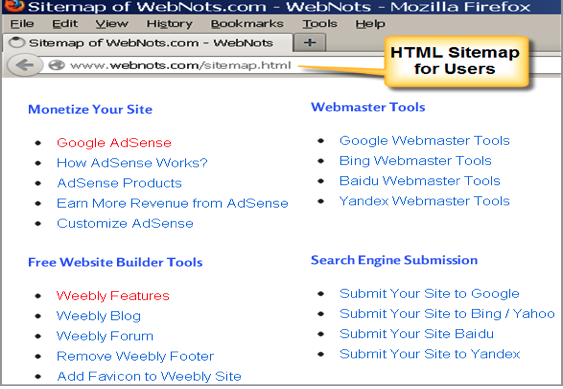
- Create an HTML Sitemap page to guide visitors through your site.
- Update your content periodically to keep it relevant.
By mastering posts and pages, you can ensure that your site delivers a seamless, well-organized experience for your audience.
Chapter 5: Maintaining Your WordPress Site
Keeping Your WordPress Updated
Regular updates are essential for maintaining a secure and efficient WordPress site. Updates not only bring new features but also patch vulnerabilities, ensuring your site remains protected against potential security threats.
- Core Updates: The WordPress core is updated frequently to improve performance, fix bugs, and enhance security. To check for updates, navigate to the “Dashboard > Updates” section. Always back up your site before proceeding with a core update to avoid data loss in case something goes wrong.
- Theme and Plugin Updates: Outdated themes and plugins can be a significant security risk. Ensure that you regularly check for updates for all installed plugins and themes. You can do this through the “Plugins” and “Appearance” sections of your Dashboard. For maximum compatibility, ensure these updates align with the current version of your WordPress core.
Backing Up Your Website
Backups are your safety net. In the event of a server crash, hacking attempt, or accidental content deletion, a reliable backup can save you hours or even days of rebuilding work. A backup is essentially a copy of your entire website – files, database, and configurations. With a backup, you can restore your site to its previous state with minimal downtime, preserving your content and user experience.
Numerous plugins, such as UpdraftPlus or BackupBuddy, make the backup process simple and efficient. Most plugins allow you to schedule automated backups and store them in secure locations like cloud services (Dropbox, Google Drive, etc.). Make sure to test your backup files periodically by restoring them in a staging environment.
Securing Your WordPress Site
Security is a cornerstone of site maintenance. A well-secured site builds user trust and prevents malicious attacks from compromising your hard work.
- Use strong, unique passwords for all accounts associated with your site, including your WordPress admin account, hosting service, and database.
- Two-factor authentication (2FA) can be used to increase account security.
- Limit login attempts to prevent brute force attacks.
Plugins like Wordfence, Sucuri Security, or iThemes Security can significantly enhance your site’s defense. They offer features such as malware scanning, firewall protection, and real-time monitoring of suspicious activities. Regularly review and follow up on any security alerts provided by these tools.
Chapter 6: Troubleshooting Common Issues
What to Do When Your Site Goes Down?
Few things can be more stressful than discovering your WordPress site has gone down. Whether it’s a blank screen, an error message, or a site that simply won’t load, quick action is crucial. Here’s how to handle it:
- Check Your Hosting Provider: Start by confirming whether the issue lies with your hosting provider. Use their status page or contact their support team to identify any server outages.
- Deactivate Plugins: A faulty plugin can cause your site to crash. Use your hosting control panel or FTP to disable all plugins, then reactivate them one at a time to find the culprit.
- Restore from Backup: If you’ve been diligent with backups, restore your site to a previous stable version to get it back online quickly.
Fixing Plugin Conflicts
Plugins are essential for extending WordPress’s functionality, but conflicts between them can disrupt your site’s performance. To address plugin conflicts efficiently:
- Pinpoint the Issue: If your site started behaving erratically after installing or updating a plugin, it’s a sign the new plugin may be the cause.
- Disable Suspect Plugins: Log into your WordPress dashboard or use FTP to deactivate plugins one by one until the issue resolves.
- Update and Test: Ensure all your plugins are up to date. Sometimes, plugin authors release patches to address compatibility issues.
- Seek Alternatives: If the conflict persists, consider replacing the problematic plugin with a trusted alternative.
How to Restore from a Backup?
Restoring from a backup is your safety net when troubleshooting fails. To restore your WordPress site effectively:
- Identify the Right Backup: Choose the most recent backup version that predates the issue you’re experiencing.
- Use Your Backup Plugin: Many plugins, such as UpdraftPlus, allow direct restoration from their interface.
- Manual Restoration: If the plugin method isn’t an option, use your hosting provider’s backup functionality or upload the backup files manually via FTP and phpMyAdmin.
- Test Thoroughly: After restoration, check your site for broken links, missing content, or errors to ensure everything is functioning as expected.
Understanding Update Issues
Though updates are vital for security and performance, they can sometimes create problems:
- Backup Before Updating: Always perform a full site backup before applying updates to WordPress, themes, or plugins.
- Use Staging Environments: Test updates on a staging copy of your site to avoid impacting live users.
- Revert If Necessary: If something breaks after an update, revert to the previous version using backups or version rollback features provided by some plugins.
Resolving Slow Site Performance
A slow site annoys users and hurts SEO. Common fixes include:
- Optimize Images: Compress and resize images to reduce load times.
- Leverage Caching: Use caching plugins like WP Rocket or W3 Total Cache to store static versions of your pages.
- Check Plugins and Themes: Poorly coded plugins or themes can slow your site. Deactivate them to see if performance improves.
- Upgrade Hosting: If all else fails, consider switching to a faster hosting provider or plan.
When to Seek Professional Help?
Not all issues can be resolved independently. If you encounter persistent or complex problems, consider hiring a WordPress expert or reaching out to your hosting provider’s technical support team. Remember, investing in timely help can save you from prolonged downtime and additional complications.
By mastering these troubleshooting techniques, you’ll be well-equipped to handle the most common issues while maintaining your WordPress site’s health and functionality.
Chapter 7: Scaling Your WordPress Site
As your WordPress site grows, so will your need for advanced tools and strategies to meet the demands of an expanding audience. Chapter 7 dives into methods for scaling your WordPress site, incorporating premium features, and ensuring your platform remains agile and robust.
Adding Advanced Features
Scaling your site often involves integrating powerful new features to enrich user experience. Depending on your goals, these might range from eCommerce solutions to membership sites or advanced SEO tools. Below are some practical ways to elevate your website’s functionality.
eCommerce with WooCommerce
For those venturing into online retail, WooCommerce is a powerful, flexible plugin that transforms your WordPress site into a full-fledged online store. With options for product listings, payment gateways, inventory management, and shipping configurations, WooCommerce is a must-have for scaling your business.
Creating Membership Sites
Membership sites can be a lucrative way to deliver gated content, online courses, or exclusive resources. Plugins like MemberPress or Paid Memberships Pro offer seamless integrations, allowing you to manage subscriptions, create tiered content, and build a loyal community.
Using Caching and Optimization Plugins
Leverage plugins like WP Rocket or Autoptimize to handle caching and minimize the size of your CSS, JavaScript, and HTML files. These tools significantly reduce load times, ensuring a smoother experience for your users.
Image Compression Tips
Large, high-resolution images frequently contribute to slower website load times. Tools like Smush or ShortPixel optimize your images without compromising quality, making your site visually appealing and quick to respond.
Enhancing SEO
To ensure your content reaches the widest possible audience, advanced SEO techniques are indispensable. Plugins like Yoast SEO or Rank Math guide you in optimizing your content for search engines. From keyword analysis to readability scores, these tools provide detailed insights to boost your rankings. Whether you’re a newcomer or a seasoned WordPress user, adhering to SEO best practices – such as using descriptive metadata, leveraging internal links, and structuring your content for readability – can propel your site to new heights.

Scaling your WordPress site is both an art and a science. By integrating advanced features, optimizing for performance, and enhancing SEO, you’ll be ready to accommodate growth while maintaining the quality and integrity of your platform.
Conclusion and Next Steps
As we’ve explored throughout this guide, scaling and optimizing your WordPress site is a multifaceted journey requiring attention to performance, user experience, and search engine visibility. By implementing the strategies and tools discussed, you’re well on your way to creating a robust platform that grows with your audience.
Next Steps
- Evaluate Your Current Setup: Take a close look at your existing WordPress configuration and identify areas for improvement.
- Implement Priority Changes: Start with the performance enhancements that will yield the quickest results, such as image compression and caching.
- Adopt a Long-term Strategy: Use SEO tools and best practices consistently to ensure ongoing growth and visibility.
- Stay Updated: The WordPress ecosystem evolves rapidly. Keep learning about new tools, plugins, and strategies to maintain your site’s edge.
Remember, building a successful WordPress site is a continuous process, not a one-time effort. By remaining proactive and adapting to new challenges, you’ll position your site for sustainable growth and success.