In our earlier article, we have provided the detailed explanation of XML sitemap and its structure. There are plenty of SEO plugins available for WordPress sites to create an XML sitemap (like Yoast SEO, Rank Math, etc.). However, there is also another sitemap called HTML sitemap. This is a simple page on your website that lists all or most of your site’s content, typically organized in a hierarchical structure. It helps users navigate your site more easily, especially if the site is large or has a complex structure.
HTML Sitemap
Even though it isn’t important for SEO like XML sitemap, HTML sitemap can still help users to find important pages and posts on your site easily. It also helps search engines to crawl deep-linked or older pages on your site.
In short:
- HTML sitemap > for people.
- XML sitemap > for search engines.
There are two main ways to create an HTML sitemap in WordPress: using a plugin or doing it manually.
1. Use a Plugin for Creating HTML Sitemap
There are many free plugins available for adding an HTML sitemap to your site. Some popular choices include – “Simple Sitemap – Create a Responsive HTML Sitemap”, “WP Sitemap Page”, and “HTML Page Sitemap”. Let’s walk through setting it up using WP Sitemap Page plugin.
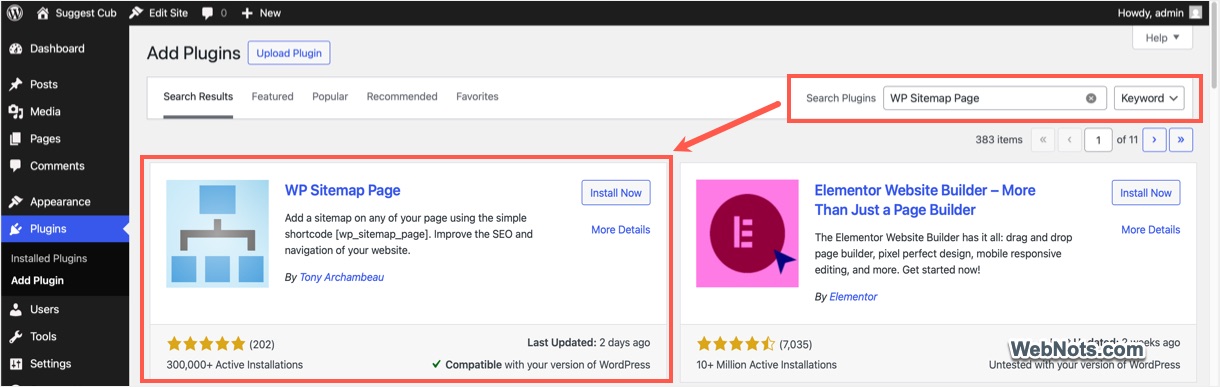
- Navigate to “Plugins > Add Plugin” section on your dashboard. Search for “WP Sitemap Page” to find, install, and activate the plugin.
- Go to “Pages > Add Page” menu to create a new page for your sitemap and give the page a title like “HTML Sitemap”.
- Copy and paste the following shortcode in the content area.
[wp_sitemap_page]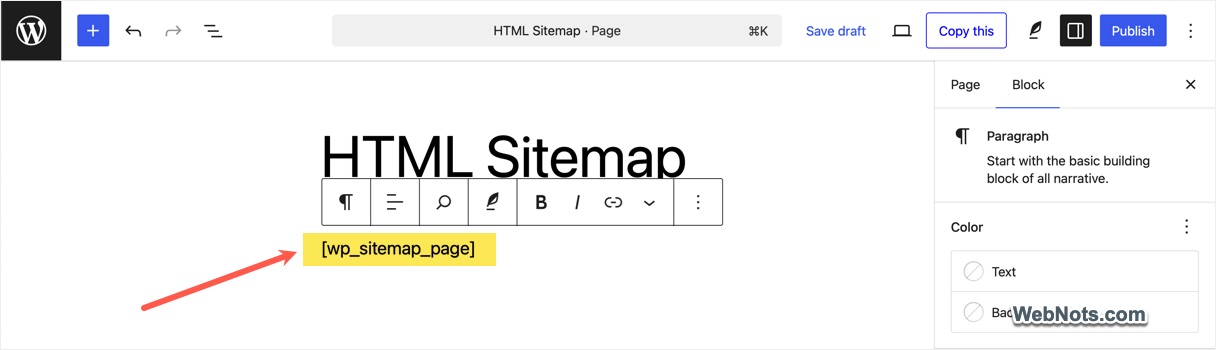
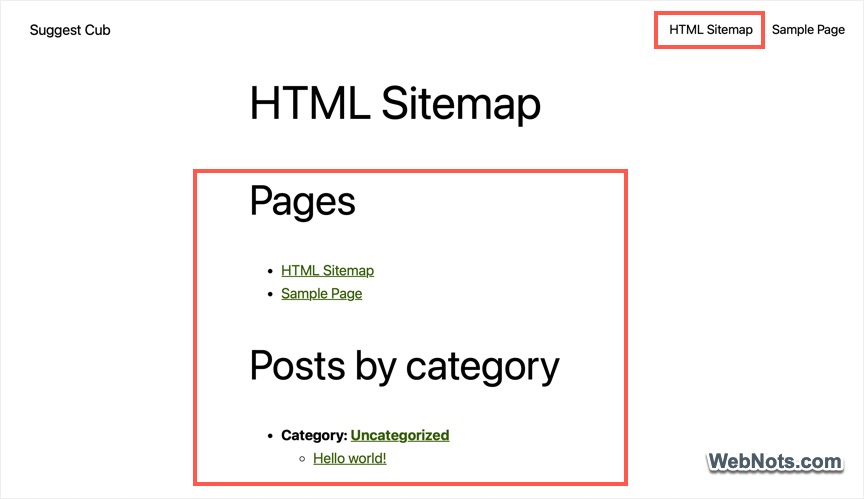
- Publish the page and confirm your sitemap is showing properly.
- Add this page to your footer or a top menu for better visibility. You can do this under “Appearance > Menus or Widgets” section, depending on where you want it.
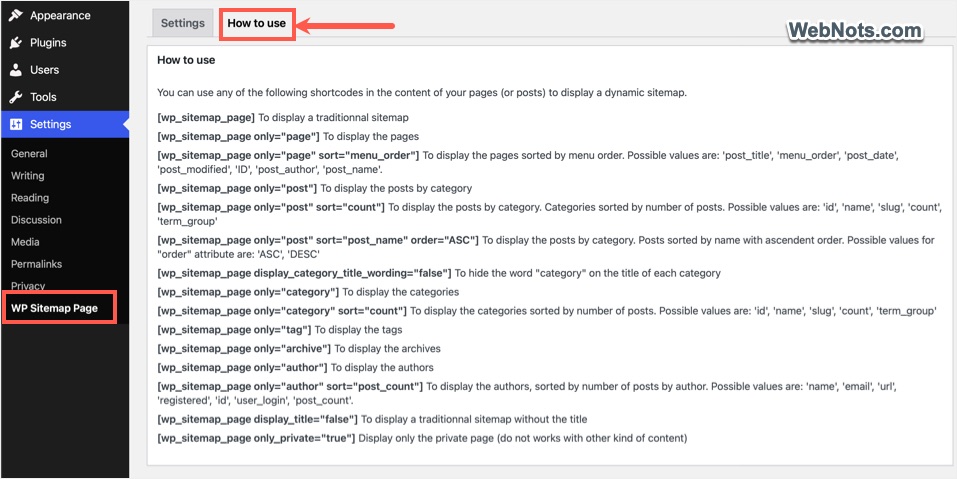
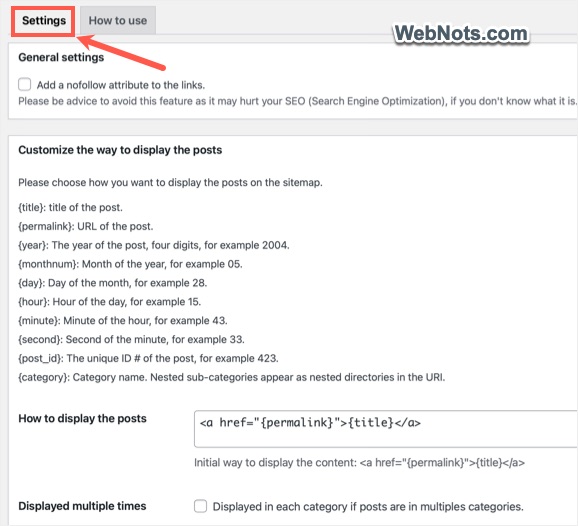
If you have large amount of content, the plugin also allows you to filter and restrict the display. Go to “Settings > WP Sitemap Page” section to find all shortcodes offered by the plugin under “How to use” tab.
You can also exclude pages, post type, and customize the sitemap display under “Settings” tab.
1.1. Using Rank Math SEO Plugin
If you don’t want to use a dedicated plugin, consider using a full-featured SEO plugin like Rank Math. It is a popular SEO tool for optimizing page content, adding 301 redirects, generating XML sitemaps, inserting verification codes and more. You can also use the same plugin to create an HTML sitemap for your site.
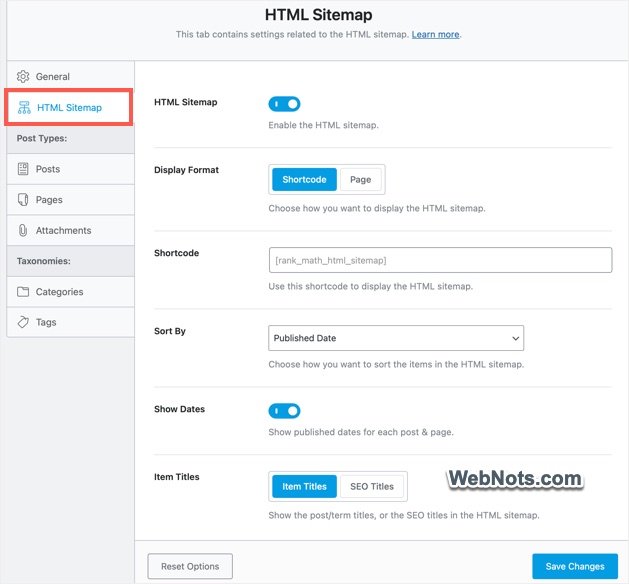
- After installing and activating the plugin, go to “Rank Math SEO > Sitemap Settings” section.
- Go to “HTML Sitemap” tab and turn on “HTML Sitemap” option.
- Choose whether you want to use the shortcode or directly display the sitemap in one of your existing pages.
- If you want to use the shortcode, use the default code or type any custom code in “Shortcode” box.
- Adjust the sorting order, show or hide dates and show item or SEO titles options.
- Click the “Save Changes” button.
- Now, create a new HTML sitemap page and paste the shortcode.
Though this is useful, it does not have many customization options like WP Sitemap Page plugin.
2. Create an HTML Sitemap Manually
This method is good for those who don’t want to use a plugin and have a full control over the layout. For example, you can only display important and popular pages instead of listing all pages in your HTML sitemap.
- Go to “Pages > Add Page” menu to create a new page and name it as “HTML Sitemap”.
- Insert a “Custom HTML” block to list links to key pages, posts, categories, etc. For example, you can use the following code to show important pages and posts from your site (make sure to replace the href links).
<h2>Pages</h2>
<ul>
  <li><a href="/about">About Us</a></li>
  <li><a href="/services">Services</a></li>
  <li><a href="/contact">Contact</a></li>
</ul>
<h2>Blog Posts</h2>
<ul>
  <li><a href="/blog/post-1">Post Title 1</a></li>
  <li><a href="/blog/post-2">Post Title 2</a></li>
</ul>
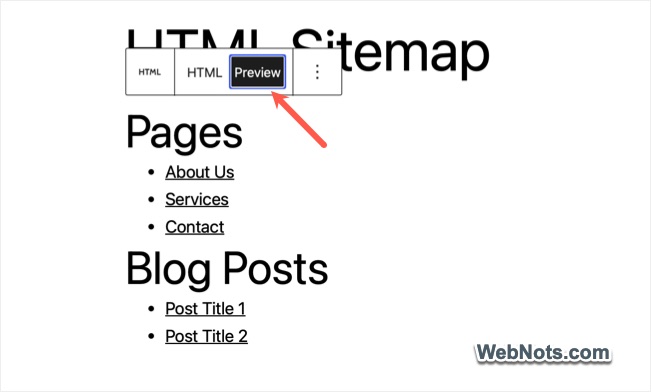
- Cluck the “Preview” button to to view the sitemap within the editor before publishing.
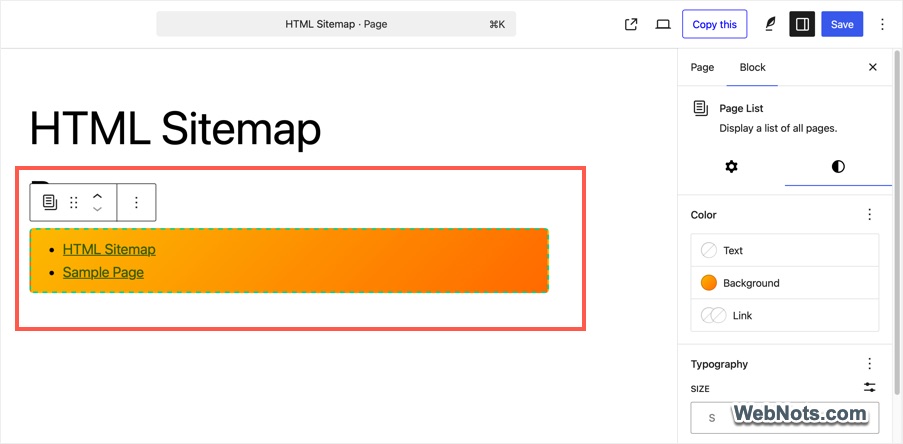
Alternatively, you can use Heading, Page List, Latest Posts, and Categories List blocks to create a customized HTML sitemap. This option allows you to add custom background color, margin / padding, and borders to the list.
The only problem with this method is that you’ll need to update the sitemap manually over time as your site grows.
Final Thoughts
An HTML sitemap is a simple but useful tool to help visitors (and sometimes search engines) find content on your site. Whether you use a plugin or build one manually, adding an HTML sitemap to your WordPress site is a smart move – especially as your content grows.