Google Chrome comes with a default AI Mode and Gemini integration supporting the use of AI within the browser while browsing the web. In addition, there are also many hidden AI features available throughout the browser’s settings page. All you need to do is enable a few settings or make use of the built-in AI capabilities to get things done quickly. Here are eight easy ways you can use the AI-powered features in Google Chrome.
Before You Use Google AI
There are two things you should be aware of before using AI in Chrome browser:
- Though you can use some of the features without logging into a Google account, it’s needed for getting the most out of AI in Chrome.
- Using certain AI features will send your data to Google’s servers rather than entirely processing on the local device.
So, you’re good to go with those understandings.
1. AI Mode Search Assistance
By default, Chrome comes with an integrated AI Mode allowing you to directly start the chat conversation. Simply click the “AI Mode” button in the address bar (also called omnibox), type your query in the “Ask anything” box, and press enter to get the required information.
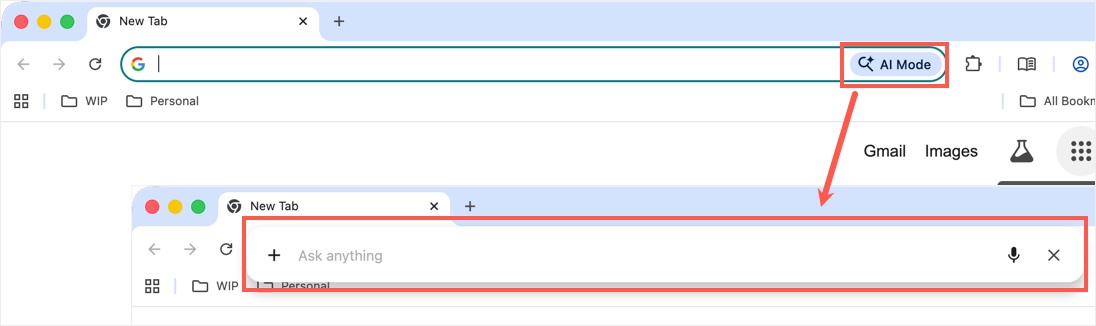
If you don’t see the “AI Mode” button, right-click inside the address bar in a new tab page and select “Always Show AI Mode” or “Always show AI Mode shortcuts” option.

2. Generate Images
Many users think AI Mode can only generate text-based responses; however, you can easily generate images as well. As mentioned, make sure you are already logged into your Google account.
- First, click the “AI Mode” button in the address bar.
- Now, click the + icon and select “Create Images” option.
- Describe your image in the prompt and press enter.
- Google will generate the image as per your description, which you can download and share with anyone.

3. Search Browsing History with AI
Simply type @history in the address bar and press space. Now, you can type the keywords to search within your browsing history using AI.

If this is not working, go to chrome://settings/ page and navigate to “AI Innovations” section. Click on the “History search, powered by AI” and turn on “History search, powered AI” option.

4. Use @ Commands in Address Bar
You can trigger the AI Mode by typing @aimode in address bar and then pressing the space key.

You can also press the Tab and then enter key to use AI Mode or type @gemini to open “Ask Gemini” prompt.
Note: You can add a custom @ command by going to “Settings > Search engine > Manage search engines and site search > Site search” section.
5. Visually Search with Google Lens
AI also enhances Chrome’s visual search capabilities with Google Lens. Right-click on any image and select “Search this image Google Lens” option. Google’s AI will do the magic and show a complete list of all, exact, and visual matches available online.

In this ways, you can search for similar products, identify objects, or find visually related content across the web. Remember, Lens also works for video search.
6. AI-Powered Security Protection
Chrome offers safe browsing in enhanced and standard protection modes. Though Standard mode is sufficient in most cases, you can turn on the AI-powered Enhanced mode to get real-time protections against malware and extensions.

7. AI Assistance in Developer Tools
Open Developer Tools and click the “AI Assistance” icon to activate it. Now, you can right-click on any element on the webpage and select “Ask AI” to do the work for you. This helps developers and technical learners to benefit from AI explanations. AI Assistance can also do the styling adjustments and allow you to save the final code for further usage.
8. AI-Powered Translation
Chrome already supports translation, but AI enhancements improve the accuracy and context of translated pages. Instead of simple word substitution, AI translation understands sentence structure and meaning. Go to “Settings > Language” section and turn on “Use Google Translate” option. with this, you can browse websites in different languages more naturally, which is helpful for global research, international news, or learning new languages.

Conclusion
AI Mode in Google Chrome can help with writing assistance, content summarization, and visual search while browsing the web. Chrome can also integrate with other Google services like Gmail and Google Assistant, making it easier to use AI across different tasks and workflows. Beyond the built-in features, the Chrome Web Store offers thousands of free and paid extensions that add additional AI tools, giving you the flexibility to customize the browser with features that suit your needs.