Setting up apps to automatically launch after logging in can significantly streamline your workflow, saving you time and effort. Whether you’re a professional looking to have your email, calendar, or project management tools up and running instantly, or just want to have your favorite media player or chat app ready to go, it’s easy to automate app launches on Windows. Here’s a step-by-step guide on how to do this using various methods.
1. Using Settings App
Windows 11 offers an easy way to launch supported apps from Settings.
- Press “Windows Logo + I” keys to open Windows Settings app.
- Navigate to “Apps > Startup” section.
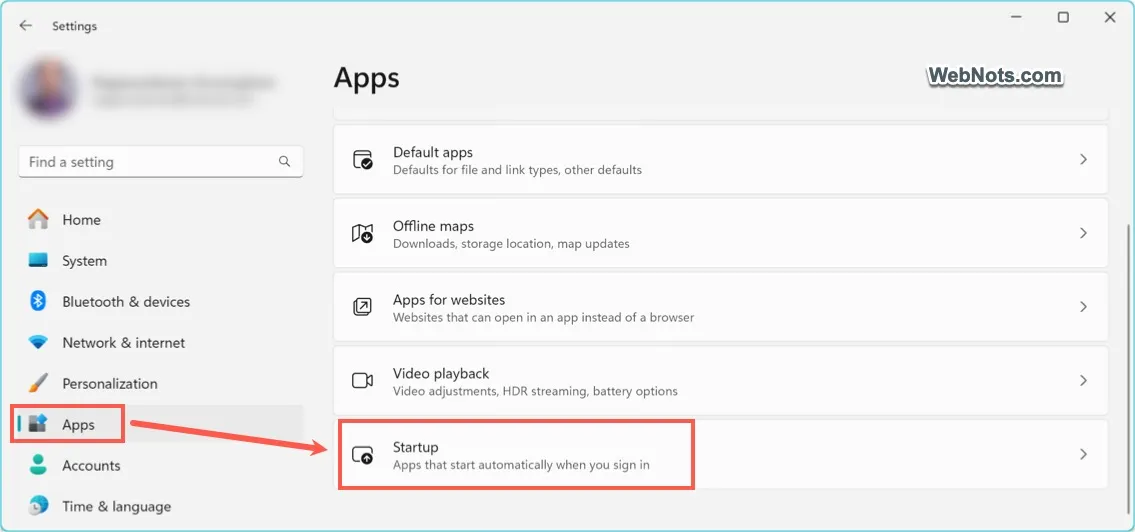
- Find the app from the list and turn it on.

The apps enabled here will generally start in a minimized window after logging and some apps like Microsoft Defender will run in the background. Though this is an easy method, unfortunately, it does not list down all installed apps. Even Microsoft owned apps like Edge and Word will not be there. Since there are no options to manually add the apps, you have to follow one of the below options if you can’t find the app.
2. Adding Shortcut to Startup Folder
This is a straightforward but lengthy process to add app shortcut to launch it automatically.
2.1. Get App’s Shortcut
Let’s say, you want to automatically launch Edge browser with its home page so that you can quickly check the news and updates.
- Click the Start button and then click “All” button.
- Find Edge app from the list and right-click on it.
- Go to “More > Open file location” to open the location in File Explorer.

- Select the Microsoft Edge shortcut file and press “Control + C” to copy.

2.2. Add Shortcut in Startup Folder
Next step is to paste the copied shortcut inside Startup folder. On Windows 11, you can directly go to “C:\Users\<Username>\AppData\Roaming\Microsoft\Windows\Start Menu\Programs\Startup” location in File Explorer, which is the startup folder. However, AppData folder is hidden by default and hence you need to show all hidden files to view it. Otherwise, simply follow the below steps:
- Press “Windows Logo + R” keys to open the Run dialog. Type shell:startup and press “OK” button.

- This will open the Startup folder and simply press “Control + V” to paste the copied app’s shortcut link.

2.3. Restart Your Computer
Once you’ve added your shortcuts, restart your computer, and the selected apps will automatically launch when you log in.
3. Using Task Scheduler (For More Control)
If you want more control over how and when apps launch, you can use Task Scheduler for that purpose.
3.1. Creating Task
- Search and open Task Scheduler app.
- In the “Actions” pane on the right, click “Create Task” option.

• Name the task something like “Auto Launch Task Manager” under “General” tab.

3.2. Set Triggers
- Go to “Triggers” tab and click the “New…” button.
- Click the “Begin the task” dropdown and set the trigger to “At log on”. This ensures the app will launch as soon as you log in.
- If required, you can restrict the task to particular user and delay certain time.
- Click “OK” button to close the dialog box.

3.3. Set Actions
- Now, go to “Actions” tab and click on the “New…” button.
- Click the dropdown against “Action” and choose “Start a program” option.
- Click the “Browse” button, navigate to the app’s location, and select the app you want to open automatically.

- Click “OK” buttons to close the dialog boxes and save the task.
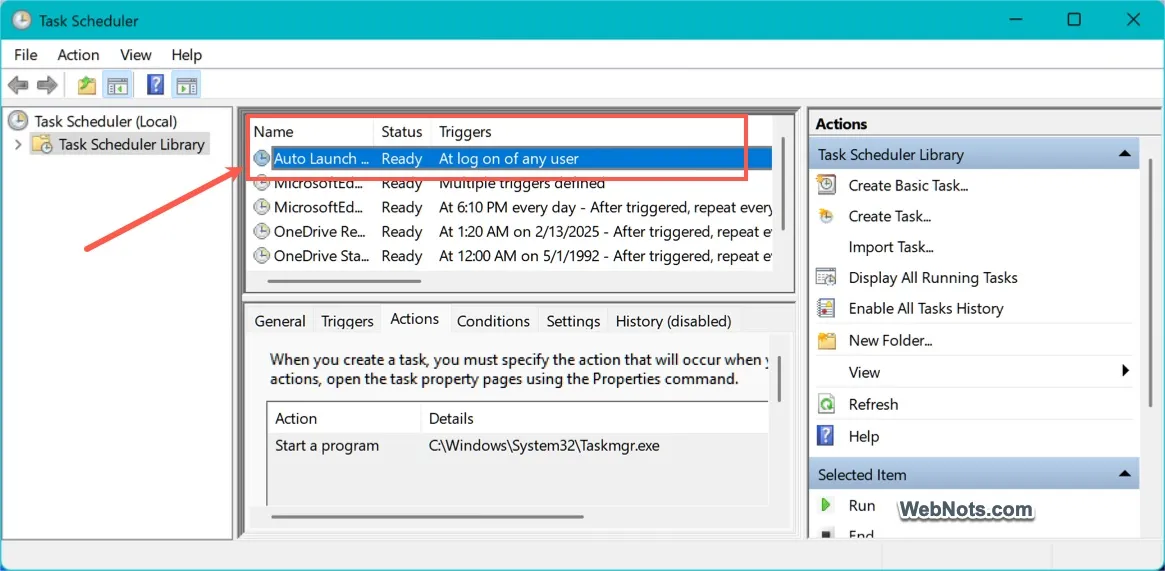
- You can find the created task shows in the list. This task will run after login and automatically launch the app (Task Manager in our case).
Troubleshooting Common Issues
While setting up automatic login apps is relatively simple, you might run into a few issues. Here’s how to solve them:
- App Not Launching from Shortcut – Make sure the app shortcut is correctly placed in the Startup folder.
- Permissions – Ensure the app has the correct permissions to run at startup. Sometimes security software may block apps from automatically launching.
- Task Scheduler – Double-check the Task Scheduler settings to make sure the correct app path is entered and that the task is properly configured to trigger at logon.