Have you ever tried to sign out of your Apple ID on your iPhone, iPad, or Mac, only to find the “Sign Out” option grayed out? Apple restricts signing out in certain situations for security and functional reasons. In this article, we will explore why the sign out option is disabled and how you can re-enable it.
Sign Out Disabled
You may face this situation regardless of the device used:
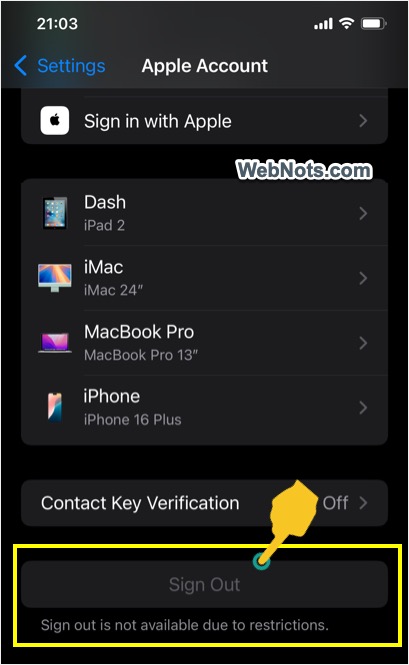
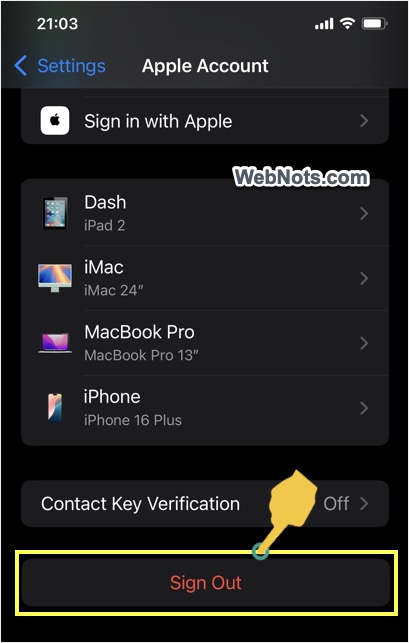
- On iPhone and iPad, open Settings app and tap on your Apple account. Scroll down to the bottom and you will find the “Sign out” option is disabled. You will also find a message showing “Sign out is not available due to restrictions”.
- On Mac, go to “Apple Menu > System Settings… > Apple Account” section. Scroll down to bottom on right pane and you will find the “Sign Out…” button is disabled.
Why is Sign Out Disabled in Apple Account?
Apple may disable the sign out option in specific scenarios to prevent accidental or unauthorized changes to your account. Here are the most common reasons:
1. Screen Time is Enabled with Passcode
If Screen Time is turned on with passcode, the sign out option will be disabled to prevent unauthorized changes. This is especially common on devices managed by parents or employers.
2. Restrictions Set by Device Management
If your device is provided by your employer or school, it may have Device Management enabled. Device management policies can disable signing out of Apple ID to ensure compliance with organizational policies.
3. iCloud or Apple Services are Syncing
If your device is actively syncing data with iCloud (such as backing up photos or contacts), Apple may temporarily disable signing out to prevent data loss.
4. Network or Software Issues
Sometimes, a software glitch or network problem can cause the sign out button to appear grayed out. If your device is unable to connect to Apple servers, it may restrict account changes.
How to Enable Sign Out on Apple Account?
Depending on the reason behind the restriction, you can follow these steps to re-enable the sign out option:
Method 1: Disable Screen Time Passcode
Setting a passcode for Screen Time prevents anyone from modifying the limits and restrictions on the device (like usage time). However, Apple does not recommend using a Screen Time passcode for administrator account. If you have recently setup a passcode, that could be the reason why the sign out option is grayed out.
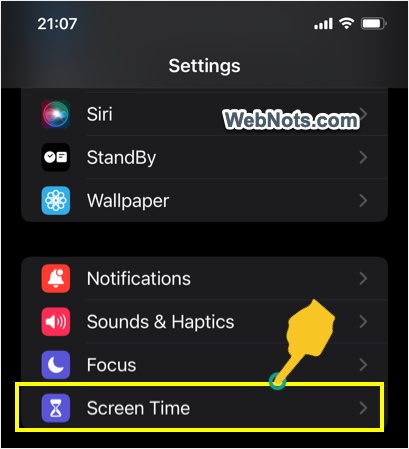
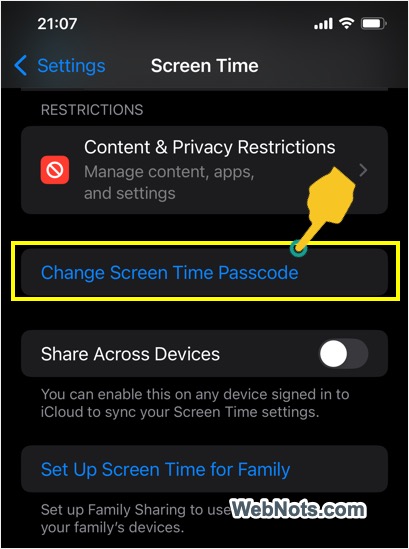
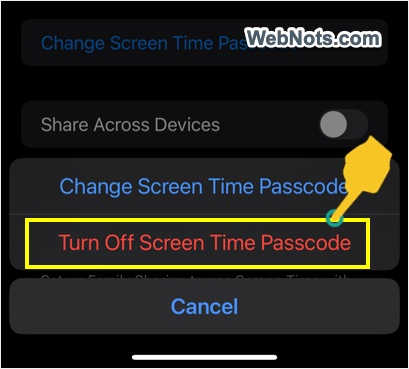
- On iPhone & iPad – Open Settings app and navigate to “Screen Time” section. Scroll down and tap “Change Screen Time Passcode” option. Select “Turn Off Screen Time Passcode” option and type your passcode to disable it.
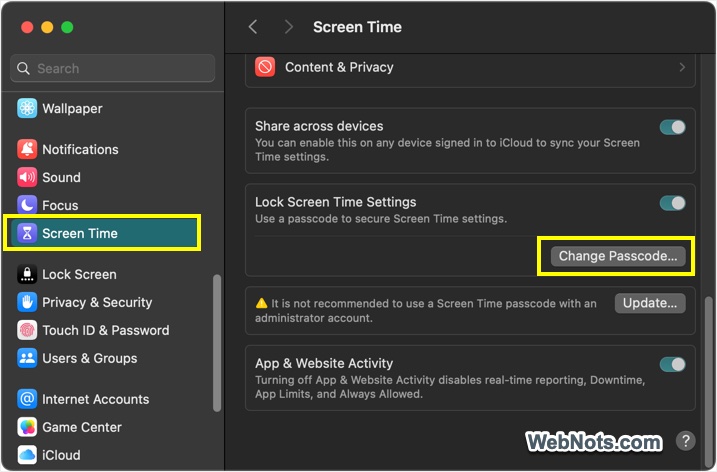
- On Mac – Go to “Apple Menu > System Settings… > Screen Time”. Click the “Change Passcode…” button showing under “Lock Screen Time Settings” section. Type your old passcode and then leave the new passcode empty to disable it.
Now, go back to your Apple account page on Settings app and check if the sign out button is available.
Note: To disable the passcode on your child’s or another device, select the family member and turn off the passcode. On a Mac, if the passcode is set for an administrator account, you will also have the option to convert it to a standard account.
Method 2: Check for Company Restrictions
Organization-provided devices have lot of restrictions to avoid security problems. The restrictions will also be applied if you have signed in with a school or work account on your personal device. If you are confused about whether your organization controls the device, check the following.
- On iPhone & iPad – Go to “Settings > General > VPN & Device Management”. If a profile is listed, your organization controls your device settings.
- On Mac – Go to “Apple Menu > System Settings… > General > Device Management” section check if there are any profiles listed. In case if you are logged in with school or work account, log out and allow the device to use your default Apple account.
Before deleting a profile or logging out, contact your IT department or school administrator to seek assistance in removing the restrictions (if permitted).
Method 3: Restart Your Device
A simple restart can resolve temporary glitches. Try the following:
- For iPhone & iPad – Press and hold the power button + volume button (on newer models) or just the power button (on older models), then slide to power off.
- For Mac – Click “Apple Menu > Restart…”.
Method 4: Check for iCloud Syncing or Network Issues
Sign out option might be temporarily disabled due to network or iCloud sync issues.
- Ensure your device is connected to a stable Wi-Fi or Cellular Network.
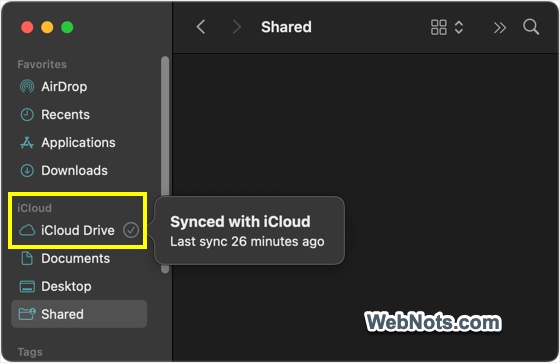
- Try signing out after a few minutes if iCloud was syncing data. On Mac, you can hover on “iCloud Drive” in Finder sidebar to check if any apps are actively syncing. A tick mark indicates the sync is finished and an information icon indicates the sync is in progress (you can click on it to find the details).
Method 5: Update iOS/macOS
If the problem is not resolved, check if there any OS updates available which could fix the potential bugs.
- On iPhone & iPad – Go to “Settings > General > Software Update”.
- On Mac – Go to “Apple Menu > System Settings… > General > Software Update”.

If an update is available, download and install it. After updating, check if the sign out button is available.
Caution: Signing out from Apple account will disconnect your device and the data will not be synced on iCloud. When you sign in again, it may take long time to resync depending upon the size of the data. So, sign out only if you know what you are doing.
Conclusion
If sign out is disabled on your Apple account, it is usually due to Screen Time passcode or Device Management policies. Occasionally, iCloud syncing or network issues may also cause the sign out button grayed out. By following the methods above, you should be able to re-enable the option and sign out successfully. If you’re still having trouble, consider reaching out to Apple Support for further assistance.