Your PC knows where you are. Maybe not with GPS-level precision, but it can estimate your location using Wi-Fi networks, IP addresses, and Bluetooth signals. That’s what Location Services is all about – software that determines and shares your device’s physical location with apps, websites, and the operating system. But here’s the bigger question: do you really need your PC tracking your location? Let’s break it down.
What Exactly is Location Service?
Location Services is a system-level feature in Windows (and many other operating systems) that allows your device to determine its geographic position. It then shares this info with apps like Maps, Weather, web browsers, ride-sharing or delivery services, and voice assistants.
For example, if you open a weather app, it might show your local forecast based on your current location. A browser could tailor search results based on where you are. Sounds convenient, right?
The Upsides of Keeping it On
By default, Location Services tracking is enabled on your Windows PC and apps will request when location access is needed. Here’re some of the reasons you should continue using it:
- Personalized Experience – Apps can auto-adjust based on your location and no need to manually set your city every time.
- Improved Search Results – Location helps services like Google or Bing deliver more relevant info.
- Lost Device Tracking – If your PC goes missing and you’ve enabled “Find My Device,” location services can help you track it.
- Time-Saving Automation – Some smart apps adjust your settings based on where you are (e.g., switching Wi-Fi or muting notifications).
The Downsides – and Why You Might Want to Disable It
- Privacy Concerns – You’re handing over location data to your OS and potentially third-party apps. That opens the door to surveillance, data profiling, and targeted ads.
- Battery Drain (on laptops) – Constantly pinging for location can use more power, though this is more noticeable on phones than PCs.
- Unnecessary for Many Users – If you rarely use location-based apps, why keep it on?
- Potential for Data Misuse – Apps don’t always need your location, but many ask for it anyway. If their security practices are sloppy, your location data could be exposed or sold.
How to Turn Off Location Services on a PC?
Follow the below steps if you’re on Windows 10 or 11 PC:
- Right-click on Start Menu and select “Settings” to open Windows Settings app.
- Navigate to “Privacy & security” section and click on “Location” option under “App permissions” heading.

- Turn off the “Location services” option.
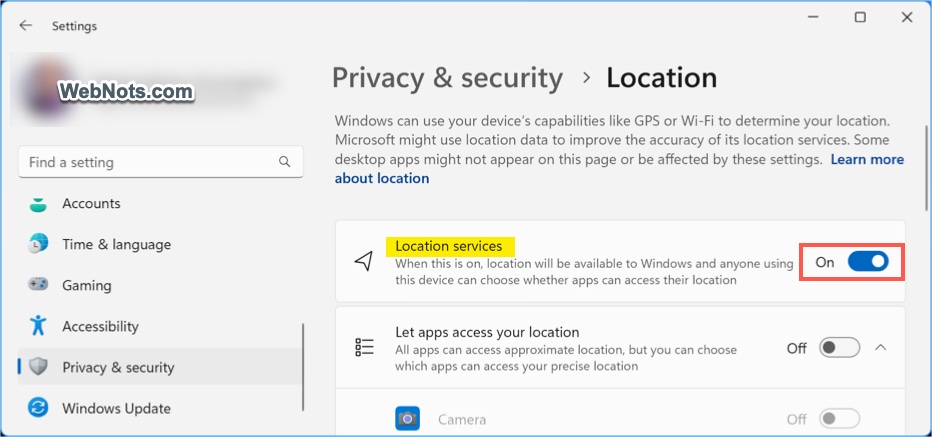
- Windows will show a warning that automatic time zone, Find my device, and some apps will not work. Click on “Turn off” button to confirm your action.
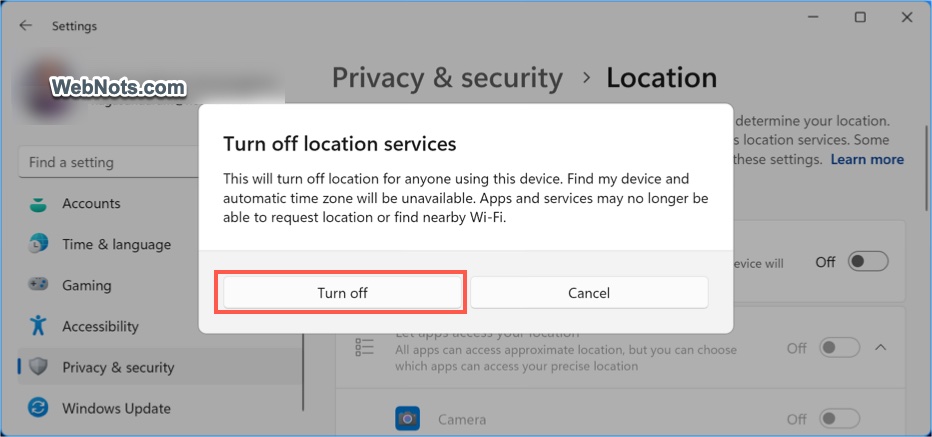
If you don’t want to disable location tracking entirely, leave that “Location services” enabled and then expand “Let apps access your location” option. From here you can turn off the specific apps to prevent them from tracking your location.
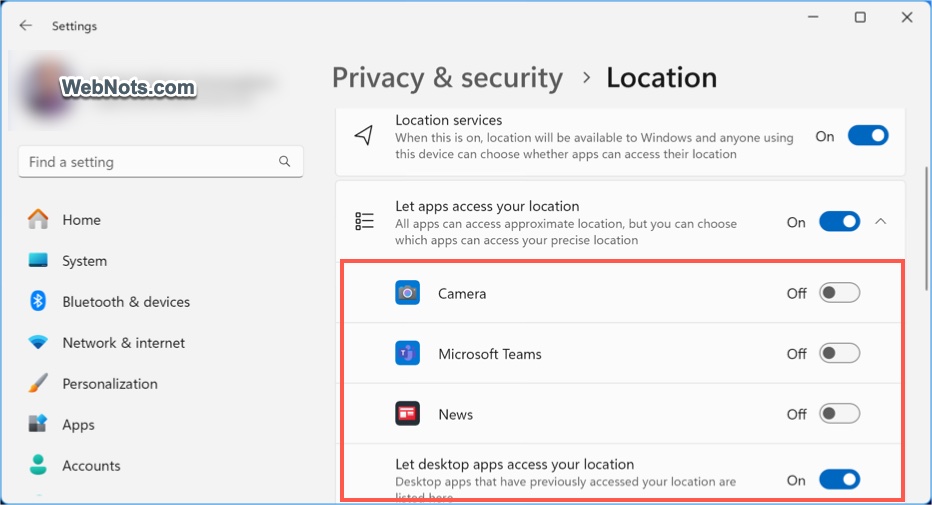
Scroll down on the same settings page and turn on “Notify when apps request location” to receive notifications whenever apps request for location access. You can also review the recent location access from apps and decide whether to disable the access.
So, Should You Disable It?
Yes, if:
- You’re concerned about privacy.
- You don’t use location-based apps regularly.
- You want tighter control over what your PC shares.
No, if:
- You use location-aware apps often (like maps or weather).
- You want features like “Find My Device”.
- You’re okay trading some privacy for convenience.
Final Take
Location Services can be useful, but it’s not essential for most desktop or laptop users. Disabling it won’t break your system – it’ll just make your setup a bit more private. The smarter move? Enable it globally, then selectively disable for apps that don’t need it. Always periodically review the location access requests from all apps and take necessary action.