Sometimes you might have multiple pages having similar content on your site. For example, you may have a product page and another similar page explaining the product specifications to users. In such case, you need to use rel=”canonical” attribute with <link> tag on duplicate pages and instruct crawlers to index the primary page. However, Google crawler make lot of assumptions and sometimes think two pages are same on its own. As a result, Google will automatically assign canonical URL (within their system) and ignore the pages affecting your traffic.
Finding Duplicate Without User-Selected Canonical Issue
When Google automatically decides a page is duplicate, you can find the error under “Pages” section of your Google Search Console account.

Click on the “Duplicate without user-selected canonical” error and scroll down on the page to see all the affected URLs.

Check Your Actions Before Fixing
If you haven’t used canonical and find the issue is strange, try to recall the activities done on the site.
- Site was under maintenance.
- Changed URL of the affected pages.
- Setup redirections.
Let’s say, you have put the site under maintenance for few days and then lifted the maintenance mode. When the maintenance mode was on, all URLs in your submitted XML Sitemap will redirect to the home page. Google crawler will think the home page is the correct URL and automatically assign home page URL as canonical for all individual pages. This will obviously shoot up the error pages showing under “Duplicate without user-selected canonical” in Google Search Console and you may also receive email notification for that.
Find Google Assigned Canonical URL
The error message as such will NOT tell you the actual page considered by Google as canonical. To find that, hover over one of the affected pages and click on the lens icon that says, “Inspect URL”. Alternatively, you can copy the URL, paste in the top search box and press enter key.

Google will inspect the affected page and shows the page is not in Google index.

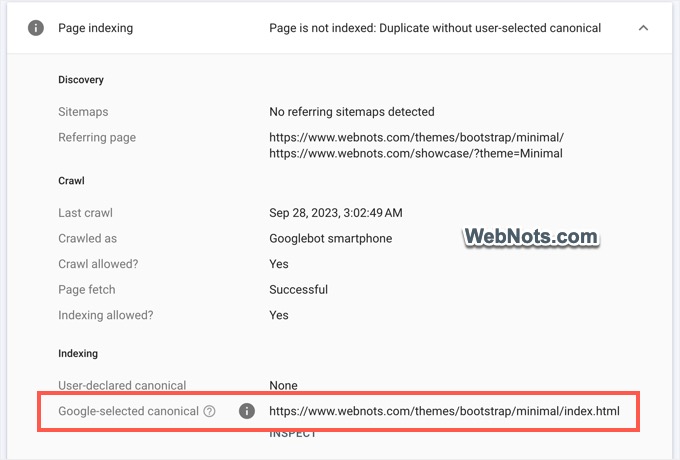
Click on the “Page indexing” box to expand its details. Check the “Google-selected canonical” under “Indexing” section to find the exact URL identified by Google.
Fixing Duplicate Canonical Issue
As you can see in the above screenshot, Google identified index.html as canonical while both pages are actually the same. In this case, you can simply ignore the issue as it will not affect the ranking. Otherwise, follow one of the below suggestions depending up on the canonical URL selected by Google.
1. Google Selected Canonical is Home Page
This happens mostly due to the site was down or under maintenance for longer time. You may see with Inspect URL tool that almost all the site’s pages are with home page as canonical. In this case, simply click on the “Validate Fix” button showing on the error page in Google Search Console.

Google will recrawl all the affected pages and reindex the valid pages. However, this may take time and you can monitor the validation progress on the same error page.
Note: check the “Last read” date of your Sitemap under “Sitemaps” section in GSC. If the date is too old, then delete and resubmit the Sitemap so that Google can crawl it again.
2. Google Selected Different Page as Canonical
If Google identified another page as canonical, you have multiple options to deal with it.
2.1. Delete Duplicate Page
- Check the content of the affected and identified pages and delete the duplicate page.
- Make sure to setup 301 redirect so that the duplicate canonical error will be fixed in Google Search Console (GSC).
- In this case, the affected page will be moved to “Page with redirect” section in GSC.
2.2. Add Canonical Tag in Duplicate Page
If you accept the Google selected canonical, then you can manually add rel=”canonical” tag in the duplicate page’s header section.
<html>
<head>
<link rel="canonical" href="Google selected page’s URL" />
</head>
In this case, the duplicate page will be moved to “Alternate page with proper canonical URL” section in GSC.
2.3. Modify Affected Page and Resubmit
If you don’t agree with Google selected canonical page, then check the pages and find the similarity. Make sure the affected page’s content is not similar to Google identified canonical page. After that, use the Inspect URL tool to resubmit your page for indexing.
First, you will see the “URL is not on Google” message and click on the “Test Live URL” button.

Next, you will see the “URL is available to Google” message and click on “Request Indexing” link.

Finally, you will see the “Indexing requested” pop-up and click on the “Got It” link to close it.

Wait for some time and the pages will disappear from “Duplicate without user-selected canonical” section in GSC. You will also find the affected pages are showing up in Google search result pages.
2.4. Google Selected Desktop Version as Canonical
When using different versions for mobile and desktop, you will see these duplicate canonical errors if you did not setup the canonical tags properly. Since mobile pages are served on smaller screen sizes, you should add alternate and media attributes along with rel=”canonical” on the desktop versions.
<html>
<head>
<link rel="alternate" media="only screen and (max-width: 640px)"  href="Mobile Page URL">
<link rel="canonical" href="Desktop Page URL" />
</head>
On all mobile pages, you should add the corresponding desktop pages as canonical.
<html>
<head>
<link rel="canonical" href="Desktop Page URL" />
</head>
Note that the page will have its own canonical even though there are no duplicates (like mobile version).
After adding the correct canonical tags, you can request for reindexing using Inspect URL tool. Or use “Validate Fix” option to clean up the error pages in bulk.
Final Words
It is easy to fix the “Duplicate without user-selected canonical” issue in Google Search console after analyzing the affected URLs. When you want to use multiple options like deleting/redirecting some pages and editing/resubmitting other pages, make sure to use “Validate Fix” option after fixing the pages on your site. Because resubmitting with Inspect URL needs to be done one by one and validate fix can’t be done partially by selecting specific URLs from the affected pages. So, first fix all the issues on your site and then use “Validate Fix” option to make things easier.