
Password protect option is a premium feature in Weebly available for Pro and higher level plan users. This is a convenient way for site owners to restrict the access of anonymous users seeing their sites. It is also very useful feature especially when you run a personal or confidential site and want to provide access to only few visitors.
Note: Search engines will still index your site and show it in the search results page even though you set a password. Learn here about hiding your Weebly site or page from search engines.
Features of Weebly Password Protection
Below are the features of password protection in Weebly. If you are considering for the upgrade to get password protection feature, make sure to understand how it works before purchasing a premium plan.
- Protect individual pages in the site by setting a password.
- Entire site can also be protected by a single password.
- Only one password should be set which can be used for either site level or page level.
- Can’t protect individual pages with different passwords.
- This option can’t be used as a login module for a site.
- Useful to protect the access of confidential information by unknown users.

Set Password Protection for Site Level
- Login to your Weebly account and “Edit” the site you want to set password.
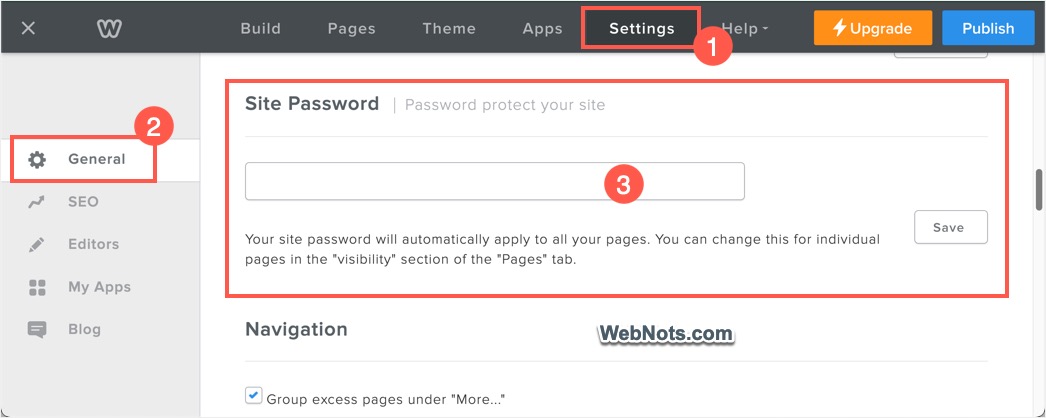
- When you are in the Weebly editor, go to “Settings” tab.
- Check under “General” section and find the “Site Password” option.
- Type your password in the box and click “Save” button.
- After saving a password, the “Save” button will be changed as “Updated” indicating the site level password is set.
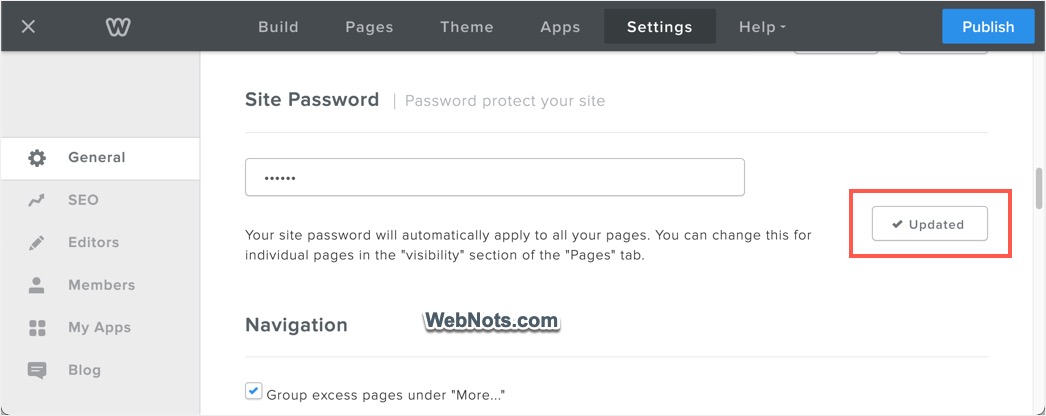
- Click the “Publish” button to apply site level password on the published site.
Once you set the site password, all the pages in your site will be automatically protected by this password. This means opening any page of your site in the web browser will prompt the user to enter password.
Note: If you are using a free site, clicking on the “Save” button will open pricing page for upgrading the plan.
Page Level Password Protection
You also have an option to choose only particular pages of your site to protect with a password.
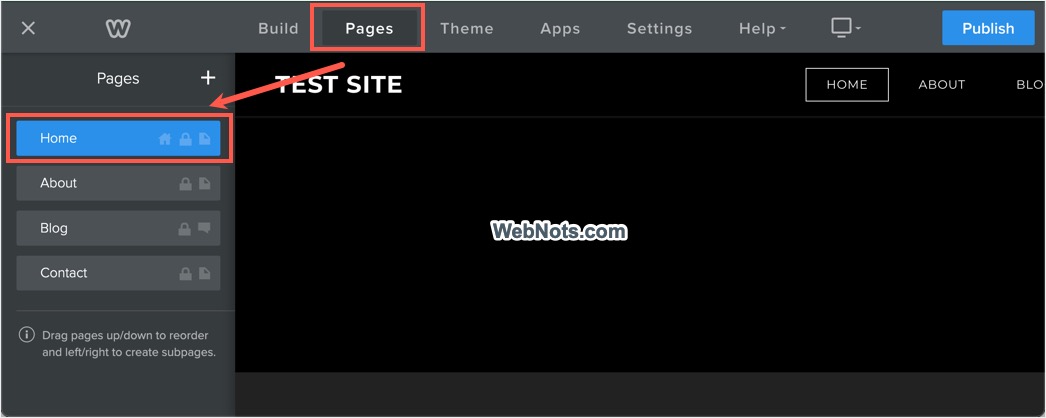
- Go to “Pages” tab and select the page for which you want to set a password.
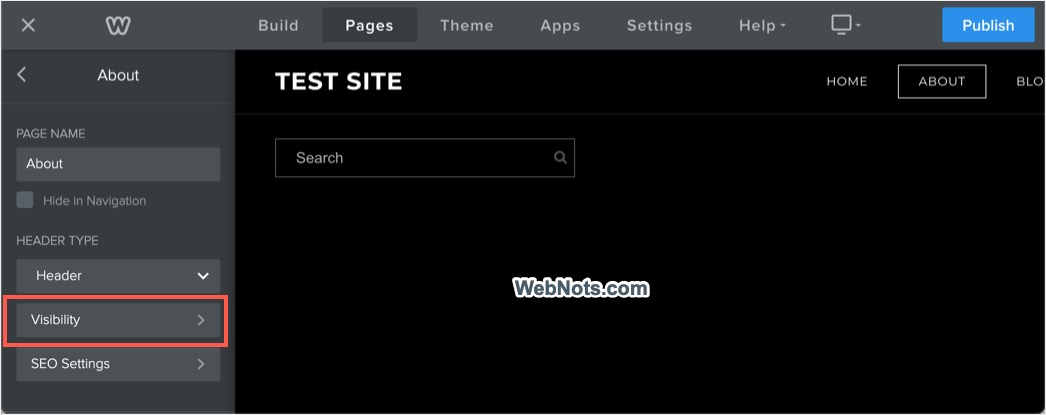
- Select “Visibility” option showing under “Header Type” section.
- Click the dropdown and select “Set Password” option.
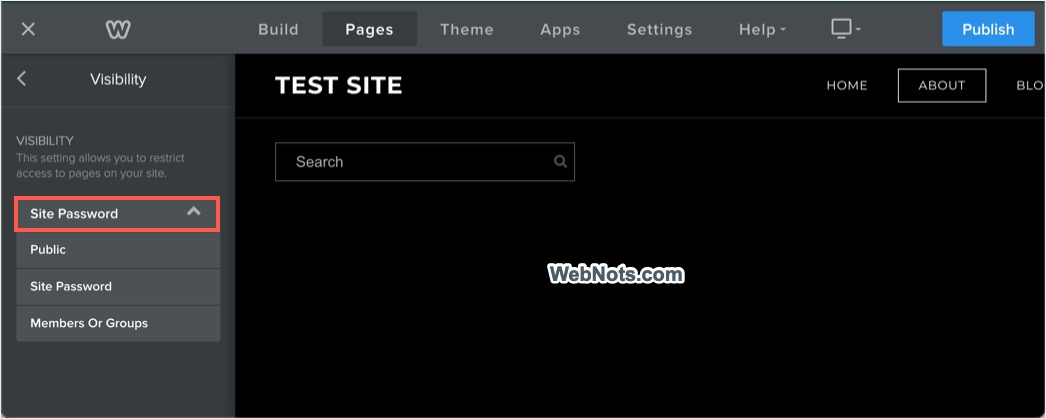
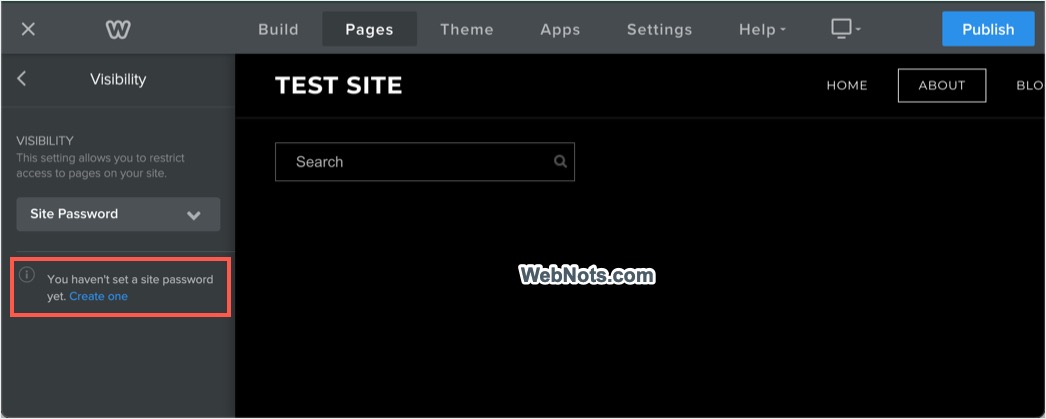
- If you have already setup a site level password, it will be automatically used for page level also. If you have not setup a site level password, you will see a notification saying that you haven’t set a site password and click the “Create one” link.
- Type your site password in the box and click “Submit” button.
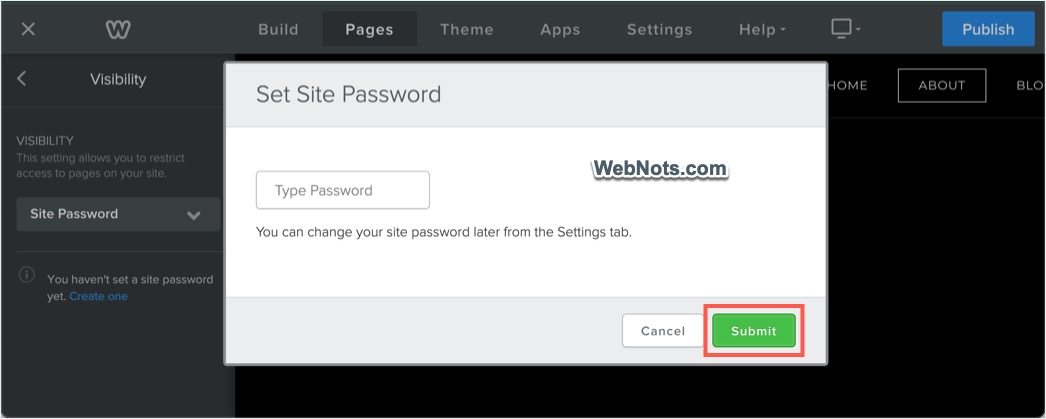
You can select any other pages if needed and set their “Visibility” as “Set Password” to protect them also with the same password. Remember that only selected pages will be protected and all other pages will be accessible without password.
How it Works?
Site level and page level passwords work in the same manner. User will be prompted to enter the password as shown below when trying to open the password protected page in browser.
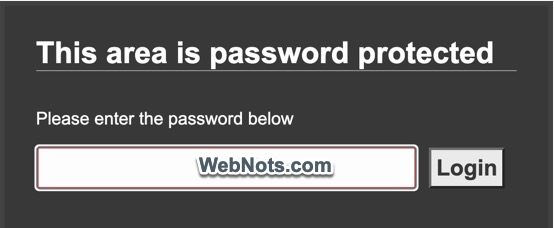
Once the password is entered, user can access all the content of your site till the time browser window is closed. Once the browser session is closed, they need to enter the password again to view the content.
Removing Password Protection in Weebly
For removing the password protection at site level, simply go to “Settings > General > Site Password” section. Delete the password entered in the box and click on the “Save” button to remove the password. Publish your site to make it available for all users without password protection. You can also simply type a new password and click the “Save” button to change it.
For page level protection, go to “Pages > Select the page > Visibility” section and change the option to “Public”. Publish your site to remove the page level password protection. Note that, other pages will be still protected if site level password is set.




Unfortunately, when I close the browser and open again, I still am not prompted a second time for the site password.
I don’t understand why this feature is not offered for standard users. WordPress offers this as a free feature.