Microsoft PowerToys is a package of utilities designed to enhance your Windows experience and maximize productivity. One of the greatest advantages of these tools is the ability to trigger many of their features with simple keyboard shortcuts. This article provides a comprehensive list of default activation and other shortcuts for PowerToys tools, so you can work smarter and faster. To learn more details about each tool, check our Microsoft PowerToys Guide.
Using Shortcuts in PowerToys
Launch PowerToys and go to “Home” tab where you will see a list of all tools. You can simply enable or disable any tool from this section. Once enabled, activation and other applicable shortcuts for each enabled tool will show under “Shortcuts overview” section.
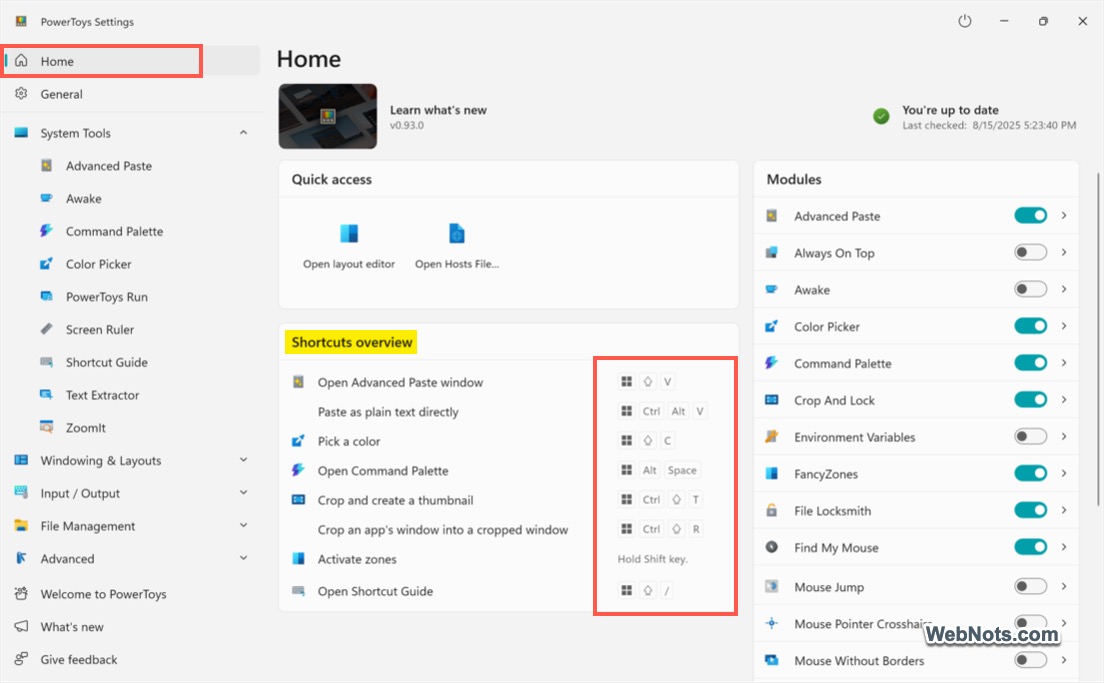
- You can change the default shortcuts by navigating to the corresponding tool from the sidebar.
- Shortcuts work only if the tool is enabled.
- Some of the tools like Hosts File Editor and Registry Preview do not have any keyboard shortcuts. You need to go to the corresponding tool’s page (from sidebar) for launching it.
Keyboard Shortcuts for PowerToys Tools
Here is a complete list of shortcuts for various tools.
| Tool | Shortcut | Purpose |
|---|---|---|
| Advanced Paste | Win + Shift + V | Activate |
| Win + Ctrl + Alt + V | Paste as plain text directly | |
| Ctrl + 1 | Paste as plain text | |
| Ctrl + 2 | Paste as markdown | |
| Ctrl + 3 | Paste as JSON | |
| Ctrl + 4 | Grab text from image | |
| Ctrl + 5 | Paste as .txt file | |
| Ctrl + 6 | Paste as .png file | |
| Ctrl + 7 | Paste as .html file | |
| Command Palette | Win + Alt + Space | Activate |
| > | Run commands | |
| = | Calculator | |
| file | Search files | |
| < | Switch between open windows | |
| ?? | Search the web | |
| $ | Windows Settings | |
| : | Registry | |
| ) | Time and Date | |
| ⏎ | All apps | |
| Ctrl + ⏎ | Command Palette settings | |
| Color Picker | Win + Shift + C | Activate |
| Light Switch | Win + Ctrl + Shift + D | Toggle light or dark mode |
| PowerToys Run | Alt + Space | Activate |
| = | Calculator | |
| !! | Access previously selected results | |
| ? | Search files and folders | |
| @ | Open PowerToys utilities and settings | |
| . | Search programs | |
| : | Navigate inside Windows Registry | |
| ! | Manage Windows services | |
| > | Execute commands | |
| ) | Date / time of system or custom time stamp | |
| %% | Unit conversion | |
| // | Open URLs and UNC network shares | |
| # | Calculate hashes | |
| ?? | Search web with default search engine | |
| $ | Searches Windows Settings | |
| < | Switch between open windows | |
| Screen Ruler | Windows + Shift + M | Activate |
| Ctrl + 1 | Bounds | |
| Ctrl + 2 | Spacing | |
| Ctrl + 3 | Horizontal spacing | |
| Ctrl + 4 | Vertical Spacing | |
| Escape | Close | |
| Shortcuts Guide | Win + Shift + / | Activate |
| Text Extractor | Win + Shift + T | Activate |
| ZoomIt | Ctrl + 1 | Zoom toggle hotkey |
| Ctrl + 2 | Draw without zoom hotkey | |
| Ctrl + 3 | Start break timer hotkey | |
| Ctrl + 4 | Live zoom toggle hotkey | |
| Ctrl + 5 | Record toggle hotkey | |
| Ctrl + 6 | Snip toggle hotkey | |
| Ctrl + 7 | Demo type toggle hotkey | |
| Always On Top | Win + Ctrl + T | Activate |
| Crop And Lock | Win + Ctrl + Shift + T | Activate thumbnail shortcut |
| Win + Ctrl + Shift + R | Activate reparent shortcut | |
| FancyZones | Win + Shift + ` | Activate |
| Win + Page Down | Next window | |
| Win + Page Up | Previous window | |
| Grab and Move | Alt or Win + Right-click | Resize windows |
| Workspaces | Win + Ctrl + ` | Activate |
| Mouse Utilities | Left or Right Ctrl Twice | Activate |
| Win + Shift + F | Default custom activation shortcut | |
| Win + Shift + H | Activate Mouse Highlighter | |
| Win + Shift + D | Activate Mouse Jump | |
| Win + Alt + P | Activate Mouse Pointer Crosshairs | |
| Mouse Without Borders | Win + Ctrl + Alt + E | Toggle Easy Mouse |
| Win + Ctrl + Alt + L | Lock all machines | |
| Win + Ctrl + Alt + R | Try reconnecting | |
| Power Display | Win + Ctrl + Up Arrow + P | Activate |
| Quick Accent | Left / Right Arrow or Space | Activate by holding the target letter |
| File Locksmith | Shift + Right-Click | Extended context menu |
| Peek | Ctrl + Space | Activate |
| Power Rename | Shift + Right-Click | Extended context menu |
How to Customize Shortcuts?
As mentioned, you can customize most PowerToys shortcuts Settings interface.
- Open PowerToys, select the tool you’d like to adjust.
- Look for the “Activation shortcut” section to find the default activation shortcut. For example, go to “System Tools > Color Picker” and you can find the activation shortcut as “Win + Shift + C”.
- Click the pencil icon showing next to the shortcut keys.
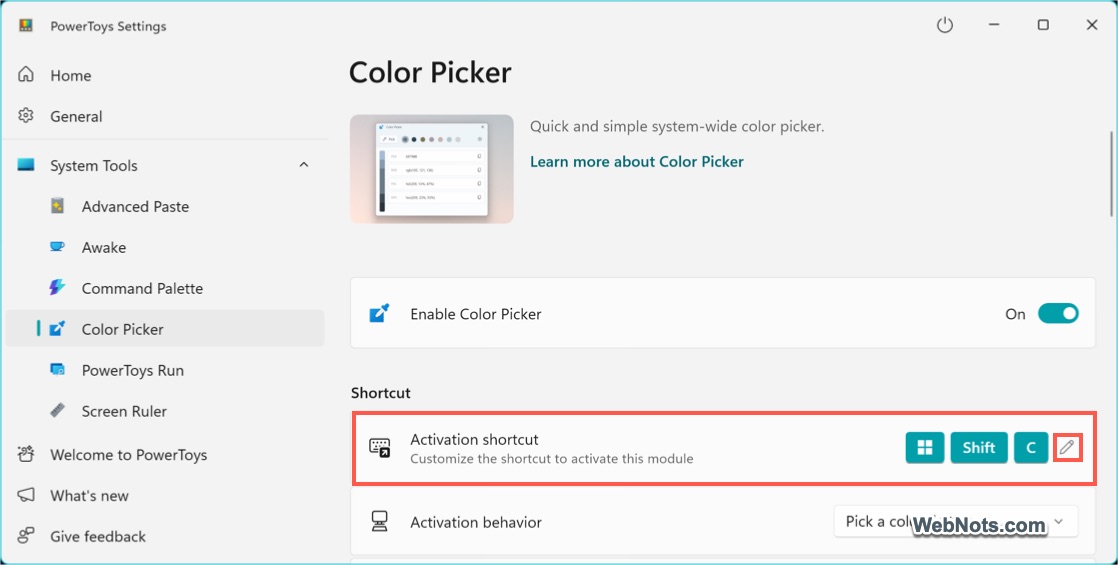
- Simply press your own key combinations starting with Windows key, Ctrl, Alt, or Shift.
- Click “Save” button to change the shortcut. You can anytime click the “Reset” button to change it to the default keys.

Final Words
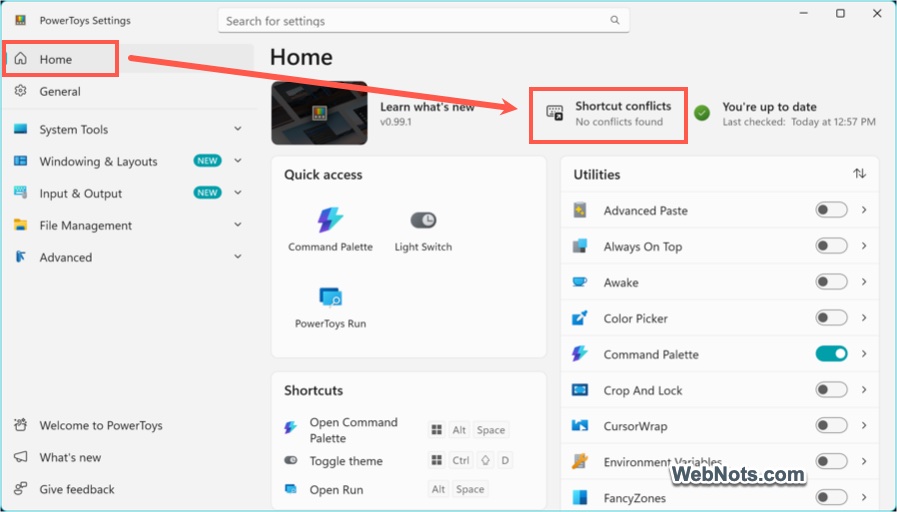
Mastering these shortcuts will help you unlock the full potential of Microsoft PowerToys and streamline common tasks with ease. Make sure your custom shortcuts do not conflict with other applications. The latest version of the app also automatically checks for any conflicts and shows a list. Go to the “Home” tab and check the “Shortcuts conflicts” notification on the top right corner. If there are any conflicts, click on that and resolve them.