In our earlier article, we’ve provided a user guide to Microsoft PowerToys tools. The latest version of PowerToys includes a tool called Command Palette. This Windows Command Palette is a powerful feature bringing macOS Spotlight-like functionality to Windows. In this guide, we’ll walk you through how to set up and use the Command Palette effectively.
What is PowerToys Command Palette?
- The Command Palette in PowerToys is a quick launcher and a unified search interface.
- It allows you to quickly launch applications, search for files, perform calculations, and access system tools with just a few keystrokes.
- It’s designed to save you time by reducing the need to navigate through menus or search manually for items.
Enable Command Palette
- Get the latest version from the Microsoft PowerToys GitHub page or from the Microsoft Store.

- Open PowerToys from your Start menu (name shows as PowerToys (Preview)).
- Go to “Dashboard” and turn on “Command Palette” or go to “System Tools > Command Palette” and toggle “Enable Command Palette” to On.

Launching Command Palette App
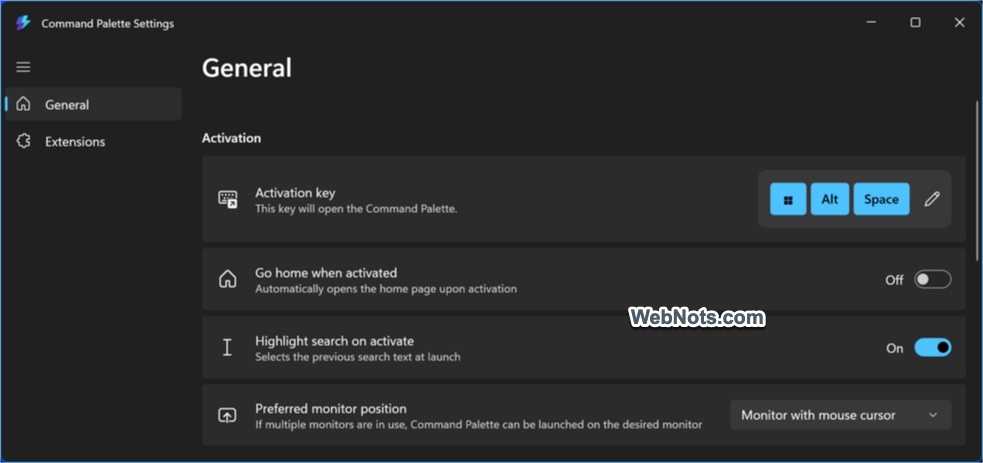
As you can see in the above screenshot, the default activation shortcut for launching Command Palette is set to “Windows Logo + Alt + Space”. You can either press these shortcuts keys or search and open Command Palette app (you can also find it from Start menu list).

It shows a quick launcher pad with a list of predefined commands. You can either select one of the commands from the list (by double-clicking on it) or start typing your query in the box to get the results.

Using Command Palette App
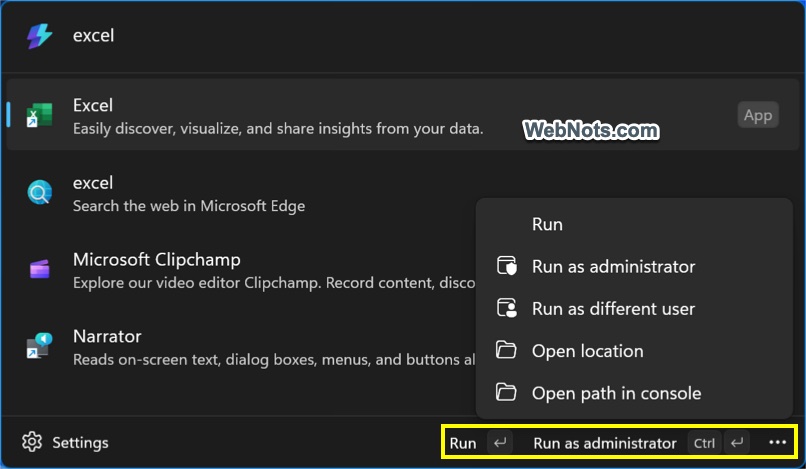
In most cases, Command Palette will automatically identify the type of your query without the need of selecting the correct item from the list. For example, typing 10+10 will show the result as 20 using the calculator extension. Similarly, typing excel will show the Excel app in the result for opening. Here are some of the useful things you can do with the Command Palette:
- Application Launching: Simply type the name of any installed application and press enter to run it or press “Control + Enter” to open the app in admin mode. Click on the three dots icon to view additional options like open the file location.
- File Search: Type file and press enter to select file search mode.
- Run Commands: Type > and type your command to run it. For example, > cmd command will open the Command Prompt app.
- Calculator: Type = to use math expressions directly.
- Switch Open Apps: Press < to view the list of all open apps. Select an app from the list to open, close or kill process.
- Search Web: Type ?? with your query to open web search with your default browser.
- Windows Settings: Type $ to search and find the settings pages within Windows Settings app.
- Registry Search: Type : to view Registry key structure.
- Time and Date: Type ) to find time and date in different formats.
Configure Activation Shortcut and Settings
Unlike other PowerToys tools, you’ll not be able to change the activation keys from the PowerToys main app. Once enabled, Command Palette works as an independent app and offer its own settings. We recommend changing the activation shortcuts (if required) and disable unnecessary extensions before start using the app.
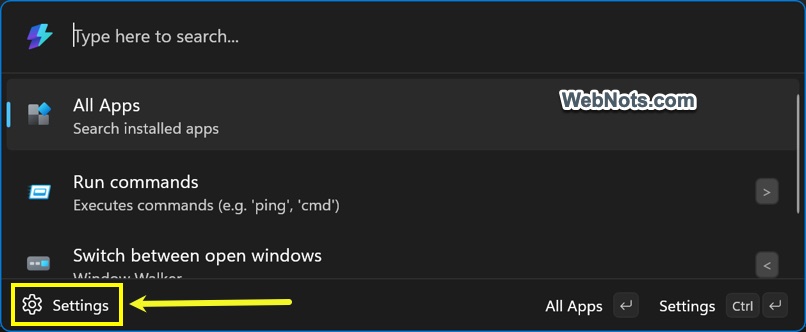
- Open Command Palette and click on the “Settings” button showing on bottom left corner of the launcher.
- Under “General” section, you can change the default activation shortcut keys, set preferred monitor, single-click to open items, etc.
- Go to “Extensions” section and disable the items that you don’t want to use in Command Palette. For example, if you don’t want to use math calculations, simply turn off “Calculator” module.

Conclusion
The PowerToys Command Palette is a game-changer for Windows productivity, offering a centralized interface for nearly all your system interaction needs. With minimal setup and a short learning curve, it can significantly speed up your workflow. The more you use it, the more natural it becomes, and soon you’ll wonder how you used Windows without it.