WordPress has so many options in Gutenberg block editor that many users do not even aware of some functions. Using HTML anchor is one such feature which you can use to link any other block within the same or another page. If you want to insert a table of content or want to link to another section on the page, then HTML anchor is the solution for you. In this article, we will explain how to properly add HTML anchors to Gutenberg blocks and link them in your content.
Examples of Using HTML Anchors
Sometimes you have two or three sections on the same page explaining a set of different instructions. This is the best example of using HTML anchor by allowing users to jump from one section heading to another so that they can read only applicable portion for them. Another example is to add HTML anchor for each heading and show all the headings with hyperlinks as a table of content.
Whatsoever is the way you use, adding anchor to blocks (especially to headings) may affect the search engine results. Because Google and other search engines may show the passage under the anchored heading or show the headings (with or without links) as shown below.

Now, let’s move on how to create and link HTML anchors.
Creating HTML Anchor
First, make sure you are using the default Gutenberg block editor and not the old Classic Editor.
- Login to your WordPress site and edit the post where you want to insert anchors.
- Click on a block and go to “Block” tab on right sidebar.
- Scroll down to bottom of the available settings and expand “Advanced” section.
- Enter two or three words in the “HTML Anchor” box. WordPress will automatically remove the spaces with hyphens.

You can add anchors for all headings or for any other block element on your content.
Linking HTML Anchor on Same Page
Next step is to link the HTML anchors in a text or image.
- Select a text and click the link icon in the block’s toolbar.
- Simply type the HTML anchor words with # sign in prefix. WordPress will show the link type as “Internal”.
- For example, if your HTML anchor is my-heading then the hyperlink should be #my-heading.
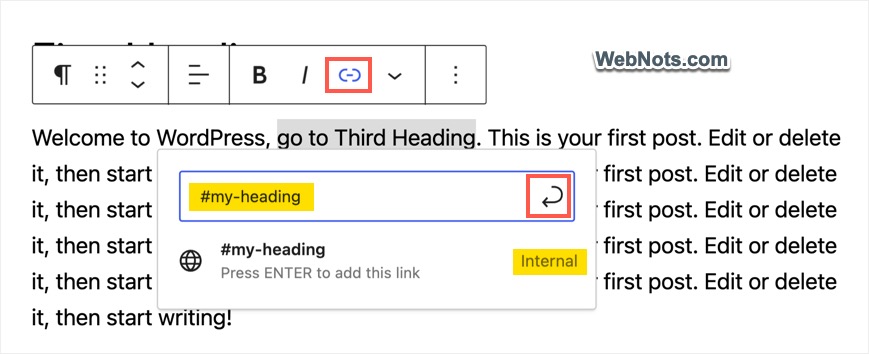
Update or publish your post and check the live content. You should see the hyperlink is created with the selected text and clicking on it will take you to the block. For creating a table of content, add HTML anchors to all headings on your page. After that, create a list in suitable place to insert all heading’s text and link them with anchor suffixes.
Similar to text link, you can link HTML anchors to an image.
Linking HTML Anchor on Another Page
Instead of linking to a section on the same page, you can also link to a block element on any other page on your site.
- First, add HTML anchor to a required block and publish that page as explained above. Let’s say, the URL is https://yoursite.com/my-world and the HTML anchor is my-heading.
- Next, go to another post where you want to link and click the link icon for the text or image.
- Search and select my-world and add #my-heading in suffix by editing the link. Alternatively, paste the URL like https://yoursite.com/my-world#my-heading and click on the return icon. Now, you can notice WordPress shows it as “Link” as it is linking to another page.

After linking, select “Open in a new tab” if you want the link to open in a new browser tab. Update or publish your page and clicking on the link on live page will take the users directly to my heading section of my-world page.
Whether you link a section on the same page or another page, the URL will be added with the HTML anchor when you click on the link. You can also see the anchor text of all blocks under “Document Overview > List View” section.

Using Smooth Scrolling
Creating HTML anchor in WordPress does not need any additional plugin or customizations. However, you can consider using smooth scroll to smoothly navigate to different section instead of jumping roughly. Many WordPress themes by default support smooth scrolling. If your theme does not support, you can use plugins like Surbma – Smooth Scroll to add smooth scrolling to all hyperlinks on your site.
Below examples show the movement after clicking on a link with and without smooth scrolling.


Note: You can even link widget blocks on the sidebar using HTML anchors.