You may occasionally find unexpected URLs in Bing Webmaster Tools or Google Search Console, such as 123.example.com/robots.txt, even though you never created a subdomain named 123.example.com. This can happen when your DNS provider or web hosting configuration uses wildcard subdomains. Instead of returning a DNS error for nonexistent subdomains, the server may direct requests to your main website. As a result, search engine crawlers can access your main website’s robots.txt file through URLs belonging to subdomains that do not exist.
Although this may not directly affect your website’s search rankings, it can create unnecessary crawl activity, duplicate robots.txt entries, and confusion when monitoring search engine crawling. This article explains why it happens and how to prevent search engines from accessing robots.txt files on nonexistent subdomains.
Check the Issue in Bing Webmaster Tools
First, check whether your domain has this problem.
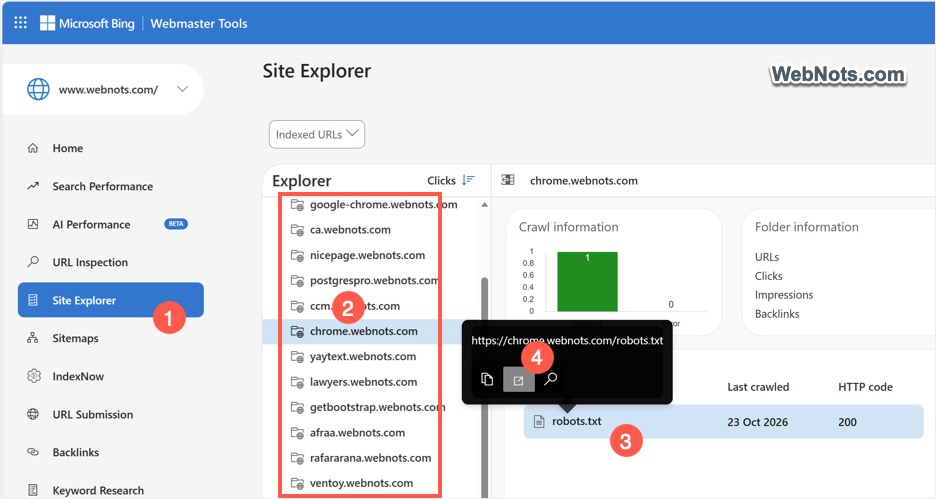
- Login to your Bing Webmaster Tools account and navigate to “Site Explorer” section.
- There you may find plenty of subdomain URLs, which you never created on your domain.
- Click any of the subdomains from the list and you will find only one URL that belongs to robots.txt.
- Hover on the robots.txt and click “Open in new tab” option.
- You should see the robots.txt file on the subdomain is showing in the browser.
Search engines treat every hostname as a separate website for robots.txt purposes. For example, these are considered separate hosts:
- https://www.example.com/robots.txt
- https://example.com/robots.txt
- https://blog.example.com/robots.txt
- https://123.example.com/robots.txt
Since robots.txt rules apply only to the specific protocol and hostname, a robots.txt file on the main domain does not automatically control its subdomains. This means that if a crawler discovers a URL on 123.example.com, it may attempt to retrieve:
https://123.example.com/robots.txtIf you find hundreds of non-existing subdomain URLs in the Bing Webmaster Tools list, it’s time to take an action and remove them.
Checking the Issue from Browser
If you are not using Bing Webmaster Tools, you can easily investigate the issue using a browser. Try opening an arbitrary subdomain like the below one and check what happens.
https://abc.example.com/robots.txtYou might encounter one of these results:
| Result | Meaning |
|---|---|
| DNS_PROBE_FINISHED_NXDOMAIN | The hostname does not resolve. |
| Server not found | The hostname cannot be resolved. |
| Main website’s robots.txt | The request is being routed to your main website. |
| 404 Not Found | The server is reachable but cannot find the requested resource. |
| User-agent: * Disallow: / | A robots.txt response is being served that asks crawlers not to crawl the host. |
A problematic situation is when a nonexistent subdomain displays the same robots.txt (third row in the above table) content as your main website.
How to Fix the Problem?
There are several ways to address this issue. The most suitable solution depends on whether you need wildcard subdomains.
Method 1: Remove the Wildcard DNS Record
This is the simplest solution if you do not use wildcard subdomains. The wildcard A record (*) tells DNS to resolve all unmatched subdomains to the specified IP address. Consequently, requests to the following hostnames may all reach the same server:
- 123.example.com
- abc.example.com
- random.example.com
- anything.example.com
Even though these subdomains were never created individually, they can resolve to your hosting server. The web server may then serve the main website, a default error page, or even the same robots.txt file used by your main domain. You can simply delete the wildcard entry to fix the issue:
- Log in to your domain registrar account such as GoDaddy (if you are managing DNS through Cloudflare, login to your Cloudflare dashboard).
- Select your domain and navigate to “DNS” section.
- Look for an A or CNAME record with the name *.
- Check whether it points to your hosting server’s IP address.
- Delete the wildcard record if it is not required.
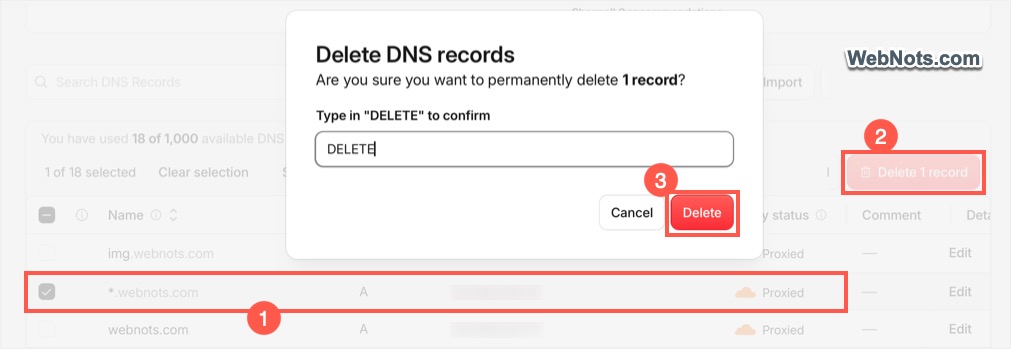
For example, if you have the following entries, remove the * record and keep other individual DNS records for your legitimate subdomains.
| Type | Name | Content |
|---|---|---|
| A | @ | 192.0.2.10 |
| A | www | 192.0.2.10 |
| A | blog | 192.0.2.10 |
| A | shop | 192.0.2.10 |
| A | * | 192.0.2.10 |
After removing the wildcard record, arbitrary subdomains should no longer resolve through that record. For example, abc.example.com should return NXDOMAIN if no other DNS record or wildcard rule resolves it. This is the recommended approach if you do not need wildcard subdomains.
Method 2: Disable Wildcard Subdomain Redirection in Hosting
Some hosting providers offer an option to redirect all nonexistent subdomains to the main website. For example, SiteGround hosting control panel provides a setting for redirecting all non-existing subdomains to the main domain under “Domain > Subdomains” section. When enabled, requests to arbitrary subdomains may be routed to your primary website, even if you have not created those subdomains.
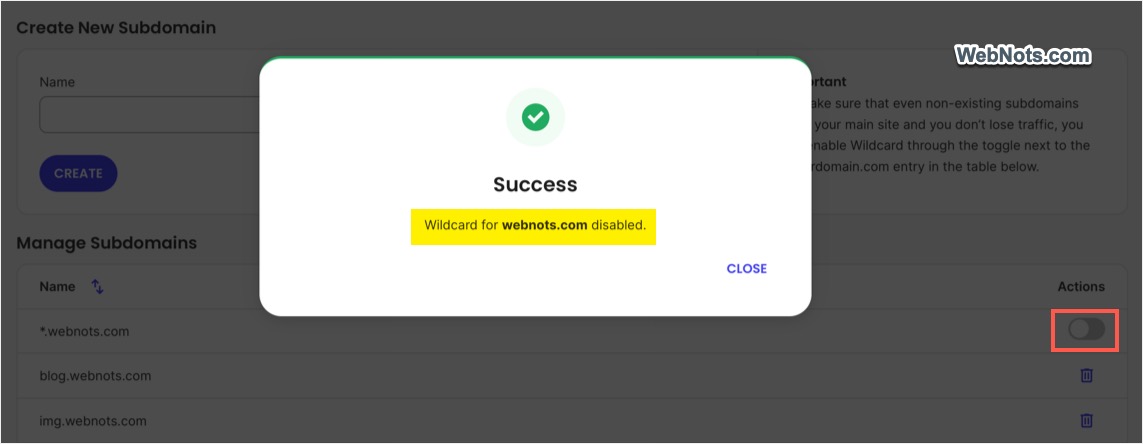
Check your hosting control panel for this option and disable it if you do not need the functionality. However, disabling this option does not necessarily remove wildcard DNS records (as explained in method #1). So, make sure to check both your hosting configuration and DNS settings.
Method 3: Block robots.txt on Unapproved Subdomains Using .htaccess
If you need wildcard DNS for other purposes, you can configure the server to allow robots.txt only on specific hostnames. For example, suppose you want to allow robots.txt on:
- www.example.com
- blog.example.com
- shop.example.com
But you do not want other subdomains to serve the file. Add the following rule near the beginning of your root .htaccess file (for Apache server):
<IfModule mod_rewrite.c>
RewriteEngine On
# Block robots.txt on unapproved subdomains
RewriteCond %{HTTP_HOST} !^(www|blog|shop)\.example\.com$ [NC]
RewriteRule ^robots\.txt$ - [R=404,L]
</IfModule>
Replace the domain and subdomain names with your actual configuration. This rule allows the listed hostnames to serve their own robots.txt files while returning HTTP 404 for the file on other hostnames. A 404 response is appropriate when the robots.txt resource does not exist on that hostname.
Note that this rule only restricts robots.txt. It does not prevent other pages from being served on wildcard subdomains. You should configure the default virtual host separately if you want to block all requests to nonexistent subdomains.
How to Verify the Fix?
After making the changes, test the following URLs:
| URL | Expected Result |
|---|---|
| https://www.example.com/robots.txt | HTTP 200 |
| https://example.com/robots.txt | HTTP 301 to www |
| https://blog.example.com/robots.txt | Its own robots.txt or HTTP 404 |
| https://shop.example.com/robots.txt | Its own robots.txt or HTTP 404 |
| https://123.example.com/robots.txt | DNS error or HTTP 404, depending on configuration |
You can also check the redirect using command-line tool (such as Terminal) from your computer:
curl -I https://example.com/robots.txtA successful redirect should return something similar to:
HTTP/2 301
location: https://www.example.com/robots.txt
To check whether an arbitrary subdomain still resolves, run:
dig abc.example.comIf you removed the wildcard DNS record and no other DNS record resolves that hostname, the expected result is NXDOMAIN. If Cloudflare has cached an earlier response, purge the relevant URL from its cache and test again.
Will This Affect Existing Bing and Google Crawl Reports?
After correcting the DNS and hosting configuration, search engines should no longer be able to retrieve the main website’s robots.txt through nonexistent subdomains. These steps help ensure that your main robots.txt file is served only through the intended hostname, keeping your site’s crawling configuration cleaner and easier to maintain.
However, previously discovered URLs may remain in search engine reports for some time. Bing and Google also maintain robots.txt caches, so changes to crawling instructions may not be reflected immediately. Also remember that robots.txt controls crawling, not access or indexing. If you want to prevent access to a resource, use appropriate server-level restrictions rather than relying on robots.txt.
Redirect the Non-WWW robots.txt to the WWW Version
Another related issue occurs when both the root domain and www version serve the same robots.txt file. For example:
- https://example.com/robots.txt
- https://www.example.com/robots.txt
If your preferred canonical hostname is the www version, you can redirect the non-www robots.txt URL to the www version. You can implement this using Apache .htaccess:
<IfModule mod_rewrite.c>
RewriteEngine On
RewriteCond %{HTTP_HOST} ^example\.com$ [NC]
RewriteRule ^robots\.txt$ https://www.example.com/robots.txt [R=301,L]
</IfModule>
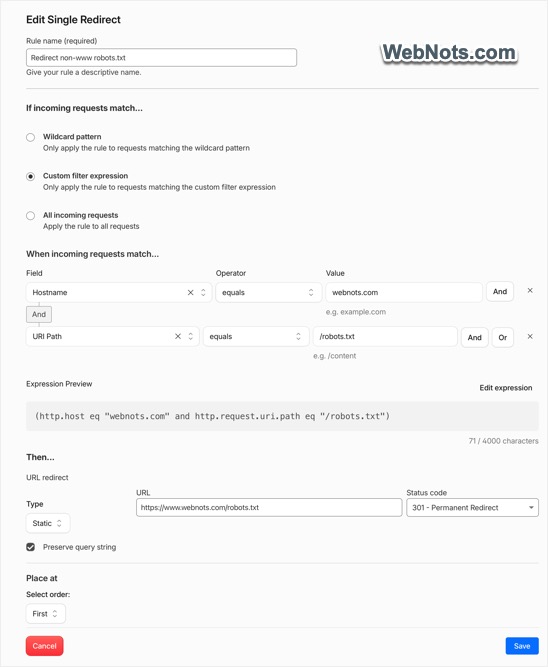
This sends a permanent 301 redirect from the non-www robots.txt URL to the www version. You can also implement the redirect directly through Cloudflare. In Cloudflare, navigate to “Rules > Redirect Rules” and create a rule name “Redirect non-www robots.txt “ with these conditions:
- If incoming requests match: Custom filter expression
- When incoming requests match: Add the following conditions using AND.
| Field | Operator | Value |
|---|---|---|
| Hostname | equals | example.com |
| URI Path | equals | /robots.txt |
- Then configure the redirect:
- Type: Static
- URL: https://www.domain.com/robots.txt
- Status code: 301 – Permanent Redirect
Enable query string preservation if required and “Save” your rule. A Cloudflare redirect rule is a convenient alternative when you want the redirect handled at the edge rather than by your hosting server.