
Apple offers software updates through three different channels – Developer Beta, Public Beta and stable version. Whenever a new iOS version is released (typically announced in WWDC event), you can immediately get the Developer Beta on the next day. Public Beta version will be subsequently available around one month later before the final stable version is released. This helps Apple to get feedback from developers and public to fix the bugs before releasing final OS version. It also helps developers to test their apps and fix the issues to avoid problems beforehand. If you are a tester or wanted to explore the latest iOS features immediately after announcement, here is how you can install iOS Developer Beta in iPhone for free.
Apple Developer Program
There are multiple ways to use Developer Beta iOS on your device.
- Similar to Public Beta registration, you can enroll the device through Apple Developer Program web interface
- Alternatively, use Apple’s Developers app to register and install Developer Beta version.

These methods will install a profile on iPhone to get the OS updates. You can either choose to simply link your Apple ID for free or go for a subscription-based feature ($99 per year) with additional features. If you just want to test or use the features in advance, then you do not need to pay or go through Apple Developer Program. Apple added an additional option to install iOS Developer Beta right from iPhone settings from iOS 16.4 onwards. This is a free option which will use your Apple ID to download the updates without any device enrollment or registration required.
Note: There are lot of differences between free download and paid yearly subscription as mentioned in this Apple Developer membership page. This article explains with a free option. However, if you are an app developer, make sure to purchase a premium subscription to get all Developer Program benefits.
Install iOS Developer Beta Version on iPhone
Follow the below steps on your iPhone to get the latest available iOS Developer Beta version.
- Open Settings app and go to “General” section.
- Tap on “Software Updates” and your iPhone will start checking the available updates for you.
- If you are still using iOS 16.3 or lower, make sure to download and install the stable version to iOS 16.4 or later.

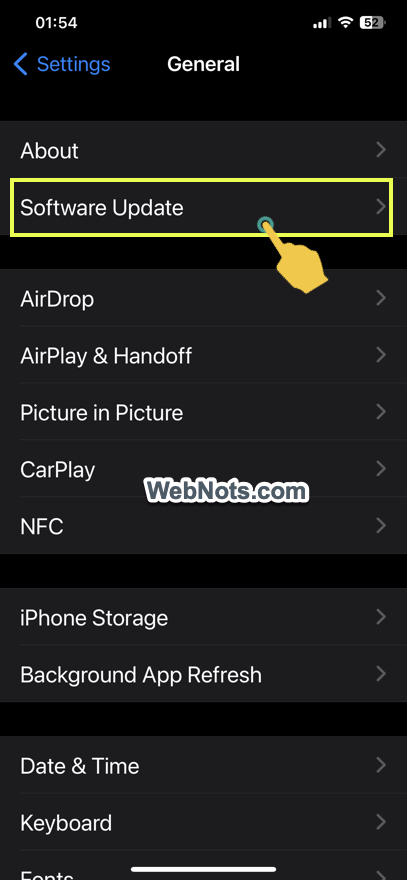
- After that again navigate to “Settings > General > Software Updates” section and you will see an additional option called “Beta Updates”.
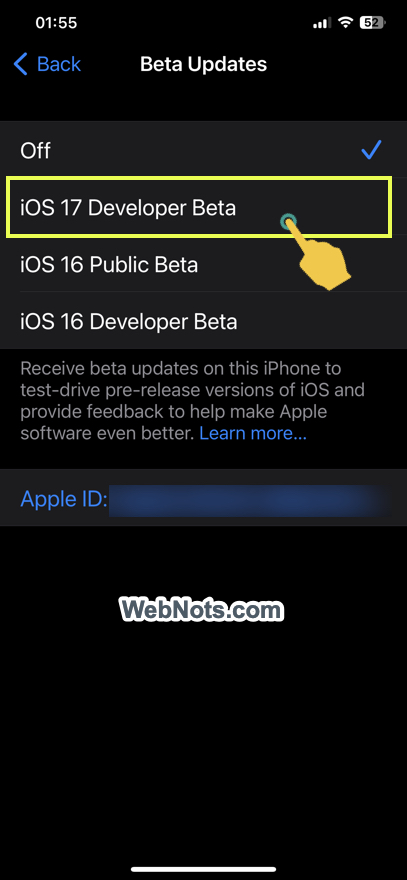
- This is disabled by default and tap on that option to view all available iOS versions at that point.
- Select iOS Developer Beta option from the list and tap the “Back” link showing on top left corner of the screen.
- If you want to use different Apple ID, then tap on the current ID showing. Select “Use a different Apple ID” on the pop-up that appears and connect a different account. After that tap the “Back” link to go to previous screen.


- Now, iPhone will show the Developer Beta OS details and tap on “Download and Install” link.
- Enter your passcode to start the downloading process.
- After the completion of downloading, tap on “Install Now” link to finish the installation process.

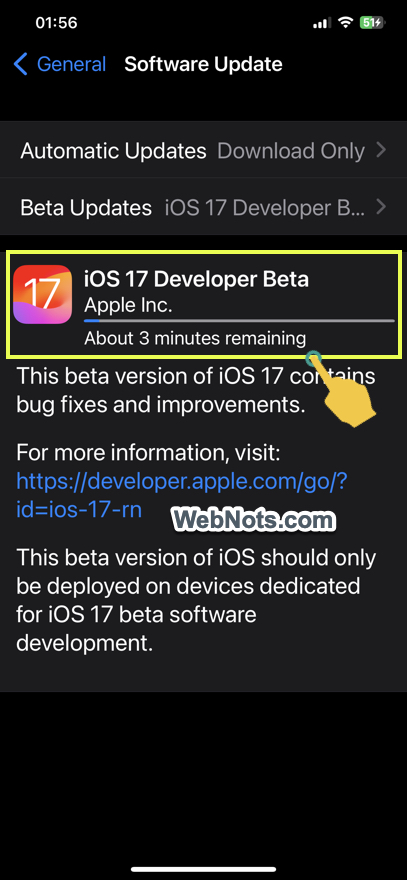

Note: Always keep the “Automatic Updates” option as “Download Only” so that you will be notified before installing the iOS update. Otherwise, you can disable it completely to manually update whenever you need.
Disable Analytics Data Sharing
When the iPhone restarts, you will be prompted to enable analytics sharing option with Apple. This will allow Apple to collect your usage information and improve the OS before public release. However, you can disable this data sharing to protect your privacy especially if you are just exploring the features.
- Tap on Settings app and go to “Privacy & Security” section.
- Scroll down to bottom of the settings page and tap on “Analytics & Improvements” item.
- On the next page, disable “Share iPhone Analytics” data option.
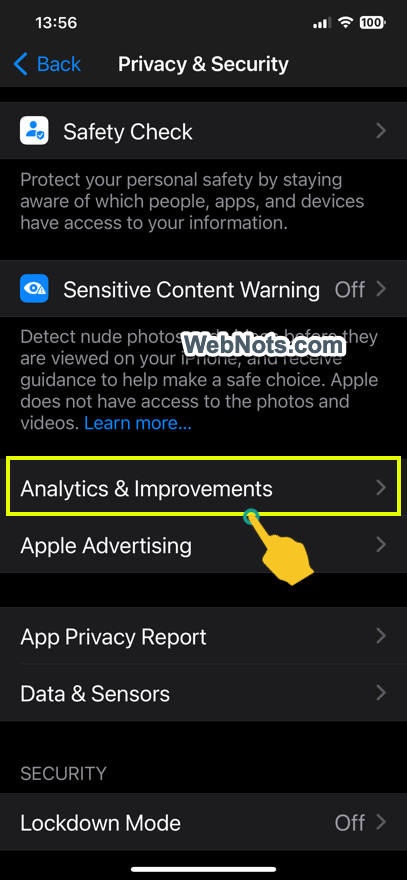

You can also disable other data sharing items like “Share iCloud Analytics” and “Share with Apple Developers”.
Using Feedback Assistant
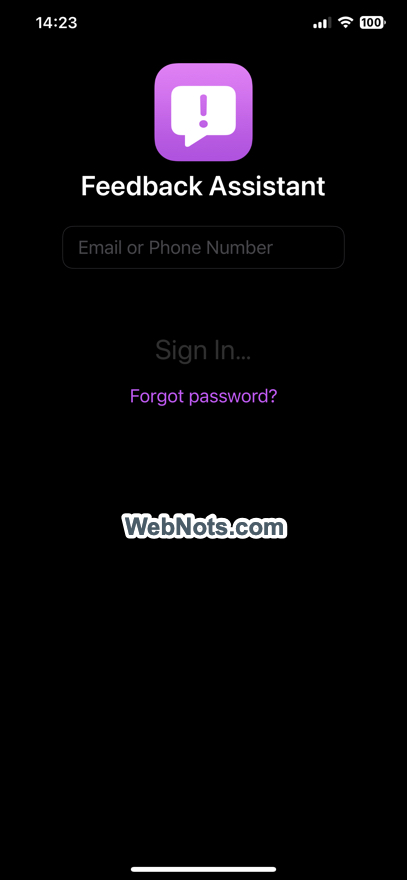
When you install iOS Developer Beta or Public Beta, the OS will automatically install a new app called “Feedback”. You can use this app to provide feedback about the beta OS to improve any feature or fix the bug that you found in testing.
- Find and open Feedback app from your home screen.
- Tap on “Accept” link to agree the usage terms.
- Login with your phone number or sign in with your password.
- Write the feedback and submit the details to Apple.
Caution Before Installing iOS Developer Beta
As the name indicates, iOS Developer Beta version is meant for app developers to test their apps are working fine and fix the issues before the stable version is available. Developers can invite up to 10K users to test the beta apps and get the user’s feedback with premium subscription. Remember the followings if you are installing with free option just for exploring the feature:
- Make sure to install it on a spare device.
- Beta iOS will be unstable and some apps may crash or stop working instantly after installation.
- Entire iPhone may behave strangely with apps opening and responding very slow.
- You may lose the data due the unstable OS.
Disable Developer Beta and Use Stable iOS Version
When you decide to stop using the Developer Beta version, you can easily opt-out and start using the stable version.
- Go to “Settings > General > Software Update” section.
- The “Beta Updates” option will show “iOS Developer Beta”.
- Tap on “Beta Updates” and select “Off” option.


When Apple releases next stable iOS update, you can download and install it to move from Developer Beta to stable version.


