Cellular data allows your iPhone to connect to the Internet when the wireless connection (Wi-Fi) is not available. While using cellular data is important for continuous connectivity like fetching your emails and getting push notifications from apps, excessive data usage will result in a hefty payment from your mobile carrier. This is especially a problem when you are in roaming or using limited data like prepaid connection. Since every app on your iPhone can potentially use cellular data (sometimes in the background without your knowledge), understanding how to identify data-hungry apps and restrict their access is important.
Finding Which Apps Use Cellular Data
Apple’s iOS makes it easy for users to monitor and control cellular data usage. Here’s how you can find out which apps are using your data:
- Open the Settings and tap on “Cellular” option (it may show as “Mobile Data” in some regions).

- If you are using multiple SIMs, make sure to tap on the “Cellular Data” option and select the SIM for which you want to check the details.
- Scroll down to “Cellular Data for your SIM” heading.
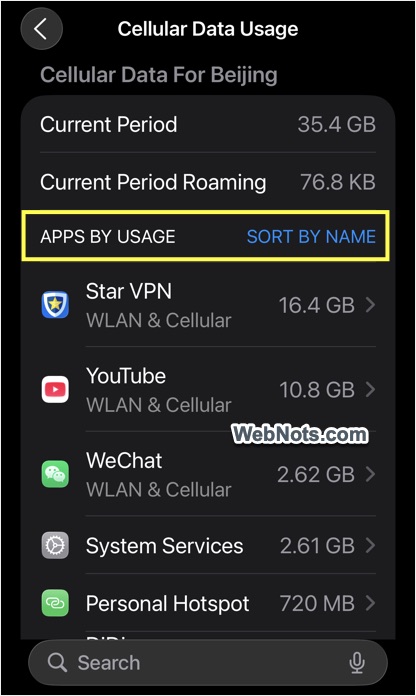
- You can find the total data usage along with the data consumed by individual apps (generally, top 5).
- Tap on “Show All” to find the complete usage statistics for all installed apps on your iPhone.

Remember that the statistics will show only if you have turned on the “Enable Cellular Usage Statistics” option under “Cellular” settings page. You can anytime reset the tracking by tapping on the “Reset Statistics” link. So, the consumption data is shown for a specific tracking period (mentioned as “Current Period”) which is generally the date from your last reset. If you don’t see the data usage, turn the statistics on and wait for few days to find the pattern.

Identify Data-Hungry Apps
- First thing is, note down the last reset date showing at the bottom and the data usage for the “Current Period”. This will give you an overall idea of how much data is been used for that duration.
- If the usage is too high for your mobile plan, then check the top list of apps.
- Go to “Show All” section to find the data consumption of all apps installed on your iPhone. You can sort the list by name or size and use the search box to find the apps quickly.
Disable Cellular Data for Specific Apps
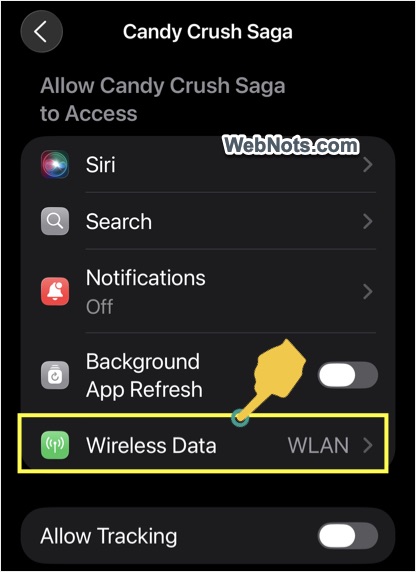
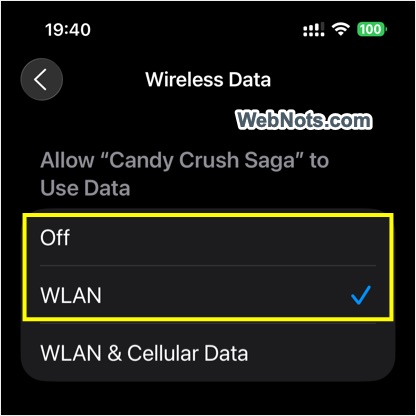
Now that you know the list of apps using high mobile data. Simply tap on the app name and choose “WLAN” to force the app to use only Wi-Fi connection or select “Off” to completely turn off the internet (only for that app).

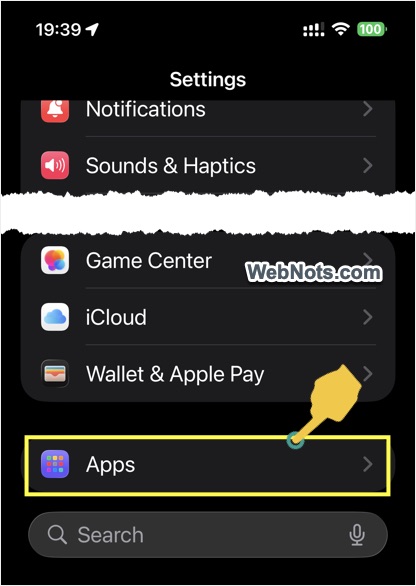
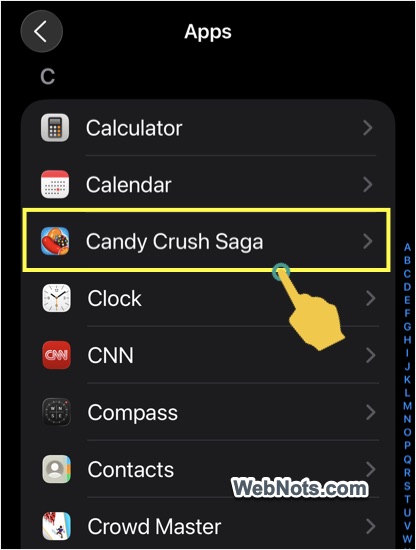
Alternatively, open “Settings” app, scroll down to the bottom and tap on “Apps”. Now, tap on the app name from the list.
Tap the “Wireless Data” option and select “WLAN” or “Off” as you need.
Note: Some apps will not work without internet connection and you can reenable the access anytime when needed.
Common Questions About Cellular Data Management
Besides cost savings, battery performance and privacy are few additional factors to keep track of the data usage. Unrestricted data usage can slow down your network speed and apps that frequently use cellular data can drain your iPhone’s battery faster. Some apps also might use data to send information about your behavior to third parties.
This is obvious that video streaming apps like YouTube and social media apps are among the top culprits. However, it depends on your usage and sometimes the apps like Google Maps and Maps consume high data if you use them frequently.
Yes, it is the feature to use your cellular data whenever Wi-Fi is not stable or poor. This may lead to watching a YouTube video when Wi-Fi is dropped off even when you are in known locations (like your house or office). If keeping the internet connection is not important, simply turned it off under “Settings > Cellular > WLAN Assist”.
Unfortunately, this needs to be done manually using the “Reset Statistics” option to start a fresh tracking cycle. You can do this ideally on the first day of your billing period to ensure you’re monitoring the current month’s data usage accurately.
Sometimes, you may see “System Services” in the top list of apps. Tap it to view the data usage of individual system-related services like push notifications, Screen Time, software updates, etc. Unfortunately, you can’t turn off the cellular data for system services individually. However, you can enable certain settings like “Low Data Mode” (“Settings > Battery > Power Mode > Low Power Mode”) to reduces their usage.
Regularly review your data usage, especially if your mobile plan has strict limits. A weekly or monthly check helps to ensure apps aren’t unexpectedly consuming excessive data.