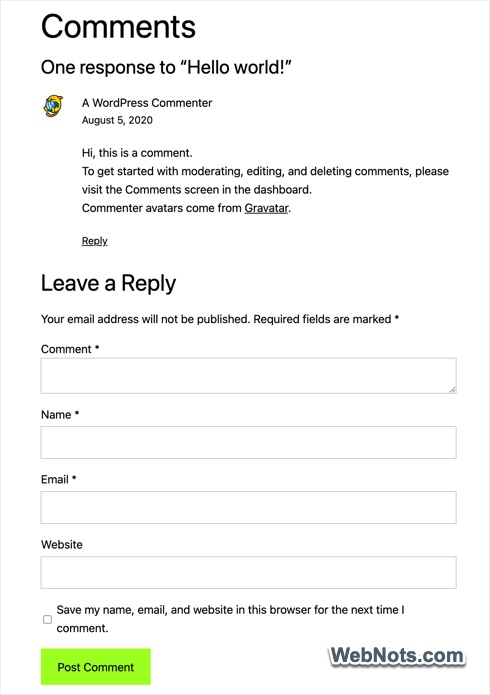
In WordPress, the default comment layout places the comment submission form below all existing comments. This works well when there are only a few comments (or no comments at all), but it becomes inconvenient when an article has many. Users must scroll all the way to the bottom to leave a new comment. To improve usability, most commercial themes include a “Leave a Reply” or “Leave a Response” link at the top of the comments section. This link jumps directly to the comment form. However, this feature is often missing in lightweight themes such as GeneratePress and Astra. Below is how it looks on Twenty-Twenty-Five theme with no link.
In a previous article, we covered how to add a Leave a Reply link in GeneratePress theme. In this article, we will explain how to add the same functionality in Astra theme.
Add Leave a Reply in Astra Pro
Follow the below steps if you are using the Pro version:
- Login to WordPress admin panel and navigate to “Astra > Dashboard” section.
- Make sure to turn on “Site Builder” under “Astra Pro Modules”.
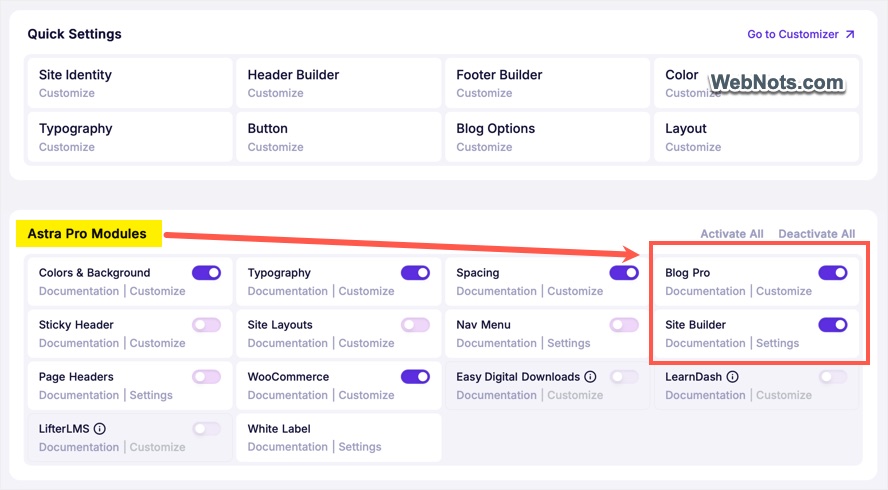
- Now, go to “Astra > Site Builder” and create a new Hook layout.
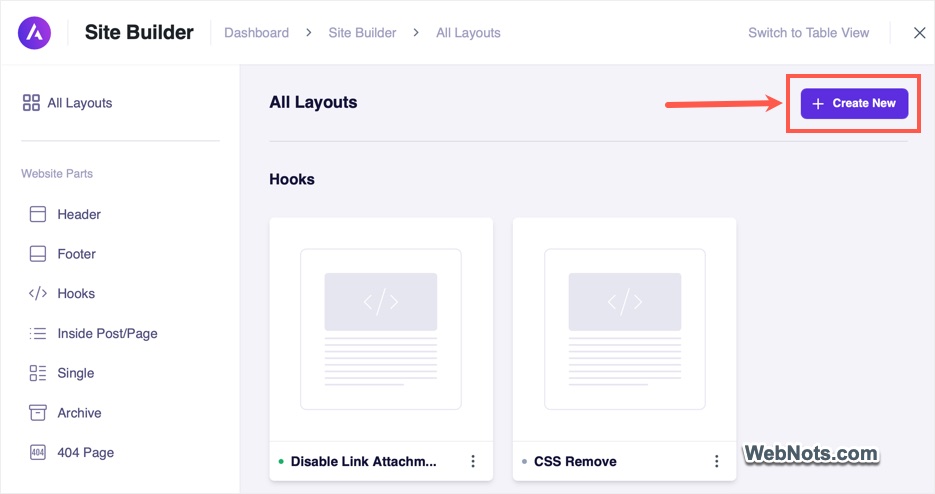
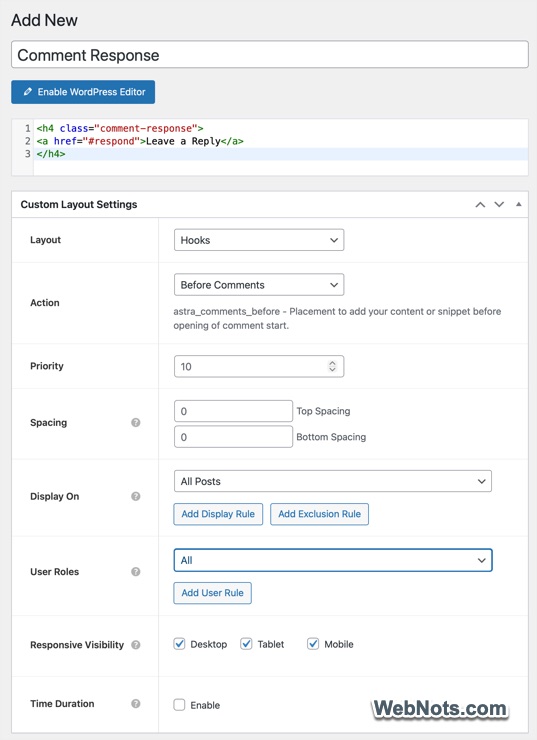
- Click “Enable Code Editor” button and paste the following code in the editor.
<h4 class="comment-response">
<a href="#respond">Leave a Reply</a>
</h4>- Name your layout and select the followings for “Custom Layout Settings” meta box:
- Layout: Hooks
- Action: Before Comments
- Priority: Leave it as 10
- Spacing: Add top and bottom spacing like 20 (it is in pixels)
- Display On: All Posts
- User Roles: All
- Responsive Visibility: Select all devices (Desktop / Tablet / Mobile)
- Time Duration: Uncheck Enable (means disabled)
- Publish your custom hook layout.
Now, check any of your post and you should see a “Leave a Reply” link before the comments section. You can adjust the top and bottom spacing if required and add additional custom CSS using the .comment-response class (explained below for a free theme, you can do the same if required for pro version also). If the smooth scroll feature (scroll to the section smoothly instead of jumping) is used for any other elements (like scroll to top or table of contents), the theme will use that for comment response link also.
Add Leave a Reply in Free Astra Theme
Follow the below steps if you are using the free Astra theme:
- Login to your WordPress admin panel and navigate to “Plugins > Add Plugin”.
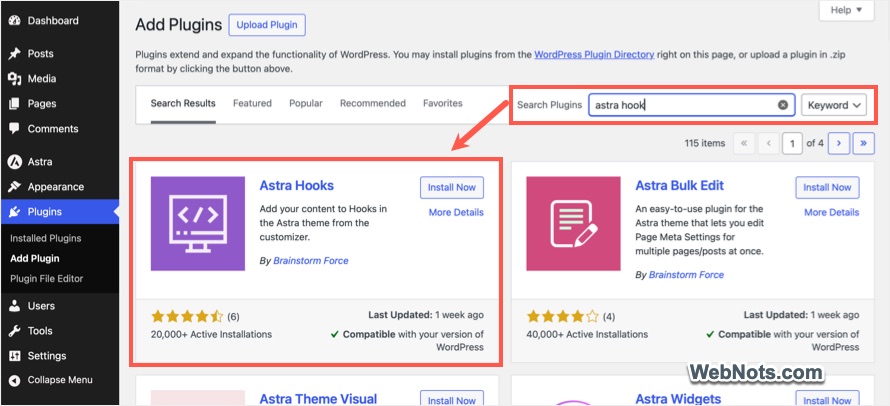
- Search for “astra hook” to find Astra Hooks plugin. Install and activate the plugin.
- Now, go to “Appearance > Customizer” section.
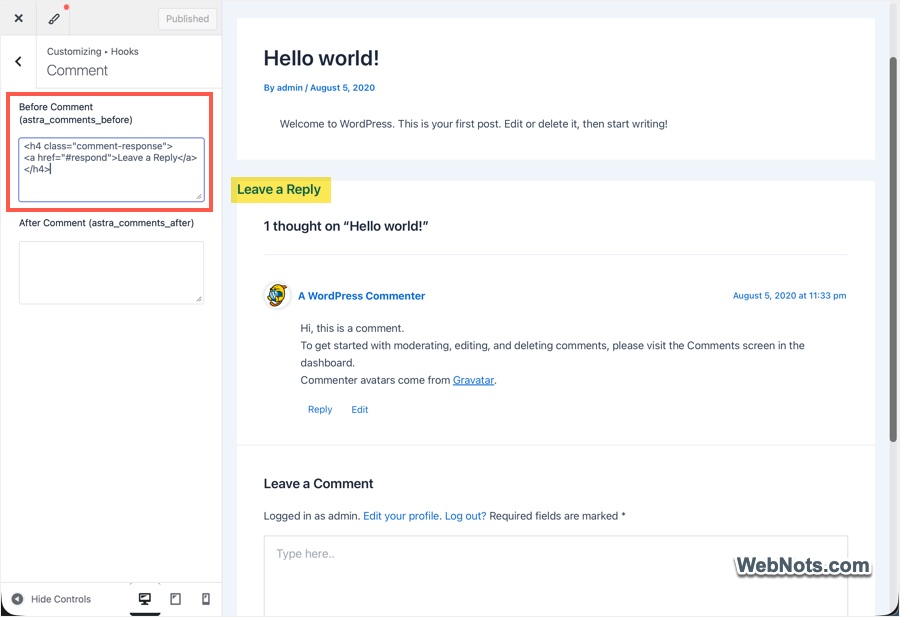
- Navigate to “Hooks > Comments” and paste the following in “Before Comment (astra_comments_before)” box.
<h4 class="comment-response">
<a href="#respond">Leave a Reply</a>
</h4>- You should see the “Leave a Reply” link appears before the comments section but the alignment may not be proper.
- Use the back button in customizer to go back to the main sections and click on “Additional CSS” option.
- Paste the following CSS in the box and check the preview.
h4.comment-response {
text-align: center;
margin-top: 20px;
padding-top: 50px;
text-decoration: underline;
}- Click “Publish” button to apply your changes.
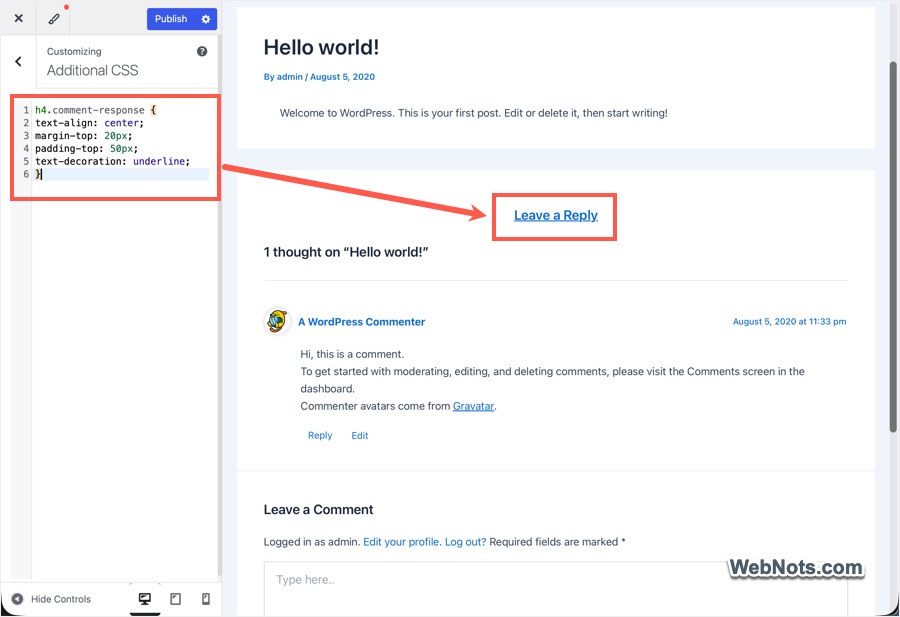
We have used .comment-response CSS class with h4 heading to align the text to center, underline and add margin / padding. If you don’t want to center align, remove that line. You may need to add padding-left:50px; to align the text bit away from left edge of your layout.
Final Words
Both free and premium versions allow you to add hooks anywhere in the layout. You can make use of that and insert custom sections like “Leave a Reply”. Though it’s easier in the pro version to add top & bottom spacing, the free hooks plugin allows to style the element visually in customizer without the need of selecting additional parameters.