
Some apps on your iPhone will continue to run in background even when you are not using them. Generally, these apps do actions like fetching data from servers, triggering push notifications, checking location, etc. For example, news apps like CNN will always run in background to get the latest news and send notifications. Though this feature is useful for some apps, many apps may use this unnecessarily (without your knowledge). This is called “Background App Refresh” in iPhone and the problem is that these background apps can drain battery, consume mobile data, occupy system memory, and slow overall device performance. While iOS is designed to manage memory efficiently, manual control over unnecessary background activity can significantly improve battery life and device speed.
Note: Closing an app from App Switcher will not stop it from running in the background.
Finding Background Apps Using Battery
iPhone allows you to easily find the apps consuming more battery both on-screen as well as in background.
- Go to “Settings > Battery” section.
- Under “Daily Usage > App and System Activity” section, you can find the top apps using the battery (on screen and background usages are shown).
- Tap on “View All Battery Usage” option and scroll down to “Battery Usage by App” section.
- Tap an app to view its on screen and background usages.
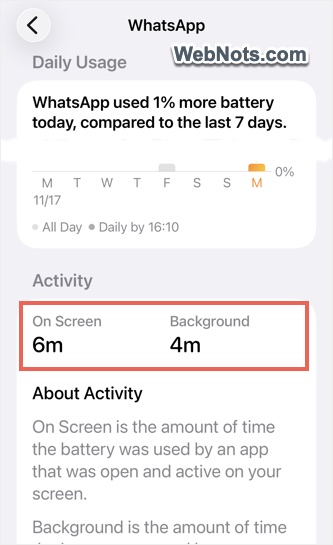
Once you know the apps consuming high battery, follow one of the below explained methods and disable the “Background App Refresh” feature either completely or on Cellular.
Disable Background App Refresh (Completely or for a Single App)
Unlike Android, iPhone offers a neat feature to check and disable apps refreshing content in the background.
- Tap on “Settings” app and then go to “General” section.
- Now, scroll down and tap on “Background App Refresh” option.

- On the next screen, you can see the complete list of apps on your phone that uses background app refresh feature.
- Turn the slider off against any of the app to disable that app refreshing in background.
- If you want to disable all the apps at once, tap on the “Background App Refresh” showing as a first option and then select “Off”.
- You can also choose to enable background refresh only on Wi-Fi by selecting “WLAN” to save your cellular data.

Disabling Background Refresh of Individual Apps
Though you can easily disable background refresh of any individual apps from the above screen, there is also another option available on iPhone.
- Go to “Settings” app and scroll down to bottom of the page.
- Tap “Apps” section to open the list of all installed apps on your iPhone.
- Find the app for which you want to disable background refresh and tap on it.
- Turn off “Background App Refresh” option showing under “Allow <app name> to Access” section.

Use Adaptive or Low Power Mode
Using Low Power Mode is another trick to reduce all background activities (including iCloud sync and email fetching) when your iPhone is running out of power. You can turn this feature automatically when the phone reaches 20% battery or enable manually whenever needed regardless of the batter percentage.
- Open “Settings” app and navigate to “Battery” section.
- Scroll down and tap on “Power Mode” option.
- Turn on “Adaptive Power” option to automatically enable Low Power Mode at 20% battery.
- Otherwise, turn off “Adaptive Power” and then turn on “Low Power Node” option to immediately enable the feature.
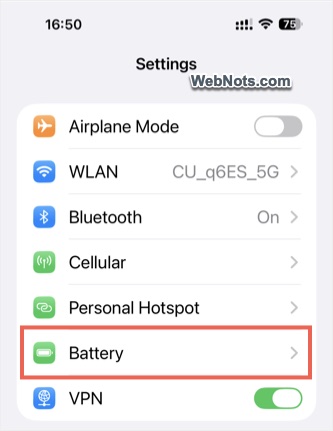
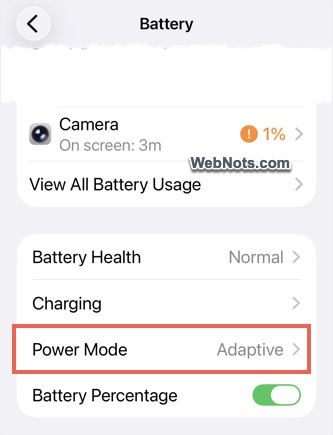
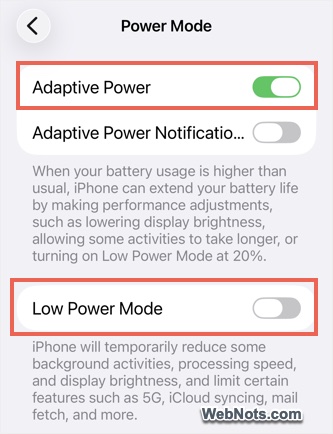
When Low Power Mode is turned on, the battery color will show as yellow indicating the background activities are restricted.
Limit Location Access
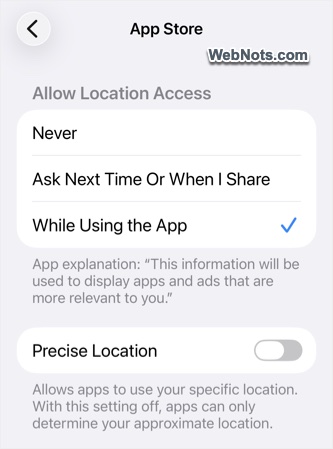
Some apps may use your geographical location in the background and you can restrict the access as explained below.
- Open “Settings” and navigate to “Privacy & Security” section.
- Tap “Location Services” and then select an app you want to manage.
- Change “Allow Location Access” option to “Never” or “While Using the App” (not “Always”).
- Also consider turning off “Precise Location” for apps that do not require accurate location data.
Final Words
Disabling unnecessary background apps on iPhone improves battery life, saves data, and enhances device performance. However, make sure to only restrict apps you do not rely on for real-time notifications like messaging or banking alerts. By using built-in tools as explained above, you can maintain better control without installing additional apps.


