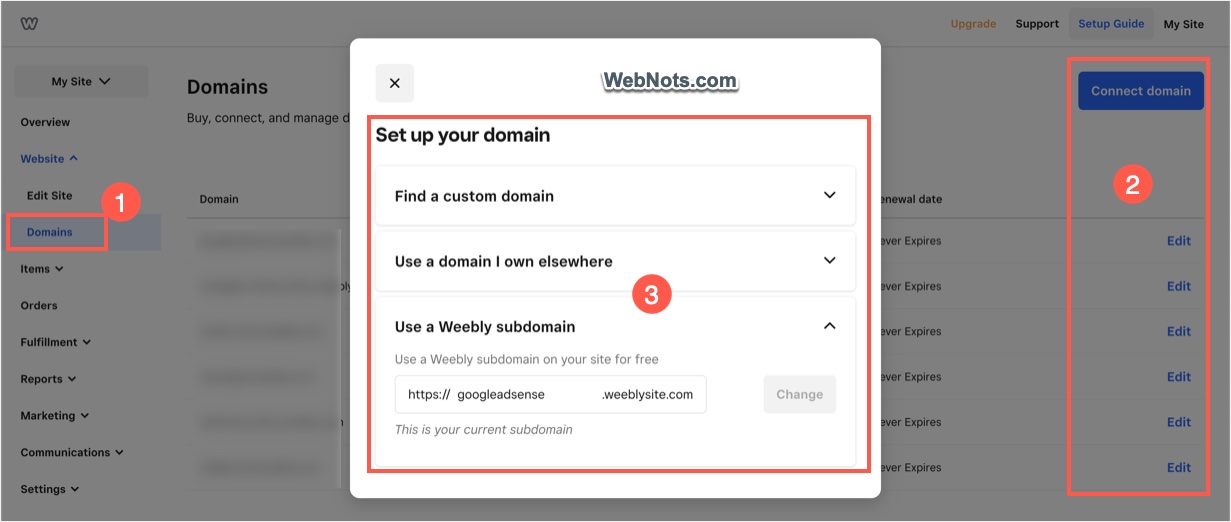
Site address is important and you need to choose it wisely to match with your business or brand name. Whenever you create a website with Weebly, you have the following three options to choose the domain for your site address:
- Using subdomain of Weebly.
- Buying a domain from Weebly.
- Connecting your existing domain to your Weebly site.
These options give complete flexibility to decide the site address you want.
Choosing the Site Address
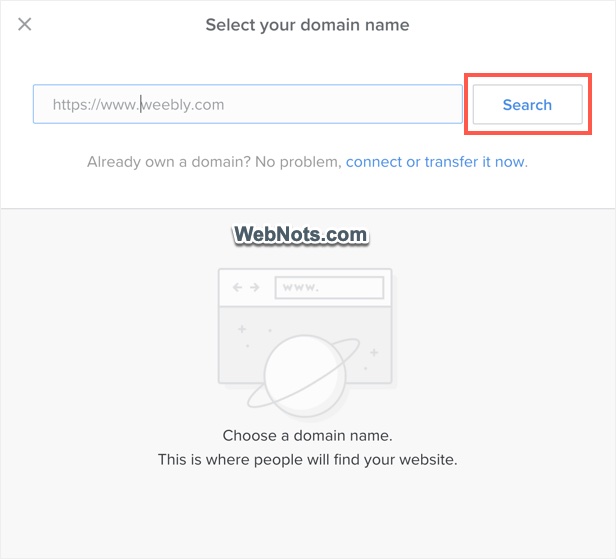
You should provide a site address when creating the site or publishing the site for the first time. Old Weebly interface used to display the available options clearly as shown below.

Though the options are same in the new interface, it appears in different manner.
- You first need to type the address and click on the “Search” button.
- Weebly will show the available subdomains and custom domains from which you can choose one.
- You can also connect your existing domain to transfer it to Weebly.
1. Using Weebly Subdomain
This is the first and free option for choosing your Weebly site address. Free sites will be created as a subdomain of Weebly, for example https://yoursitename.weebly.com. You can enter the site address you want in the text box to check the availability. Weebly will instantly show the availability of the subdomain you entered as shown in the below picture.
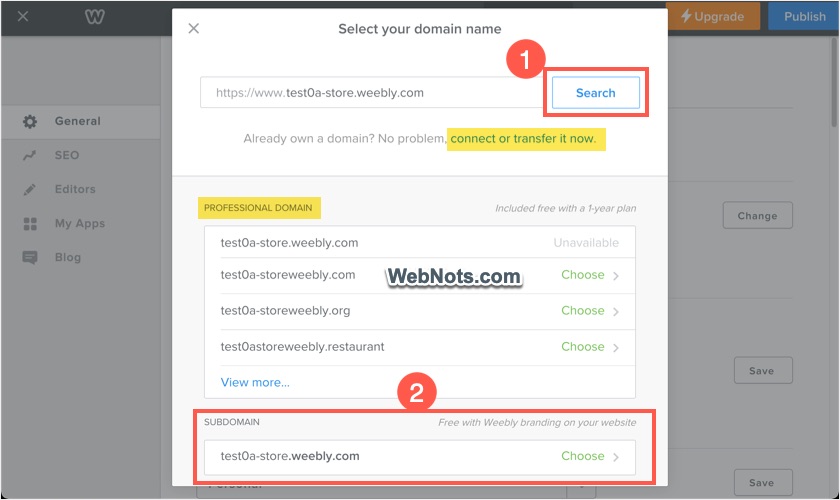
Simply select the available subdomain and change your site address.
2. Register a New Domain With Weebly
The second option is to register a new domain name with Weebly. There are many advantages of buying domain with Weebly:
- You can get a free domain for a year when purchasing any premium plan for one year.
- Since your site will be hosted on Weebly server, there are no technical setup activities like DNS settings required if you own a Weebly domain.
- It is easy to control everything in one place by using one Weebly account (you can also login through your Square dashboard).
- Sometimes, you will also get $100 free Google Ads advertising credits. This is an conditional offer of getting $75 when you spend $25 and is applicable only for new Google Ads customers.
The disadvantage is the high domain pricing set by Weebly. After searching for a site address, select one of the custom domains showing under “Professional Domain” heading. If you are on Weebly free plan, this will take you to Weebly pricing plans page. You can buy any premium plan and get one year free domain along with it.
After first year, you should pay high amount to renew the domain with Weebly. For example, 2 years length will cost you $53.90 including $10 per year for domain privacy protection. This is multifold costly than buying a domain from GoDaddy or Namecheap.
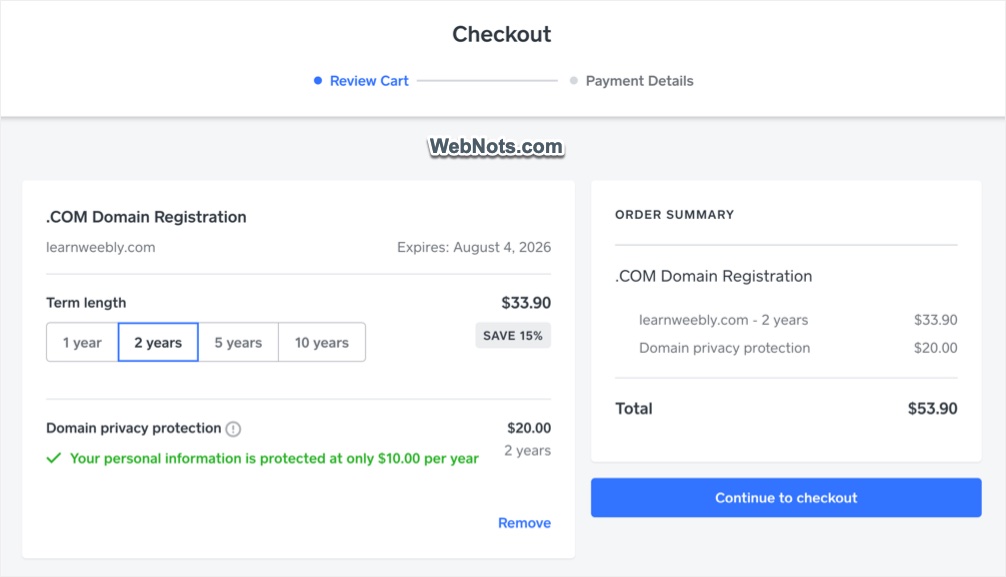
This domain pricing does not include Weebly premium plan features for which you need to pay additional amount on monthly basis.
3. Connect a Custom Domain
This is an ideal option for webmasters to buy a domain from other registrars and connect to their free Weebly site. The advantages are:
- Save considerable money by avoiding buying domain from Weebly.
- Use the free hosting and site builder tools offered by Weebly.
The disadvantage is that the initial DNS and CNAME setup are to be done separately on the control panel of the registrar site. Clicking on the “connect or transfer it now” link on the site address selection box will take you to another screen. Type your existing domain and you have two options to use it with Weebly.
3.1. Connecting Existing Domain from Other Registrar
Select “Connect your domain” to link your existing domain from another registrar with Weebly site. This will take you to the pricing plan page as connecting custom domain needs one of the premium plans.

After purchasing a premium plan and connecting your domain, you should change the DNS in zone editor pointing to Weebly server’s IP address. Weebly will show you a sample email which you can copy and send to the domain registrar if you need help from them. Otherwise, you can manually change the nameserver details by reading the instructions. You can check our article on how to connect GoDaddy domain to Weebly site for more details.

3.1. Transferring Domain to Weebly from Other Registrar
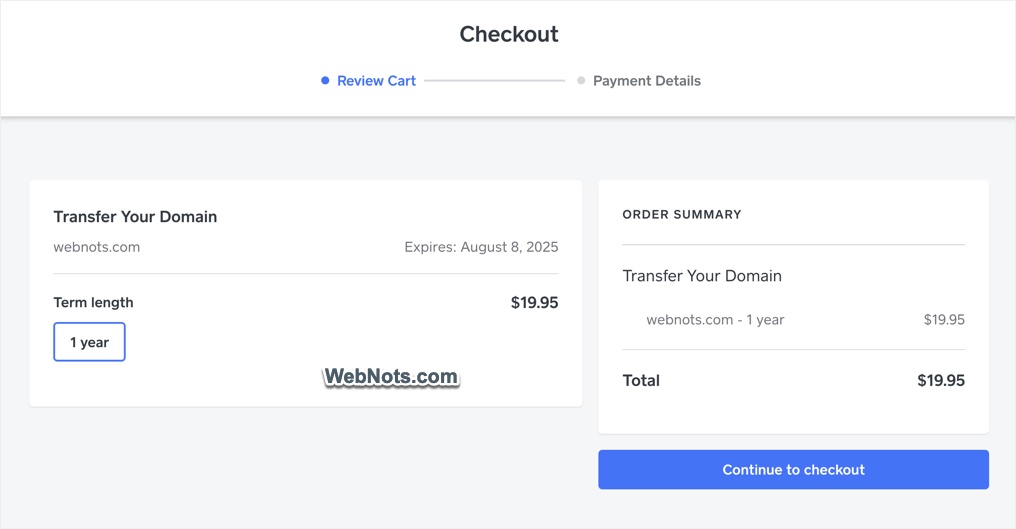
Select “Transfer your domain” option to transfer your domain from another registrar to Weebly.

You need to pay $19.95 for transferring a domain to Weebly for one year. After domain transfer, you need to continue renewing your domain for the higher price with Weebly. Note that you may lose the money paid to existing domain registrar if you have registered the domain for multiple years as Weebly allows with one year transfer.
Managing and Changing Site Address
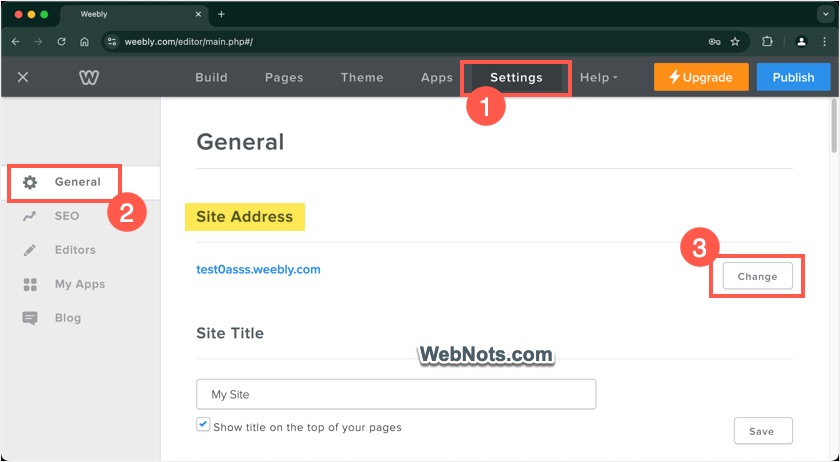
As mentioned, after setting up your site address by choosing any one of the above methods, you always have an option to change your site address at any point of time later. Your existing site address is shown under “Settings > General > Site Address” section in Weebly editor. Simply, click on the “Change” button and select different domain option as explained above to choose your new domain.
You can also manage all the domains and subdomains of your account under “Website > Domains” section on the dashboard. Click “Edit” link against any of the site or click “Connect domain” button to see the same set of options available for changing your site’s address. In this way, you can choose the site address without going to Weebly editor interface.