
Weebly offers a very simple audio player as part of Weebly pro pack. Actually it is a HTML5 audio player which can be easily added with few lines of code and definitely there is no need for upgrading if you only want that audio player. There are many methods for Weebly free users to add audio to their site. In this article, we will discuss the how to add add audio in free Weebly site using different methods.
Add Audio in Weebly Site
The following methods are some of the options to add audio with single track, playlist with list of items, background music and embed third-party sound files in Weebly site.

1. Adding HTML5 Audio Player
Upload the audio file to your Weebly site and add the below code inside an “Embed Code” element on the page where you want to add an audio. Replace the file URL with your Weebly audio file URL.
<audio src="https://img.webnots.com/2015/07/suture_self.mp3" controls>
</audio>
The player will look like below similar to Weebly pro audio player:
If you want to play the audio automatically when the page is loaded then just add the “autoplay” attribute as below:
<audio src="https://img.webnots.com/2015/07/suture_self.mp3" controls autoplay>
</audio>
2. Adding Custom Audio Player
Below is a custom audio player for your Weebly site without the need of upgrading to Weebly Pro (the alignment will look proper on your Weebly site).
Download the Weebly audio player JavaScript file and paste the content into the “Footer Code” section of your page. Then paste the below CSS code in the “Header Code” section:
<style>
#playlist,audio{background:#666;width:400px;padding:20px;}
.active a{color:#5DB0E6;text-decoration:none;}
</style>
Last step is to embed the below HTML code on the page using “Embed Code” element:
<div>
<audio id="audio" preload="auto" tabindex="0" controls="" type="audio/mpeg">
<source type="audio/mp3" src="https://img.webnots.com/2015/07/suture_self.mp3">
Sorry, your browser does not support HTML5 audio.
</audio>
<ul id="playlist">
<li class="active" style="background: #f5f5f5"><a href="https://img.webnots.com/2015/07/suture_self.mp3">Sample Music 1</a></li>
<li style="background: #f5f5f5"><a href="https://img.webnots.com/2015/07/suture_self.mp3">Sample Music 2</a></li>
<li style="background: #f5f5f5"><a href="https://img.webnots.com/2015/07/suture_self.mp3">Sample Music 3</a></li>
<li style="background: #f5f5f5"><a href="https://img.webnots.com/2015/07/suture_self.mp3">Sample Music 4</a></li>
</ul></div>
3. Embedding Audio Code
Go to any of the free audio player providers like SoundCloud. Click on the “Share” button and copy the embed code and paste it in your Weebly site using “Embed Code” (Custom HTML) element. You can create your own playlist and use it in your Weebly site. Below is an example of an audio player loaded with playlist from SoundCloud. The player will get automatically updated whenever you add tracks to your playlist in SoundCloud.
4. Adding Background Music in Weebly
If you don’t want to use the external source code then you can add a background music to your free Weebly site by following the below two steps. In this way you will not see any audio player in your site but the music will get auto loaded when a visitor opens your page.
Step1:
- In Weebly editor click on the “Theme” tab
- Click on “Edit HTML/CSS” button
- Under “Assets” section click on “Upload Files(s)” option and upload your .mp3 audio file
Right click on the file and copy the URL of the mp3 file.
Step2:
- If you want to add music to particular page then click on the “Pages” tab and select the page. Go to “SEO Settings > Header Code” section and add the following code.
<embed src="File path from Step1" auto loop="true" hidden="true">- If you want to add background music to your complete site then paste the same code under “Settings > SEO > Header Code”.

5. Premium Weebly Audio Player Element
Weebly offers audio player element from pro plan onwards. The default audio player is a simple tool to upload a single audio file on you page. Unfortunately, this is not a comprehensive feature which can be used in music sites and the free options explained above can be better options for you. The advantage of Weebly audio player element is that this is unbranded. Below table shows the complete pros and cons of default Weebly Audio Player.
| Pros | Cons |
|---|---|
| Unbranded | Only one file can be uploaded and no playlist option is available |
| You can add a simple background music using audio player element | Supports only MP3 format |
| Simple and occupying less space | Fixed size and no option to change to different sizes |
| Play the audio in page without publishing | Only two color options are available |
Like other elements just drag and drop audio player element in site content area to add an audio player to your site. When you click on the element, you have the following options to customize the player:
- Upload File – Browse and upload your music file.
- Position – Change the player to align left, right or center.
- Track info – Add track title and artist name.
- Advanced – Choose skin color and enable or disable auto play.
In addition to above options you have play/pause button, seek bar and volume button in the player.
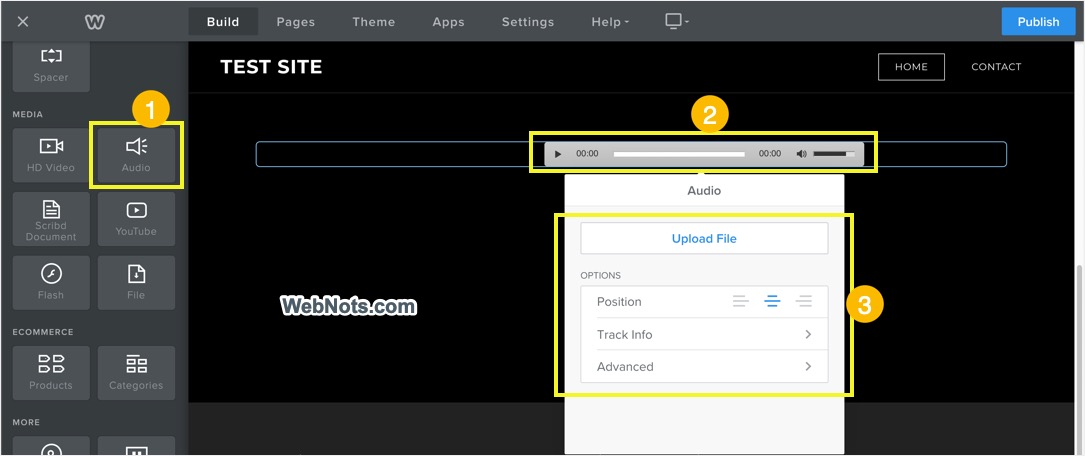
By default, there are no options to change the width of Weebly’s audio player. But you can use “Spacer” elements beside the audio player to adjust the width.





I’ve read your steps for adding audio on Weebly’s free websites, and I’ve always been able to add audio to a photo of one of my books shown on my website, and add audio files elsewhere. Now, however, all I get is an ‘audio’ button but no way to use it. Or on photos it says ‘image’ but I cannot add a caption or audio as before.
hi, i just came across this great blog and was super excited until i realised that there is no way to upload the mp3 file on weebly – there is no assets and so sadly this resolution wont work anymore
How do you get the url of the mp3??
I can get the audio on there no problem but it gets stuck when I try to play it back. Is there a way to make it play back properly?
thanks for the information keep it up guys
Is there still way to upload a mp3 song on weebly starter package? I don’t see the buttons you’re referring to “Design” or “Assets”. Id like a song to play throughout the whole background without starting over every page click.
Thank you
How do you upload a m4a file? Tried using the above codes but they do not work for m4a files.
We didn’t try with m4a, you should use mp3 or convert m4a to mp3 and use.
How can I create a playlist with a shuffle button to randomly play tracks. We have an education website and students are answering interview questions. I want to be able to shuffle random songs so they can practice answering questions randomly.
How do I upload the MP3 file?
It is clearly mentioned in the article – Under “Assets” section click on “Upload Files(s)” option and upload your .mp3 audio file.
so the background music works great but my friends told me that they cant hear anything when they go on so im wondering how i can make it so they can hear.
The audio player works, but when clicking on the Track the item file does not load in the player, but actually takes you away from the page to a black page playing the file itself. How can this be resolved??????
It’s very simple to add mp3 music to the site. But how do I get the music to loop as long as the site is open. It does not loop as per above auto loop=”true”
The audio player works, but when clicking on the next item in the playlist, the file does not load in the player, but actually takes you away from the page to a page playing the file itself. How can this be resolved?
Can you tell me how to set it auto play?
When I paste the string
into the Header Code box, then click Save & Edit the code is gone when I reopen the Page? If the first character “<" is deleted, the text does not disappear – thoughts?
Hey, thanks for the help with this! It’s works great and is very simple. But I wanna know if there is a way to have the music play without restarting every time you click on another page on my site.