Cloudflare is the most popular content delivery and security services available for website owners. The free plan offers various features to speed up and protect your site. If you notice too many AI crawlers are accessing your site, it’s a good idea to block them using Cloudflare bot management.
Why to Block AI Bots?
Here are the two major reasons why you need to block AI bots:
- Crawling budget – AI bots from Meta, OpenAI and Huawei are aggressive in nature crawling each and every resource on your site. This includes images, JS & CSS files and the page URLs. This will consume lot of hosting server’s resources and you may end up in paying hefty bill or your account will be suspended for over usage of CPU / RAM. Most shared hosting companies also allocate limited crawling budget for each site resulting in violation of the terms and suspend your account.
- Content scraping – In this AI world, it may not make sense to block the AI bots especially if you are running informational or affiliate blogs. You may also get good traffic from ChatGPT and other AI search engines. However, not all site owners are comfortable with these bots stealing information every few seconds.
Earlier days, it was easy to block AI bots using robots.txt protocol. Unfortunately, nowadays AI bots do not follow robots.txt or any other ethical crawling / indexing protocols. So, the only effective option left is to block them at hosting server side or use security setup like Cloudflare to do that for you.
Block AI Bots in Cloudflare (Old Dashboard)
Follow the below steps if you are using the old dashboard interface:
- Login to your Cloudflare account.

- Go to “Account Home” and select the site that you want to protect from AI scraping.

- Navigate to “Security > Bots” section.
- Turn on “Block AI Bots” option.

Block AI Bots on New Dashboard
Follow the below steps if you are using the new dashboard setup:
- Login to your Cloudflare account and select the site you want to edit under “Account Home” section.
- Navigate to “Security > Settings” section and make sure you are in “Managed detections” tab.
- Click the “Manage detections” button under “Bot traffic” heading.
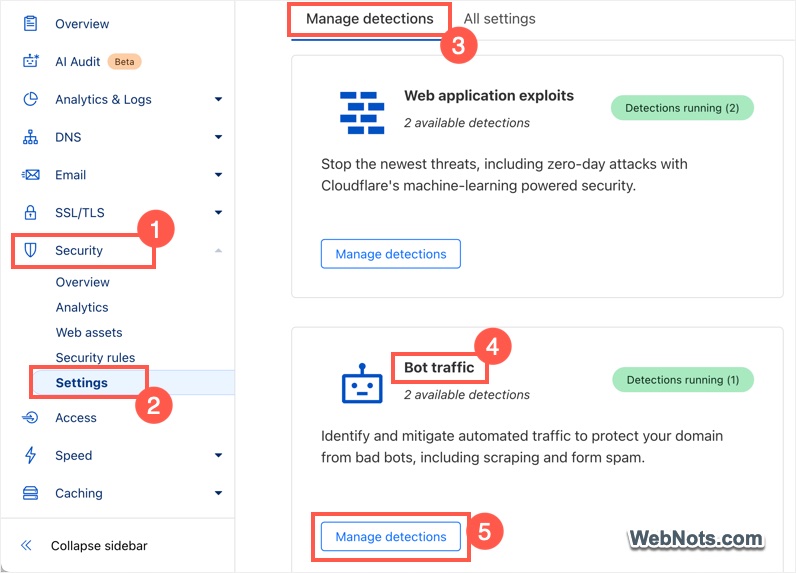
- Click the “Enable” button against “Block AI Bots” option to turn it on.

Additional Blocking Options
In addition to blocking AI bots, you have few more options in Cloudflare which you can enable on the same settings page.
- AI Labyrinth – if a bot crawls too much, Cloudflare will automatically add nofollow links on your page’s content. These links will take the bots to AI generated content thus wasting its time and resource. The links will be only visible to the bots (something like a honeypot) and not to human users and other regular search engine bots.
- Manage bot traffic with robots.txt – enable this to allow Cloudflare to overwrite your existing robots.txt file with a custom version. This overwritten robots.txt file will have rules blocking all bots except the verified bots.

As mentioned, robots.txt option will not be effective like labyrinth or bot blocking options.
Block AI Crawlers with Custom Security Rules
Though toggling the AI bot blocking is super easy, that will be applied for the entire site. If you want to block the bots only specific pages, section (subdirectory) or subdomains, then you can make use of the Security Rules option. Cloudflare offers five rules for the free account and you need to upgrade to pro / business plan for getting additional rules (20 for Pro and 100 for Business plan).
- Login to your Cloudflare account and select the site you want to create custom rules.
- Navigate to “Security > Security rules” section.
- Click on the “+ Create rule” button and select “Custom rules” option.
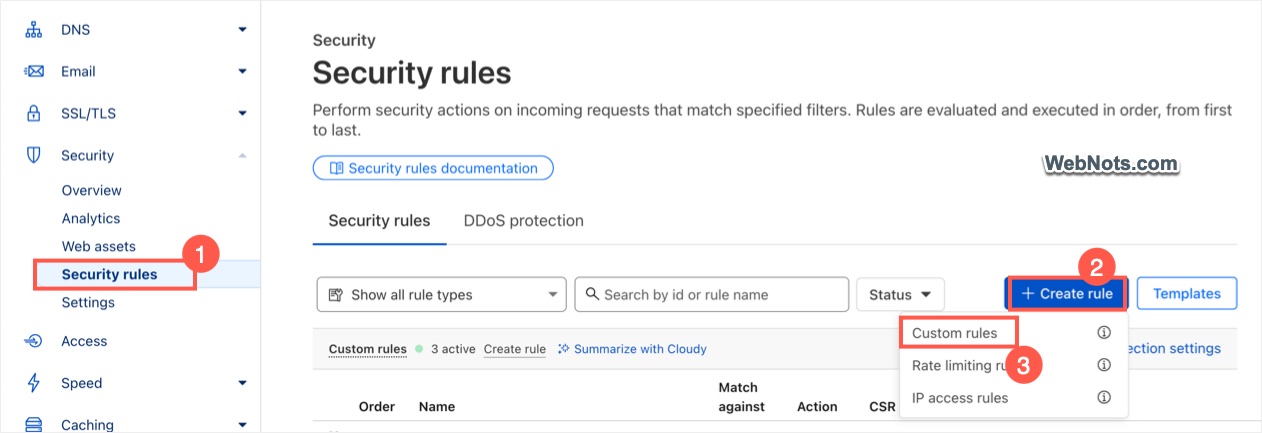
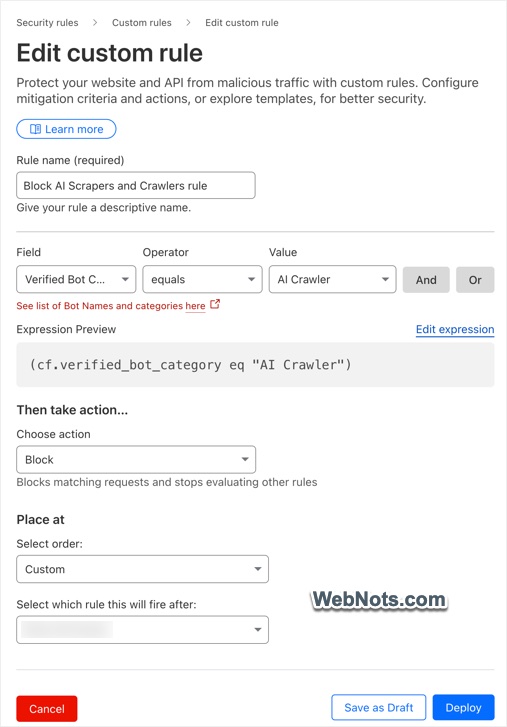
- Fill up the following details:
- Rule name – give a name for your rule.
- Field – select “Verified Bot Category”.
- Operator – equals.
- Value – AI Crawler.
- Choose action – Block.
- Place at – First (or select any order if you have multiple rules).
- The “Expression Preview” should show as (cf.verified_bot_category eq “AI Crawler”).
- Click the “Deploy” button to apply the blocking rule.
Monitoring Blocked AI Request
The advantage of creating a custom rule is that you can monitor the AI requests blocked by Cloudflare setup.
- Go to “Security > Security rules” section where you can see all your custom rules.
- Click on the number of events showing under “Events last 24h” column for the rule name that you have created for blocking AI bots.
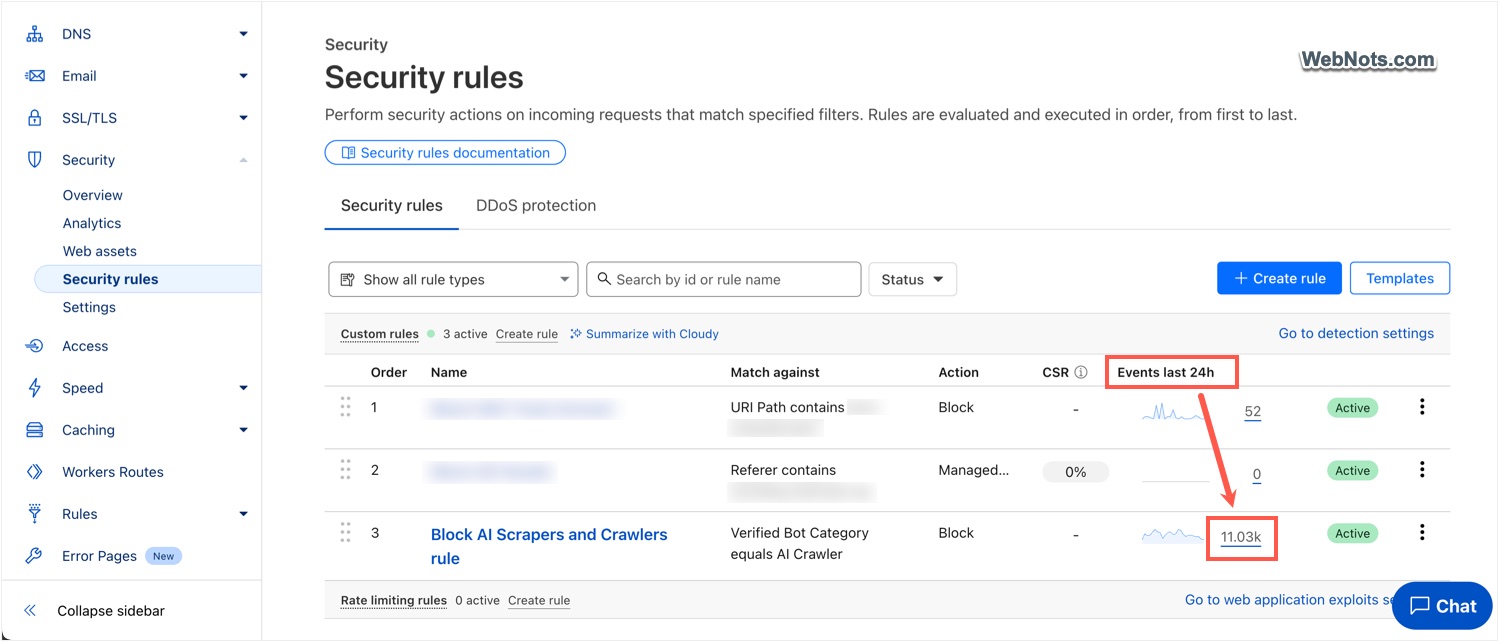
- This will take you to “Security > Analytics” section with the filter applied showing the blocking events for your custom rule.
- Click any event and check the “User agent” to find which AI bot is crawling your site.
- You can also apply the filer with user agent to find the number of requests blocked from a particular AI bot (for example – gptbot from OpenAI).

You can check the complete list of AI crawlers blocked by Cloudflare on their documentation page. It is also possible to block other categories of bots like AI Search, Archiver and Feed Fetcher to protect your site.