
Mozilla does not provide its own AI model, instead offers access to other popular models within the Firefox browser. Firefox now makes it easier than ever to use AI chatbots directly from the browser’s sidebar. This is similar to Duck.ai from DuckDuckGo, which allows access to ChatGPT, Gemini, and other models. If you are concerned about privacy when directly accessing Gemini or ChatGPT and want to use multiple AI models, then Firefox is the best option for you. Here’s a simple guide to get started.
Step 1: Update Firefox
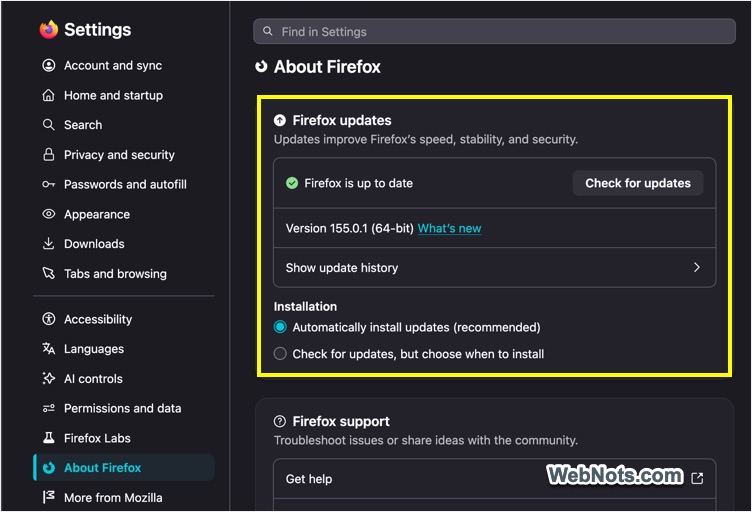
To use an AI chatbot in Firefox, you will need Firefox version 133 or later. If you are using an older version, make sure to update your browser first.
- Open Firefox and go to about:preferences page (or click the hamburger icon on top right corner and select “Settings” menu).
- Scroll down to “Firefox Updates” heading at the bottom under “About Firefox” section.
- Check the browser’s version and click on the “Check for updates” or “Update and restart” button.
Step 2: Enabling Sidebar in Firefox
Once you have the latest browser, follow the below steps.
- Go to about:preferences page.
- Navigate to “Browser Layout” heading under “Tabs and browsing” section.
- Check “Show sidebar” option.
- This will add a sidebar on the left side of the browser window.
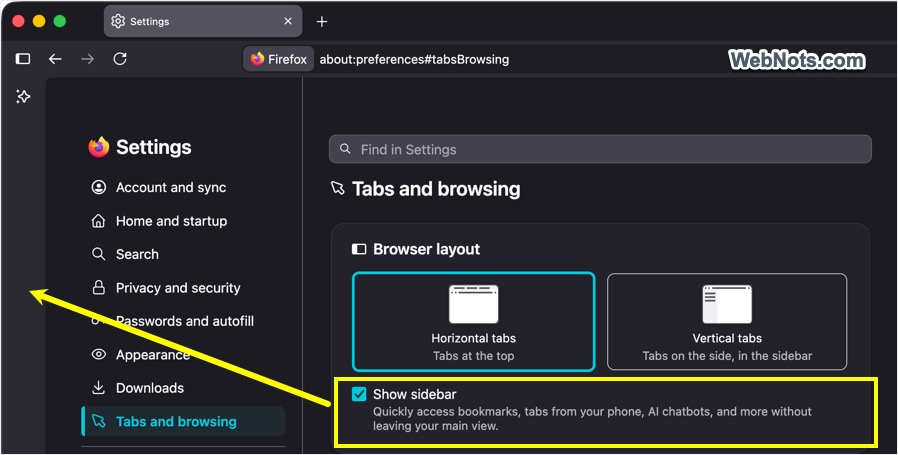
Alternatively, click the “Show sidebar” icon on top left corner of the browser window or press “Control + Z” keys to toggle the sidebar.
Step 3: Choose Your Chatbot
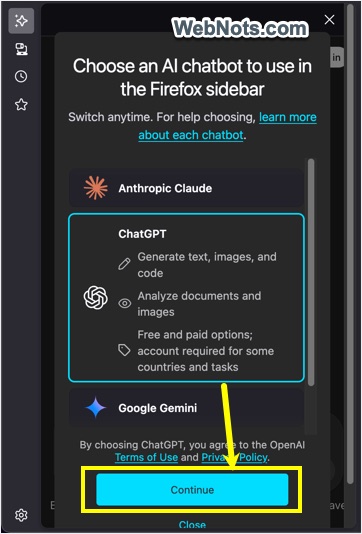
Click the sparkle icon on the sidebar and you will be prompted to choose the AI chatbot. At this point, you have the following options:
- Claude from Anthropic.
- ChatGPT from OpenAI.
- Copilot from Microsoft
- Gemini from Google.
- Vibe from Mistral.

Earlier, you had an option for HuggingChat which was discontinued from July 2025. Select the model’s name and you will see its capability offered in Firefox. Claude and Mistral do not offer image generation while ChatGPT and Gemini have that feature. Let’s select ChatGPT and click the “Continue” button.
Step 4: Using the Chat and Shortcuts
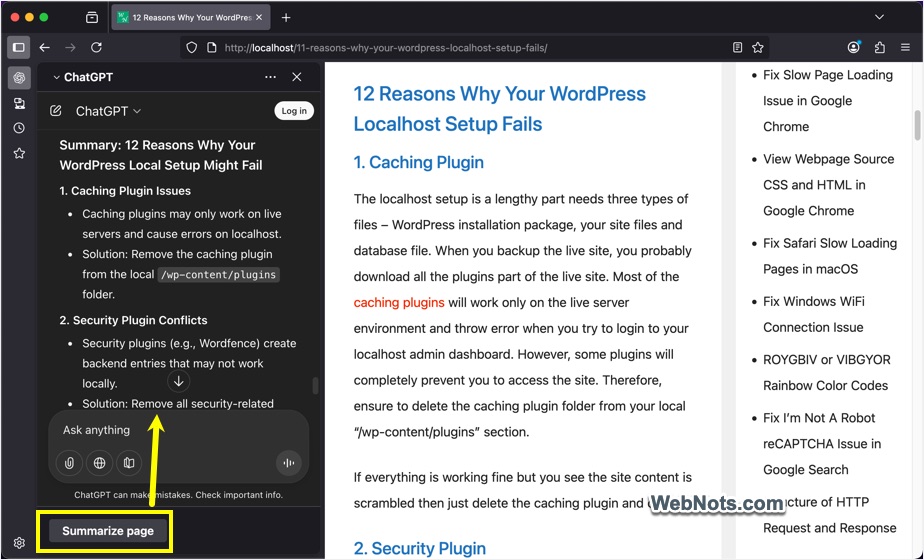
The chat box will appear next to the sidebar on the left with the selected AI model. You can simply use the box to send your queries and get responses like on the web interface or app. Open any webpage and click the “Summarize page” button showing below the chat box. This will copy the entire page’s content as an input and then you can generate a summary from that.
In addition to using the chat box, you will see a sparkle icon when selecting content on a webpage. Hover over and you will see a list of shortcuts with the following features:
- Summarize: Get summary of the selected content.
- Explain this: Great for making explaining complex topics.
- Quiz me: Turn selected text into a mini quiz, perfect for micro-learning.
- Proofread: Check the spelling, grammar and other mistakes in the selected content.
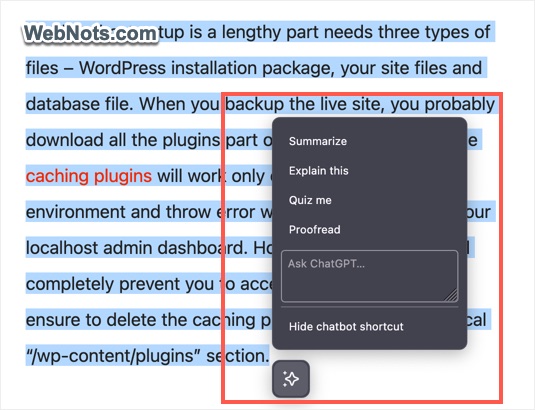
You can also ask any question by typing directly into the box that appear below the menu items. If the shortcuts are intruding, simply click the “Hide chatbot shortcuts” option. You can anytime enable it again by clicking the three dots icon against the AI model name (showing above the chat box) and selecting “Show shortcut when selecting text” option.
Step 5: Switching Chatbots
The selected AI model will be added to the sidebar for quick access. However, good thing is that you can switch the AI model anytime (for a new chat conversation).
- First, click the sidebar icon and then click the chatbot name appearing above the chat box.
- Choose a different provider from the dropdown.
- Continue a new chat with the selected model.
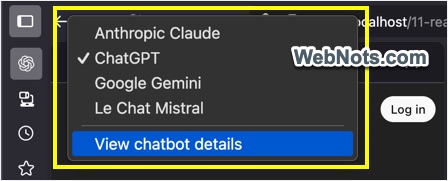
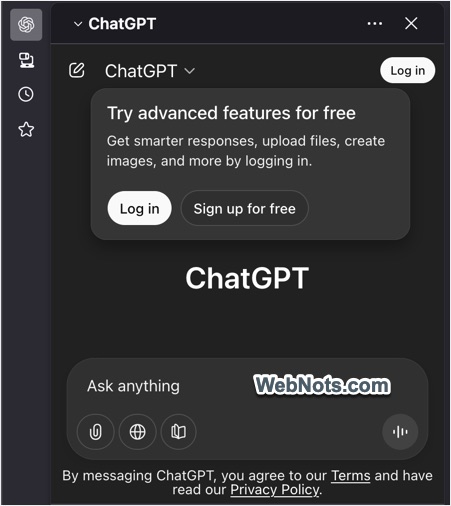
ChatGPT, Gemini, and Le Chat allow you to use the service without creating an account with limited features. By logging in, you can access additional options like file upload, using agent (with Mistral), creating images, etc. For Claude, you need an account to login for using its features.
Final Words
By default, Firefox does not show any history on the chat box if you are not logged in. However, each chatbot follows its own privacy policy and terms of use (you can find the links below the input box) and stores history if you are logged in. In addition to Firefox’s built-in AI feature, you can also use the web access (by directly accessing the chatbot’s website) or use browser extensions.


