Microsoft Edge is known for its speed and efficiency, but like any modern browser, it consumes a lot of memory (RAM), especially with multiple tabs and extensions running. It will also be a problem when playing games on your PC or browser. If Edge is slowing down your system, adjusting its RAM usage can help maintain performance. Here’s how to optimize Edge and keep it from hogging too many resources. If you are not sure whether the issue is due to low memory, then check our guide on how to fix slow Edge and speed up your browsing.
1. Allocating RAM for Edge Usage
The latest version of Edge allows to allocate specific amount of RAM to be used by the browser.
- Open Edge, click on the three-dot menu in the top-right corner and select “Settings”.
- Go to “System and Performance” tab from the left menu and scroll down to “Manage your performance” section on the right-pane.

- Turn on “Resource controls” option and then move the slider against “Control how much RAM Edge can use” option.
- Select “Always” option under “Choose when to control resources” section. You can also choose “When you’re PC gaming” option, if the browser is slow only when playing games.

If this is not solving high RAM usage or if your system itself is having low memory, then try the following suggestions as additional measures.
2. Enable Efficiency Mode and Sleeping Tabs
Efficiency Mode reduces power consumption by controlling the system resources. However, you can also use that feature to save memory by automatically putting tabs to sleep after 5 minutes of inactive time.
- Go to edge://settings/system page in Edge.
- Under “Optimize Performance” section, turn on “Efficiency Mode” option. Now, turn on “Save resources with sleeping tabs” option.
- Efficiency Mode will force “Put inactive tabs to sleep after the specified amount of time” option to 5 minutes.
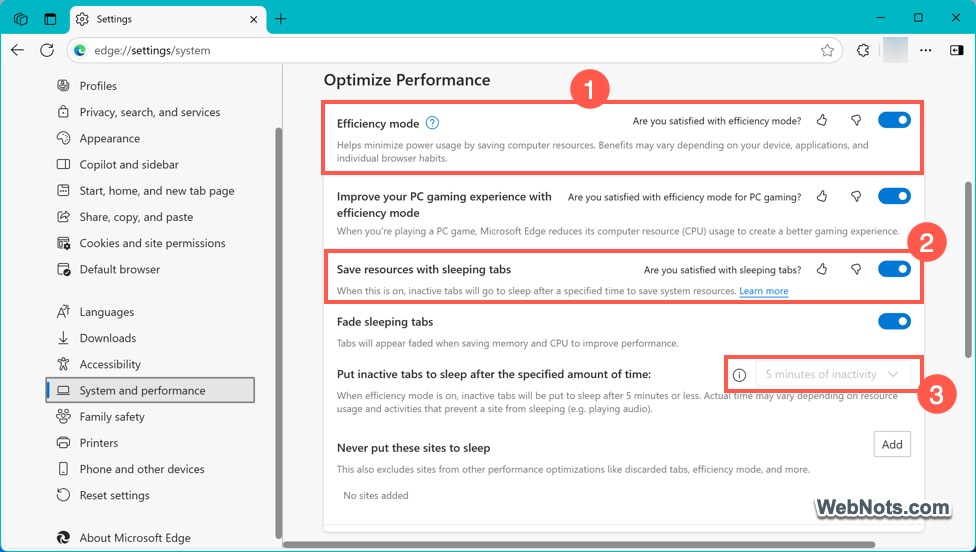
- If 5 minutes inactivity is very low for your usage, then turn off Efficiency Mode.
- Now, you can adjust the time before a tab goes to sleep by selecting from the dropdown against “Put inactive tabs to sleep after the specified amount of time” option.
- Optionally, add websites to the “Never put these sites to sleep” list if you want certain tabs to stay active all the time.

3. Limit Background Extensions
Extensions running in the background consume memory even when you are not actively using them. Disabling or removing unnecessary extensions can improve performance.
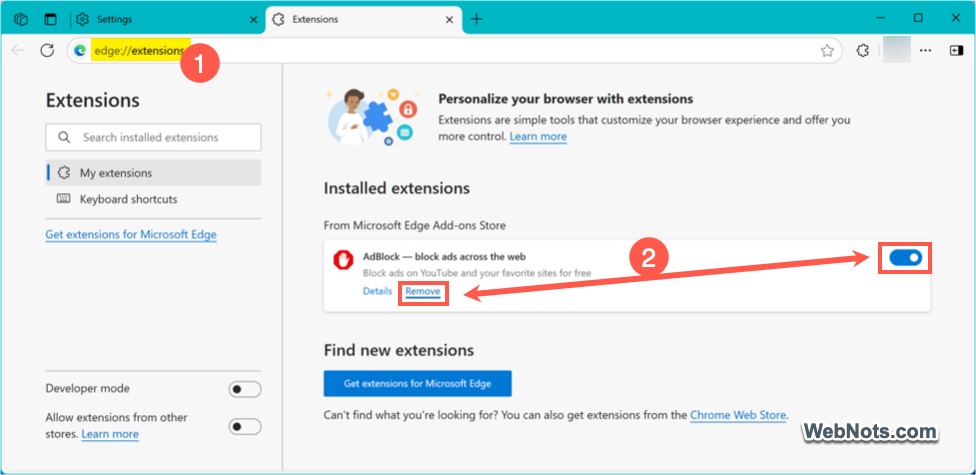
- Go to edge://extensions/ page.
- Disable or remove all the extensions that you no longer need.
4. Adjust Startup Boost Settings
Startup Boost keeps Edge running in the background, allowing it to launch faster. While this improves load times, it can consume more RAM.
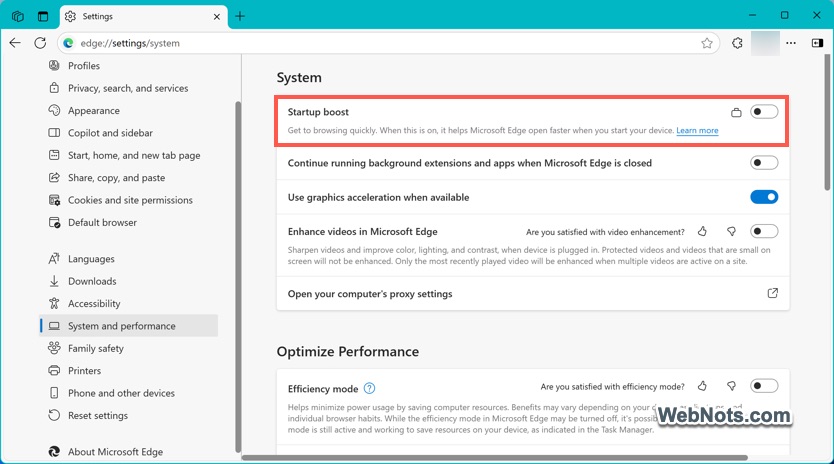
- Go to “Edge Settings > System and Performance” section.
- Toggle off “Startup Boost” option under “System” heading.
5. Clear Cache and Browsing Data
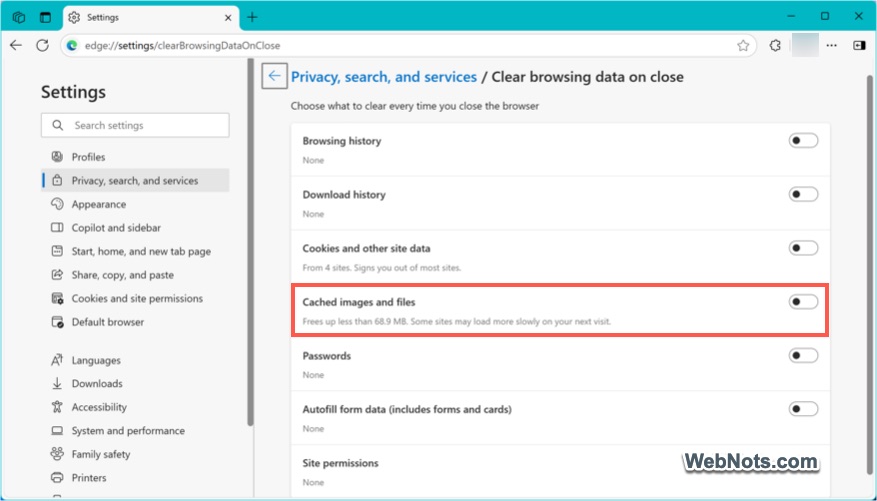
Over time, Edge stores cached files that can increase memory usage. Regularly clearing cache and cookies can help free up RAM. Good thing is that it can be done automatically whenever you close the Edge browser.
- Go to Edge “Settings > Privacy, Search, and Services” section.
- Scroll down to “Delete Browsing Data” heading and click “Choose what to clear every time you close the browser” option.
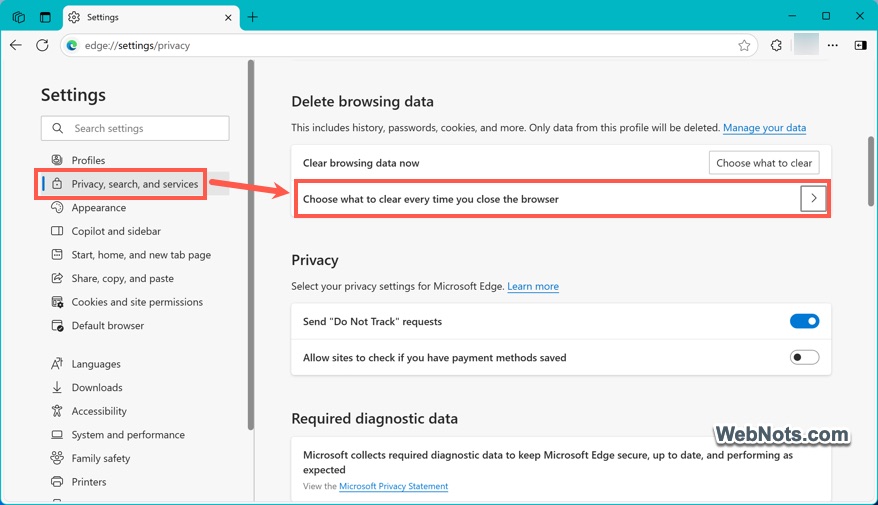
- Select “Cached images and files” and any other data you want to delete.
Final Thoughts
You can simply go to Edge Settings page and allocate the maximum amount of RAM for the browser to use. If you notice this is a rigid option that affects your browsing (like when playing browser games), use other explained options to adjust the memory usage.